Pet Waste Bag Dispenser

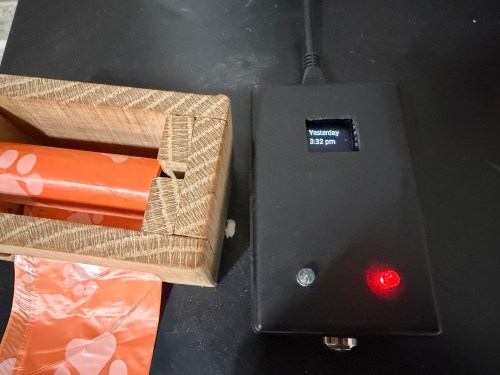
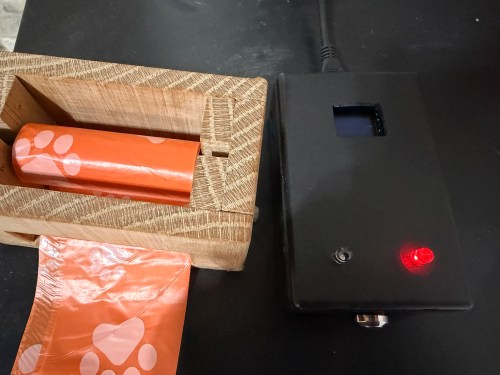
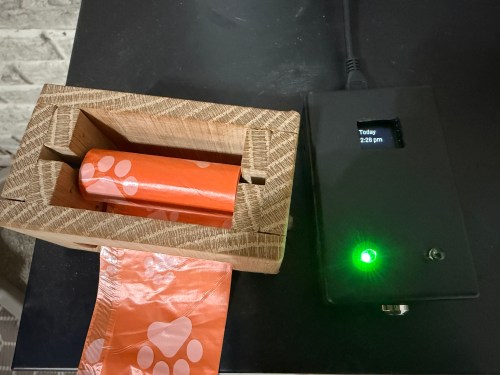
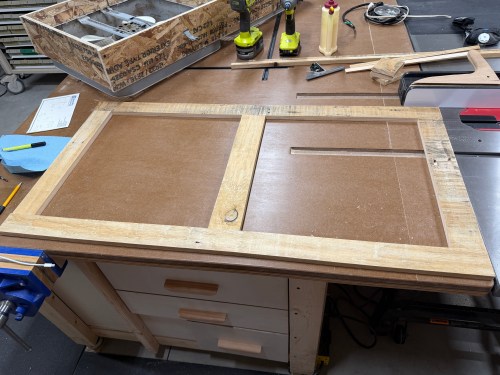
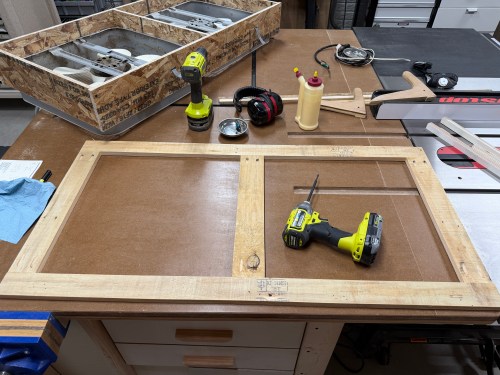
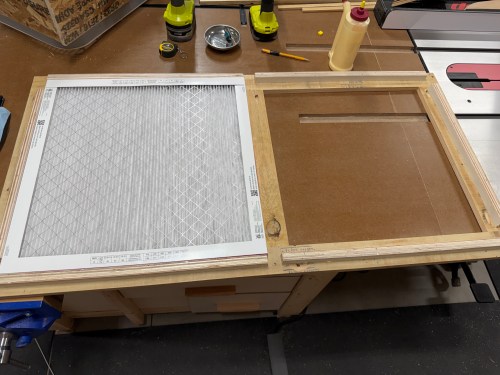
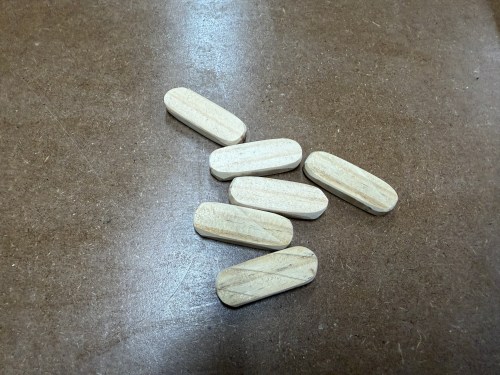
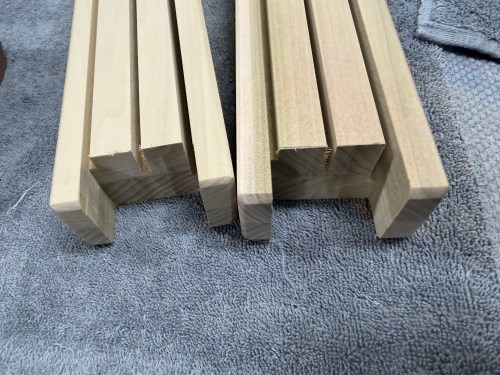
We use those small pet waste bags when cleaning out the cat litter and just throw the roll on a cabinet.

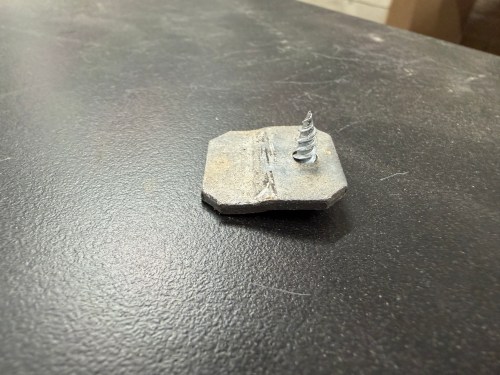
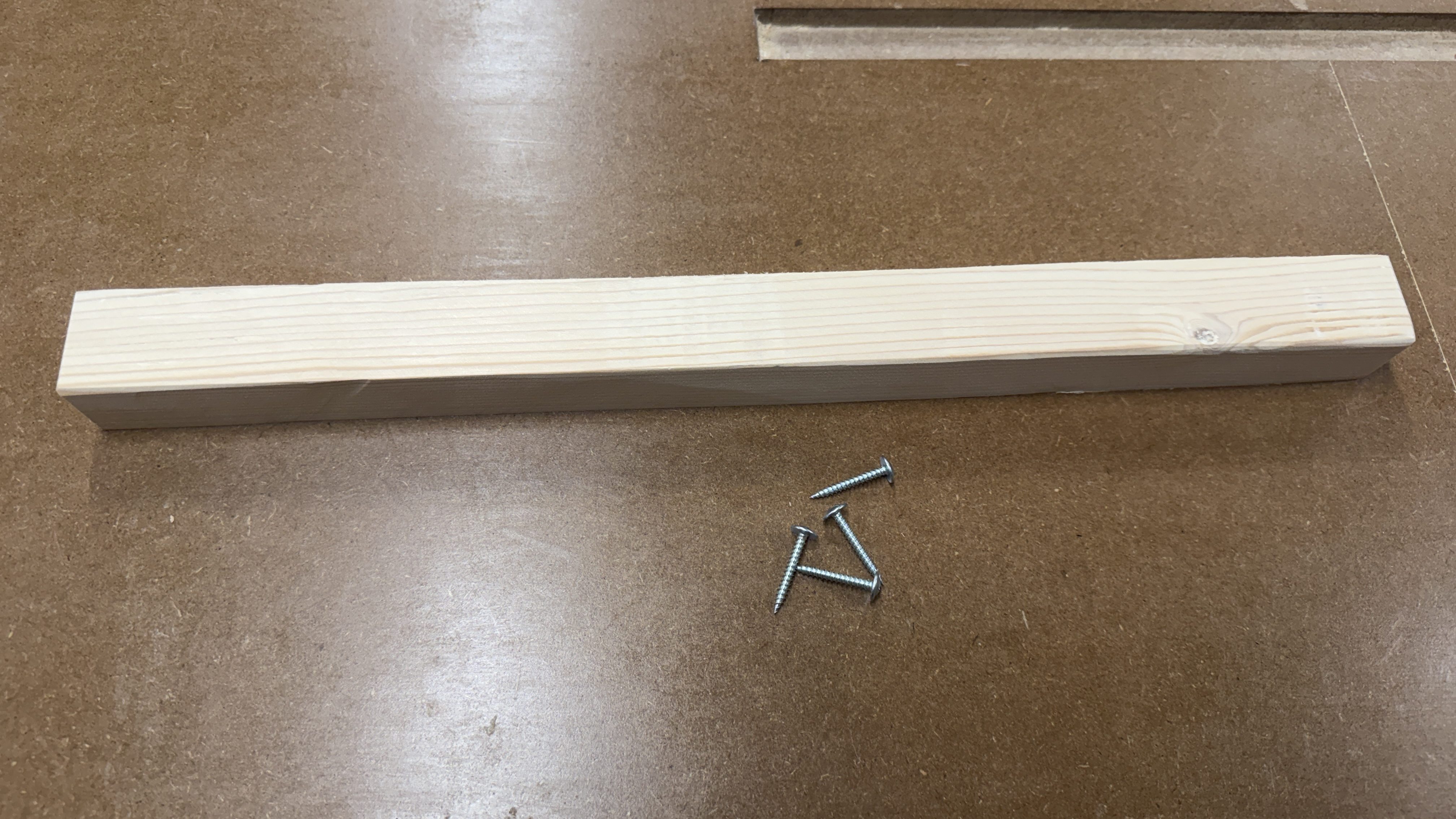
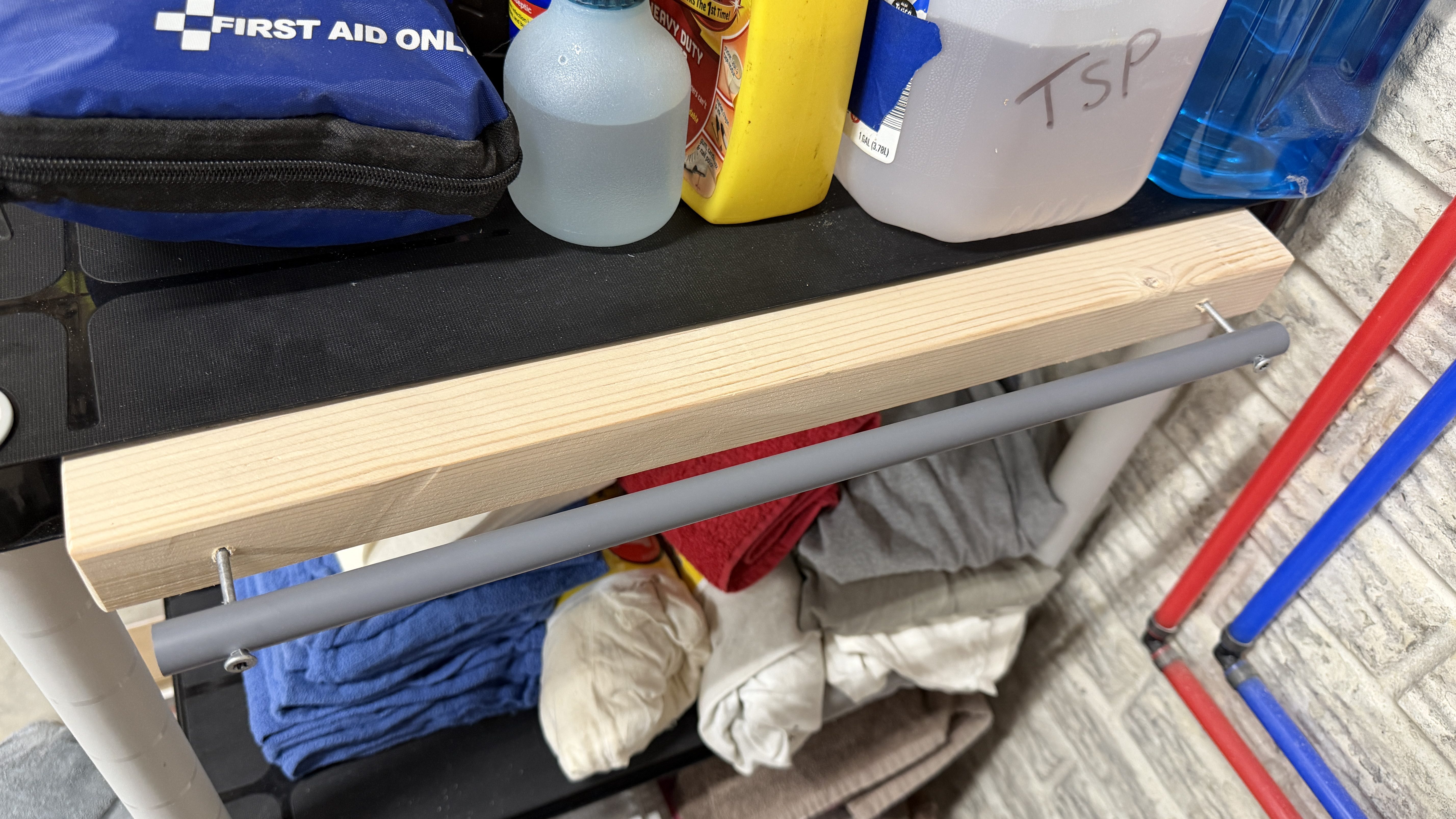
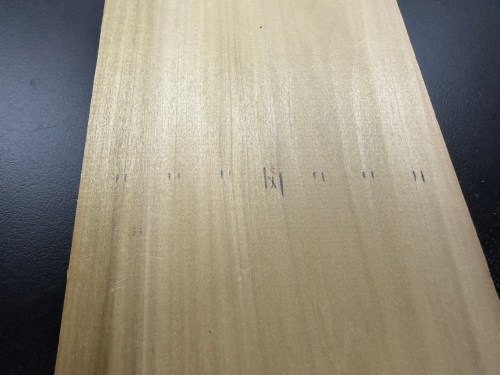
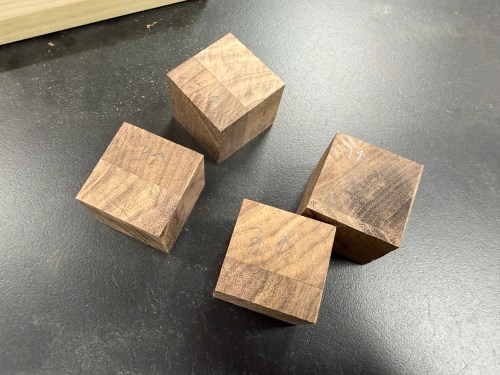
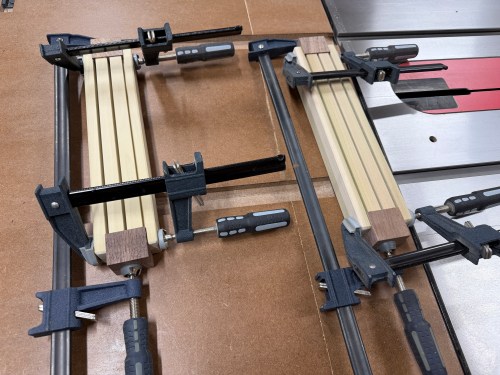
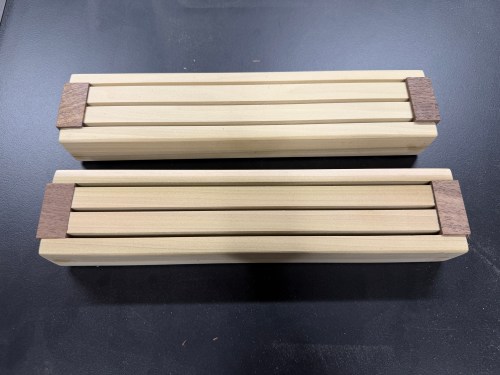
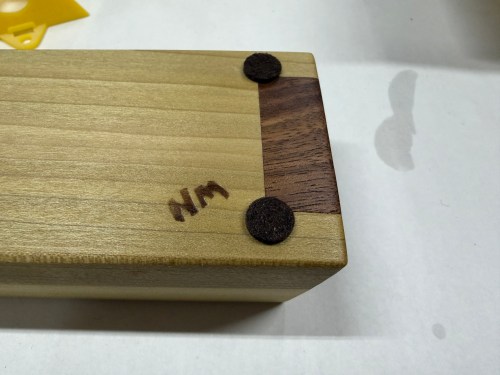
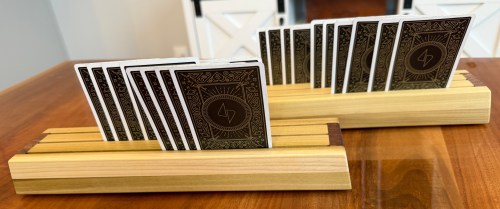
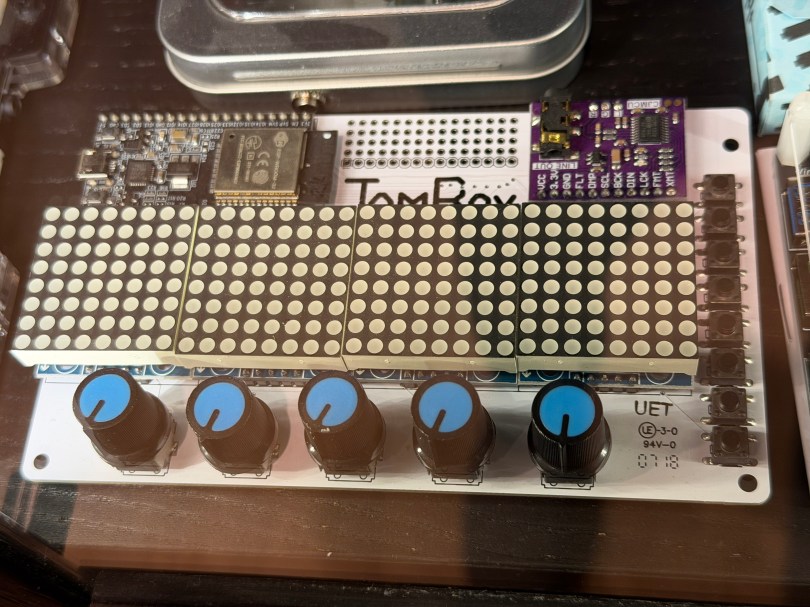
I’ve thought about making a holder/dispenser for quite awhile and decided to do it this weekend. I picked a piece of oak from my scrap bin to cut all of the pieces from. It was a quick, crude build. I snipped the ends off a nail for the pin and glued a couple of magnets in the bottom, since the cabinet is metal.

Does the job!

Storage for a Ryobi Framing Nailer and Narrow Crown Stapler

Quick build this weekend to expand my Ryobi tool storage wall (which moved to the new workshop) with spots for the framing nailer I got last year to build the shop wall and a narrow crown stapler I recently bought on sale.

As I’m writing this and seeing the pictures, I butt jointed the back and bottom incorrectly, which is why it’s too tall and not deep enough to match up with the old spots. Oh well!

It’s great to be back in the shop again and getting it more organized.

Outfeed Assembly Table – Part 2

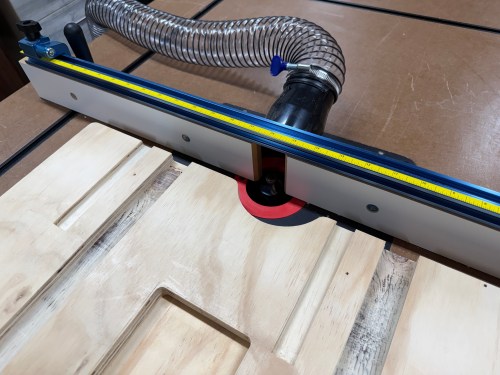
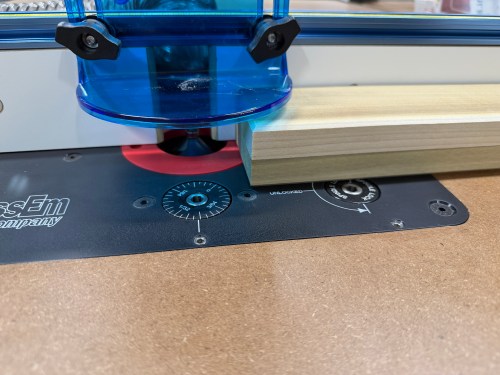
To keep the momentum going from part 1, I started the next phase of the build. This phase is the router station. I bought the Bosch 1617EVS router to use in a JessEm Mast-R-Lift II, with a POWERTEC 32″ fence. I also bought 2×48″ of T-track with four hold down clamps and a four pack of intersection kits.

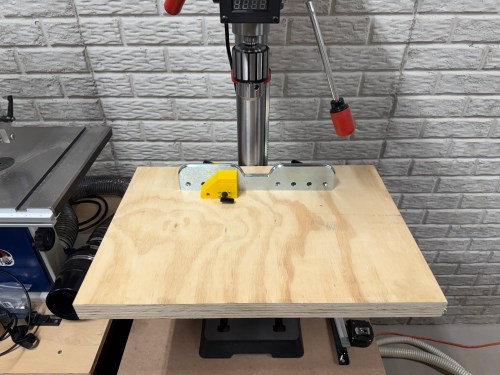
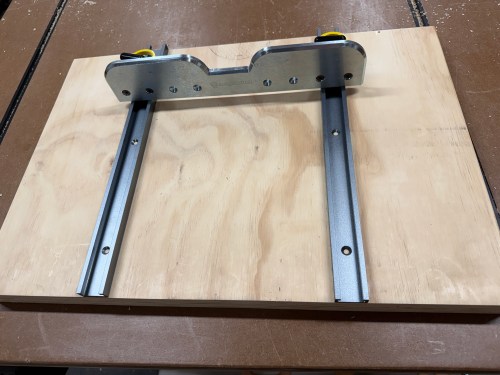
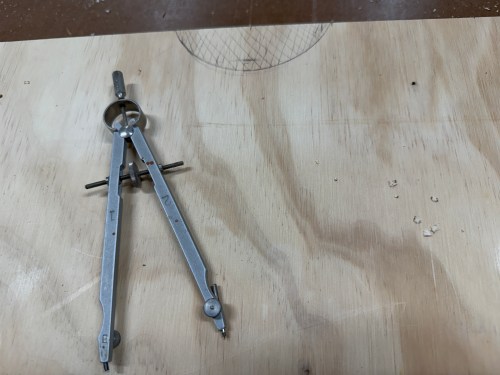
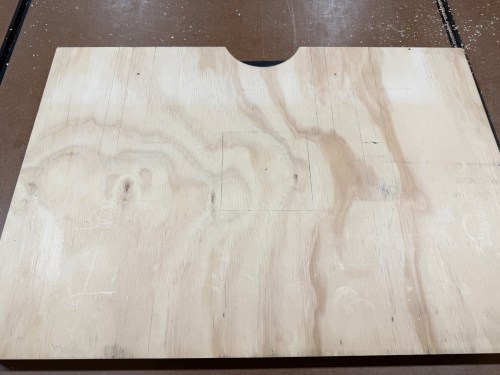
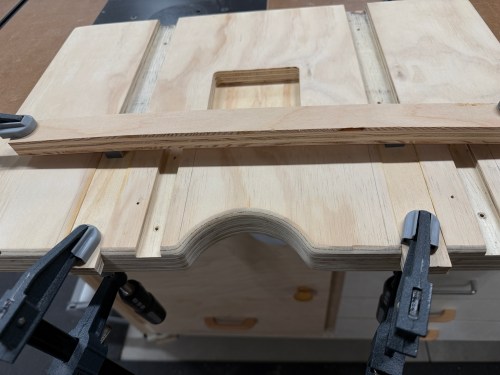
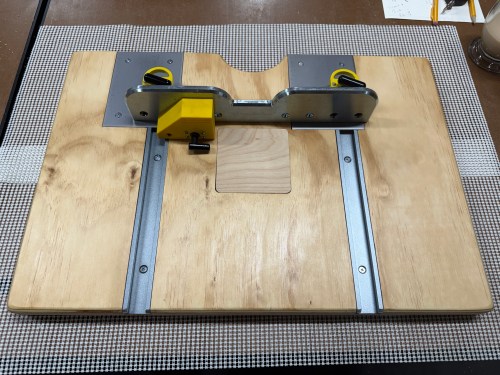
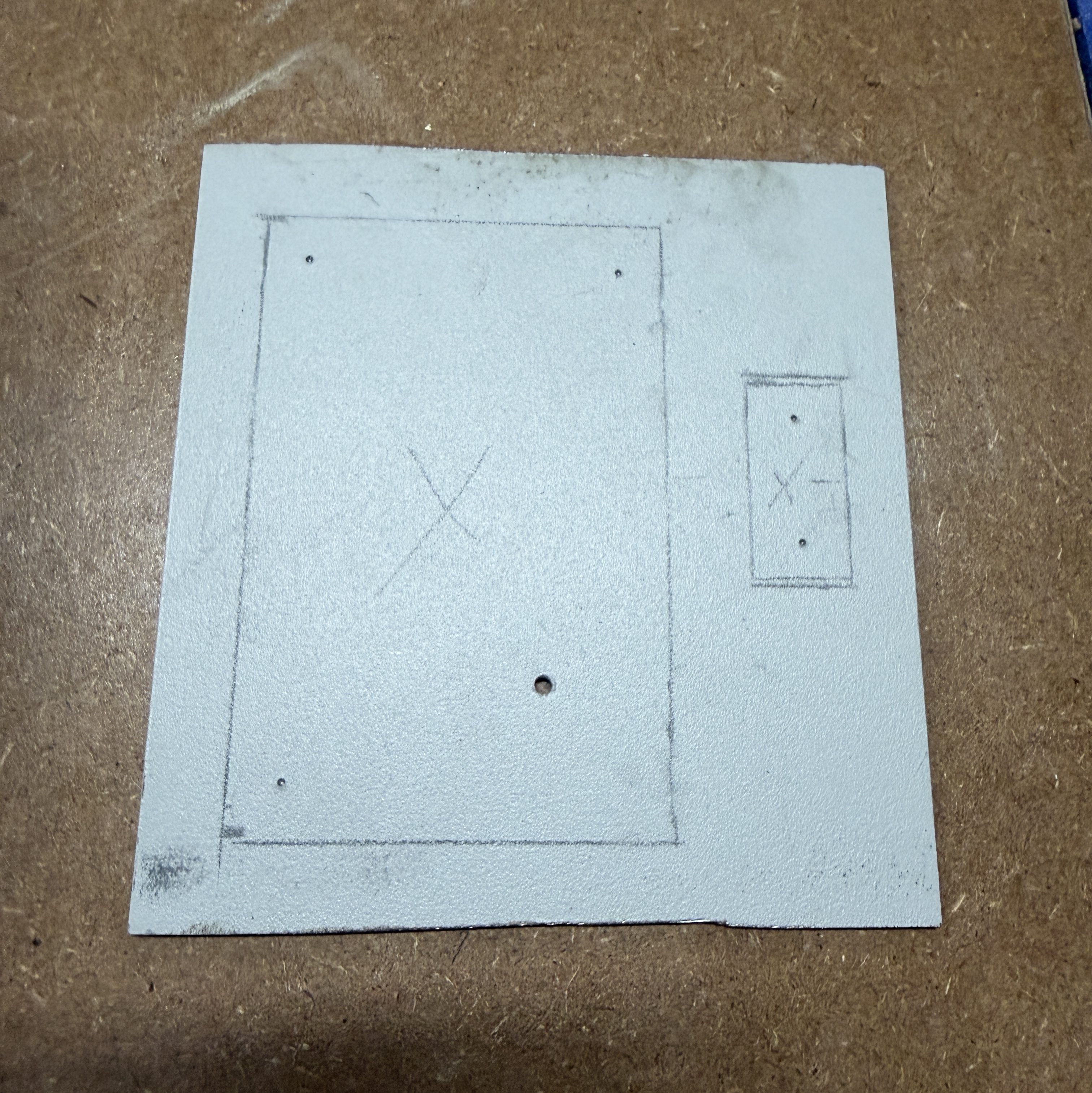
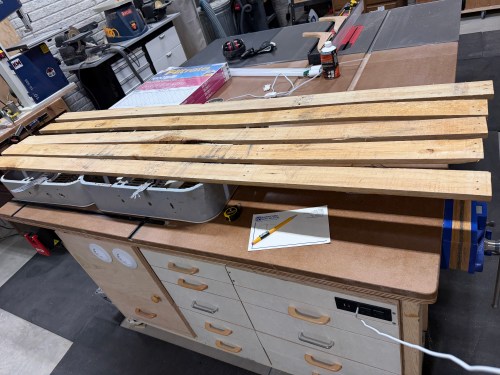
First, I had to figure out exactly where to install everything. I placed the fence and lift (upside down) on the table to get a feel for it. Then I outlined the lift and drew in the T-tracks.

Router station setup with a lift and fence on a work table, showing precision tools and measuring instruments.

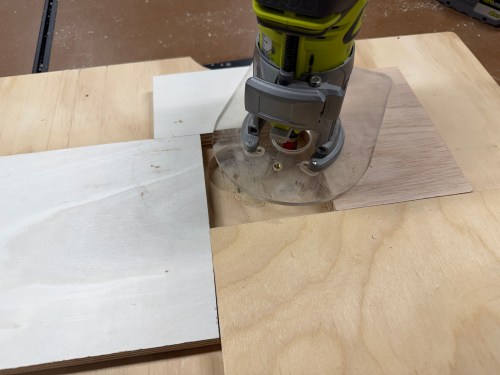
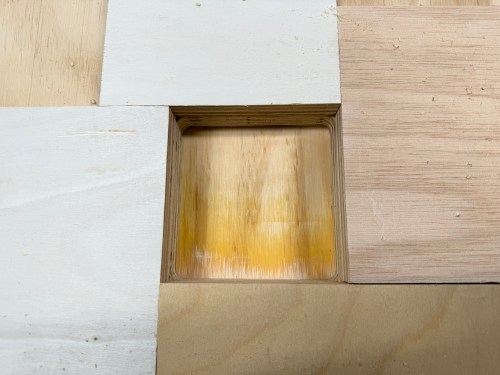
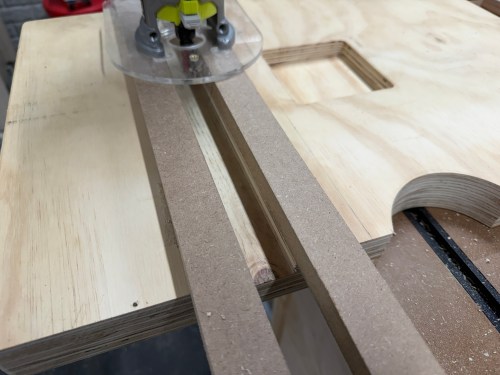
I cut a spacer equal to the distance from my router base to a 3/8″ straight bit. Then I used double-sided tape to secure the border pieces. I removed the material in two passes and cut out the middle with a jig saw. The radius on the corners was much larger than the router bit, so I free-handed those up to the pencil marks.

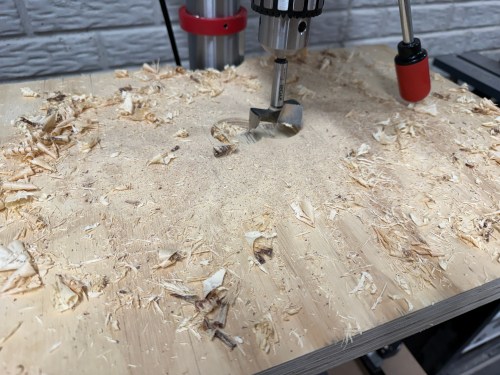
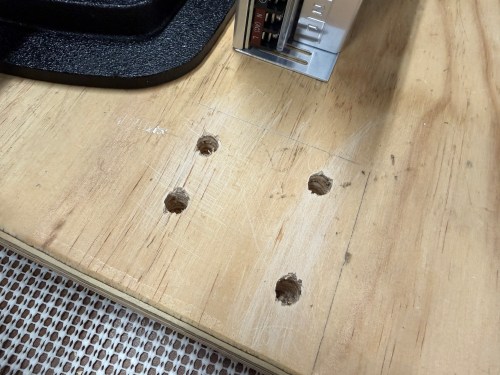
I installed threaded inserts for the four bolts that secure the lift. Yet my centering was off, so it didn’t work out. I removed the inserts and drilled through to use longer bolts with a washer and nut under the table. I had to drill a recess in the bottom because I couldn’t find long enough bolts.

Close-up of a circular hole cut into a wooden surface, showing wood fibers and some markings around the edge.

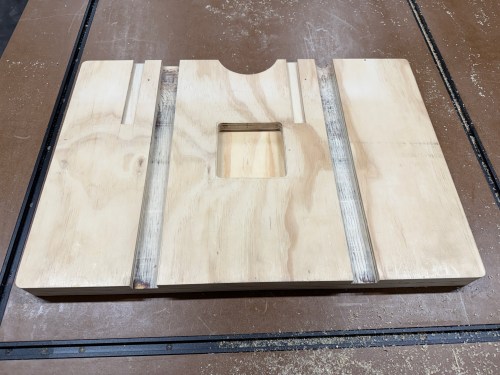
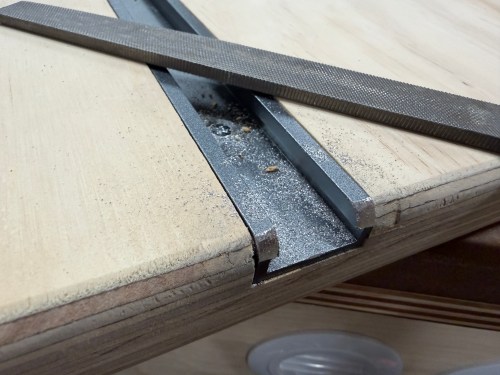
Setting up to route the first T-track took a long time, like when I did the miter slot extensions. I got faster with each one, as I figured out a process and all of the spacing. That same spacer came in handy, as well as pieces of the T-tracks. I measured and cut all of the T-tracks.

I sanded the top and edges with 80 grit using my random orbital sander .Then I applied four coats of Zinsser Bulls Eye Shellac. A day later I did a light hand sanding with 220 grit and applied paste wax.

A good router table needs dust collection and here are the parts I used for mine:

I had to build a cabinet to enclose the router lift, plus a drawer underneath. Due to the table’s frame and a need for the left side, I sketched out a plan. I was making a big version of the L-shaped Tetris piece.

Hand-drawn sketch of a cabinet design with labeled parts and notes, including measurements and assembly details.

The assembly had to be done inside the frame, due to the cabinet nesting up through the frame. After getting plywood to size, I cut various holes, attached 22″ drawer slides, routed a recess for the dust hood, and drilled pocket holes. It all screwed together quickly.

Of course, when using the jig saw, I accidentally cut in to the new table top! I’m the only one who does this, right?
Close-up of a saw cutting through a wooden surface, showing fine wood shavings and a Bosch blade.

I caulked everywhere inside the dust box. Then I cut a door, mounted hinges, added a magnet close, and used weather stripping to seal it. The door got a hole with a vent cover to supply fresh air to the router and dust collection system. After some use I’ll see if I need to add a second vent. I mounted the lift, leveled it to the table, and bolted it in. The lift doesn’t came with a blank insert, so I bought one from an Etsy store.

Update: I did end up adding a second vent.

I cut all the pieces for the drawer, cut a rabbet where the bottom would slide in, and drilled pocket holes. Then I glued and screwed it together. Attached a drawer face and mounted a handle.

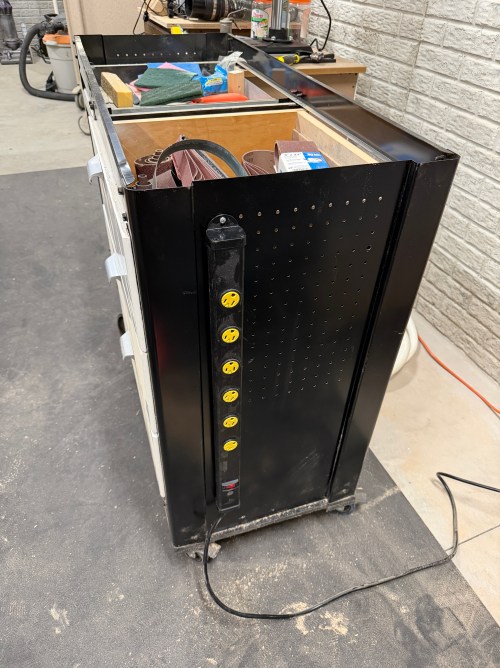
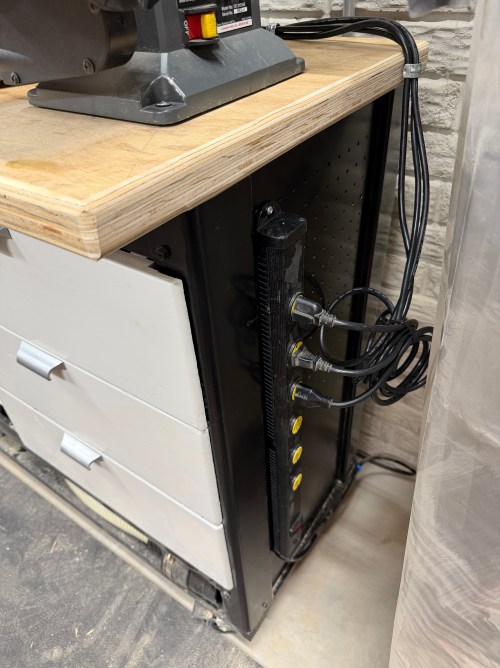
Along the left side of the table, I installed my paper roll dispenser. A 90° and then a Y-fitting connect to the dust hood. A 2.5″ blast gate is attached to the other side of the Y, for a hose up to the fence. The power cord went through a 2″ Desk Grommet on the back side. I screwed a POWERTEC Paddle Switch to the front. These switches makes it quick and easy to turn off the machine with my knee. I put in a recessed power strip with USB ports. Then I clipped in the wires and mounted a heavy duty surge protector power strip. This allows me to plug in the table saw as well.

The final thing was to lower the castor feet to raise the table up to the saw.

A woodworking table with a level placed on top, showing the setup for a router station, including a saw and T-track system in a workshop.

It’s so nice to have a large table table in the shop and I’m excited for the router, where it’s easy to use and always ready. Here are some more pictures.

There are the other accessories I bought for the router station, some of which can also be used at the table saw:

It’s going to be a bit until I finish, since I’m having hernia surgery this Friday. When I get the “go ahead” from the doc I’ll finish the rest of the storage space under the table.

Outfeed Assembly Table – Part 1

When we moved to the new house, I disassembled my workbench with the plan to build one for the new workshop. More than a year later I was still using the old top on sawhorses and everything I bought for the build was piled up in the corner.

The planning notes and ideas I made last year were a good starting point. I took a bunch of measurements, adjusted to account for the motor when tilting the table saw blade, and mapped it out with blue tape. Made more adjustments, cut all of the pieces from 2x4s, and assembled the frame with 3″ screws. I’ve learned my lesson about not using glue for shop furniture because it’ll likely get taken apart in the future. By only using screws I can reuse the materials when an improved replacement gets made.

The castors I bought double as adjustment feet, making it easy to raise the height up to the table saw and will make the table stationary 99% of the time.

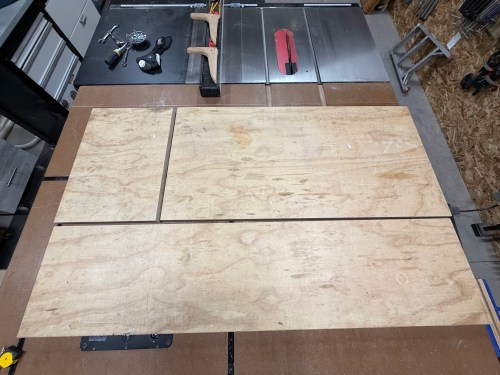
I cut plywood and MDF, then laminated them together, using screws for clamps. Since my top was going to be 66×54″ I had to splice in a six inch strip of each.

After the glue dried I removed all the of screws and got it up on the frame. Then I checked the height of my table compared to the table saw and it was going to work out well. With the blade at 45° and all the way down it was extremely close to the table top though.

When maxing out the blade height the motor raised about an inch. So I created a clearance pocket with the router.

I added a couple more vertical supports along the back of the frame and cut scrap shiplap panelling to rigidify it and close it up.

I trimmed all of the edges to size. There was a small gap between the spiced sections of MDF, so I used wood filler.

One inch corner braces with 1/2″ screws were used to attach the top to the frame.

The miter slots were extended from the table saw. I made them wider and slightly deeper, so the outfeed table placement won’t need to be too exact.

For my vice, I bought a Yost 9″ quick release vice. To mount it I had to remove part of the frame and add blocking.

I realized I should finish up the edges of the table, so I quickly rounded the corners, sanded the edges, and added a roundover.

Then I mounted the vice and cut oak for the jaws. To finish it I attached cork rubber with 3M Hi-Strength 90 spray adhesive.

Look at this beauty! So much room for projects and a space underneath for storage.

Continue to Outfeed Assembly Table – Part 2, which is where I add a router station, complete with dust collection.

DIY Bird Spikes

We noticed a robin trying to build a nest on top of our back patio’s security camera. I wasn’t going to let that fly, but after seeing how much is costs to by 20x the amount of bird spike I needed, I made my own. I cut a scrap piece of aluminum, drilled holes in it, added nails, and held them in place with double-sided tape. I wasn’t confident it would hold, so I used zip ties.

DIY Gate Sensor for Home Assistant

In our basement we have a baby gate, which surprisingly keeps our cat out of the gym and golf sim areas.

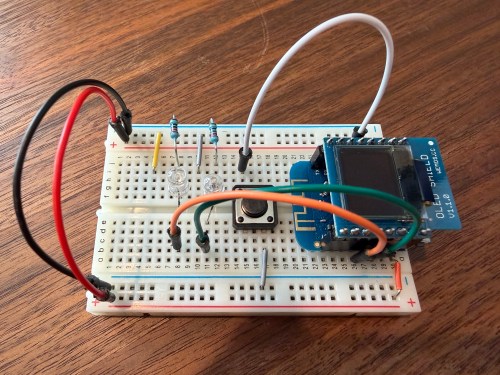
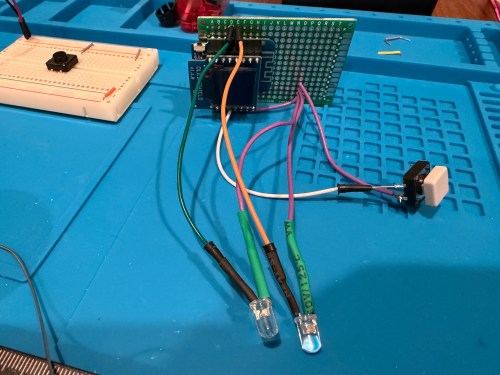
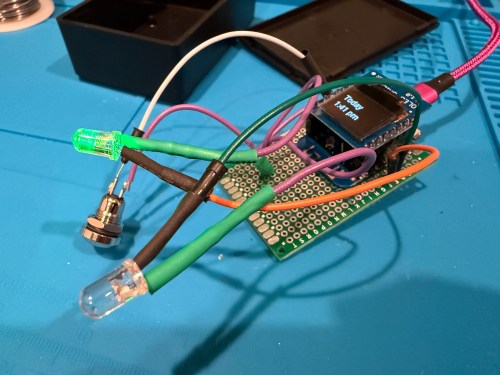
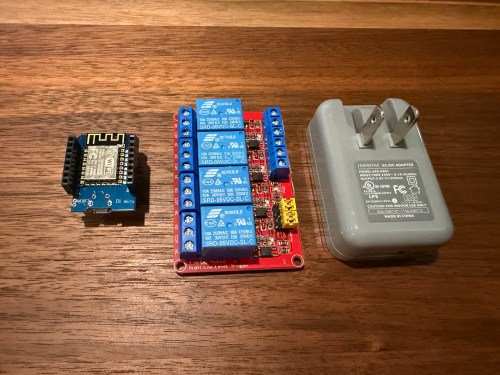
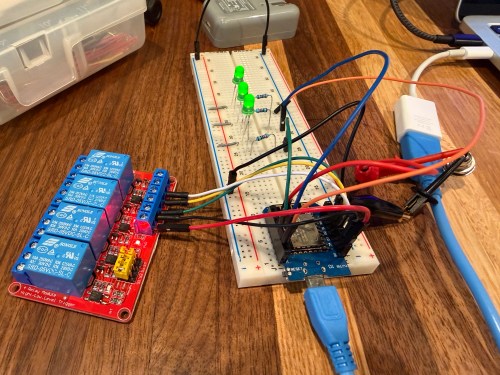
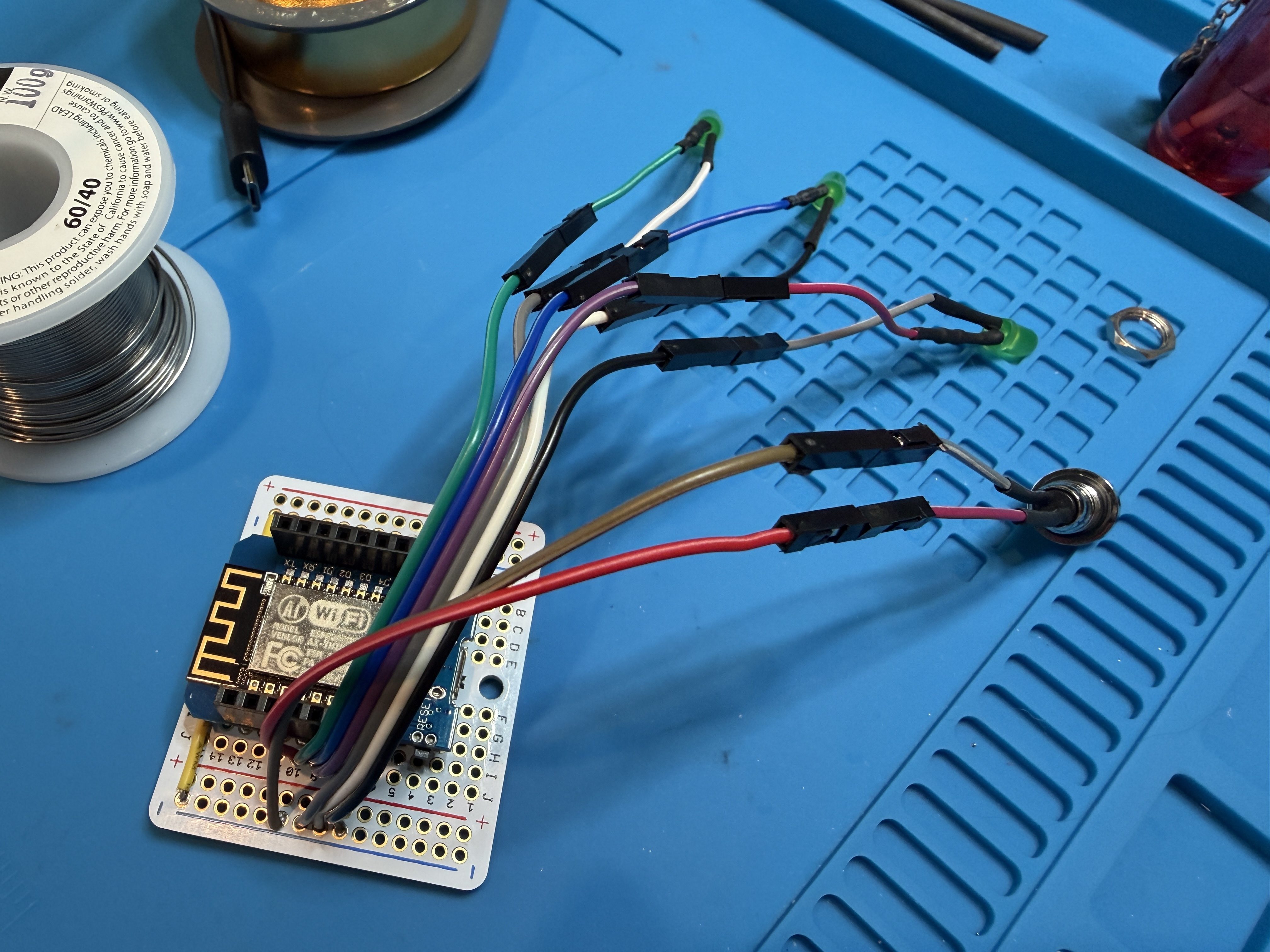
Sometimes we forget to close the gate, so I needed a sensor to monitor its state. I still had the breadboard from the air quality monitor project, so it was quick to add a magnetic door switch and test things out with the D1 Mini clone.

I have extra sensors, so those were kept in the project and allowed me to get rid of the shitty DHT22 I added to the golf remote. Everything worked, but I want to save my last two D1 minis and use them for something with the screens I have for them. So I swapped in an Adafruit Feather HUZZAH ESP8266, which I got with AdaBox 3 or 4 in 2017 and made minor changes to the code.

Parts:

References:

ESPHome YAML code:

substitutions:
  slug: gate
  friendly: Gate

esphome:
  name: ${slug}
  friendly_name: ${friendly}

esp8266:
  board: huzzah

logger:
  level: WARN

api:
  encryption:
    key: 'xxx'

ota:
  - platform: esphome
    password: "xxx"

wifi:
  ssid: !secret wifi_ssid
  password: !secret wifi_password
  manual_ip:
    static_ip: x.x.x.x
    gateway: x.x.x.x
    subnet: 255.255.255.0

i2c:

binary_sensor:
  - platform: gpio
    pin:
      number: GPIO14
      mode:
        input: true
        pullup: true
    name: ${friendly}
    device_class: door

sensor:
  - platform: htu21d
    model: SI7021
    temperature:
      name: Temperature
      id: ${slug}_temp
    humidity:
      name: Humidity
      id: ${slug}_humid

  - platform: aht10
    variant: AHT20
    temperature:
      name: AHT21 Temperature
      id: ${slug}_aht21_temp
    humidity:
      name: AHT21 Humidity
      id: ${slug}_aht21_humid

  - platform: ens160_i2c
    address: 0x53
    eco2:
      name: CO²
    tvoc:
      name: VOC
    aqi:
      id: demo_aqi
      name: AQI
    compensation:
      temperature: ${slug}_aht21_temp
      humidity: ${slug}_aht21_humid

text_sensor:
  - platform: template
    name: AQI Rating
    lambda: |-
      switch ( (int) ( id( ${slug}_aqi ).state ) ) {
        case 1: return {"Excellent"};
        case 2: return {"Good"};
        case 3: return {"Moderate"};
        case 4: return {"Poor"};
        case 5: return {"Unhealthy"};
        default: return {"N/A"};
      }

I also added this to my configuration.yaml because I wanted a gate icon instead of the door, due to the device class of the binary sensor:

template:
 - binary_sensor:
    - name: Gate
      unique_id: gate_template
      device_class: door
      state: "{{ is_state( 'binary_sensor.basementgate_gate', 'on' ) }}"
      icon: |
        {% if is_state( 'binary_sensor.basementgate_gate', 'on' ) %}
        mdi:gate-open
        {% else %}
        mdi:gate
        {% endif %}

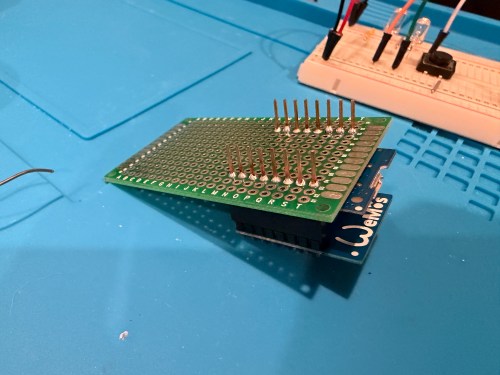
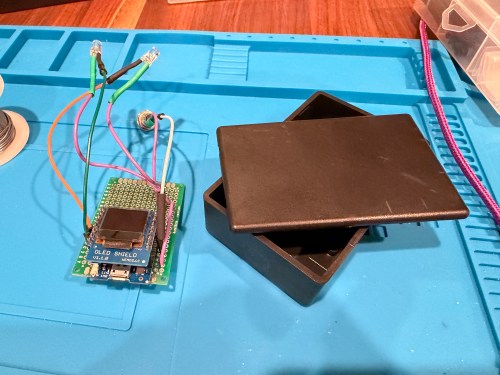
I figured I might as well use one of the fancy Adafruit Perma-Proto boards I had, which makes soldering all of the connections much easier. As a bonus it was nearly a perfect fit for the case.

The magnetic switch and Si7021 will live outside the box, so those couldn’t get soldered yet. After connecting power I checked the ESPHome logs to make sure everything was working.

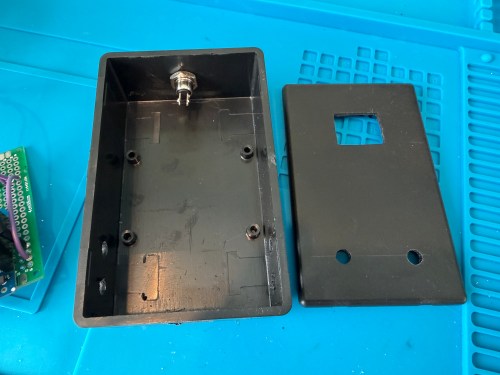
I cut holes in a project box, finished soldering, and used hot glue to secure the board..

I reversed the swing of the gate, placed my device, and attached the two sides of the magnetic switch to the gate.

In Home Assistant an automation runs whenever the stairs light is turned off to check the state of the gate. If it’s open, a notification is sent to our phones.

I’m enjoying these little electronics projects, and it feels good to finally put various parts to use.

DIY Air Quality Monitors for Home Assistant

The upgraded IKEA air quality monitors I did work great, but the LED indication isn’t great for a bedroom and the fan noise was annoying in my office. So I wanted to create a couple of my own devices for those locations. I used:

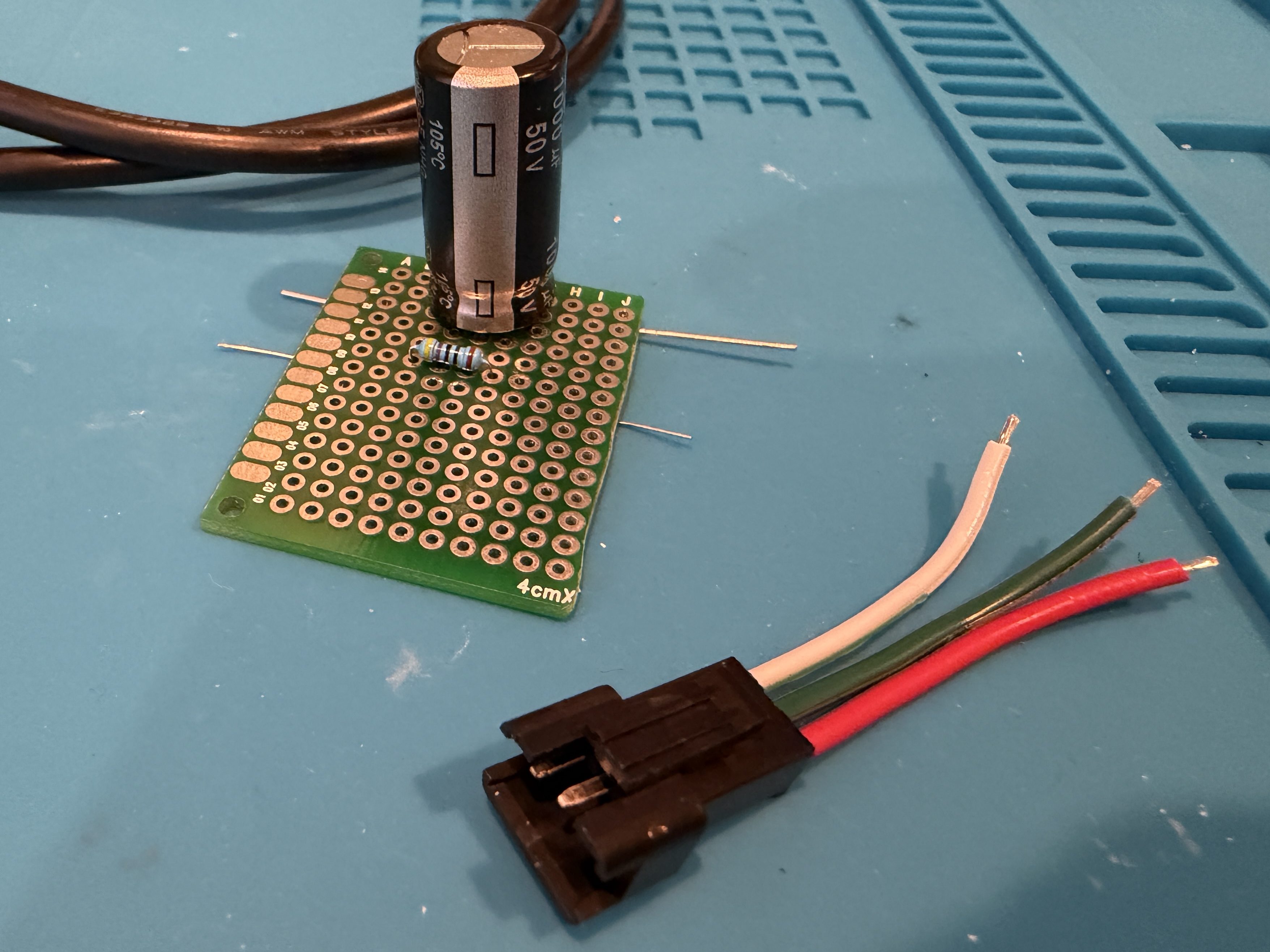
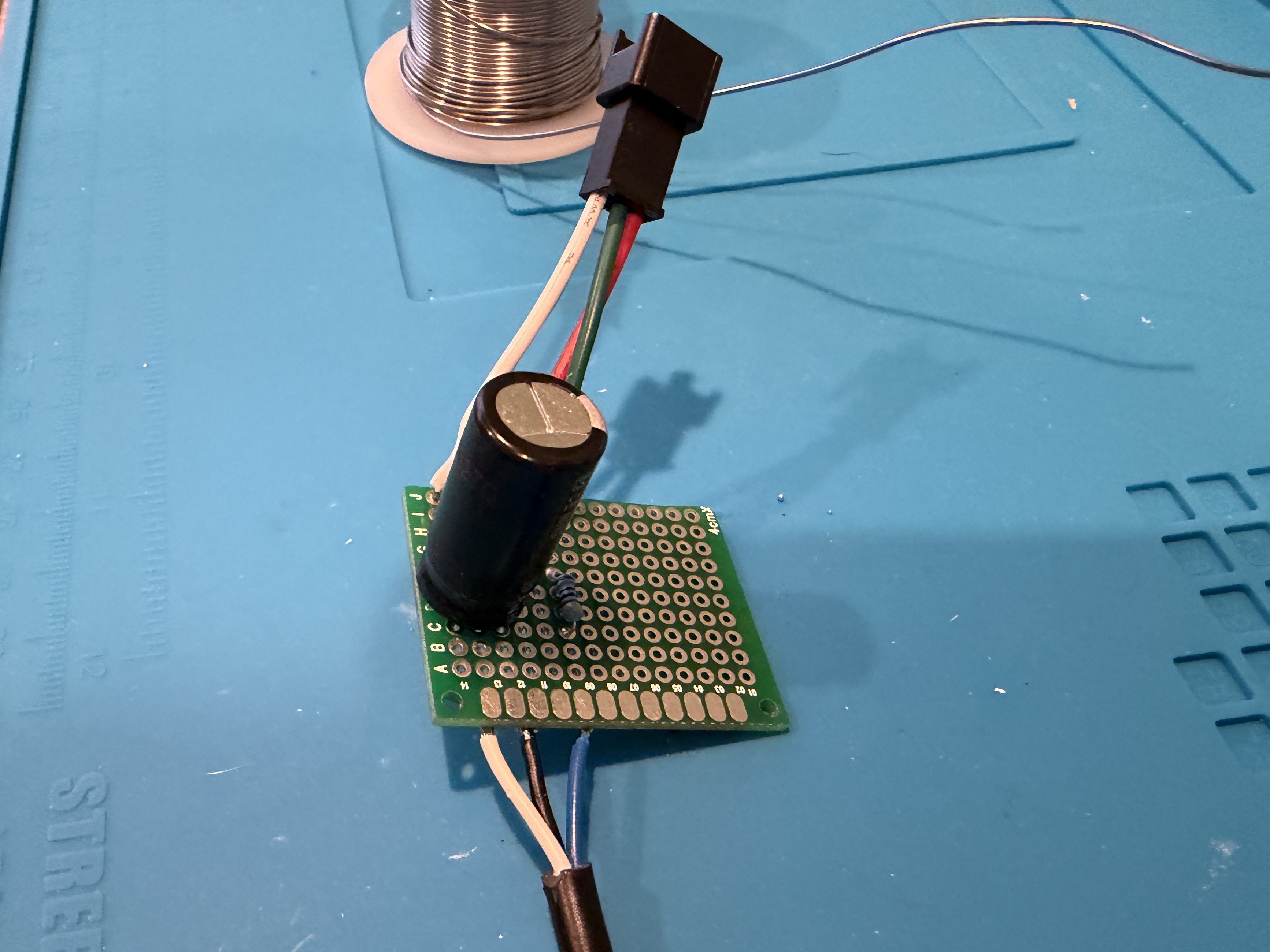
The SEN50 is a big upgrade over the PM sensors used in the IKEA devices and I used the Si7021 in place of the BME280 I had used because I think they’re a bit better. I soldered 47µF electrolytic capacitors from a big kit I’ve had (similar on Amazon) to the ENS150 modules to improve their power.

Then I attached 5 of the crimped wires to a 6P JST connector, which is what the SEN50 modules require. I’m note sure why buying the actual cable for these SEN50s are so expensive, but I got the entire JST kit for cheaper than a couple of the special cables.

All three sensors communicate with the microcontroller over I²C, so a breadboard test was easy to wire up. The SEN50 does require 5 volts instead of 3.3, so I’m glad I checked.

The ESPHome YAML code is very similar to the code used for the modified IKEA air quality monitors.

substitutions:
  slug: demo
  friendly: Demo

esphome:
  name: ${slug}-wemos-d1
  friendly_name: ${friendly} Wemos D1

esp8266:
  board: d1_mini

logger:
  #level: WARN

api:
  encryption:
    key: 'xxx'

ota:
  - platform: esphome
    password: "xxx"

wifi:
  ssid: !secret wifi_ssid
  password: !secret wifi_password
  manual_ip:
    static_ip: xxx
    gateway: xxx
    subnet: 255.255.255.0

i2c:
  frequency: 50kHz

sensor:
  - platform: sen5x
    pm_1_0:
      name: PM 1µm
      accuracy_decimals: 0
    pm_2_5:
      name: PM 2.5µm
      accuracy_decimals: 0
    pm_4_0:
      name: PM 4µm
      accuracy_decimals: 0
    pm_10_0:
      name: PM 10µm
      accuracy_decimals: 0

  - platform: htu21d
    model: SI7021
    temperature:
      name: Temperature
      id: ${slug}_temp
    humidity:
      name: Humidity
      id: ${slug}_humid

  - platform: aht10
    variant: AHT20
    temperature:
      name: AHT21 Temperature
      id: ${slug}_aht21_temp
    humidity:
      name: AHT21 Humidity
      id: ${slug}_aht21_humid

  - platform: ens160_i2c
    address: 0x53
    eco2:
      name: CO²
    tvoc:
      name: VOC
    aqi:
      id: demo_aqi
      name: AQI
    compensation:
      temperature: ${slug}_aht21_temp
      humidity: ${slug}_aht21_humid

text_sensor:
  - platform: template
    name: AQI Rating
    lambda: |-
      switch ( (int) ( id( ${slug}_aqi ).state ) ) {
        case 1: return {"Excellent"};
        case 2: return {"Good"};
        case 3: return {"Moderate"};
        case 4: return {"Poor"};
        case 5: return {"Unhealthy"};
        default: return {"N/A"};
      }

These resources helped out:

The project boxes had some standoffs on the bottom, which I snipped off and then sanded with a rotary tool. I pulled out my box of proto boards and found a size almost exactly double what I needed, so I cut out a sliver and ended up with a piece for each box. I also cut vent holes for the SEN50 sensors.

In order to get everything to fit I decided to put the microcontroller on the bottom of the board. After mocking things up I did all of the soldering. I was hoping to be able to mount everything with connectors so it could easily be taken apart, but there wasn’t enough room and I didn’t want bigger boxes.

I did some continuity testing along the way and everything worked when I connected power. With the boards ready I cut more access and ventilation holes in the boxes.

I soldered the Si7021 on to its wires outside of the enclosure so it wouldn’t be exposed to unnecessary heat and used hot gun to secure everything.

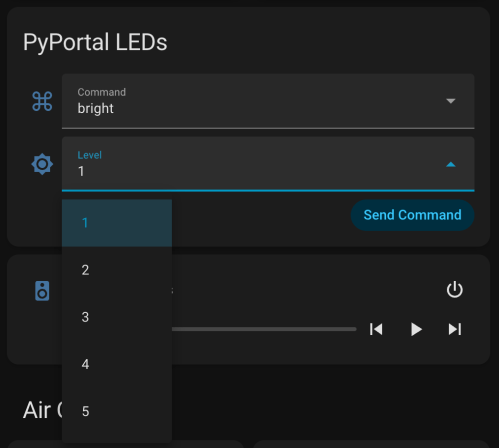
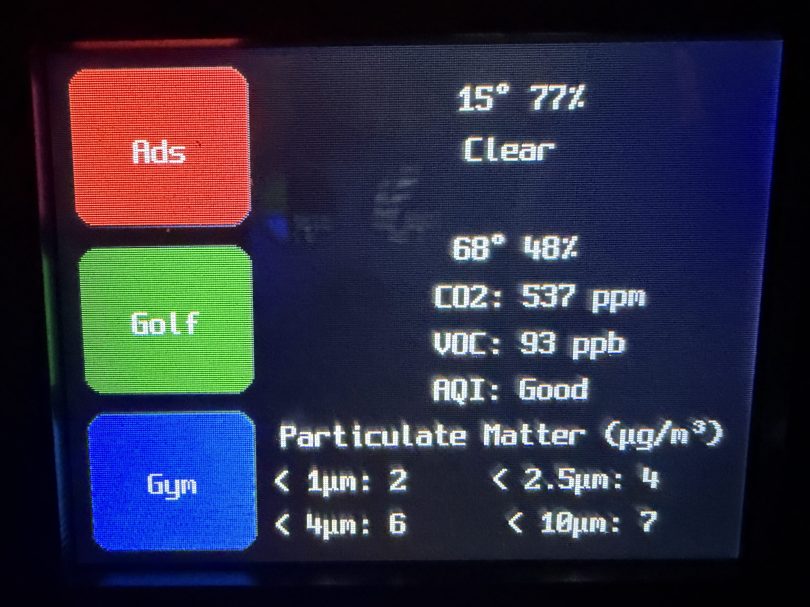
I’m really happy with how these turned out. Here’s a view of the office data on my Home Assistant dashboard.

This was definitely a project where I wished I had a 3D printer to design custom boxes. Some day, when I’m caught up on my project list and can give it proper attention. I know if I get one now I’ll spend a ton of time with it and neglect other projects in my pipeline.

Home Assistant Air Quality Monitors from IKEA Vindriktning

IKEA recently discontinued Vindriktning, their older air quality monitor.

Inside the device, they put a cubic PM1006K particle sensor. I bought three for $16.95 each last year, because I’d seen people hack them by adding sensors and a Wi-Fi microcontroller to send all of the data to Home Assistant. For my modding I bought:

The YouTube video linked above is a great guide to follow. I didn’t connect wires to the fan or the light sensor since I had no use for them. I also didn’t stack my sensors because I wanted the BME280 to be outside of the enclosure, where it would be less affected by the heat produced by the ENS160 and D1.

Even with the sensor outside of the case, the BME280 still reads high, because it heats itself up. I actually tested different lengths of wires and placements of the sensor before realizing I was still going to have to adjust the data. An ESPHome filter made the adjustment easy, which I did individually for each unit after comparing to a mobile Ecobee thermostat sensor. This is the code from the unit for my shop.

substitutions:
  slug: shop
  friendly: Shop

esphome:
  name: ${slug}-air-quality
  friendly_name: ${friendly} Air Quality

esp8266:
  board: d1_mini

logger:
  level: WARN

api:
  encryption:
    key: 'xxx'

ota:
  - platform: esphome
    password: 'xxx'

wifi:
  ssid: !secret wifi_ssid
  password: !secret wifi_password
  manual_ip:
    static_ip: xxx
    gateway: xxx
    subnet: 255.255.255.0

i2c:
  frequency: 100kHz

uart:
  - rx_pin: D7
    baud_rate: 9600

sensor:
  - platform: pm1006
    pm_2_5:
      name: PM 2.5µm

  - platform: bme280_i2c
    address: 0x76
    temperature:
      name: Temperature
      id: ${slug}_temp
      filters:
        - offset: -3.38
    humidity:
      name: Humidity
      id: ${slug}_humid
      filters:
        - offset: 7.63
    iir_filter: 16x

  - platform: aht10
    variant: AHT20
    temperature:
      name: AHT21 Temperature
      id: ${slug}_aht21_temp
    humidity:
      name: AHT21 Humidity
      id: ${slug}_aht21_humid

  - platform: ens160_i2c
    address: 0x53
    eco2:
      name: CO²
    tvoc:
      name: VOC
    aqi:
      id: ${slug}_aqi
      name: AQI
    compensation:
      temperature: ${slug}_aht21_temp
      humidity: ${slug}_aht21_humid

text_sensor:
  - platform: template
    name: AQI Rating
    lambda: |-
      switch ( (int) ( id( ${slug}_aqi ).state ) ) {
        case 1: return {"Excellent"};
        case 2: return {"Good"};
        case 3: return {"Moderate"};
        case 4: return {"Poor"};
        case 5: return {"Unhealthy"};
        default: return {"N/A"};
      }

These resources were a huge help when I wired everything up and made changes to the YAML code:

Here is how I’m displaying the data on one of my Home Assistant dashboards.

As I was working on this project I knew I wanted a couple more air quality monitors around the house, which will be finished soon.

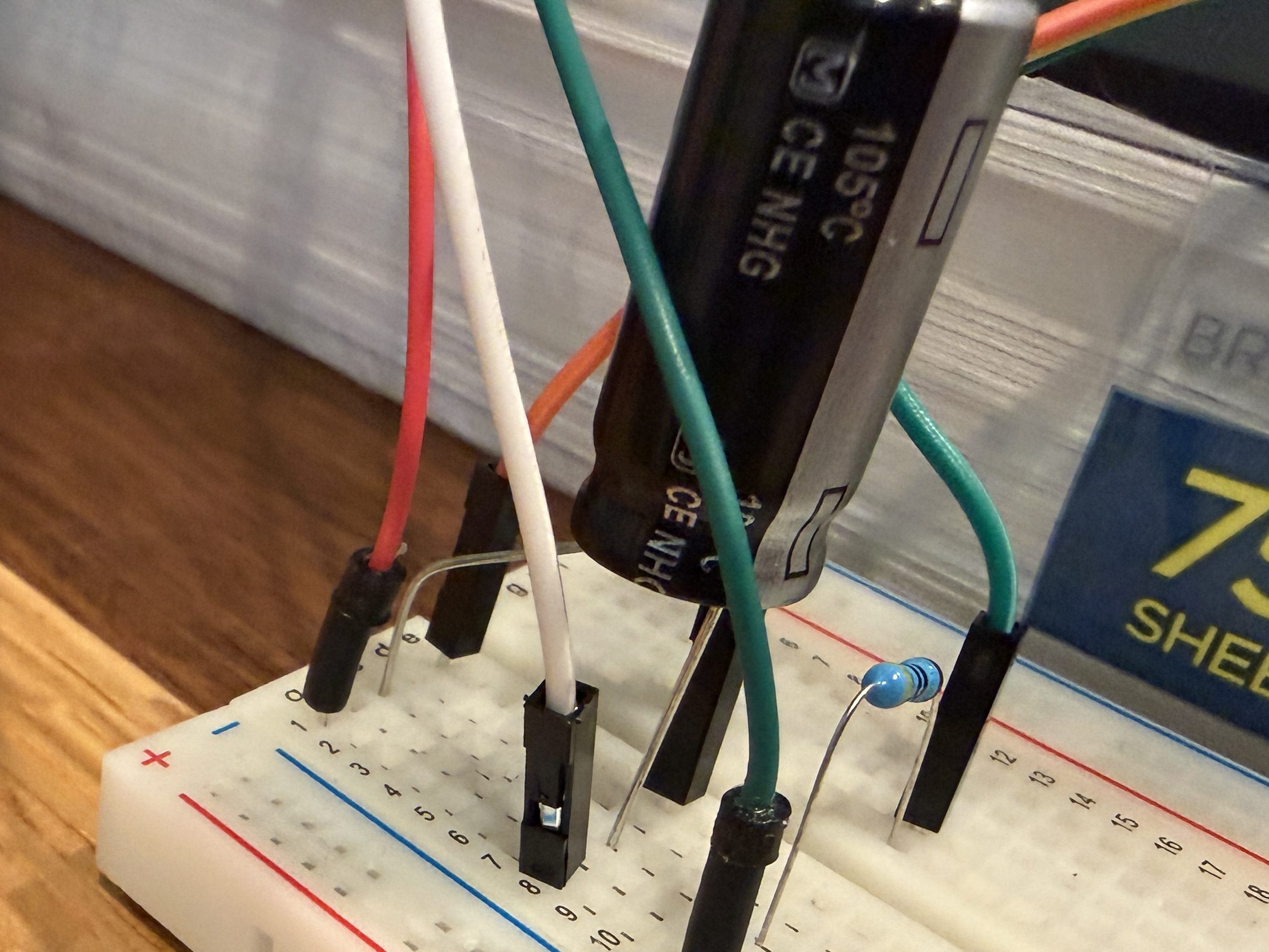
Update: I’ve had to make a small update by adding a 47uF capacitor to each ENS160 board, because they have power issues, causing the reading to stop for periods of time. My boards matched up with the right ones in the picture at that link. Here’s a picture of another ENS160 I modified, since it was a tight squeeze to made the modification on the devices I posted about here with everything already wired up. I also realized I was powering these through the 3V3 pin instead of VIN, so I fixed that.

I’ve also improved the display of the data on my dashboard by using mini-graph-card.

Creating an ESPHome Remote Control Device with Infrared & Radio Frequency

In order to automate the processes of getting the golf sim ready to play and shutting it all down when finished I needed to create a remote control device. I’m using Home Assistant (HA) to run my home smart system (more posts to come), but two things involved with the golf sim aren’t connected to the network:

The projector has an infrared (IR) remote and the light has a radio frequency (RF) remote. I’ve done some things with IR and still had a stash of IR LEDs (for transmitting) and receivers. I’ve never attempted any RF stuff, so I ordered a 5 pack of 433mhz wireless RF transmitter and receiver pairs.

Since I’m using HA, I let ESPHome handle all of the main programming. All I had to do was wire everything properly and get the configuration correct. I made use of an old ESP8266 NodeMCU microcontroller and worked on the IR aspect of the project first.

When I took the picture I was using a 470Ω resistor, which I eventually switched to 100Ω, to increase the strength of the IR signal. The transistor is a PN2222A. Here’s the ESPHome configuration:

esphome:
  name: golf-remote
  friendly_name: Golf Remote

esp8266:
  board: nodemcuv2

logger:

api:
  encryption:
    key: "xxxxxxxxxx"

ota:
  - platform: esphome
    password: "xxxxxxxxxx"

wifi:
  ssid: !secret wifi_ssid
  password: !secret wifi_password
  manual_ip:
    static_ip: x.x.x.x
    gateway: x.x.x.x
    subnet: 255.255.255.0

remote_receiver:
  - id: GOLF_IR_RX
    pin:
      number: D1
      inverted: True
      mode:
        input: True
        pullup: True
    dump: all

remote_transmitter:
  - id: GOLF_IR_TX
    pin: D2
    carrier_duty_percent: 50%

I used the receiver to intercept the codes sent by the projector’s actual remote when pressing the Power, Input, and OK buttons. Then I created some buttons.

button:
  - platform: template
    name: Projector Power
    on_press:
      - remote_transmitter.transmit_nec:
          transmitter_id: GOLF_IR_TX
          address: 0x3000
          command: 0xFD02
  - platform: template
    name: Projector Input
    on_press:
      - remote_transmitter.transmit_nec:
          transmitter_id: GOLF_IR_TX
          address: 0x3000
          command: 0xFB04
  - platform: template
    name: Projector OK
    on_press:
      - remote_transmitter.transmit_nec:
          transmitter_id: GOLF_IR_TX
          address: 0x7788
          command: 0xE619

It all went very smooth. Next I connected the circuits for the RF components, which was straightforward. Here are the pinouts from the Amazon product page.

I soldered on the antennas (smaller one to the transmitter) and connected everything on the breadboard.

By using examples from the documentation I was able to intercept RF codes.

When I tried to recreate those codes through the transmitter the results weren’t matching up and the spotlight wasn’t responding. It took some trial and error to configure the various parameters of the receiver. Here’s the end result, with the combined configuration for IR and RF.

esphome:
  name: golf-remote
  friendly_name: Golf Remote

esp8266:
  board: nodemcuv2

logger:

api:
  encryption:
    key: "xxxxxxxxxx"

ota:
  - platform: esphome
    password: "xxxxxxxxxx"

wifi:
  ssid: !secret wifi_ssid
  password: !secret wifi_password
  manual_ip:
    static_ip: x.x.x.x
    gateway: x.x.x.x
    subnet: 255.255.255.0

remote_receiver:
  - id: GOLF_IR_RX
    pin:
      number: D1
      inverted: True
      mode:
        input: True
        pullup: True
    dump: all
  - id: GOLF_RF_RX
    pin:
      number: D6
      mode:
        input: True
        pullup: True
    dump:
      - rc_switch
    tolerance: 50%
    filter: 250us
    idle: 4ms
    buffer_size: 2kb # only for ESP8266

remote_transmitter:
  - id: GOLF_IR_TX
    pin: D2
    carrier_duty_percent: 50%
  - id: GOLF_RF_TX
    pin: D6
    carrier_duty_percent: 100%

After using the remote_receiver instances to get the button press codes I needed, I commented out that section of the code. If I ever need to add more functionality to my remote, I can enable the receivers at that point. Here are the button codes for the spotlight.

  - platform: template
    name: Spotlight On
    on_press:
      - remote_transmitter.transmit_rc_switch_raw:
          transmitter_id: GOLF_RF_TX
          code: '111001000000100100000011'
          protocol: 1
          repeat:
            times: 10
            wait_time: 0s
  - platform: template
    name: Spotlight Off
    on_press:
      - remote_transmitter.transmit_rc_switch_raw:
          transmitter_id: GOLF_RF_TX
          code: '111001000000100100000001'
          protocol: 1
          repeat:
            times: 10
            wait_time: 0s
  - platform: template
    name: Spotlight Green
    on_press:
      - remote_transmitter.transmit_rc_switch_raw:
          transmitter_id: GOLF_RF_TX
          code: '111001000000100100000111'
          protocol: 1
          repeat:
            times: 10
            wait_time: 0s

Then I was able to use both sets of buttons in scripts, which can feed to Alexa for voice commands.

Once everything was tested I wired and soldered a more permanent circuitboard. I included a folded dollar bill for scale.

I was planning to mount it in the ceiling, but the IR was having trouble, because the projector’s receiver faces the ground. Mounting it to the side of the PC cart worked great.

This was a lot of fun!

Update: Less than a week later I’ve already modified it, by adding a DHT22, which reports temperature and humidity. Might as well use that empty D7 pin on the microcontroller.

Network Rack Cart

Part of our plan for the house included Cat6 Ethernet ports all over so I can wire in as many devices as possible and keep Wi-Fi for devices that need it. My original plan for the network rack was to build a cabinet on the wall, but the space between the hot water heater and the wall is pretty tight.

I decided to build a cart instead, especially since there is enough slack on the Ethernet cables that’ll allow me to pull the cart out and turn it to get at the sides of the rack. When we moved I took apart my old work table, which left me with three plywood panels and pieces of 2×4 glued to them. I thought they would make a good top, bottom, and shelf for this cart and I was tired of moving them around the shop.

I pulled out castors, washers and nuts.

Then drilled recesses and holes in the base so I could attach the castors right away.

I cut notches out of the middle panel and squared up the edges on all of the panels.

I cut 2x4s for the vertical supports, assembled the frame, and put OSB on the back. I learned my lesson with the old work table and didn’t use any glue here since I’m treating this as a shop project and would like to have the option of taking it all apart if/when I want to change the design.

To blend the cart in to the wall, I cut and attached shiplap panels.

I made corner trim from 2x4s and painted it.

I didn’t want to make doors, so I had the idea to make a hidden siding door. I was going to have it slide up out of the top. Thankfully my wife suggested it slide to the side, which is much better.

I made a hole in the back for the power cable and a hole in the top to line up with the bottom of my network rack.

Then I screwed the rack down, wheeled it in place, and loaded it up.

Now I can start wiring up the Ethernet and configuring all of the network hardware.