They learned their lesson by using sugar this time and completely changed the flavor from cherry-lemon to mango pineapple punch. These things gave me hope, especially since I’m a mango pineapple fan; at Tropical Smoothie I get the Mango Magic, which includes both fruits.
I have to say, they did a good job with this one. There’s the sweetness of the fruit flavors with a gummy worm kick on the back end. I give it a 7.5 and might consider buying it again.
I’ve been entering the lottery for Masters tickets since 2010 and each year get an email with a subject similar to “2025 Ticket Application Update” with a message along the lines of “Unfortunately, your entry was not selected this year.” It’s expected. Tickets are extremely hard to get.
On July 21st last year, I saw an email with the subject “Your Ticket Application Was Selected.” I figured it was some kind of joke until I opened it and saw the image below.
I was able to purchase four tickets for Wednesday of the 2026 Masters Tournament, which gave us access to the practice round and the Par 3 Contest. They were $150 per ticket, which is very reasonable for an elite event. I asked my wife, dad, and brother to go and of course they accepted. The tickets arrived about two weeks before tournament week.
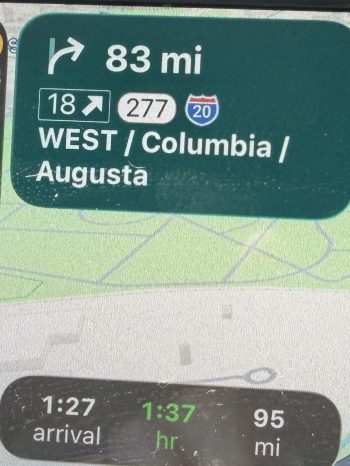
We decided to make it a two day drive down from Michigan and got hotel rooms in Columbia, South Carolina, about an hour away from Augusta, Georgia. We hauled our golf clubs with us and played a couple of 9 hole rounds on the way, which I wouldn’t do if making a future trip. It’s just too hard to plan out tee times when you don’t know where you’re going to be depending on traffic and stops along the route. I think I’d also try to stay closer to Augusta.
On the morning of, we left our hotel just after 4:30 a.m. It took about 70 minutes to get to the course and traffic was a non-issue. We pulled off Washington Road, followed the signs around a Publix and came to the parking lot. It was still dark out, so we could see headlights coming in from five or six directions and every line of vehicles kept moving. It was the most organized parking situation I’ve ever seen. The Masters experience had begun. By the way, parking is free!
We grabbed our tickets, tossed our phones in the glove box, and got in line. The gates weren’t opening for over an hour. About ten minutes before the line moved towards the ticket gates I realized I didn’t have my wallet, since it attaches to my phone. I ran to the car, got my wallet, and within minutes of jumping back in line, we started moving. Lucky timing because my family would have had to get out of line to wait for me, or there would have been no way I’d find them again.
I have to mention it was awesome not having a cell phone all day. We were present with each other and the experience. The Masters does allow you to bring in other types of cameras for the practice rounds, so we bought a couple of cheap ones to get some photos. To be honest, after the day, I wish they didn’t even allow that. I was still too focused on getting some photos, most of which turned out poor because we’re so spoiled by the awesome iPhone camera, which makes it extremely hard to take bad photos.
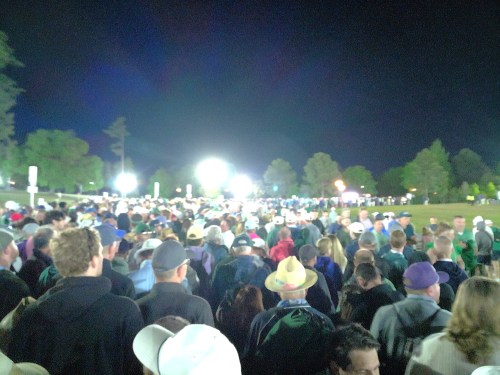
While waiting in line, we got moved up in sections and then right before a small group of patrons was released to the ticket gate one of the workers gave a quick announcement. Getting through the gate was a breeze and we rushed to the North Gate’s merch shop. We got in line but were never stationary for more than a minute; it kept moving and we were inside in about 20 minutes. Since we were early enough, all four of us were able to get the 2026 Masters Gnome.
The merch shop is a bit overwhelming, but as expected it’s extremely well organized and run. There are different counters for sweatshirts, hats, and golf shirts with a bunch of volunteers working at each. Behind the workers are columns of cubbies with the different sizes of items and the choices are all up high on the wall with numbers on each design. You walk up and tell the volunteer the number and size of each item you want.
Throughout the shop are shelves with other items and accessories. Most of the smalls are near the checkout lines. In my two trips through the shop, I spent about $950. My wife picked up a lot of items for other people, so spent even more. After walking out, we immediately got in a line to check our items. This line also kept moving and took about 20 minutes. Here’s Brandi with her first haul as we stood in that line.
Here are my purchases.
With most of our shopping out of the way, we could see the first fairway, but it was time for a restroom. In the “gentlemen’s” line, they had volunteers splitting you up based on 1 or 2. Or as a volunteer later in the day put it, “back 9 or front 9” haha. Even the bathroom lines were organized! There were volunteers in each restroom with a little squeegee, periodically wiping water off the counters back in to the sinks.
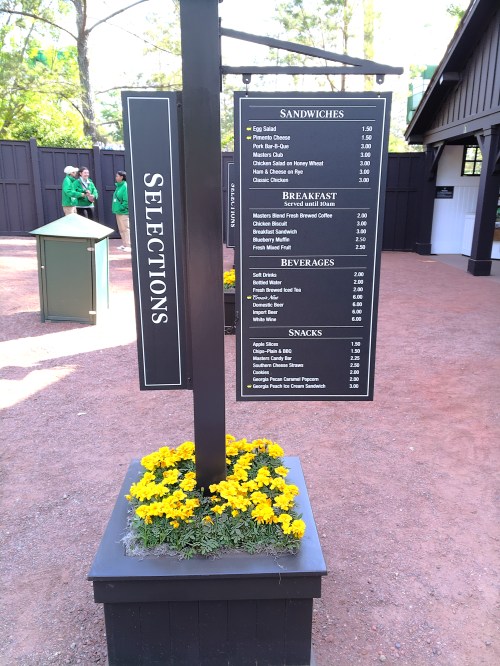
One last stop for coffee and a snack, before heading to the course. Under the north merch shop, since it’s a real building and not a temporary tent as you’d see at most professional golf tournaments, is the first snack area we ran in to. There were a bunch of lines with everything being self-serve, even the drinks, which are constantly getting poured and set out for patrons to grab and go. If you don’t know, prices at the Masters are cheaper than any sporting event you’ve attended in decades. Here’s a picture I took later in the day at another snack shop.
I wasn’t expecting anything spectacular from the food, but it was pretty good. Over the course of the day I think I ate the breakfast, pimento cheese, Masters club, and pork bar-b-que sandwiches. I enjoyed the pimento cheese but the BBQ was probably my favorite. Unless of course you count the ice cream sandwich, which would be the winner. Their new candy bar was way too hard to chew, so not good. The chocolate chip cookie and the praline pecan were both excellent. The lemonade was great, coffee was good, the Crow’s Nest is a solid craft beer, and I had a so-so Arnold Palmer. I think we ended up with about twelve Masters cups.
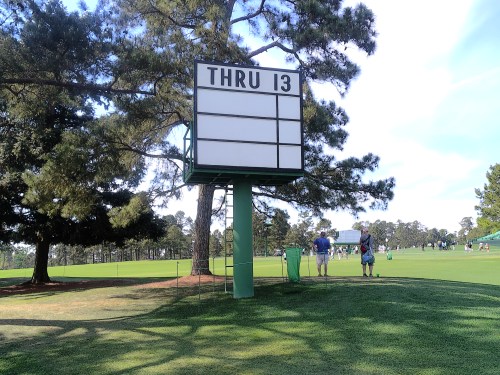
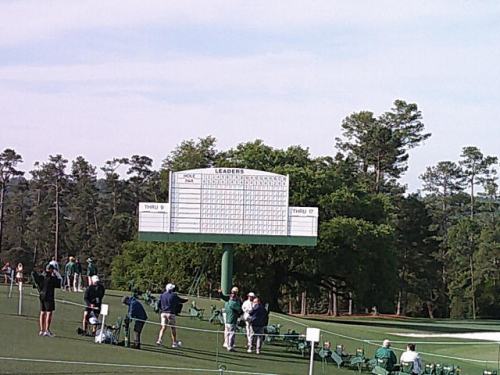
Time to see the course. We got our picture taken right away by the big scoreboard along #1 fairway.
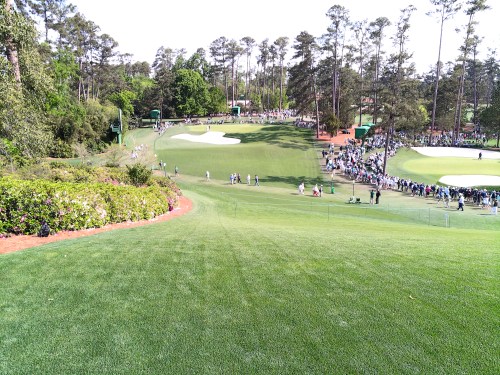
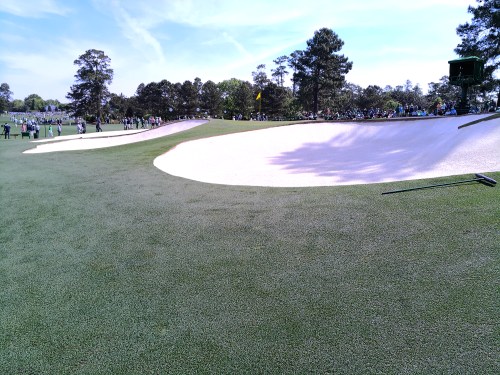
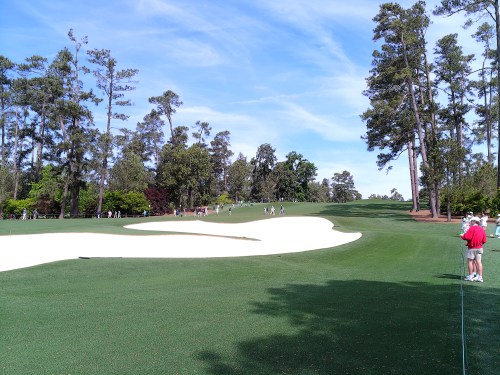
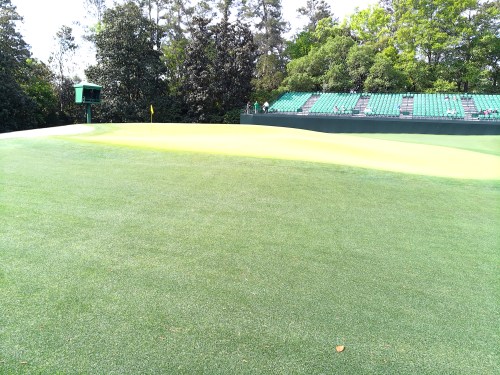
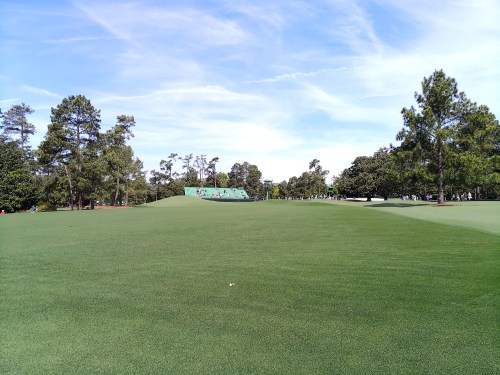
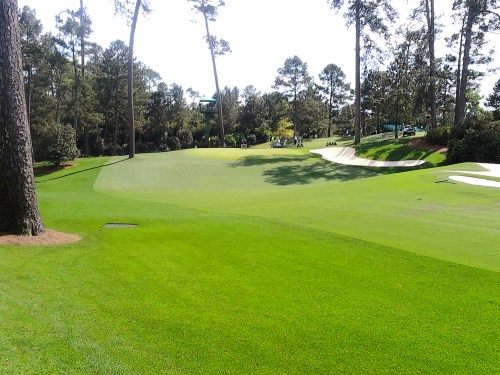
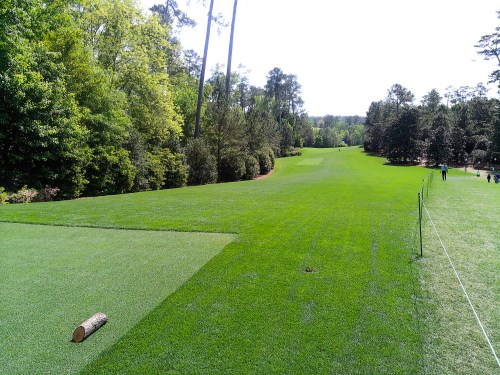
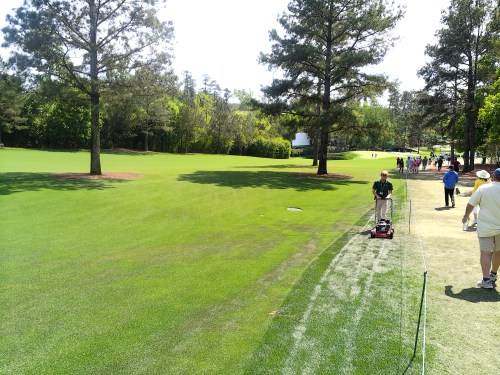
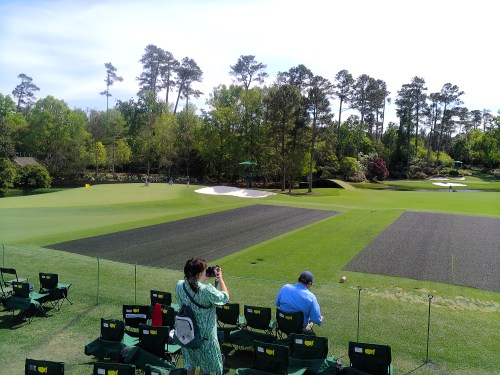
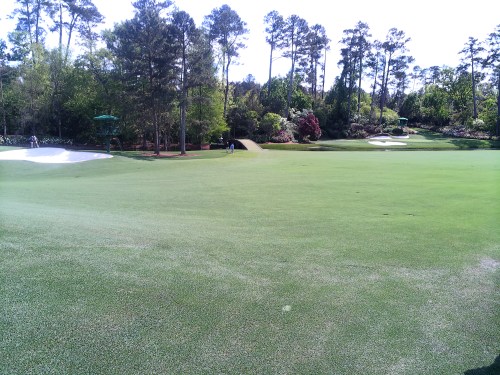
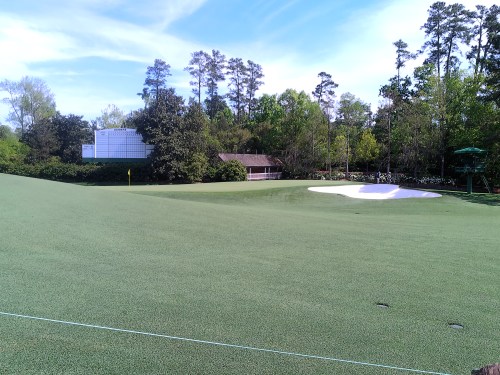
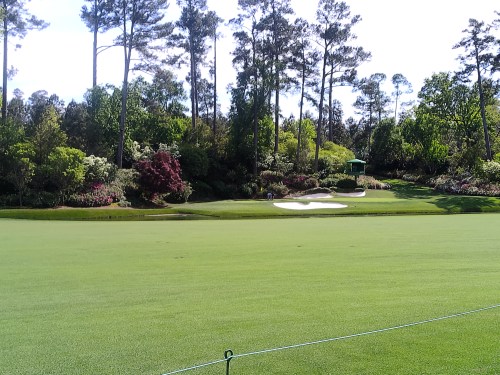
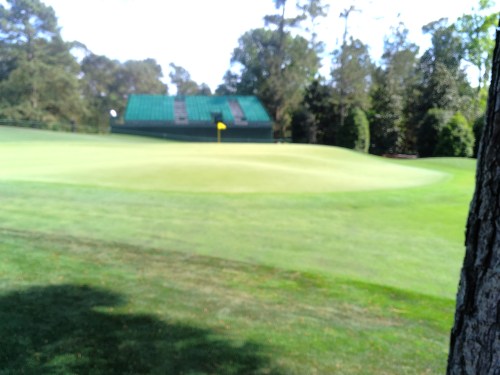
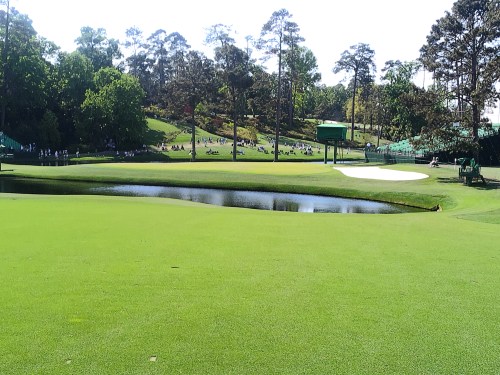
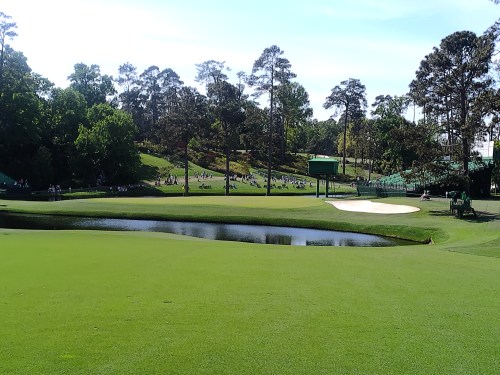
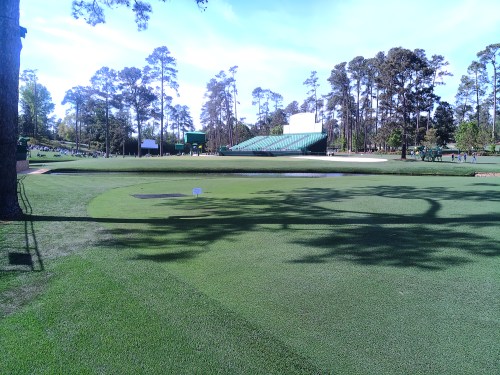
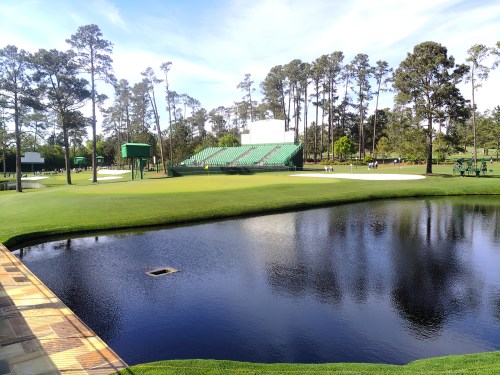
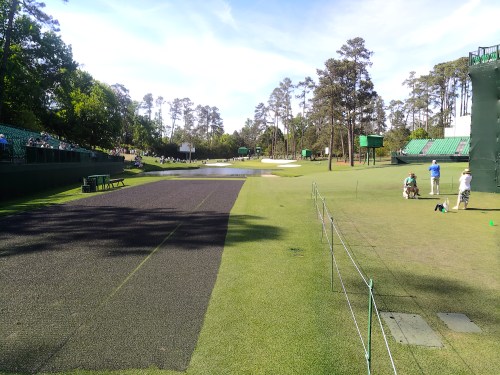
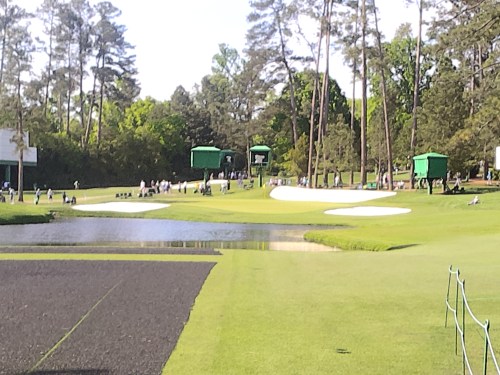
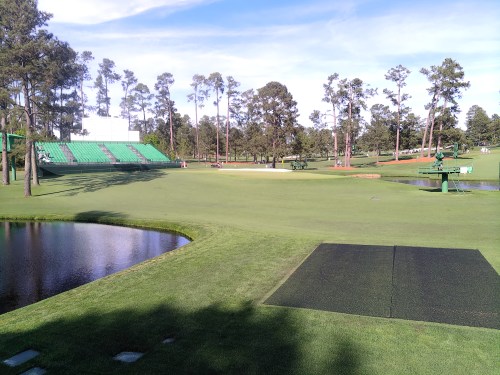
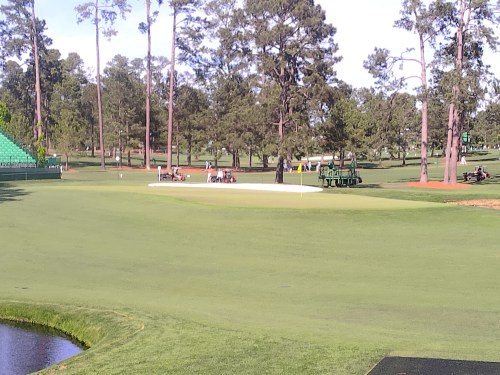
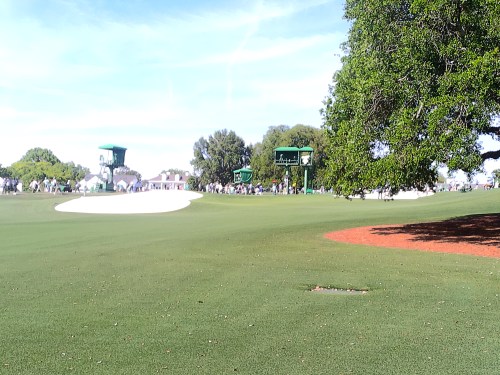
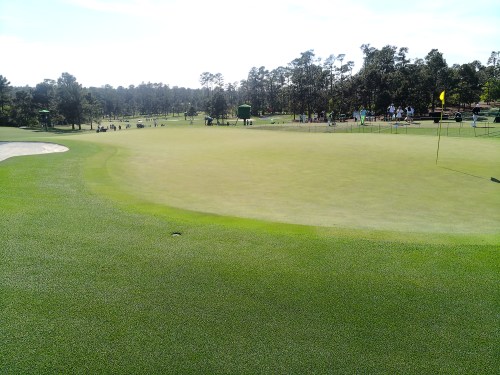
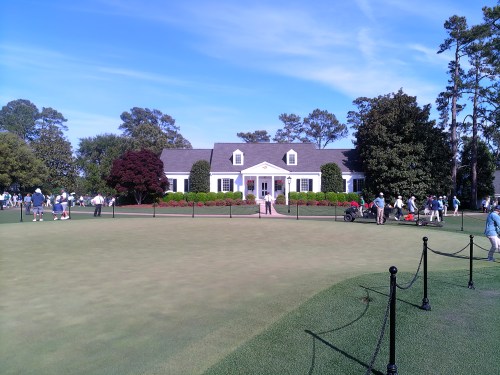
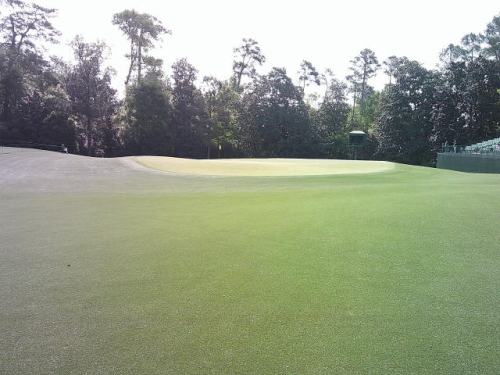
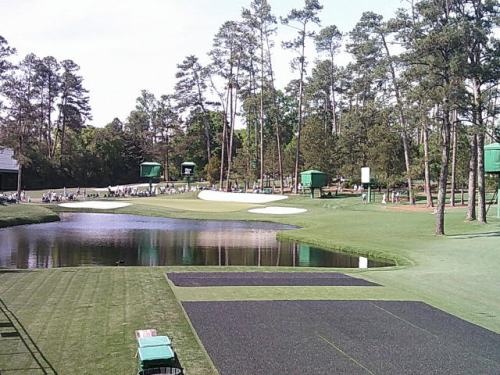
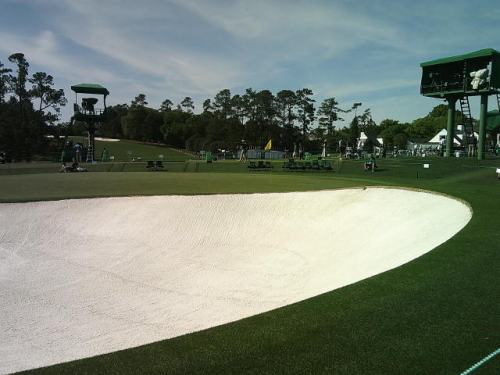
From there, we walked up the hill to #1 tee and walked the first nine in order, from tee to green. If you’re at all familiar with the golf course, you’ve heard “it’s a lot hillier than you can see on TV” and I can confirm it. Every hole is up and down or both. There aren’t many flat spots to even stop and stand. Looking down at the grass, it looked like artificial turf it was so perfect. When you walk around the greens it’s easy to see why the course is so tough. Even the greens have very few flat spots to land an approach shot.
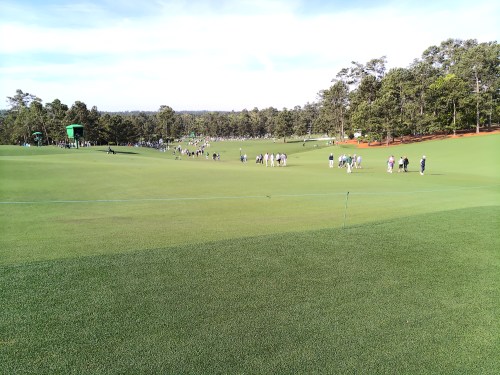
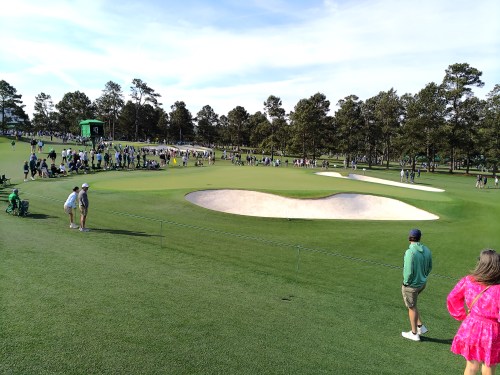
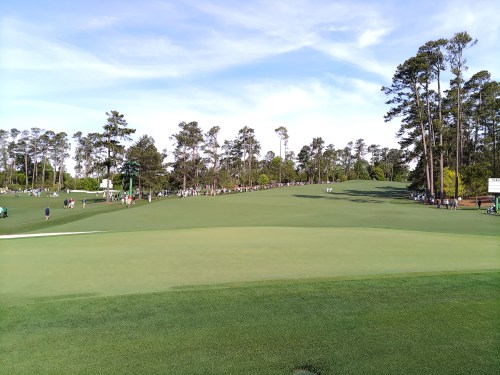
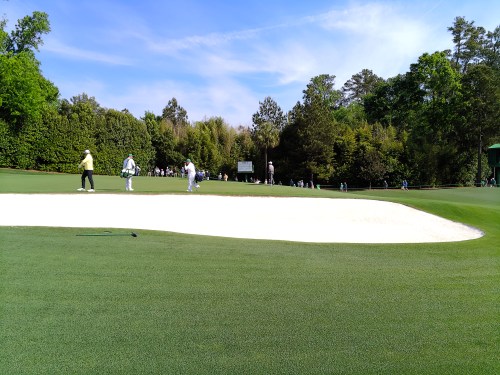
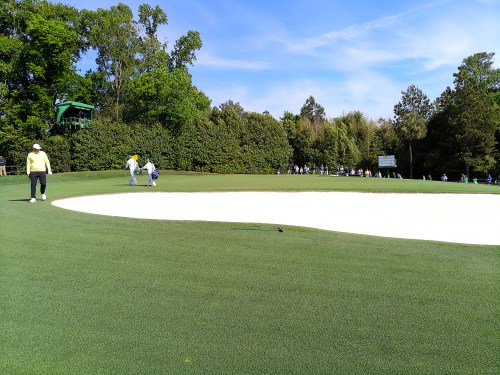
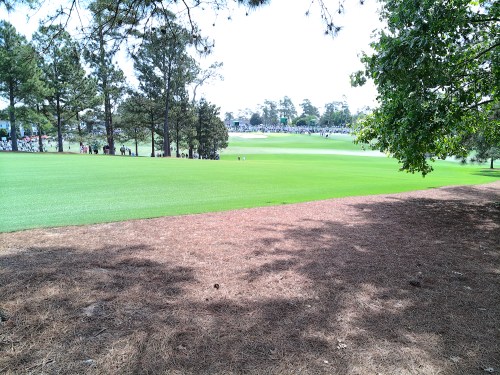
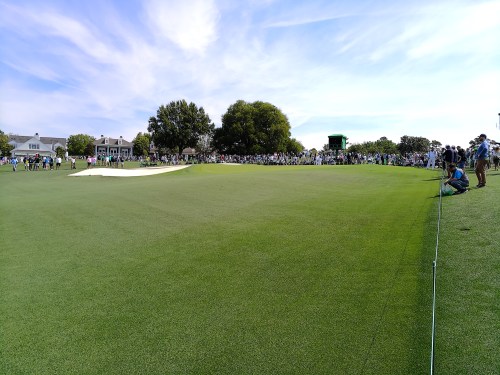
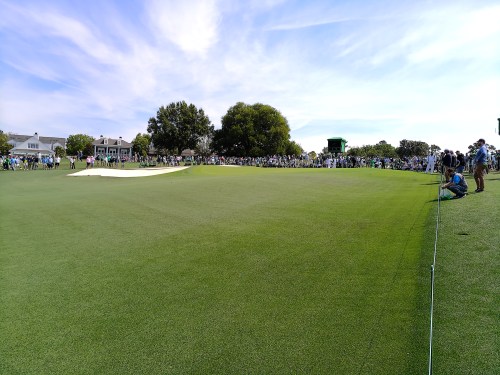
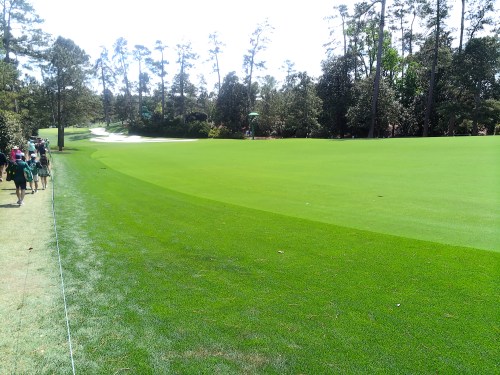
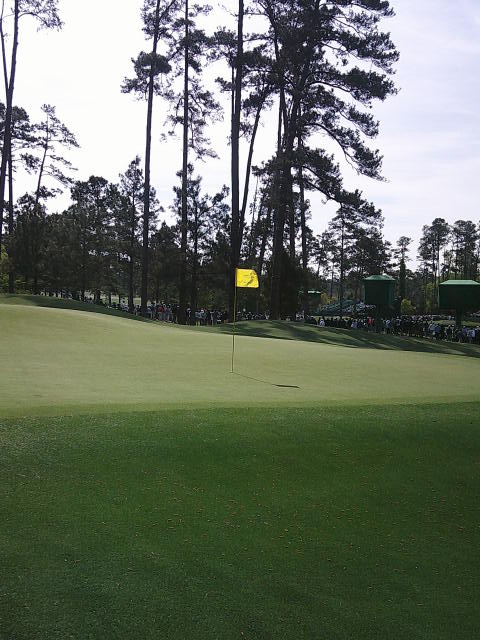
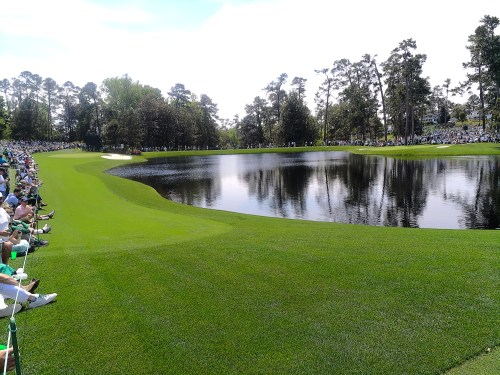
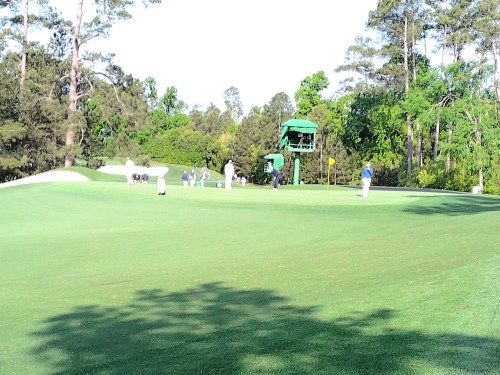
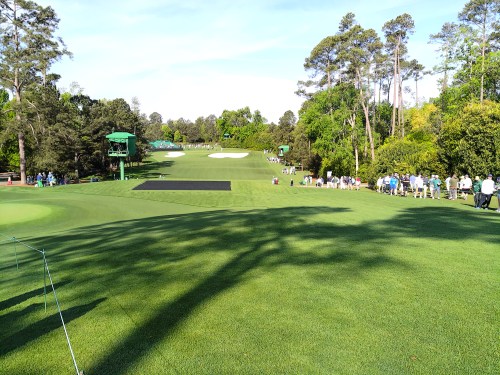
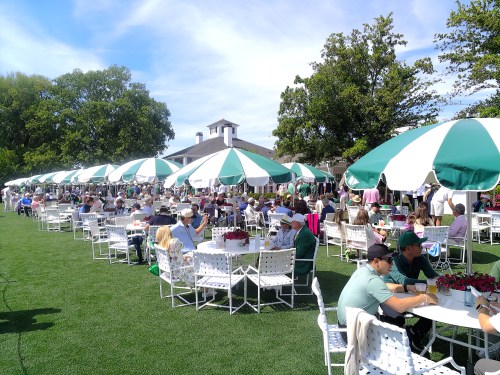
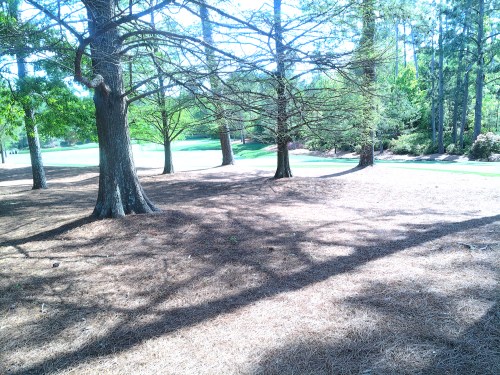
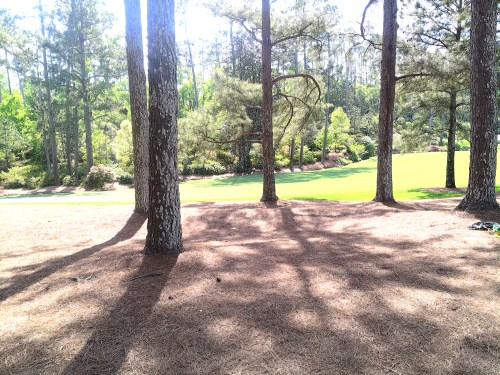
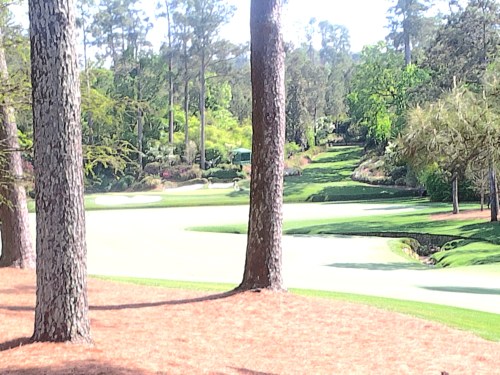
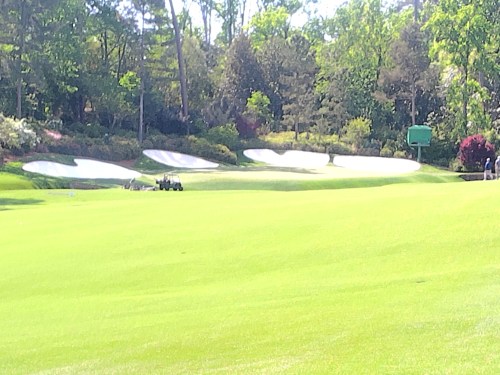
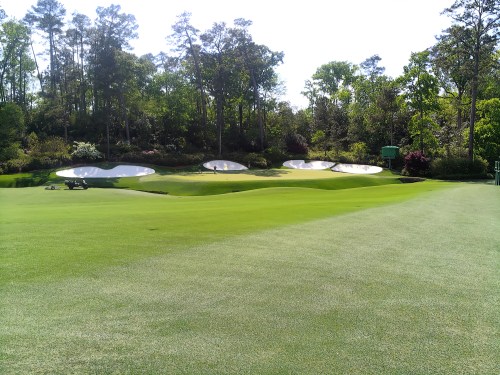
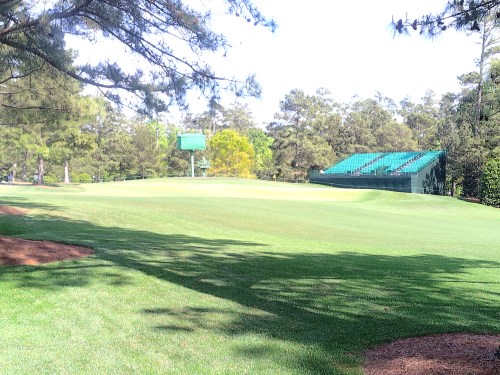
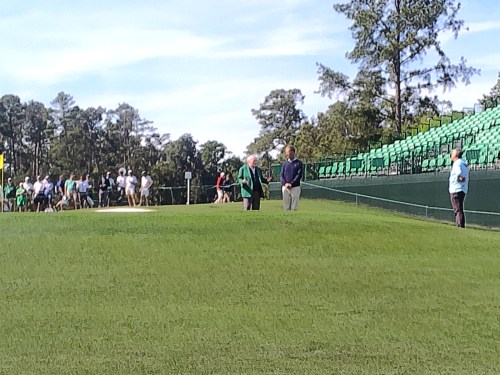
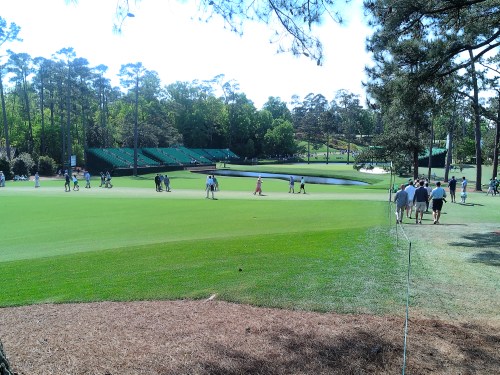
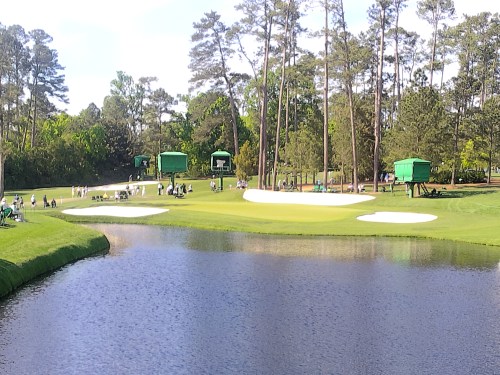
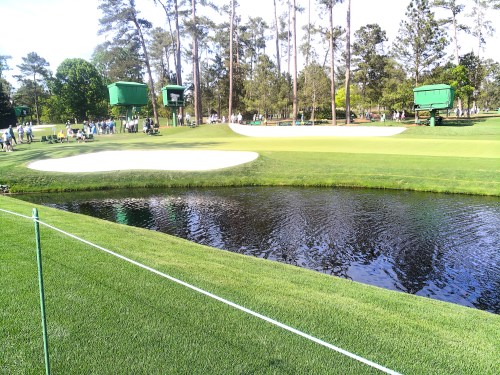
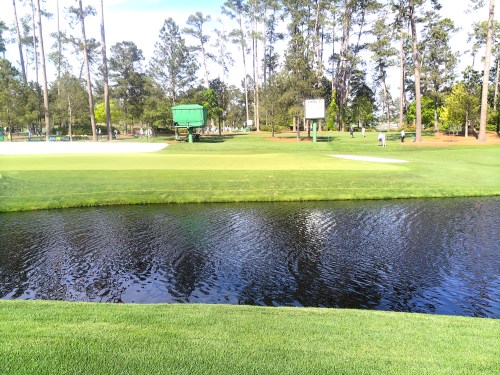
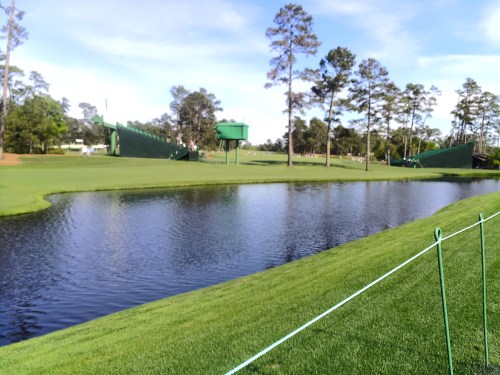
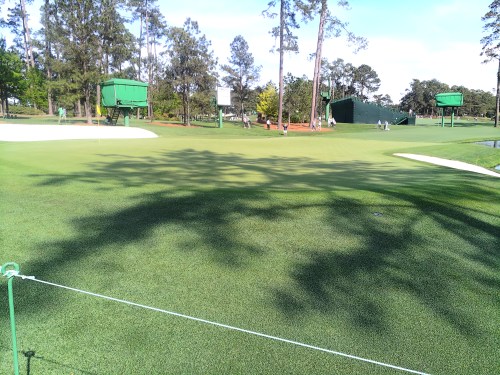
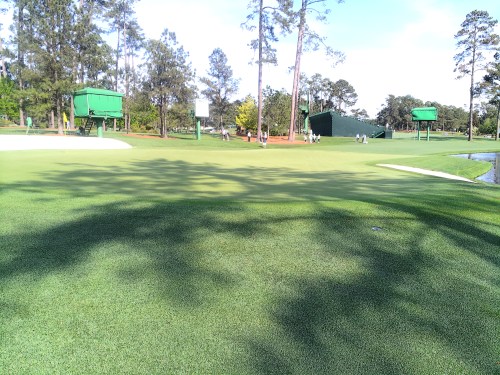
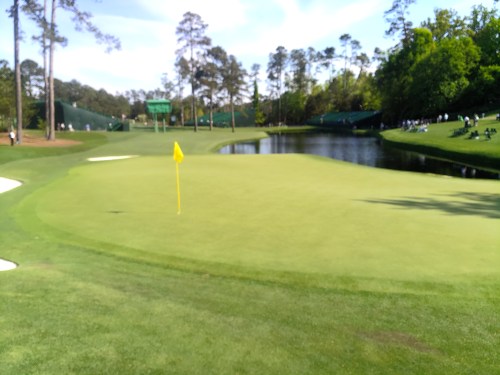
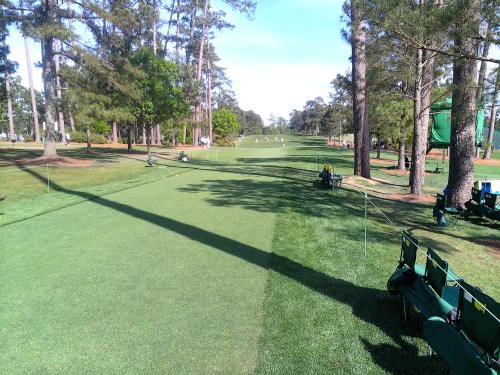
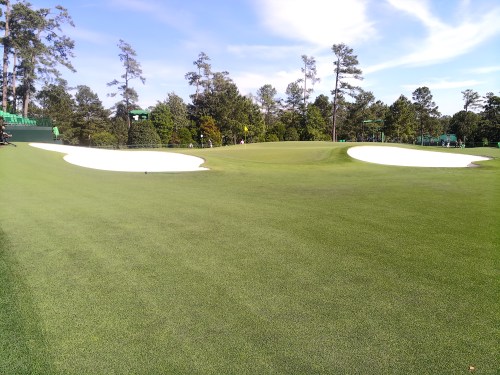
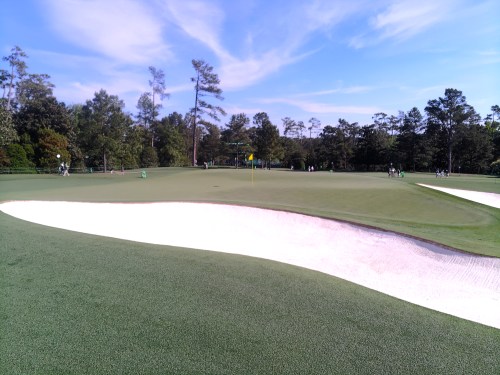
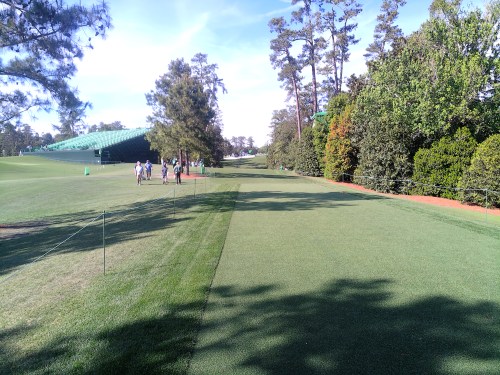
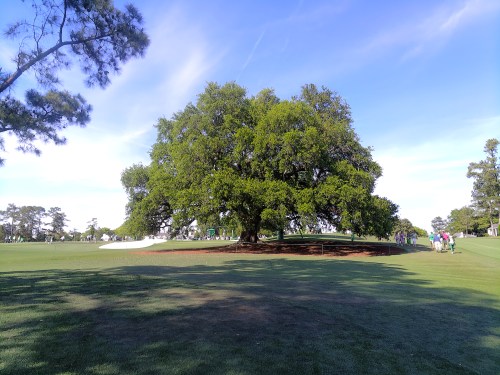
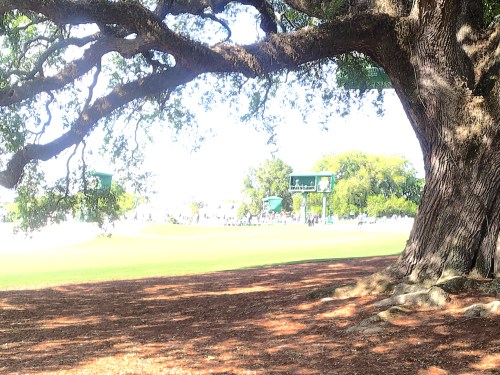
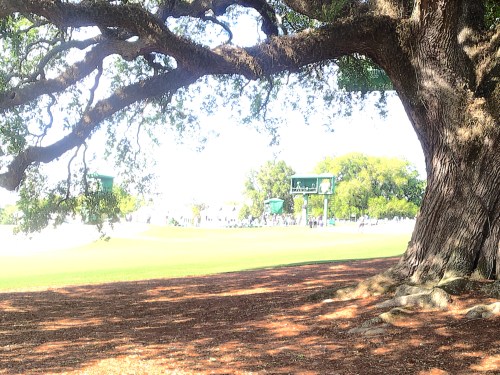
We detoured to watch a couple groups skip balls on 16, but other than that, walked straight through the first nine. None of my course pictures can compete with professional photographers, but here they are. They’re not in order and a few of my brother’s pictures are mixed in.
We headed over to the par 3 course and spent over three hours there. It was relaxing and we even found a spot to sit on the ground for about an hour.
We left the par 3 course before the event was over and walked the second nine. It sucked that no players were out practicing and the grounds crew had started their maintenance. It was odd seeing the place so empty.
An amazing day! I’d love to get back for a tournament day, but it’ll have to wait because I wasn’t selected for 2027 tickets.
This summer had a special 18 pack release at Walmart, which included six cans each of Code Red, White Out, and Voltage. I bought two packs.
These are the same three flavors combined to create DEW-S-A in 2021. I’ve reviewed Voltage before and is a flavor I buy 10-20% of the time when I want a Dew. I was surprised to see I’ve never reviewed Code Red or White Out though.
Code Red
This one has been around since 2001, though I never buy a bottle. The flavor is good, just not my cup of tea, since it is a bit heavy on the cherry flavor. I’d give it a solid 7.5 though.
White Out
I used to buy a bottle of this all the time when it was in stores. It’s a very subtle citrus flavor. It wasn’t quite as good as I remember from the bottles, but would still be in my purchase rotation if they regularly made it. I give it an 8.0.
Last fall, a Facebook ad for Hamilton popped up. It was coming to Detroit and I’d always heard people rave about the show, so I bought us tickets as a Christmas present.
Brandi and I had never been to a musical (or even a play), so we didn’t have any expectations. On Saturday we drove down to the Fischer Theatre in Detroit for the 2pm show. What an incredible building, with staircases you could get lost in. Our tickets were in the first row of the Balcony and we had no problem seeing any of the action.
…the music draws heavily from hip hop, as well as R&B, pop, soul, and traditional-style show tunes.
We were absolutely blown away. The singing and rapping was a little hard to understand from our seats at times, but it was so well done. The choreography of all of the actors really caught our attention too. It was cool how the action from scene to scene kept going, with actors always moving around props.
If you get a chance, go see Hamilton. We definitely won’t hesitate to see it again.
I’ll probably remember the time I bought this new flavor of Mountain Dew because it was the first day of our road trip to The Masters.
What a name for a new flavor. Dirty! I had read it’s not a limited release so they plan to sell it for quite some time. “Dirty” is probably what they should call the taste testers, because this is pretty gross and leaves a noticeable aftertaste. I’ll give it a 2/10 and never buy another bottle.
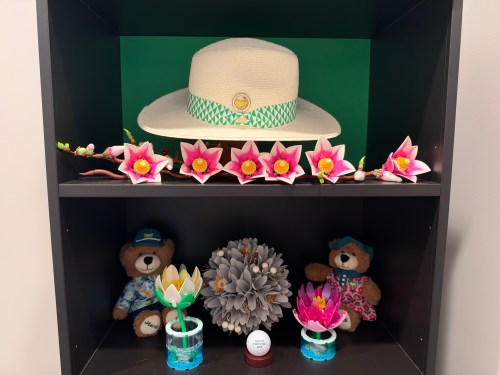
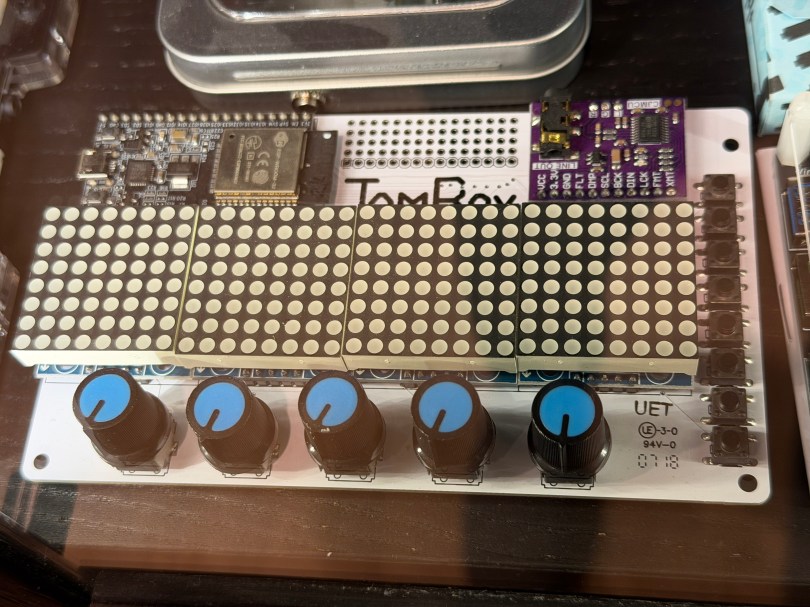
Not long ago the old JamBox sitting in one of my office display case’s caught my eye.
After picking it up I noticed it used an ESP32 development board, so I had to flash it for ESPHome. I downloaded the PixelOperator8 font and uploaded it to my esphome/fonts folder in Home Assistant. Then I figured out the following YAML to get the buttons, potentiometers (knobs), and LED Matrix working.
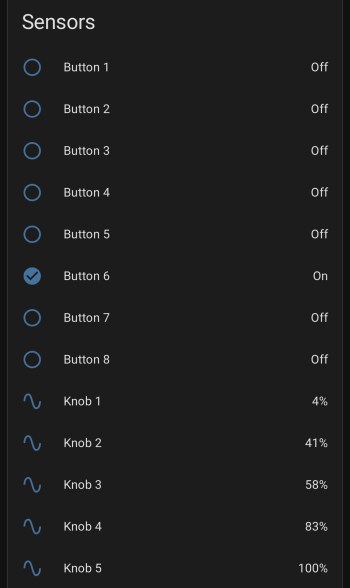
After installing the YAML and installing the device to Home Assistant, here are the sensors in the device UI.
Screenshot
The device has a ton of inputs with the eight buttons and five knobs and the 8×32 LED Matrix can display text or maybe a simple graph. I haven’t thought of a good use for it though. Do you have any ideas?
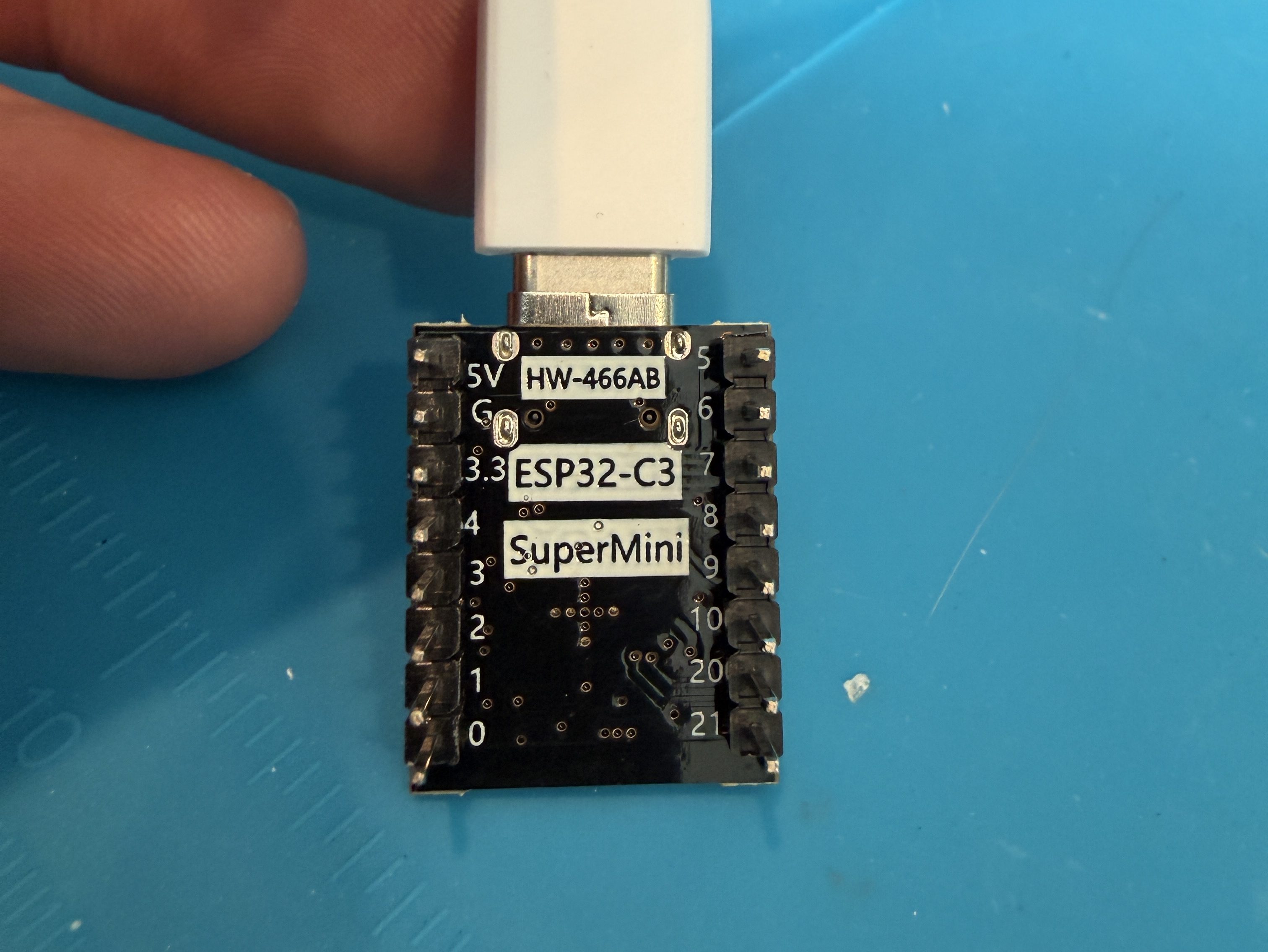
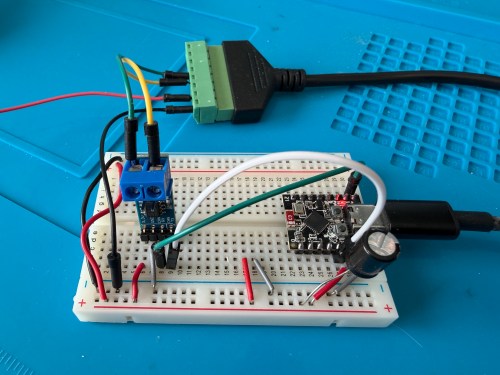
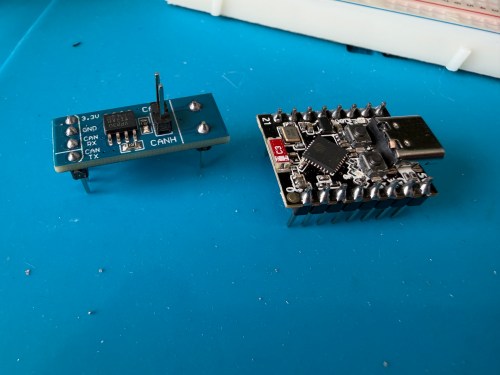
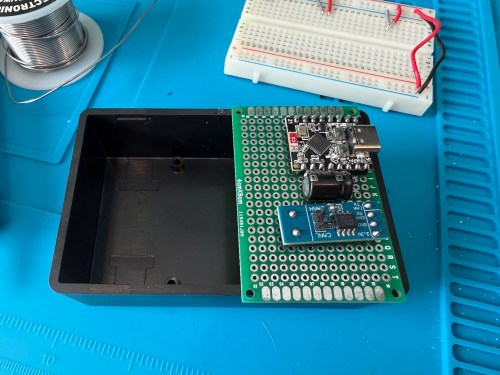
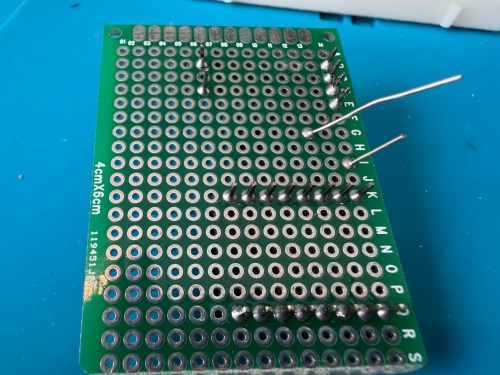
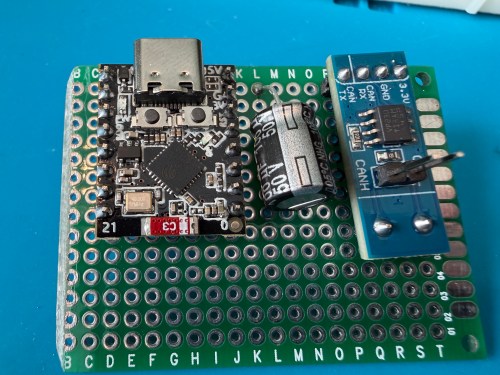
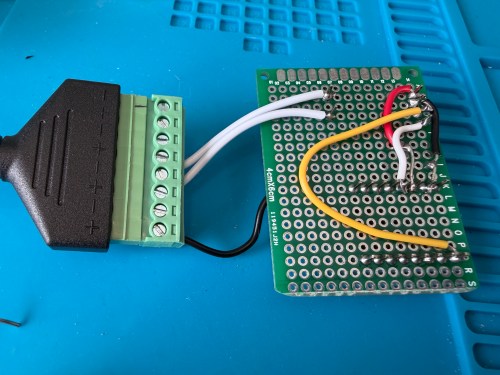
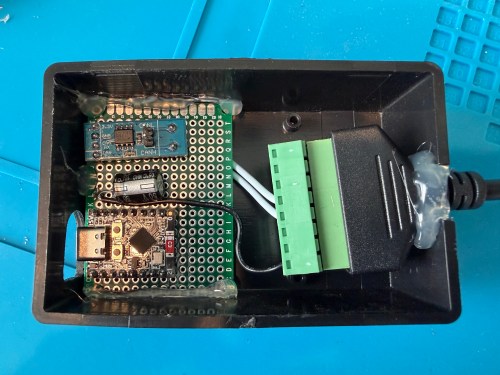
ESP32 G -> CAN Board G -> RJ45 Pin 8 -> Capacitor stripe side
ESP32 3.3 -> CAN Board 3.3 -> Capacitor non-stripe side
ESP32 Pin 4 -> CAN Board TX
ESP32 Pin 5 -> CAN Board RX
CAN Board CANH -> RJ45 Pin 5
CAN Board CANL -> RJ45 Pin 4
Start with this YAML for your ESPHome device:
# Add your standard esphome, ota, api, and wifi sections here at the top

logger:
  level: DEBUG

esp32:
  board: esp32-c3-devkitm-1
  framework:
    type: esp-idf

canbus:
  - platform: esp32_can
    id: can
    tx_pin: GPIO4
    rx_pin: GPIO5
    bit_rate: 125KBPS
    can_id: 0x05
    use_extended_id: false

    on_frame:
      - can_id: 0x000
        can_id_mask: 0x000 # This catches EVERYTHING
        then:
          - lambda: |-
              std::string res = "";
              for (int i = 0; i < x.size(); i++) {
                char buf[5];
                sprintf(buf, "%02X ", x[i]);
                res += buf;
              }
              ESP_LOGD("ALORAIR_FINDER", "Received ID: 0x%03X, Data: %s", can_id, res.c_str());

# ====== Periodic Polling to Request Status ======
interval:
  - interval: 10s
    then:
      - canbus.send:
          can_id: 0x123
          use_extended_id: false
          data: [0x00, 0x00, 0x00, 0x00, 0x00, 0x00, 0x00, 0x00]
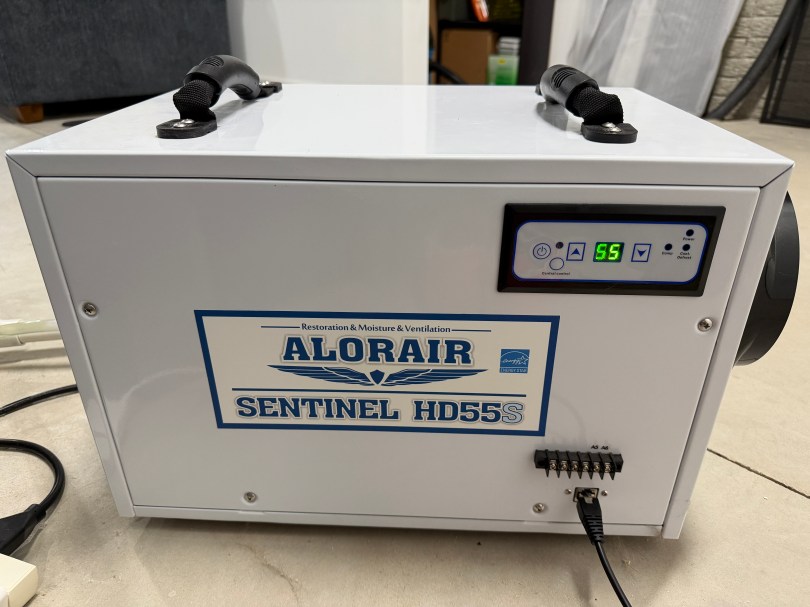
This will test sending and receiving. After you flash the device and have it connected to the dehumidifier, open the ESPHome device log and look for lines like below.
If you see errors after the send or don’t receive messages back, try changing the bit_rate from 125 to 50, install, and recheck the logs.
If you do receive messages back, make note of the value after Received ID, which is 0x123 above. Then open up the ESPHome device’s YAML again and replace everything below type: esp-idf with the following.
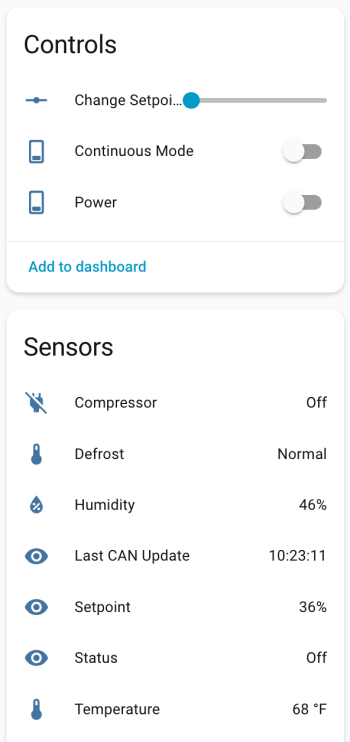
If your ID was different than 0x123 (0x3b0 seems common), change the can_id under on_frame. Update mobile_app_YOUR_PHONE for your phone. Install this new code to the device. Go to Settings -> Devices & services -> ESPHome. If your device isn’t already listed, add it, and click through to see the entities. Hopefully you see the Controls and Sensors with data.
Try to toggle the power and change the setpoint. If it’s working, the dehumidifier should respond. Good luck! If all is working, I suggest adjusting your logging level to WARN. There is some stuff in the YAML to alert if the unit sends data that isn’t recognized, because there might be flags or statuses not implemented.
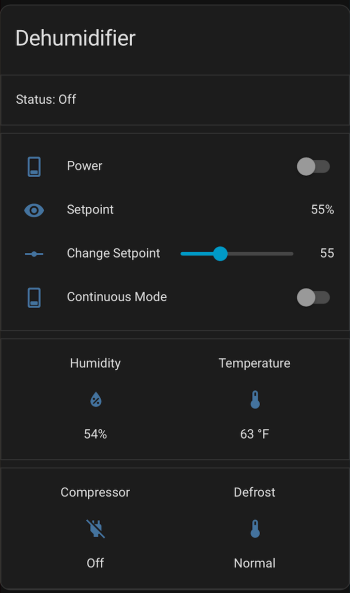
If you install the stack-in-card via HACS, here’s some YAML for your dashboard. Make sure to update the entity names to match what you have.
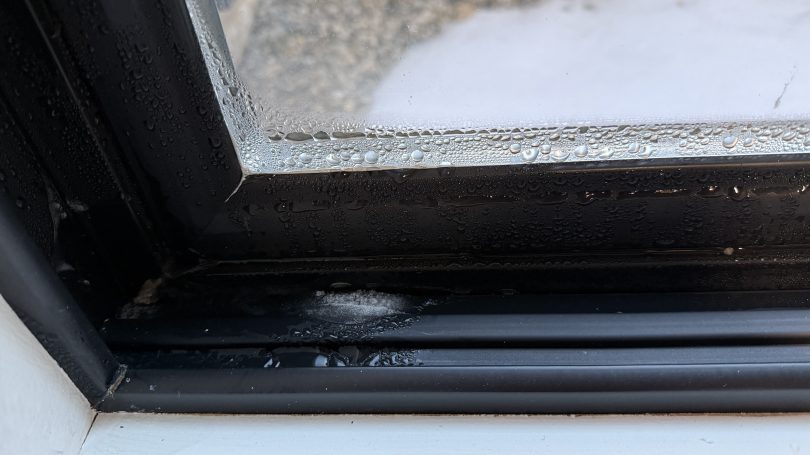
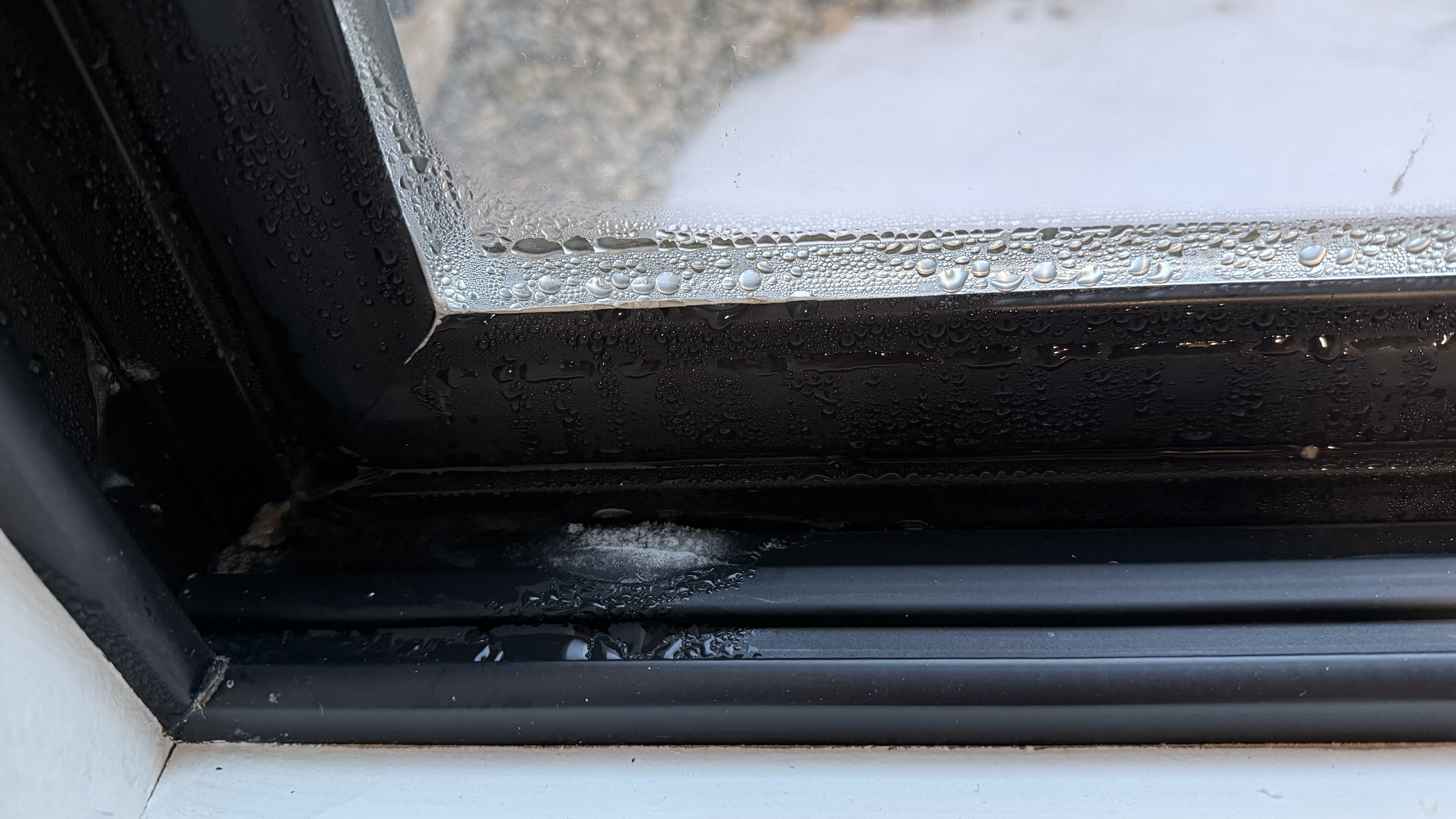
The first winter in our house was a challenge figuring out where to set the house humidifier connected to our furnace. How do you balance comfortable humidity against the risk of window condensation? I really had no idea and it was common to see water or ice on the inside of our windows during the coldest days.
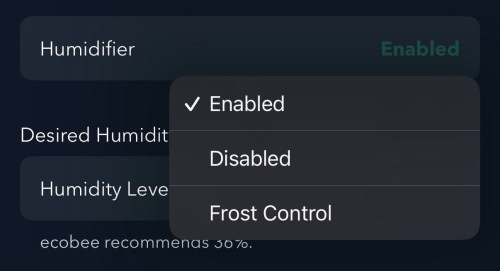
I had wired our house humidifier through the furnace so I could use the Ecobee thermostat to control it. The Ecobee has a setting called “Front Control,” but it does a poor job balancing for comfort.
Screenshot
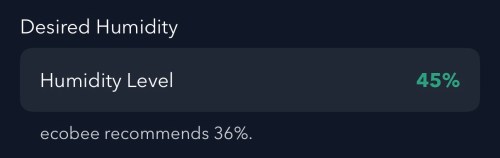
Remember this recommended humidity level for later.
Screenshot
Going from 36% to 45% is a large difference. From my testing, the humidity reported by Ecobee is 4-5 percentage points too high, which is also part of the problem and makes the air even drier. I wanted to do better and let Home Assistant handle everything.
Since we don’t use the humidifier all year, the first step was to create a Toggle (or Input Boolean) helper. I’ll manually change this when I enable/disable the humidifier in the Ecobee settings.
I installed the Thermal Comfort integration to calculate the indoor dew point and the OpenWeatherMap integration with their One Call API 3.0 for fetching weather forecasts. I use a trigger template in templates.yaml to store the forecast every hour and whenever Home Assistant starts.
The forecast is important because I don’t want to set the humidity too high and not have enough time for the house to dry out when a cold front moves in. I added another trigger template in templates.yaml, which grabs the low temperature over the next 12 hours, estimates window glass temperature, calculates an ideal indoor humidity, and determines an offset between the trusted and Ecobee humidity values. It does all of this every 15 minutes, when Home Assistant starts, and whenever there is a change to various temperature or humidity values.
With this data calculated and saved, an automation takes care of updating the humidity setpoint on the Ecobee thermostat. Whenever I have the Humidifier Enabled toggle on, it’ll update the setpoint every 30 minutes and whenever the Calculated Ideal Humidity changes.
alias: Set Thermostat Humidity
triggers:
  - entity_id: sensor.calculated_ideal_humidity
    trigger: state
  - minutes: /30
    trigger: time_pattern
conditions:
  - condition: and
    conditions:
      - condition: state
        entity_id: input_boolean.humidifier_enabled
        state:
          - "on"
      - condition: template
        value_template: >-
          {{ state_attr('sensor.calculated_ideal_humidity',
          'ecobee_compensated_target') is not none }}
        alias: Ecobee Compensated Target is not None
actions:
  - target:
      entity_id: climate.thermostat
    data:
      humidity: >-
        {{ state_attr('sensor.calculated_ideal_humidity',
        'ecobee_compensated_target') | int(35) }}
    action: climate.set_humidity
mode: restart
I added a card on my dashboard to see the status of everything. This was invaluable when I was testing and tweaking for several weeks.
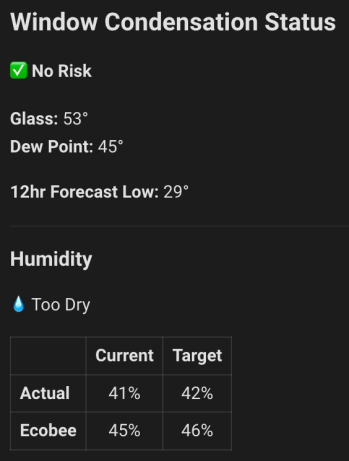
Remember the Ecobee’s recommended 36%?! If I went by that, the actual humidity in the house at this time would have about 32%, a whole 10 percentage points dryer! Here’s the YAML for the dashboard card.
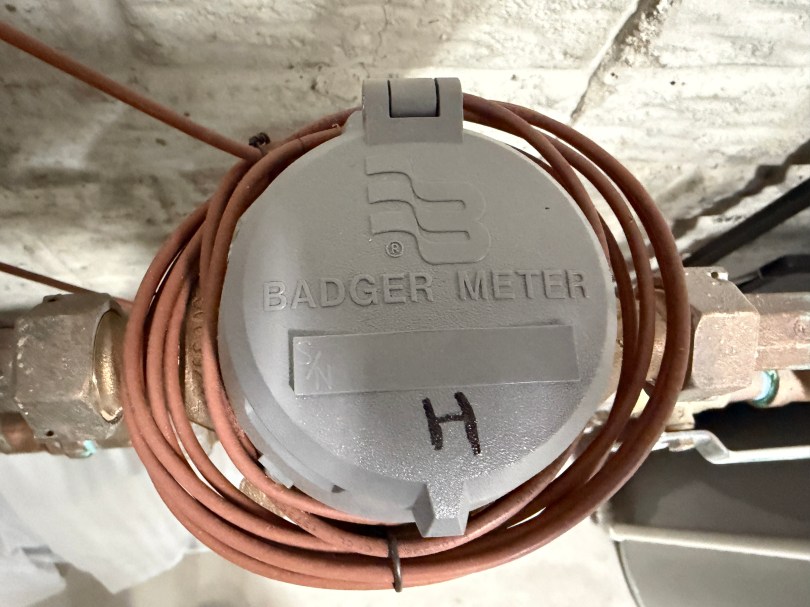
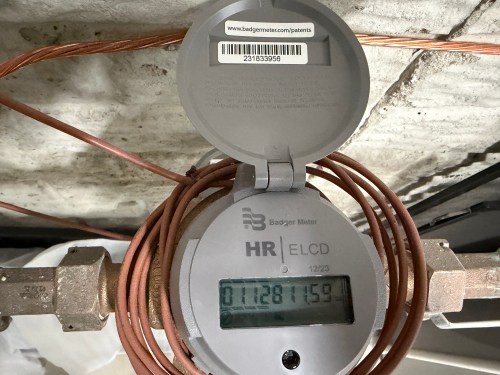
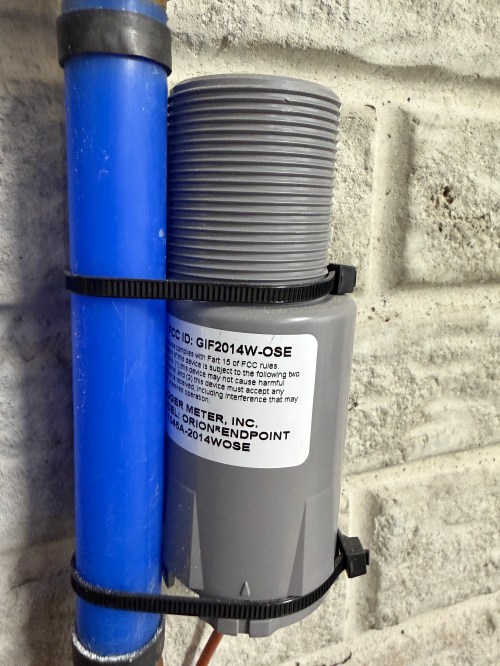
If you have Badger water meters with the Orion Endpoint GIF2014W-OSE, this post should help you read the data for use in Home Assistant. Here is what my meters look like. I have separate lines and meters for the house and outdoor, since they get charged at different rates.
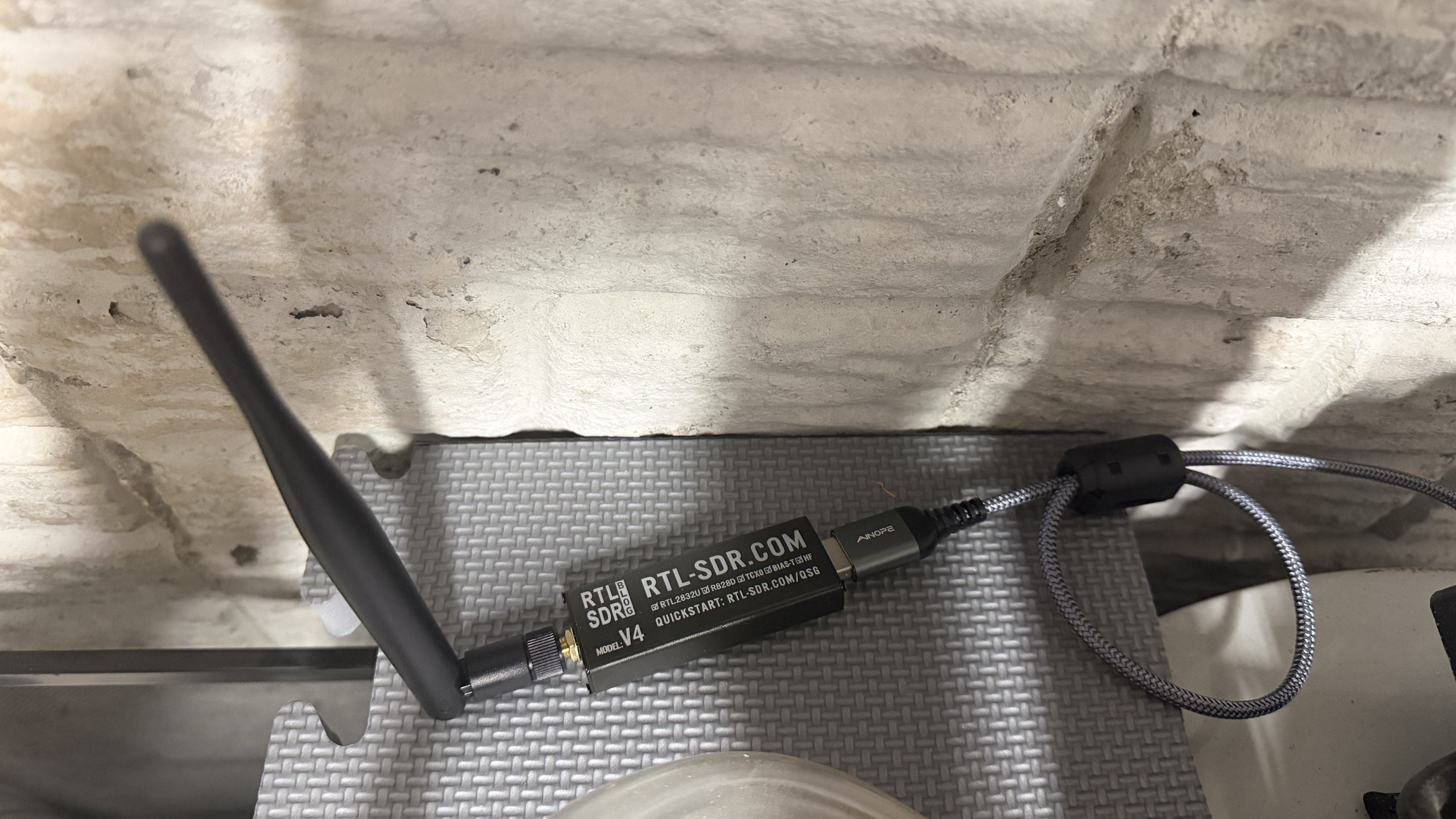
The GIF2014W-OSE broadcasts data from the water meter over radio frequency (RF). Monthly or quarterly the township water department drives around neighborhoods reading these RF signals to determine everyone’s water usage. You can read the same data with a software defined radio (SDR). I’m using a RTL-SDR Blog V4 dongle with a 915MHz LoRa Antenna and ferrite beads (to filter noise) on a USB extension cable. It plugs directly in to my Home Assistant server.
If you want to test the SDR on your computer before setting everything up in Home Assistant check out the rtl_433 repo on GitHub.
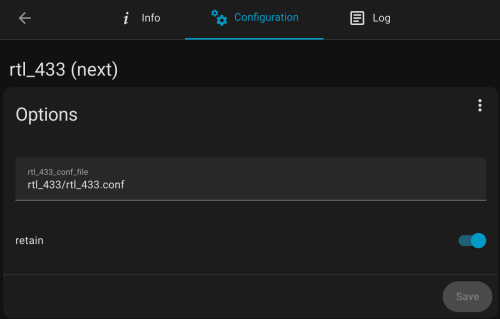
To get started in HA, make sure you’re running a MQTT broker. I use the recommended Mosquitto broker. Install the MQTT Explorer and rtl_433 (next) apps. Note, the main rtl_433 HA app wasn’t updated yet with the latest version of rtl_433, which is needed for the GIF2014W-OSE, so that’s why I had to use the (next) version. It may be updated by the time you’re reading this.
The configuration for the rtl_433 (next) app is stored in a file. I have mine at /homeassistant/rtl_433/rtl_433.conf and here is how my app configuration looks.
Below is a good start for the config file’s contents. Put in your IP address, user, and password.
sample_rate 1600k
gain 28
hop_interval 22
pulse_detect autolevel
pulse_detect minlevel=-35
report_meta level
report_meta noise
report_meta stats:1
output mqtt://[MQTT_IP],user=[MQTT_USER],pass=[MQTT_PASSWORD],retain=1

protocol 282

frequency 905.3M
frequency 906.1M
frequency 906.9M
frequency 907.7M
frequency 908.5M
frequency 909.3M
frequency 910.1M
frequency 910.9M
frequency 911.7M
frequency 912.5M
frequency 913.3M
frequency 914.1M
frequency 914.9M
frequency 915.7M
frequency 916.5M
frequency 917.3M
frequency 918.1M
frequency 918.9M
frequency 919.7M
frequency 920.5M
frequency 921.3M
frequency 922.1M
frequency 922.9M
frequency 923.7M
The water meter endpoint broadcasts across the range of 904.4 to 924.6Mhz and this is going to hop between the 24 frequencies (taken from a GitHub comment) listed in the config every 22 seconds. You may need to tweak the gain, pulse_detect, and other settings depending on your setup. Use your favorite AI to help. If you these next couple of lines to the config file you can see more of what happening, but I wouldn’t leave these in after everything is working.
verbose 7
output json
output log
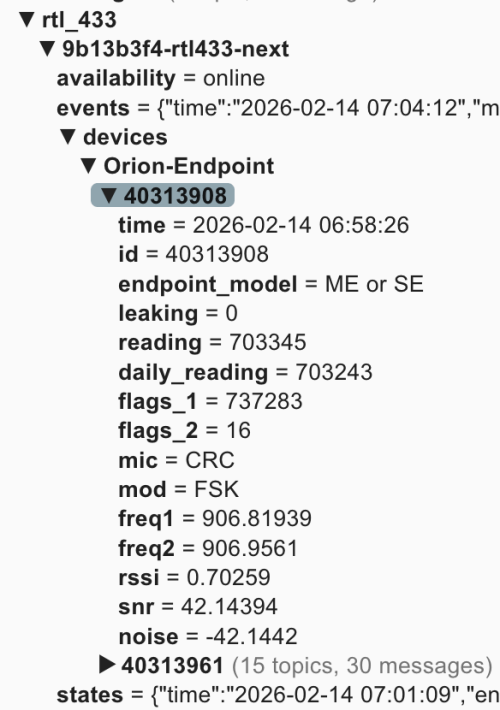
You can view the HA app’s logs to see more details. When everything is running, open up MQTT Explorer and look for the rtl_433 topics. Hopefully within an hour or two you’ll see something similar to this.
In this screenshot 40338908 and 40313961 are the ids for my meter endpoints. You may see a bunch of other ids for other meters in your neighborhood. You may have physical tags on the devices with their IDs or you can compare the reading values to what is displayed on the water meter.
Now this data can be brought in to Home Assistant. It’ll take some tinkering and customization to fit it all for your HA install. I’m also writing this over a week after setting everything up, so I don’t remember the order of adding everything, but you should be able to do most of it at once and restart. Make sure to update the name, unique_id, source, and state everywhere to fit your needs. The state_topic‘s need to match what you see in MQTT Explorer, and any other cross references have to match your renames. Only use what applies to your situation. If you only have one meter, remove all the outdoor/sprinkler stuff. I’m scraping the Saginaw Township water rates from their web site, so that stuff is going to be very custom, but gives you an idea of what you can do.
In configuration.yaml:
mqtt:
  binary_sensor:
    - name: "House Water Meter Leak"
      unique_id: "house_water_meter_leak"
      state_topic: "rtl_433/9b13b3f4-rtl433-next/devices/Orion-Endpoint/40313908/leaking"
      payload_on: "1"
      payload_off: "0"
      device_class: moisture
    - name: "Outdoor Water Meter Leak"
      unique_id: "outdoor_water_meter_leak"
      state_topic: "rtl_433/9b13b3f4-rtl433-next/devices/Orion-Endpoint/40313961/leaking"
      payload_on: "1"
      payload_off: "0"
      device_class: moisture
  sensor:
    - name: "House - Water Meter"
      unique_id: "house_water_meter"
      state_topic: "rtl_433/9b13b3f4-rtl433-next/devices/Orion-Endpoint/40313908/reading"
      unit_of_measurement: "gal"
      device_class: water
      state_class: total_increasing
      icon: mdi:water-pump
      value_template: "{{ value | float(0) / 10 }}"
    - name: "House - Water Meter Daily Snap"
      unique_id: "house_water_meter_daily_snap"
      state_topic: "rtl_433/9b13b3f4-rtl433-next/devices/Orion-Endpoint/40313908/daily_reading"
      device_class: water
      state_class: total
      unit_of_measurement: "gal"
      entity_category: diagnostic
      icon: mdi:history
      value_template: "{{ value | float(0) / 10 }}"
    - name: "House - Water Meter - Freq 1"
      unique_id: "house_water_meter_freq1"
      state_topic: "rtl_433/9b13b3f4-rtl433-next/devices/Orion-Endpoint/40313908/freq1"
      value_template: "{{ value | float(0) }}"
      unit_of_measurement: "MHz"
      state_class: measurement
      device_class: frequency
    - name: "House - Water Meter - Freq 2"
      unique_id: "house_water_meter_freq2"
      state_topic: "rtl_433/9b13b3f4-rtl433-next/devices/Orion-Endpoint/40313908/freq2"
      value_template: "{{ value | float(0) }}"
      unit_of_measurement: "MHz"
      state_class: measurement
      device_class: frequency
    - name: "Outdoor - Water Meter"
      unique_id: "water_meter_outdoor"
      state_topic: "rtl_433/9b13b3f4-rtl433-next/devices/Orion-Endpoint/40313961/reading"
      unit_of_measurement: "gal"
      device_class: water
      state_class: total_increasing
      icon: mdi:water-pump
      value_template: "{{ value | float(0) / 10 }}"
    - name: "Outdoor - Water Meter Daily Snap"
      unique_id: "outdoor_water_meter_daily_snap"
      state_topic: "rtl_433/9b13b3f4-rtl433-next/devices/Orion-Endpoint/40313961/daily_reading"
      device_class: water
      state_class: total
      unit_of_measurement: "gal"
      entity_category: diagnostic
      icon: mdi:history
      value_template: "{{ value | float(0) / 10 }}"
    - name: "Outdoor - Water Meter - Freq 1"
      unique_id: "outdoor_water_meter_freq1"
      state_topic: "rtl_433/9b13b3f4-rtl433-next/devices/Orion-Endpoint/40313961/freq1"
      value_template: "{{ value | float(0) }}"
      unit_of_measurement: "MHz"
      state_class: measurement
      device_class: frequency
    - name: "Outdoor - Water Meter - Freq 2"
      unique_id: "outdoor_water_meter_freq2"
      state_topic: "rtl_433/9b13b3f4-rtl433-next/devices/Orion-Endpoint/40313961/freq2"
      value_template: "{{ value | float(0) }}"
      unit_of_measurement: "MHz"
      state_class: measurement
      device_class: frequency

scrape:
  - resource: https://saginawtownship.org/departments/public_services/water_distribution.php
    scan_interval: 86400
    sensor:
      - name: "Saginaw House Water Rate Raw"
        select: "article ul li"
        index: 2
        value_template: >
          {{ value | regex_findall_index('Combined:\s*\$?\s*(\d+\.\d+)', ignorecase=True) }}
      - name: "Saginaw Outdoor Water Rate Raw"
        select: "article ul li"
        index: 2
        value_template: >
          {{ value | regex_findall_index('\(Sprinkler Meter\)\s*\$?\s*(\d+\.\d+)', ignorecase=True) }}
In templates.yaml:
- binary_sensor:
  - name: "Outdoor Water Flowing Hourly"
    unique_id: outdoor_water_flowing_hourly
    device_class: moving
    state: >
      {{ states('sensor.outdoor_water_hourly_change') | float(0) > 0 }}
  - name: "House Water Flowing Hourly"
    unique_id: house_water_flowing_hourly
    device_class: moving
    state: >
      {{ states('sensor.house_water_hourly_change') | float(0) > 0 }}
  - name: "Sprinklers Watering"
    unique_id: sprinklers_watering
    device_class: running
    state: >
      {{ is_state('binary_sensor.sprinkler_zone_1_watering', 'on')
         or is_state('binary_sensor.sprinkler_zone_2_watering', 'on')
         or is_state('binary_sensor.sprinkler_zone_3_watering', 'on')
         or is_state('binary_sensor.sprinkler_zone_4_watering', 'on')
         or is_state('binary_sensor.sprinkler_zone_5_watering', 'on')
         or is_state('binary_sensor.sprinkler_zone_6_watering', 'on') }}
  - name: "Outdoor Water Leak Persistent"
    unique_id: outdoor_water_leak_persistent
    device_class: problem
    delay_on: "02:00:00"
    state: >
      {% set water_usage = states('sensor.outdoor_water_hourly_change') | float(0) > 0 %}
      {% set sprinklers_active = states('sensor.sprinklers_active_last_hour') | float(0) > 0 %}

      {{ water_usage and not sprinklers_active }}
  - name: "House Water Nightly Leak Possible"
    unique_id: house_water_nightly_leak_possible
    device_class: problem
    state: >

      {% if now().hour == 6 and now().minute == 0 %}
        {# If water usage increased 7/9 hours from 9p-6a #}
        {# (allowing for minor signal lag and missed reads) #}
        {{ states('sensor.house_water_flowing_9_hours') | float(0) > 6.8 }}
      {% else %}
        {{ states('binary_sensor.house_water_nightly_leak_possible') }}
      {% endif %}
In automations.yaml:
- id: '1770044944973'
  alias: Notify - Water Meter Leak Detected
  description: ''
  triggers:
  - trigger: state
    entity_id:
    - binary_sensor.house_water_meter_leak
    - binary_sensor.outdoor_water_meter_leak
    from:
    - 'off'
    to:
    - 'on'
  actions:
  - action: notify.mobile_app_nickphone
    metadata: {}
    data:
      title: "\U0001F6B0 Water Leak Flag Detected!"
      message: The internal leak flag for {{ trigger.to_state.name }} has been triggered.            This
        usually indicates continuous flow for the last 24 hours.
      data:
        priority: high
        ttl: 0
- id: '1770082584926'
  alias: Notify - Outdoor Water Leak
  description: Alerts family when unexplained water flow persists for 2 hours
  triggers:
  - entity_id: binary_sensor.outdoor_water_leak_persistent
    from: 'off'
    to: 'on'
    trigger: state
  conditions: []
  actions:
  - action: notify.mobile_app_nickphone
    metadata: {}
    data:
      data:
        priority: high
        ttl: 0
        tag: outdoor-leak-alert
        color: '#ff0000'
      title: "\U0001F6B0 Outdoor Water Leak Detected"
      message: 'Unexplained water flow has been detected for over 2 hours. Current
        hourly rate: {{ states(''sensor.outdoor_water_hourly_change'') }} gal.'
- id: '1770084282355'
  alias: Notify - House Water Leak Possible
  description: Water meter usage increased every hour from 9p-6a
  triggers:
  - at: 07:01:00
    trigger: time
  conditions:
  - condition: state
    entity_id: binary_sensor.house_water_nightly_leak_possible
    state: 'on'
  actions:
  - data:
      title: "\U0001F3E0 House Water Alert"
      message: Potential water leak detected! Water usage increased every hour from
        9 PM to 6 AM.
      data:
        priority: high
        ttl: 0
        tag: house-leak-alert
        color: '#ffa500'
    action: notify.mobile_app_nickphone
- id: '1770485349188'
  alias: Count House Water Meter Frequency Updates
  triggers:
  - entity_id: sensor.house_water_meter_freq_1
    trigger: state
  actions:
  - target:
      entity_id: input_number.house_water_meter_freq1_updates_per_hour
    data:
      value: '{{ states(''input_number.house_water_meter_freq1_updates_per_hour'')
        | float(0) + 1 }}'
    action: input_number.set_value
- id: '1770485394121'
  alias: Count Outdoor Water Meter Frequency Updates
  triggers:
  - entity_id: sensor.outdoor_water_meter_freq_1
    trigger: state
  actions:
  - target:
      entity_id: input_number.outdoor_water_meter_freq1_updates_per_hour
    data:
      value: '{{ states(''input_number.outdoor_water_meter_freq1_updates_per_hour'')
        | float(0) + 1 }}'
    action: input_number.set_value
- id: '1770485452657'
  alias: Set - Reset Water Meter Freq Hourly
  description: ''
  triggers:
  - hours: /1
    trigger: time_pattern
    id: scheduled
  - trigger: homeassistant
    event: start
    id: restart
  conditions:
  - condition: or
    conditions:
    - condition: trigger
      id: scheduled
    - condition: template
      value_template: "{{ now().minute < 5 and (last_triggered is none or last_triggered < now().replace(minute=0, second=0, microsecond=0)) }}"
  actions:
  - action: input_number.set_value
    metadata: {}
    target:
      entity_id:
      - input_number.house_water_meter_freq1_updates_per_hour
      - input_number.outdoor_water_meter_freq1_updates_per_hour
    data:
      value: 0
- id: '1770038217308'
  alias: Notify - Saginaw Water Rate Changed
  description: ''
  triggers:
  - entity_id:
    - sensor.saginaw_house_water_rate
    - sensor.saginaw_outdoor_water_rate
    id: rate_changed
    trigger: state
    alias: Saginaw Water Rate Changes
  - entity_id:
    - sensor.saginaw_house_water_rate_raw
    - sensor.saginaw_outdoor_water_rate_raw
    to: unavailable
    for:
      seconds: 30
    id: scrape_failed
    trigger: state
    alias: Saginaw Water Rate Raw Scrape Changes
  actions:
  - choose:
    - conditions:
      - condition: trigger
        id: rate_changed
      - condition: template
        value_template: "{{ trigger.from_state.state not in ['unknown', 'unavailable']
          and \n  trigger.to_state.state not in ['unknown', 'unavailable'] }}\n"
      sequence:
      - data:
          title: "\U0001F4B0 Water Rate Change"
          message: 'Rate for {{ trigger.to_state.name }} has changed! Old Value: ${{
            trigger.from_state.state }} New Value: ${{ trigger.to_state.state }}'
          data:
            priority: high
            ttl: 0
        action: notify.mobile_app_nickphone
    - conditions:
      - condition: trigger
        id: scrape_failed
      sequence:
      - data:
          title: '⚠️ Scrape Error: Saginaw Water'
          message: 'The scrape for {{ trigger.to_state.name }} failed or returned
            non-numeric data.  Stable value of ${{ states(trigger.entity_id.replace(''_raw'',
            '''')) }} is being maintained. Check: https://saginawtownship.org/departments/public_services/water_distribution.php'
          data:
            priority: high
            ttl: 0
        action: notify.mobile_app_nickphone
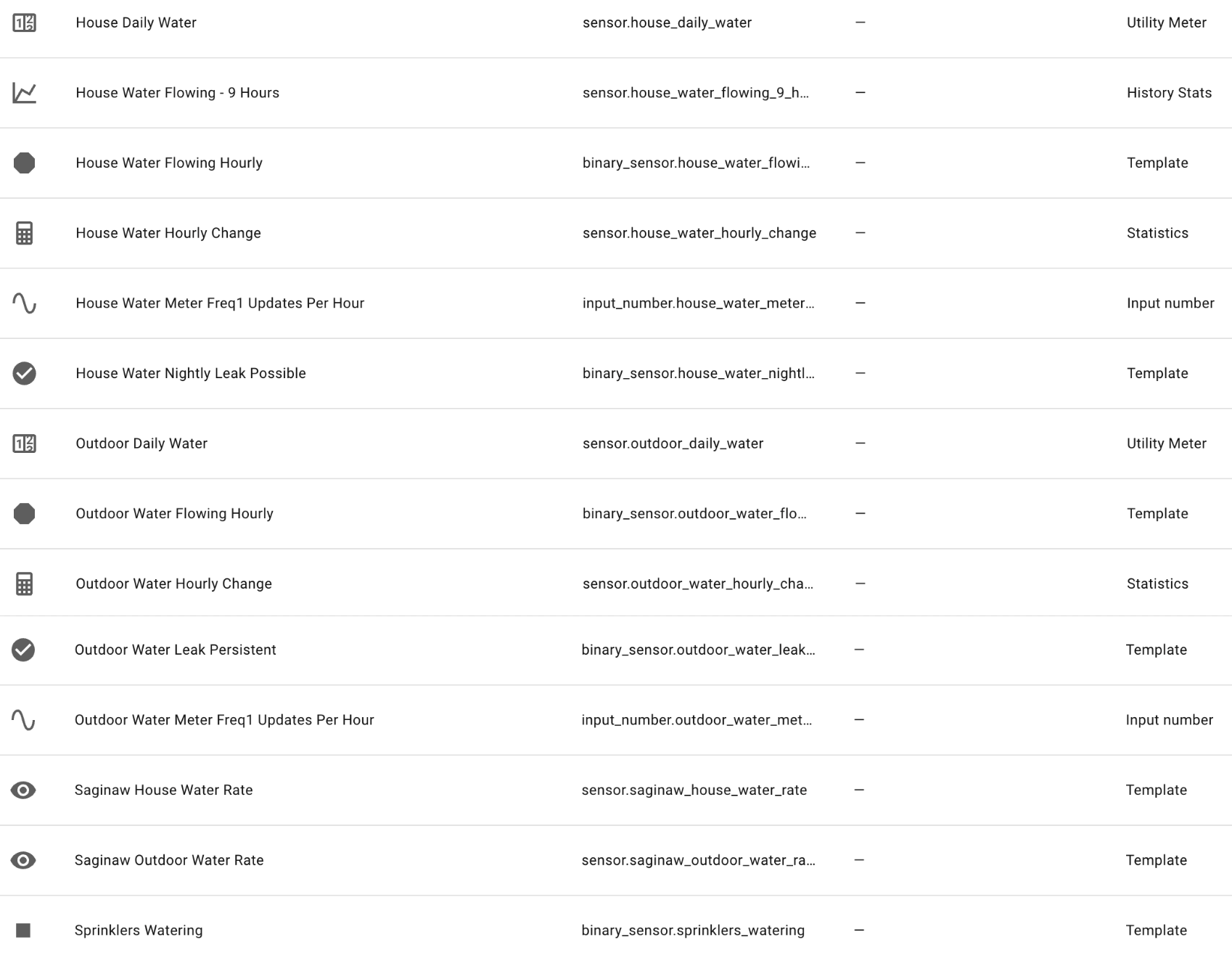
In Devices -> Helpers there are a bunch, but some come from templates above and others when you add the water data to your Energy dashboard (after a reboot and data starts coming in). Here’s my list of helpers:
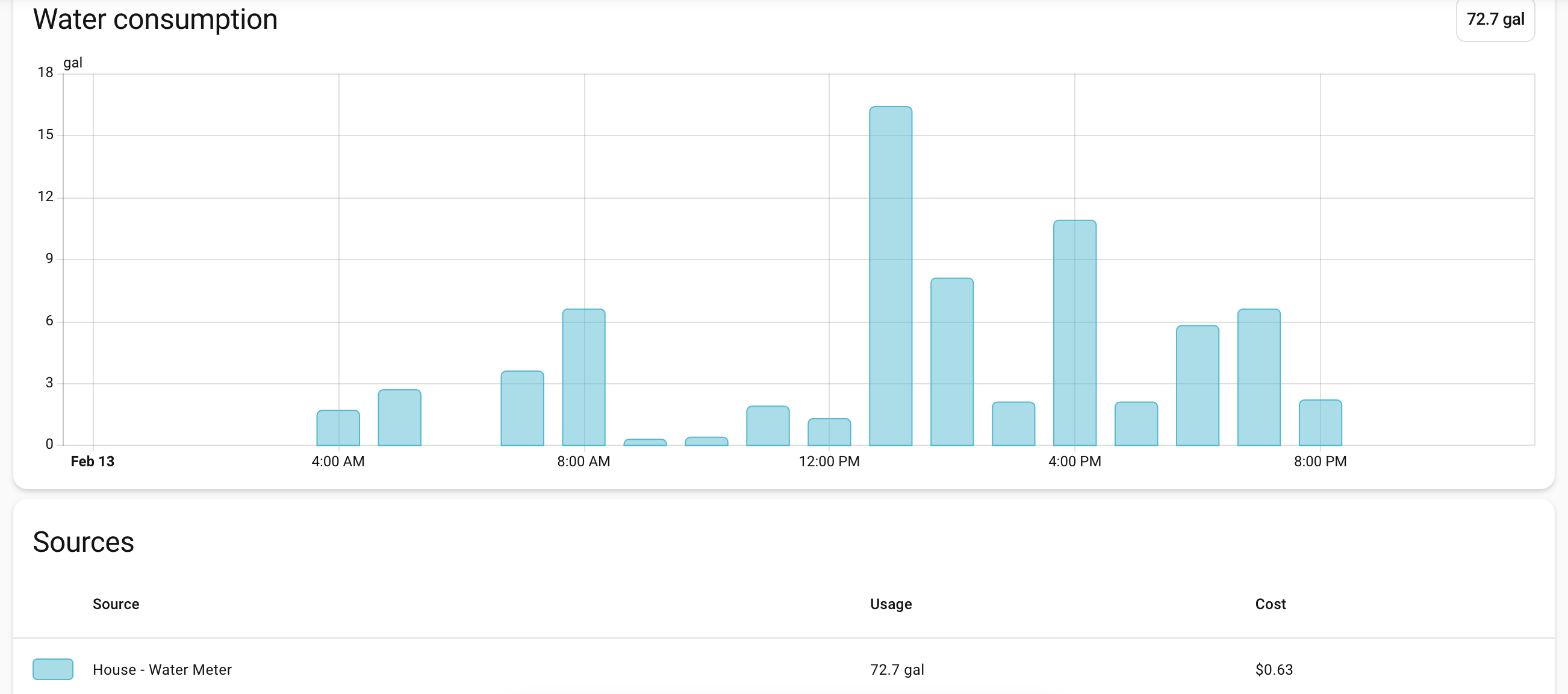
Some key findings when I started looking at the data. My meters are broadcasting many times per minute, but the gallons used reading only changes at 11 minutes after every hour. They do this to save the endpoint battery I guess. So no realtime data, but hourly is better than nothing.
In the data, there is a leaking flag. From what I’ve read this flag only gets turned on if the usage increases for 24 hours straight. Not great for leak detection, but would have been useful last summer when something busted on a sprinkler line and I didn’t find out for a week or so. I have leak notifications based on these flags, but my custom leak notifications should trigger sooner. If the sprinklers have been off and the outdoor usage increases two hours in a row, I’ll get an alert. If the house usage have been increasing all through the overnight I’ll get an alert in the morning.
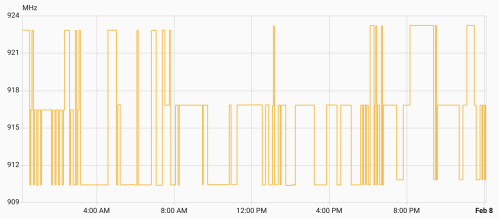
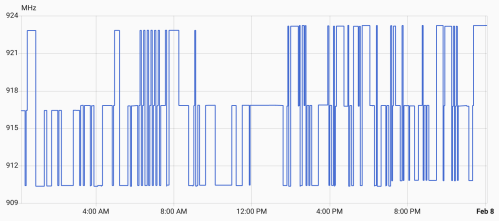
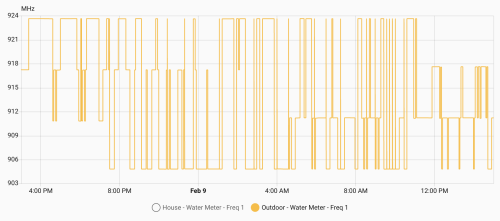
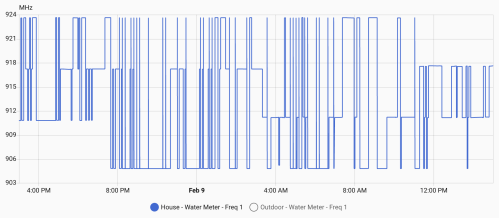
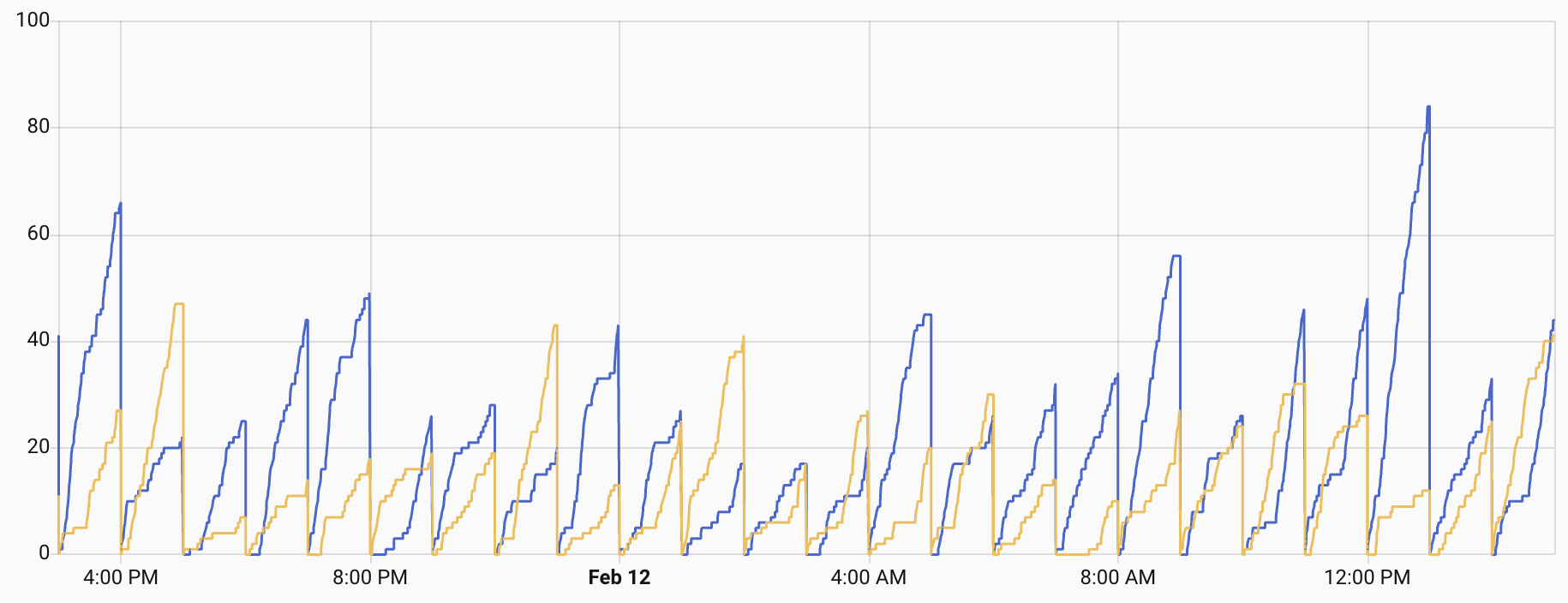
Once everything is setup, let it run. After several days, check out the freq1 sensor data, which should look similar to these graphs.
Your meters might be different, but mine hop between three frequencies at a time. There’s a low, medium, and high. Every 8 hours (3:11am, 11:11am, and 7:11pm), one of the frequencies increases by 400MHz, so over the course of a day they all increase. Then one day they all peaked and reset to the lower end of a frequency band.
From all this data I knew:
Low Band: 904.8 – 910.8 MHz with changes at 7:11 pm
Med Band: 911.2 – 917.2 MHz with changes at 3:11 am
High Band: 917.6 – 923.6 MHz with changes at 11:11 am
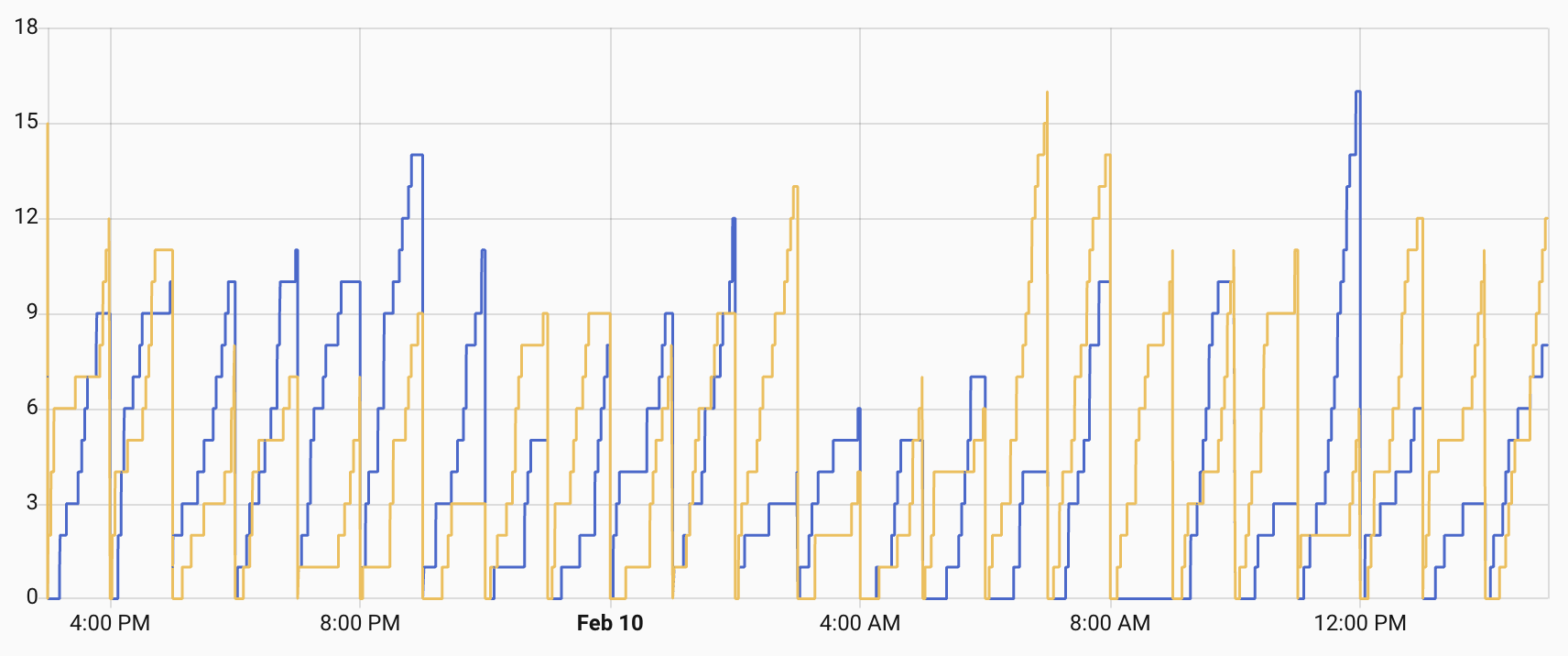
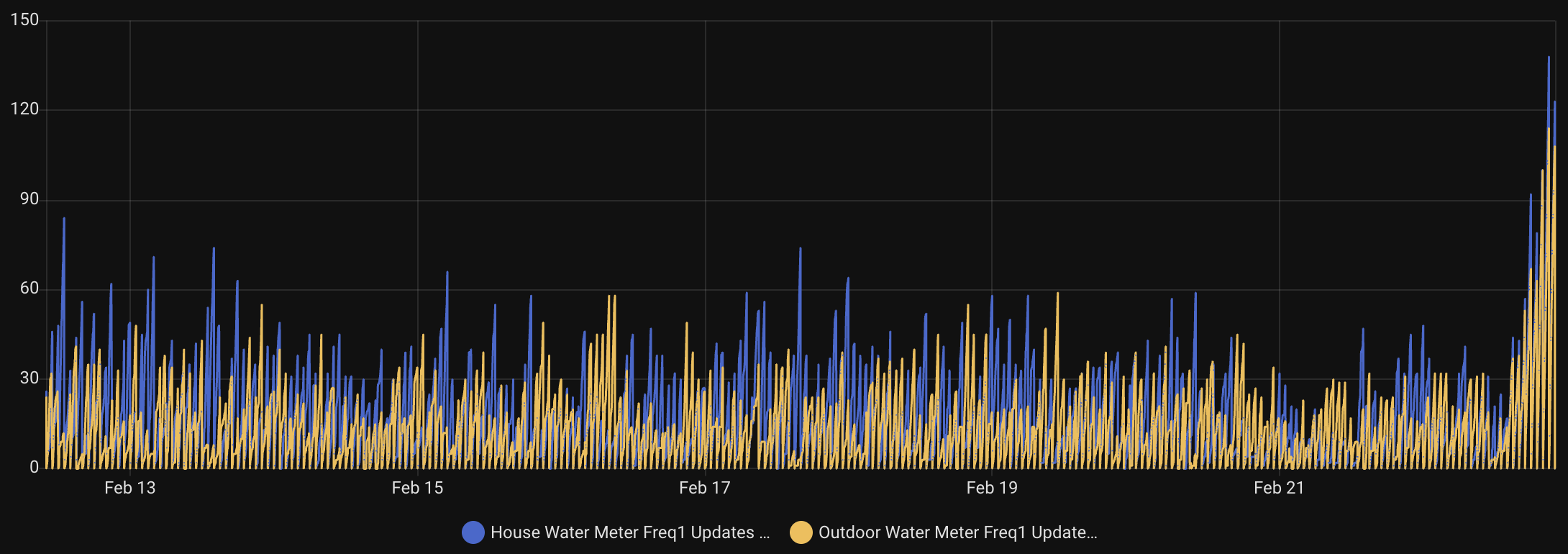
I also tracked how many times per hour I caught data from each meter.
Not bad, but some hours I’d only get one or two data packets for a meter. Technically enough, but there was a risk of missing data. Since I knew the pattern I felt I could do smarter frequency hopping with my SDR to listen for data and then capture a lot more. It worked!
I was getting a lot more reads and rarely less than 10 in any hour. In order to do this I updated the rtl_433.conf file to replace the 24 frequencies with three bands.
The two uncommented frequencies in each band are the ones on either side of the frequency currently used by the meters. I added a scripts folder and a new update_rtl433_channels.sh file in there.
#!/bin/bash
# update_rtl433_channels.sh
#
# Advances one band's frequency pair in the rtl_433 config.
# Two adjacent frequencies are active per band (channel ± 0.1 MHz).
# Each shift: comment both active, uncomment the next two commented lines.
# At wrap (no more commented lines after active): jump to first two.
#
# Usage: update_rtl433_channels.sh <low|mid|high> [config_path]

BAND="$1"
CONFIG_PATH="${2:-/config/rtl_433/rtl_433.conf}"

if [ -z "$BAND" ]; then
    echo "Usage: $0 <low|mid|high> [config_path]"
    exit 1
fi

if [ ! -f "$CONFIG_PATH" ]; then
    echo "Error: Config file not found: $CONFIG_PATH"
    exit 1
fi

case "$BAND" in
    low)  SECTION="# Low band -" ;;
    mid)  SECTION="# Mid band -" ;;
    high) SECTION="# High band -" ;;
    *)    echo "Error: band must be low, mid, or high"; exit 1 ;;
esac

SECTION_START=$(grep -n "$SECTION" "$CONFIG_PATH" | head -1 | cut -d: -f1)
if [ -z "$SECTION_START" ]; then
    echo "Error: Could not find section '$SECTION' in config"
    exit 1
fi

NEXT_SECTION=$(tail -n +$((SECTION_START + 1)) "$CONFIG_PATH" | grep -n "^# .* band -" | head -1 | cut -d: -f1)
if [ -z "$NEXT_SECTION" ]; then
    SECTION_END=$(wc -l < "$CONFIG_PATH")
else
    SECTION_END=$((SECTION_START + NEXT_SECTION - 1))
fi

echo "Band: $BAND (lines $SECTION_START-$SECTION_END)"

# Find all active (uncommented) frequency lines
ACTIVE_ABS=()
for LINE_NUM in $(seq "$SECTION_START" "$SECTION_END"); do
    if sed -n "${LINE_NUM}p" "$CONFIG_PATH" | grep -q "^frequency "; then
        ACTIVE_ABS+=("$LINE_NUM")
    fi
done

if [ "${#ACTIVE_ABS[@]}" -ne 2 ]; then
    echo "Error: Expected 2 active frequencies, found ${#ACTIVE_ABS[@]}"
    exit 1
fi

FIRST_ABS=${ACTIVE_ABS[0]}
SECOND_ABS=${ACTIVE_ABS[1]}

echo "Active:"
echo "  Line $FIRST_ABS: $(sed -n "${FIRST_ABS}p" "$CONFIG_PATH")"
echo "  Line $SECOND_ABS: $(sed -n "${SECOND_ABS}p" "$CONFIG_PATH")"

# Find the next TWO commented frequency lines after the LAST active line
NEXT_COMMENTED=()
for LINE_NUM in $(seq $((SECOND_ABS + 1)) "$SECTION_END"); do
    if sed -n "${LINE_NUM}p" "$CONFIG_PATH" | grep -q "^#frequency "; then
        NEXT_COMMENTED+=("$LINE_NUM")
        if [ "${#NEXT_COMMENTED[@]}" -eq 2 ]; then
            break
        fi
    fi
done

if [ "${#NEXT_COMMENTED[@]}" -lt 2 ]; then
    # At end of section — wrap to first two
    echo "End of section, wrapping to first two"

    sed -i "${FIRST_ABS}s/^frequency /#frequency /" "$CONFIG_PATH"
    sed -i "${SECOND_ABS}s/^frequency /#frequency /" "$CONFIG_PATH"

    WRAP_LINES=()
    for LINE_NUM in $(seq "$SECTION_START" "$SECTION_END"); do
        if sed -n "${LINE_NUM}p" "$CONFIG_PATH" | grep -q "^#frequency "; then
            WRAP_LINES+=("$LINE_NUM")
            if [ "${#WRAP_LINES[@]}" -eq 2 ]; then
                break
            fi
        fi
    done

    sed -i "${WRAP_LINES[0]}s/^#frequency /frequency /" "$CONFIG_PATH"
    sed -i "${WRAP_LINES[1]}s/^#frequency /frequency /" "$CONFIG_PATH"
else
    echo "Advancing: commenting $FIRST_ABS,$SECOND_ABS, uncommenting ${NEXT_COMMENTED[0]},${NEXT_COMMENTED[1]}"

    sed -i "${FIRST_ABS}s/^frequency /#frequency /" "$CONFIG_PATH"
    sed -i "${SECOND_ABS}s/^frequency /#frequency /" "$CONFIG_PATH"
    sed -i "${NEXT_COMMENTED[0]}s/^#frequency /frequency /" "$CONFIG_PATH"
    sed -i "${NEXT_COMMENTED[1]}s/^#frequency /frequency /" "$CONFIG_PATH"
fi

echo ""
echo "Active frequencies:"
grep "^frequency " "$CONFIG_PATH"
This file needs a permissions change. Install the Terminal & SSH app in HA, start it, open it, and type: chmod +x /config/config/update_rtl433_channels.sh.
- id: '1770813439694'
  alias: RTL 433 - Shift Low Band Frequencies
  description: Advances low band frequencies at 00:11 UTC daily
  triggers:
  - trigger: template
    value_template: '{{ utcnow().strftime(''%H:%M'') == ''00:11'' }}'
    id: scheduled
  - trigger: homeassistant
    event: start
    id: restart
  conditions:
  - condition: or
    conditions:
    - condition: trigger
      id: scheduled
    - condition: and
      conditions:
      - condition: template
        value_template: '{% set m = utcnow().hour * 60 + utcnow().minute %} {{ 11
          <= m <= 16 }}'
      - condition: template
        value_template: '{% set lt = state_attr(''automation.rtl_433_shift_low_band_frequencies'',
          ''last_triggered'') %} {{ lt is none or lt.date() < now().date() }}'
  actions:
  - action: shell_command.rtl433_shift_low
  - delay:
      seconds: 5
  - action: hassio.addon_restart
    data:
      addon: 9b13b3f4_rtl433-next
  - action: homeassistant.update_entity
    target:
      entity_id: sensor.rtl_433_freq_hops
  mode: single
- id: '1770813477228'
  alias: RTL 433 - Shift Mid Band Frequencies
  description: Advances mid band frequencies at 08:11 UTC daily
  triggers:
  - trigger: template
    value_template: '{{ utcnow().strftime(''%H:%M'') == ''08:11'' }}'
    id: scheduled
  - trigger: homeassistant
    event: start
    id: restart
  conditions:
  - condition: or
    conditions:
    - condition: trigger
      id: scheduled
    - condition: and
      conditions:
      - condition: template
        value_template: '{% set m = utcnow().hour * 60 + utcnow().minute %} {{ 491
          <= m <= 496 }}'
      - condition: template
        value_template: '{% set lt = state_attr(''automation.rtl_433_shift_mid_band_frequencies'',
          ''last_triggered'') %} {{ lt is none or lt.date() < now().date() }}'
  actions:
  - action: shell_command.rtl433_shift_mid
  - delay:
      seconds: 5
  - action: hassio.addon_restart
    data:
      addon: 9b13b3f4_rtl433-next
  - action: homeassistant.update_entity
    target:
      entity_id: sensor.rtl_433_freq_hops
  mode: single
- id: '1770813511146'
  alias: RTL 433 - Shift High Band Frequencies
  description: Advances high band frequencies at 16:11 UTC daily
  triggers:
  - trigger: template
    value_template: '{{ utcnow().strftime(''%H:%M'') == ''16:11'' }}'
    id: scheduled
  - trigger: homeassistant
    event: start
    id: restart
  conditions:
  - condition: or
    conditions:
    - condition: trigger
      id: scheduled
    - condition: and
      conditions:
      - condition: template
        value_template: '{% set m = utcnow().hour * 60 + utcnow().minute %} {{ 971
          <= m <= 976 }}'
      - condition: template
        value_template: '{% set lt = state_attr(''automation.rtl_433_shift_high_band_frequencies'',
          ''last_triggered'') %} {{ lt is none or lt.date() < now().date() }}'
  actions:
  - action: shell_command.rtl433_shift_high
  - delay:
      seconds: 5
  - action: hassio.addon_restart
    data:
      addon: 9b13b3f4_rtl433-next
  - action: homeassistant.update_entity
    target:
      entity_id: sensor.rtl_433_freq_hops
  mode: single
Make sure to uncomment the correct frequencies in each band, update the automation trigger times, and make sure the slug for the rtl433-next app is correct. Each time an automation runs the active frequencies are updated for the associated band. Since they should be on both sides of the frequency used by the water meter both can read the RF broadcasts. When it gets to the end of the band’s frequency list, it shifts up to the top of the list. Since I need to make sure these three automations run, even if a restart happens at trigger time, there is some retry logic built in.
A lot of this is dependent on your water meters and situation, but hopefully it gives you enough information to make it work.
Update: After getting everything setup, I had some issues, collected more data, tested, collaborated with AI, improved the location of my SDR, and got it working much much better. The code is updated above and now I’m collecting 100 or more data points per meter during some hours. Check out the hourly data read counters and how much taller the bars at at the end of this chart!