From Rest API to MQTT

After the recent changes to my home network and Home Assistant server, I noticed the logs in Pi-Hole were being dominated by the domain I use for dynamic DNS on the box. Roughly 15,000 DNS requests a day out of 30,000 on my entire network. Really skews the ad blocking stats.

Why so many DNS requests? Because home-assistant-pi and home-assistant-temperature-monitor were both using the Home Assistant REST API to fetch data. That’s 15k requests/day with only two of my seven other Raspberry Pis turned on, so it would get worse when I put some of the other Pis into “production” around the house. The temperature project only runs on one box, but the first project in installed on every Pi.

I briefly tried to switch those two projects over to using the local IP address of the server and continue to use the REST API, but with SSL enabled it was complicated. MQTT was already running on the server and those projects publish updates to Home Assistant over MQTT, so it was an easy decision to use it for subscribing as well.

While I was at it, I took the opportunity to simplify a lot of the code and have the devices update more frequently. So far it seems to have solved a couple of lingering stability or connection issues I was having with home-assistant-pi. All of the code changes are available in the respective GitHub repos linked earlier.

Update: I forgot I had home-assistant-pi connecting to google.com in to help with determining the local IP address in Python. Another update to clear that up will eliminate over five thousand DNS requests per day.

Home Network Updates

My router had been flaking out, so I picked up a Eero with 1 beacon. Setup was smooth and painless. I decided to use a new Wi-Fi network name, which was not one of my best ideas; reconfiguring about 30 devices was a pain in the ass!hass-io-install

While I was working on my network I took the opportunity to do a fresh install of everything on the Raspberry Pi server running Home Assistant and Pi-Hole. Instead of installing Raspbian and all of the software myself,  I took advantage of Hass.io, which is a preconfigured image and works well. When I first started using Home Assistant, the project was pretty immature so I didn’t use it.

Installing Pi-Hole as a Hass.io add-on is slick. Due to issues with my old router I’d been living without ad blocking for a few weeks and it was horrible. It’s hard going back to a web littered with ads when you’ve been living without them.

Figured I might as well keep going, so I also made a bunch of improvements to the Raspberry Pi Temperature Monitor I use in my garage. Seems to run much more stable, which may also have something to do with the fresh Home Assistant install. Changed a few things with home-assistant-pi as well.

Another big change I made to the server is connecting it to my network via ethernet instead of WiFi. It’s wired in through an AirPort Time Capsule, which is connected to the Eero via a really long cable running through the basement. I bet this has done more than anything to improve the stability and consistency of my system. A bonus of this connection change is the Speedtest reporting inside HA is much more accurate.

Now I need to make time to get more automating done in Home Assistant and publish part 2 and 3 of my home automation series. It’s coming up on a year since part 1, so long overdue.

Updates to Home Assistant Projects

My garage temp sensor, running home-assistant-temperature-monitor stopped working several months ago. I didn’t have time to figure it out and then summer hit, when it’s not important since I don’t heat up the garage before I workout. This weekend I finally got around to troubleshooting the problem.

Turned out I needed to install Adafruit_Python_GPIO. I must have updated my code at some point without fully testing, otherwise I’m not sure how any of it worked before. I didn’t investigate that though; I was more concerned with fixing it and doing some improvements. I updated the OS and everything on the Raspberry Pi since it hadn’t been turned on in quite some time.

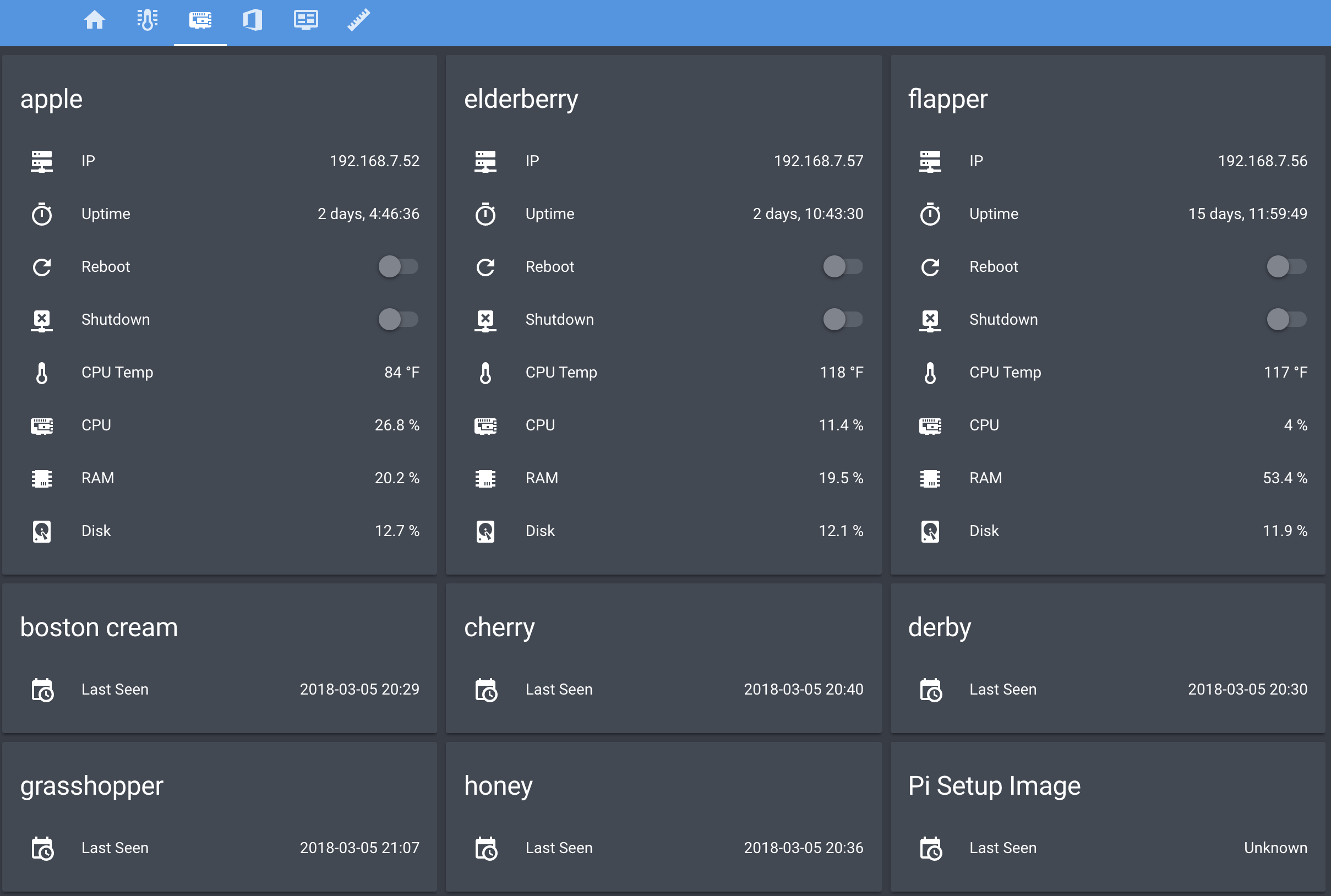
Earlier this year, another Pi on my network, the one running Home Assistant and Pi-hole, ran out of disk space without warning. I’ve wanted to put in a notification system so it never happens again, so I updated home-assistant-pi to report the disk use % to HA. I added an automation to notify me whenever it’s above 90% for one of my Pis. I also reworked all of the automations in home-assistant-pi to make it easier to configure each time I get a new Pi.

img_9705

That all took much longer than I expected. Most of the trouble was trying to understand the Jinja template system used in HA and where it can be applied to configurations. I think I’m finally getting the hang of it.

While writing this post, I found an old draft with some other updates to home-assistant-pi I never published. Maybe I never finished and that’s why everything stopped working! Here’s a list of some previous updates:

  • Fixed errors causing program to crash.
  • It wasn’t reconnecting very well, especially if Home Assistant went away (ex. for a restart after an upgrade). Rewrote how the MQTT connection works.
  • Switch from PushBullet to iOS notifications.
  • Changed show/hide Home Assistant group automations.

Now that this stuff is running again and I have a better understanding of the Home Assistant automation capabilities, I need to continue the series of posts I planned on home automation. It’s been five and a half months since I published Part 1!

Home Assistant Pi

With all of the Raspberry Pis I have (now up to 6 after adding “flapper”), I wanted to get a bunch of data in Home Assistant (yes, I’m still working on a larger home automation post) and have an easy way to reboot or shutdown each computer.

I wrote a little app which runs as a service on each Pi. Here’s an example of what shows up in Home Assistant.

home-assistant-pi-groups.png

The Python app and sample Home Assistant configurations are in my home-assistant-pi project on GitHub. Of course it’s all Open Source.

Garage Monitor Updates

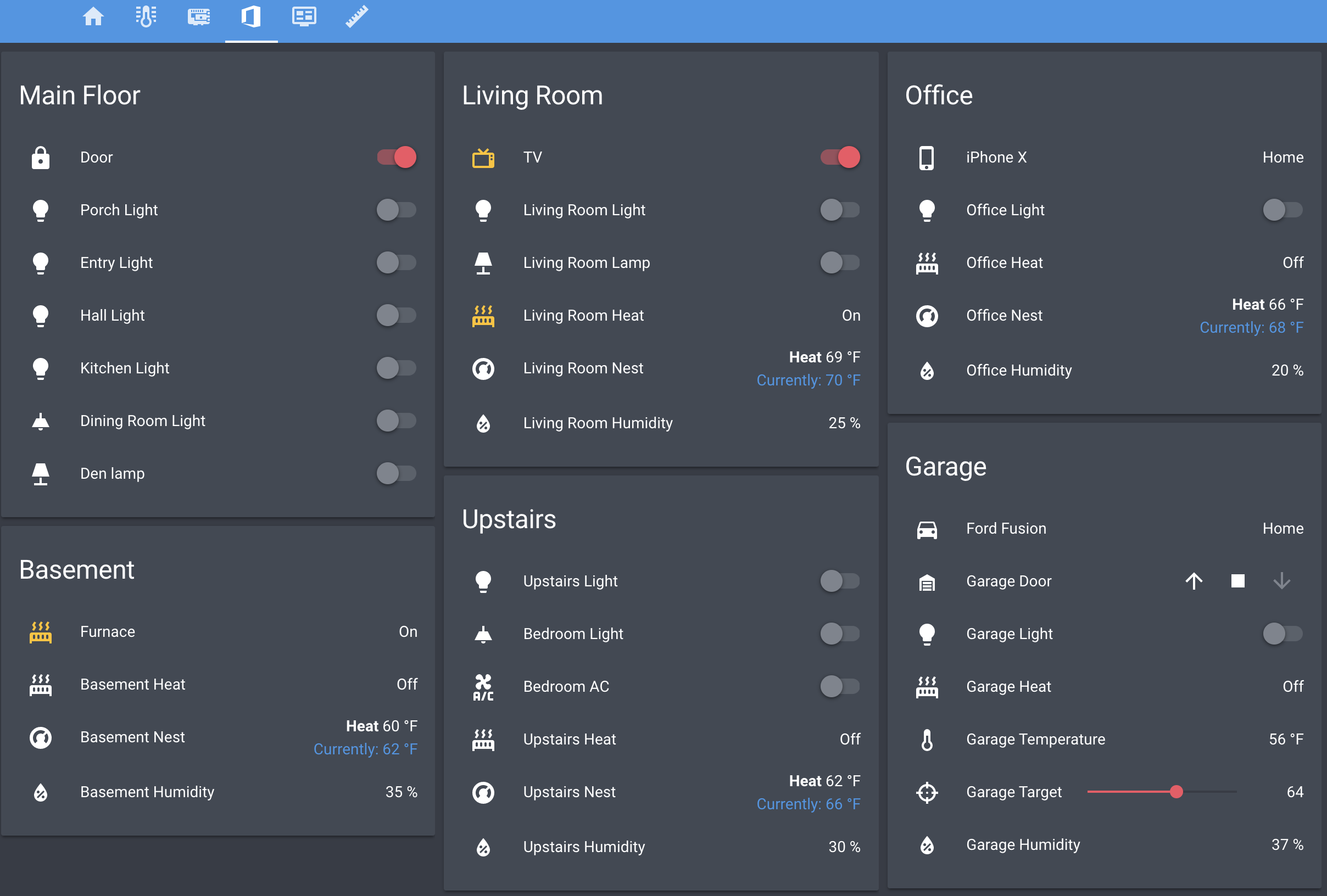
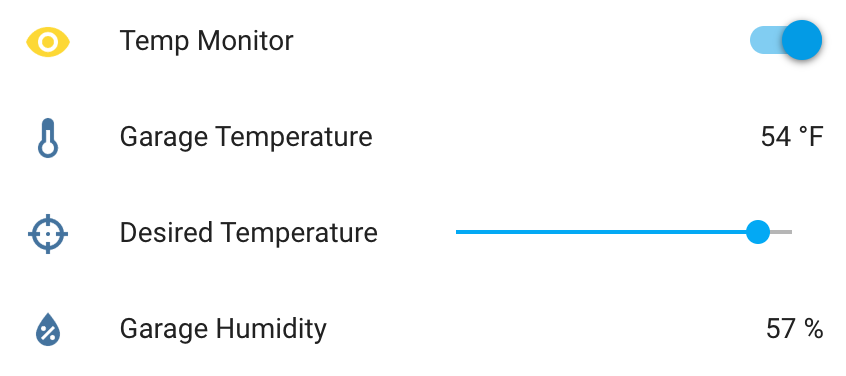
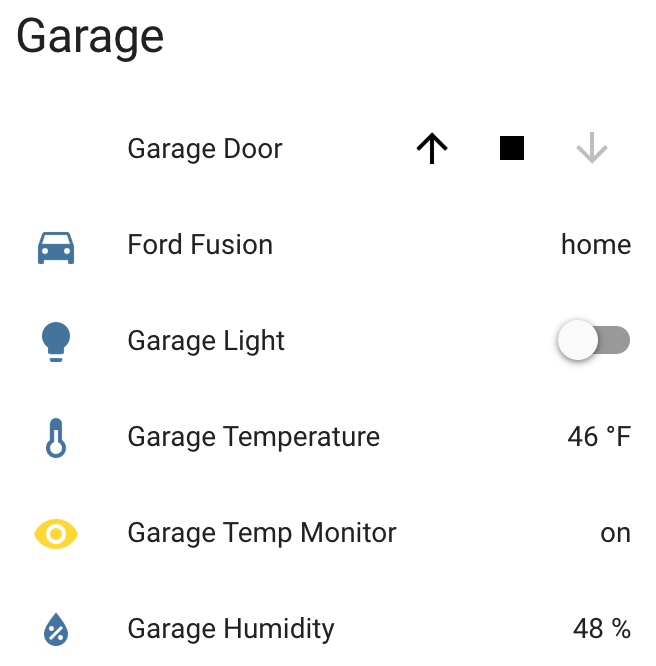
I made some updates to the Garage Temperature Sensor & Monitor. I didn’t like how the desired temperature was set via the app’s configuration file, so I moved it to a slider control in Home Assistant and updated the LCD to always show the value. Only being able to enable/disable monitoring via the device’s button also wasn’t great. I converted the binary sensor I was using to flag monitor mode in HA to a switch control and moved the actual monitoring logic from the Python app to HA automation. Everyhing is updated on GitHub.

updated-garage-monitor-ha.png
Info and controls in Home Assistant
img_8761
Custom temperature and humidity monitor

Garage Temperature Sensor & Monitor

I’ve been working on this project here and there for a few weeks, with most of the early work being experimentation. Everything is now up and running and it’s “deployed to production” so to speak. This was my prototyping setup…

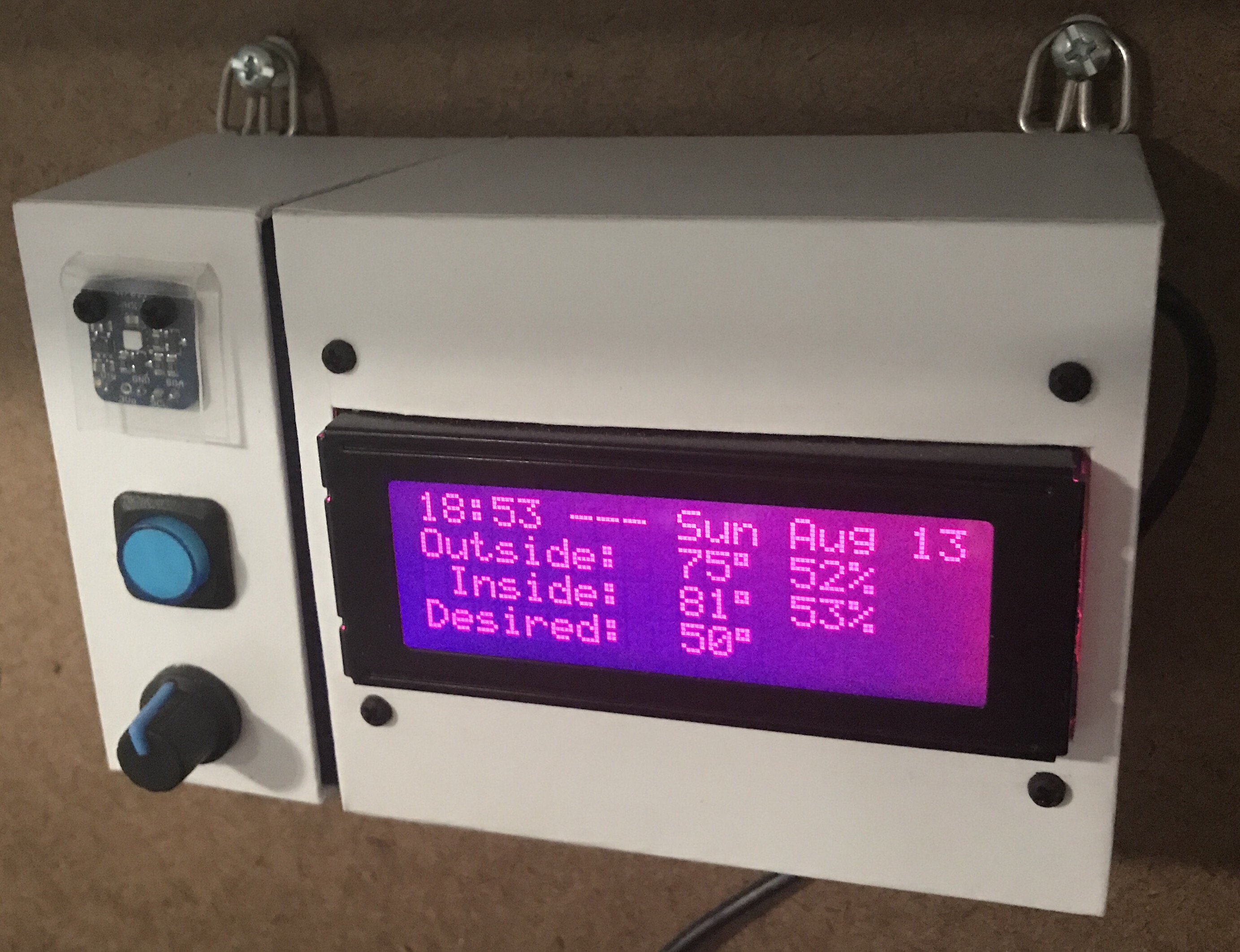
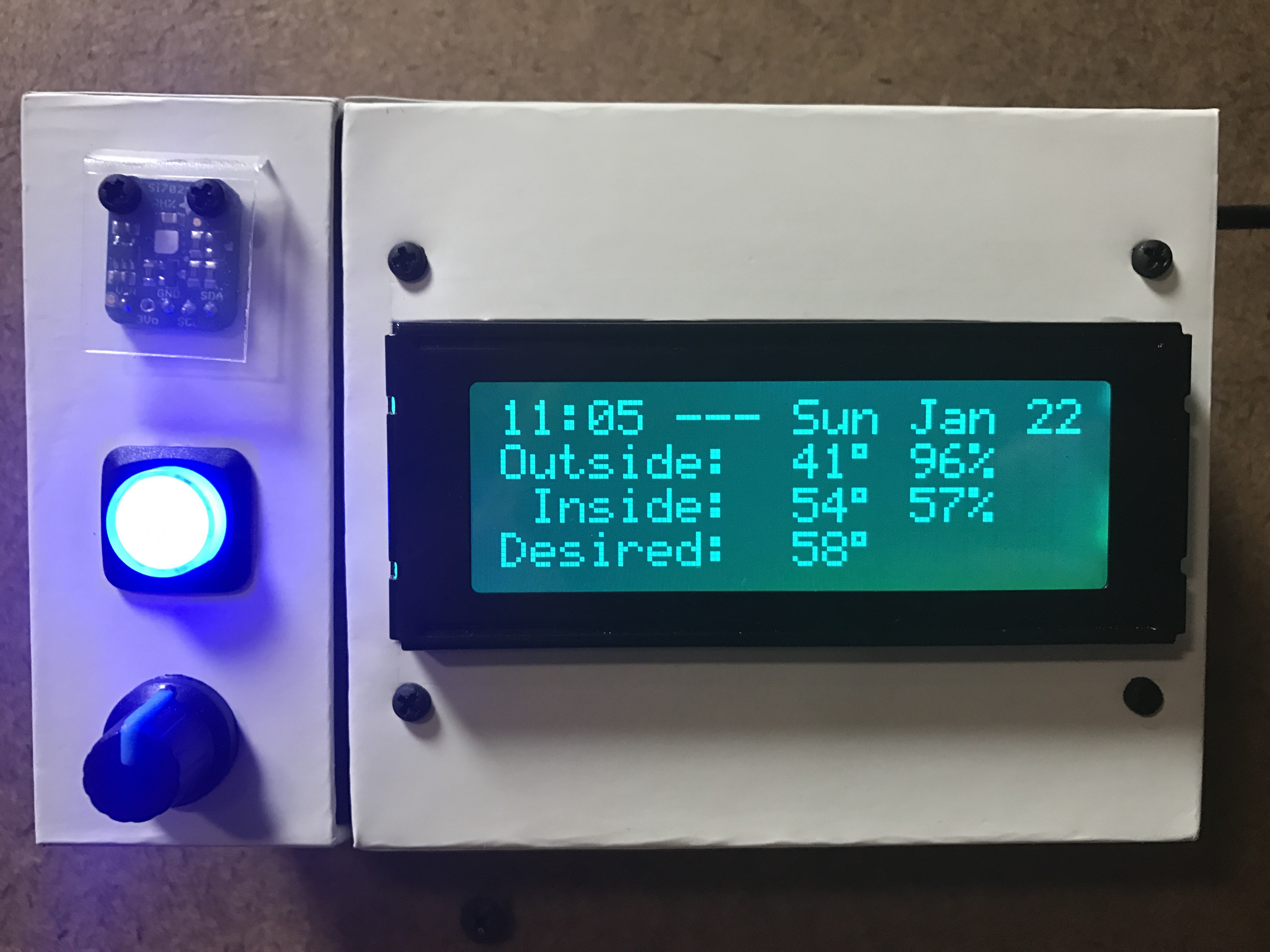
After wiring everything together and repurposing a cardboard box, here is a short video to show the final product.

A few notes on how it works:

  • The button toggles monitor mode. The LED inside the button indicates if Monitor mode is on/off.
  • When monitor mode is on and the desired temperature is reached, I get a notification.
  • I should have shown the knob, but all it does is adjust the LCD’s contrast.
  • The thing on the top left of the box is the sensor chip for reading temperature and humidity. Originally it was inside the box behind a little window there but it was picking up too much heat from the Pi and LCD in there.
  • The backlight color of the LCD is based on the measured temperature and updates each time new temperature is read. Anything 32° Farenheit and below is blue, 80° and above is red, and everything in between is based on where it falls within that 32-80 range. As you can see in the example, 48° is a lighter blue. A few degrees warmer and I think it would have started to look more green.
  • Outside temperature/humidity is pulled in from the Dark Sky data in my Home Assistant setup (which I’ll post about soon).
  • Data is sent to Home Assistant via MQTT.

home-assistant-garage.png

Really happy with how things turned out. The Pi  I wrote this in Python and it’s all available as home-assistant-temperature-monitor on GitHub if you want to make your own or use some of the code for your own project. There is also a list of all the components used.

Here are some pictures I took while assembling the enclosure/box.

Making sure the Pi and attached Hat fit right after drilling the holes. Seemed like there was so much room at this point.
img_8663
Everything soldered to the HAT. Amazingly I didn’t make any mistakes and everything worked on the first try. A good prototyping setup, having pictures of my final prototype, and keeping a list of where everything connected was invaluable.
The Raspberry Pi, Hat, LCD, USB cables to power and WiFi, and all of the other wiring jammed in! Reaching inside to get things screwed through the box wasn’t easy.
There is a lot more room in the other part of the box where the sensor, button, and knob are. Nice for the WiFi adapter and cable to come across and have some room.

Update: Adafruit released a new Learn guide that does some similar stuff to this project.