In order to automate the processes of getting the golf sim ready to play and shutting it all down when finished I needed to create a remote control device. I’m using Home Assistant (HA) to run my home smart system (more posts to come), but two things involved with the golf sim aren’t connected to the network:
The projector has an infrared (IR) remote and the light has a radio frequency (RF) remote. I’ve done some things with IR and still had a stash of IR LEDs (for transmitting) and receivers. I’ve never attempted any RF stuff, so I ordered a 5 pack of 433mhz wireless RF transmitter and receiver pairs.
Since I’m using HA, I let ESPHome handle all of the main programming. All I had to do was wire everything properly and get the configuration correct. I made use of an old ESP8266 NodeMCU microcontroller and worked on the IR aspect of the project first.
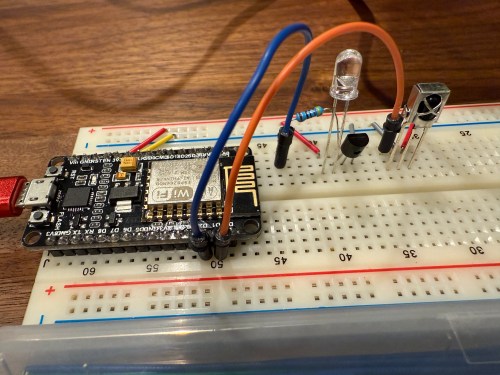
When I took the picture I was using a 470Ω resistor, which I eventually switched to 100Ω, to increase the strength of the IR signal. The transistor is a PN2222A. Here’s the ESPHome configuration:
esphome:
  name: golf-remote
  friendly_name: Golf Remote

esp8266:
  board: nodemcuv2

logger:

api:
  encryption:
    key: "xxxxxxxxxx"

ota:
  - platform: esphome
    password: "xxxxxxxxxx"

wifi:
  ssid: !secret wifi_ssid
  password: !secret wifi_password
  manual_ip:
    static_ip: x.x.x.x
    gateway: x.x.x.x
    subnet: 255.255.255.0

remote_receiver:
  - id: GOLF_IR_RX
    pin:
      number: D1
      inverted: True
      mode:
        input: True
        pullup: True
    dump: all

remote_transmitter:
  - id: GOLF_IR_TX
    pin: D2
    carrier_duty_percent: 50%
I used the receiver to intercept the codes sent by the projector’s actual remote when pressing the Power, Input, and OK buttons. Then I created some buttons.
button:
  - platform: template
    name: Projector Power
    on_press:
      - remote_transmitter.transmit_nec:
          transmitter_id: GOLF_IR_TX
          address: 0x3000
          command: 0xFD02
  - platform: template
    name: Projector Input
    on_press:
      - remote_transmitter.transmit_nec:
          transmitter_id: GOLF_IR_TX
          address: 0x3000
          command: 0xFB04
  - platform: template
    name: Projector OK
    on_press:
      - remote_transmitter.transmit_nec:
          transmitter_id: GOLF_IR_TX
          address: 0x7788
          command: 0xE619
It all went very smooth. Next I connected the circuits for the RF components, which was straightforward. Here are the pinouts from the Amazon product page.
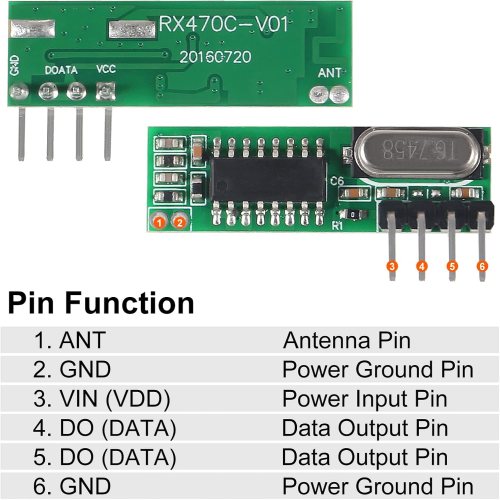
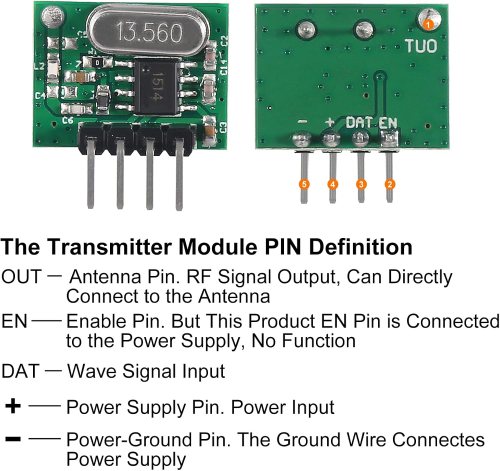
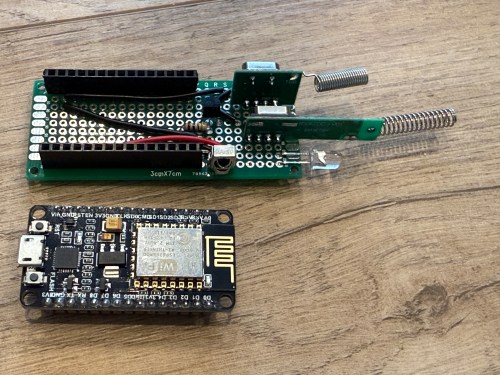
I soldered on the antennas (smaller one to the transmitter) and connected everything on the breadboard.

By using examples from the documentation I was able to intercept RF codes.

When I tried to recreate those codes through the transmitter the results weren’t matching up and the spotlight wasn’t responding. It took some trial and error to configure the various parameters of the receiver. Here’s the end result, with the combined configuration for IR and RF.
esphome:
  name: golf-remote
  friendly_name: Golf Remote

esp8266:
  board: nodemcuv2

logger:

api:
  encryption:
    key: "xxxxxxxxxx"

ota:
  - platform: esphome
    password: "xxxxxxxxxx"

wifi:
  ssid: !secret wifi_ssid
  password: !secret wifi_password
  manual_ip:
    static_ip: x.x.x.x
    gateway: x.x.x.x
    subnet: 255.255.255.0

remote_receiver:
  - id: GOLF_IR_RX
    pin:
      number: D1
      inverted: True
      mode:
        input: True
        pullup: True
    dump: all
  - id: GOLF_RF_RX
    pin:
      number: D6
      mode:
        input: True
        pullup: True
    dump:
      - rc_switch
    tolerance: 50%
    filter: 250us
    idle: 4ms
    buffer_size: 2kb # only for ESP8266

remote_transmitter:
  - id: GOLF_IR_TX
    pin: D2
    carrier_duty_percent: 50%
  - id: GOLF_RF_TX
    pin: D6
    carrier_duty_percent: 100%
After using the remote_receiver instances to get the button press codes I needed, I commented out that section of the code. If I ever need to add more functionality to my remote, I can enable the receivers at that point. Here are the button codes for the spotlight.
  - platform: template
    name: Spotlight On
    on_press:
      - remote_transmitter.transmit_rc_switch_raw:
          transmitter_id: GOLF_RF_TX
          code: '111001000000100100000011'
          protocol: 1
          repeat:
            times: 10
            wait_time: 0s
  - platform: template
    name: Spotlight Off
    on_press:
      - remote_transmitter.transmit_rc_switch_raw:
          transmitter_id: GOLF_RF_TX
          code: '111001000000100100000001'
          protocol: 1
          repeat:
            times: 10
            wait_time: 0s
  - platform: template
    name: Spotlight Green
    on_press:
      - remote_transmitter.transmit_rc_switch_raw:
          transmitter_id: GOLF_RF_TX
          code: '111001000000100100000111'
          protocol: 1
          repeat:
            times: 10
            wait_time: 0s
Then I was able to use both sets of buttons in scripts, which can feed to Alexa for voice commands.

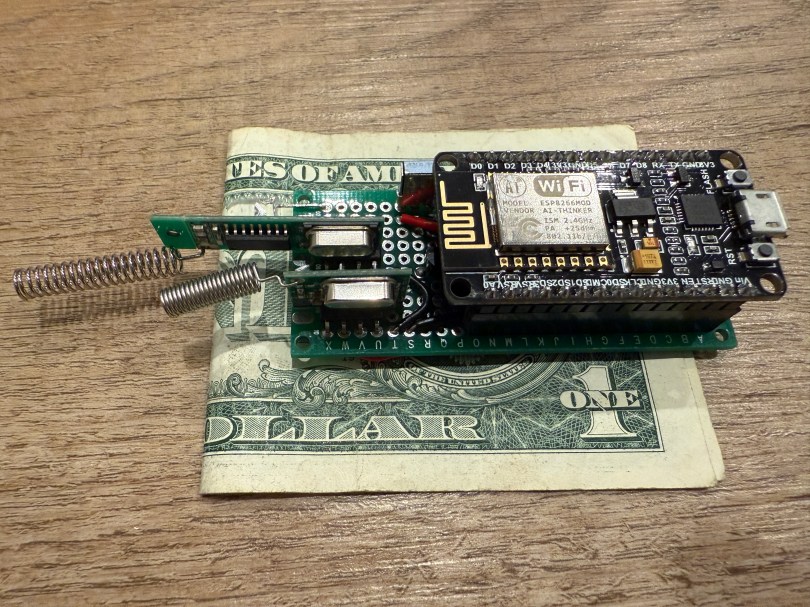
Once everything was tested I wired and soldered a more permanent circuitboard. I included a folded dollar bill for scale.



I was planning to mount it in the ceiling, but the IR was having trouble, because the projector’s receiver faces the ground. Mounting it to the side of the PC cart worked great.

This was a lot of fun!
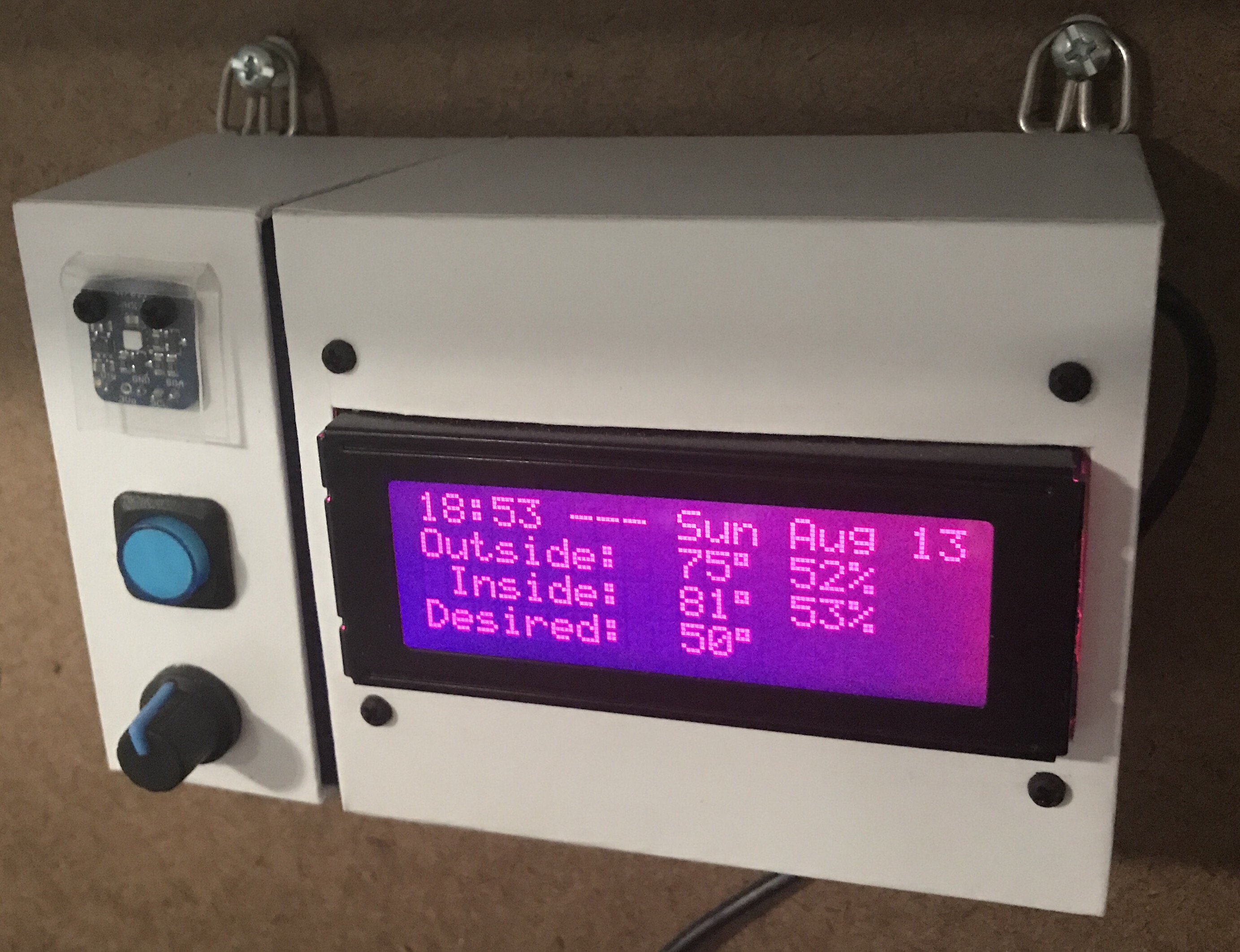
Update: Less than a week later I’ve already modified it, by adding a DHT22, which reports temperature and humidity. Might as well use that empty D7 pin on the microcontroller.



 Nick Momrik