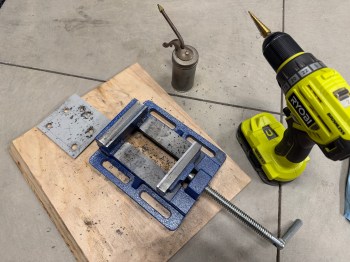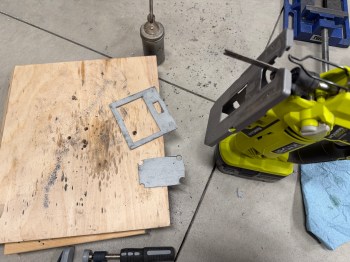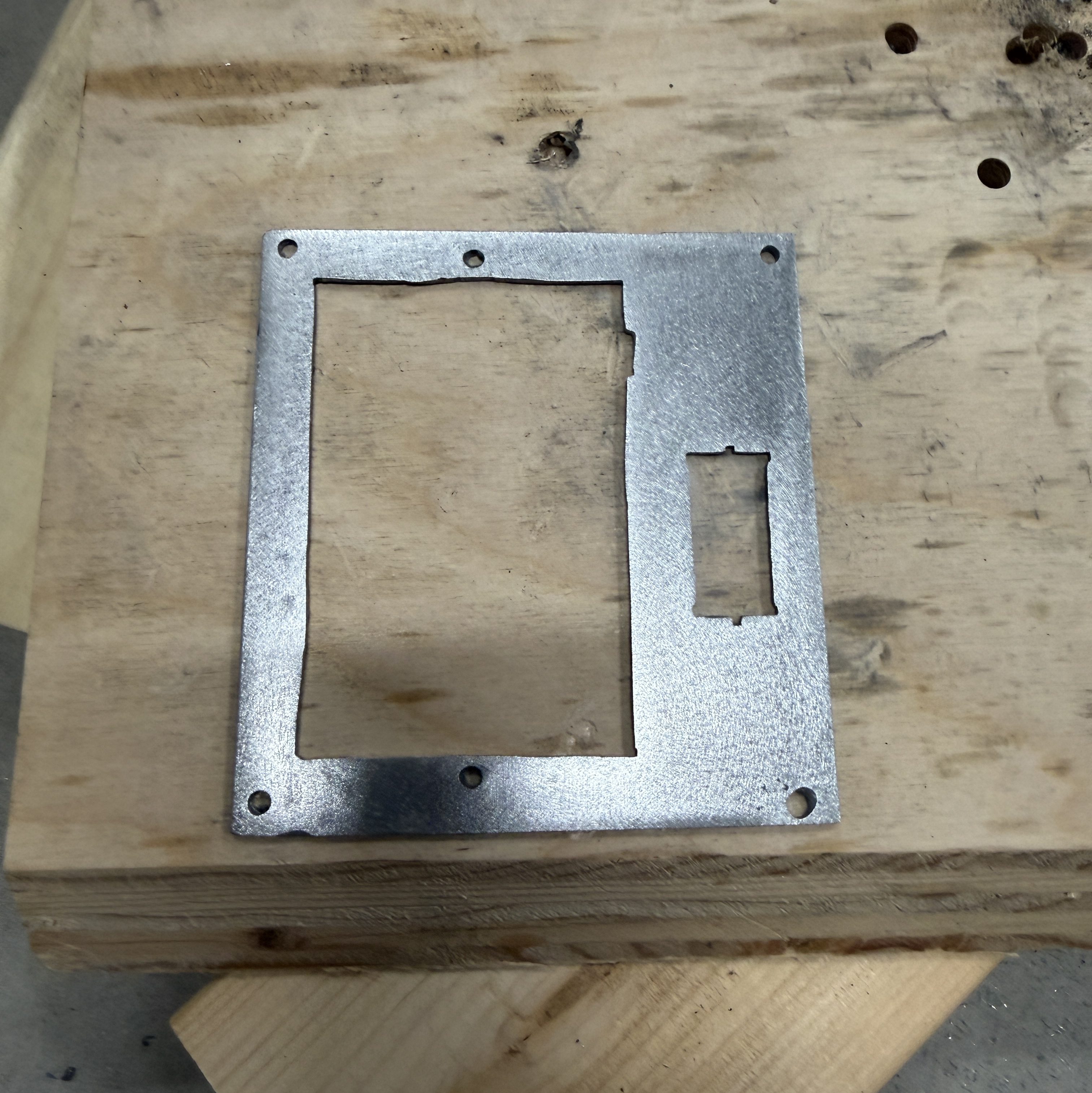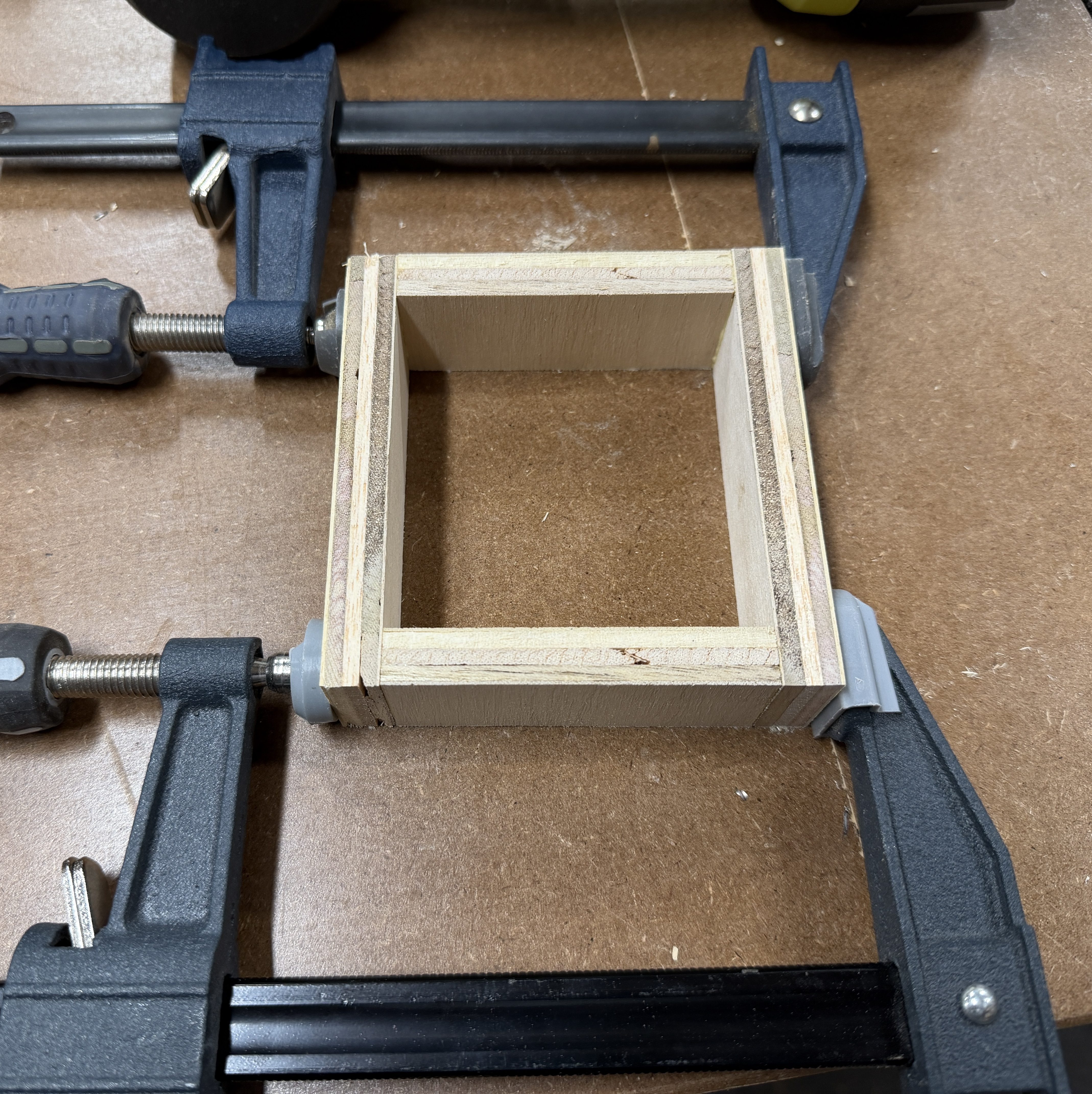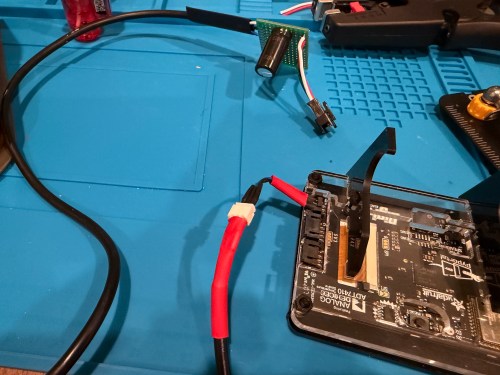
I’ve had this Rigid shop vacuum, from Home Depot, for about 20 years.
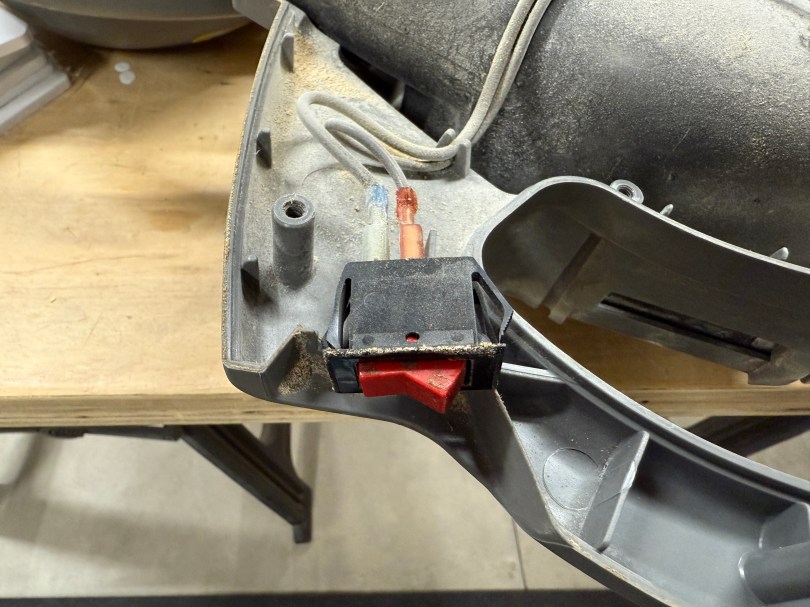
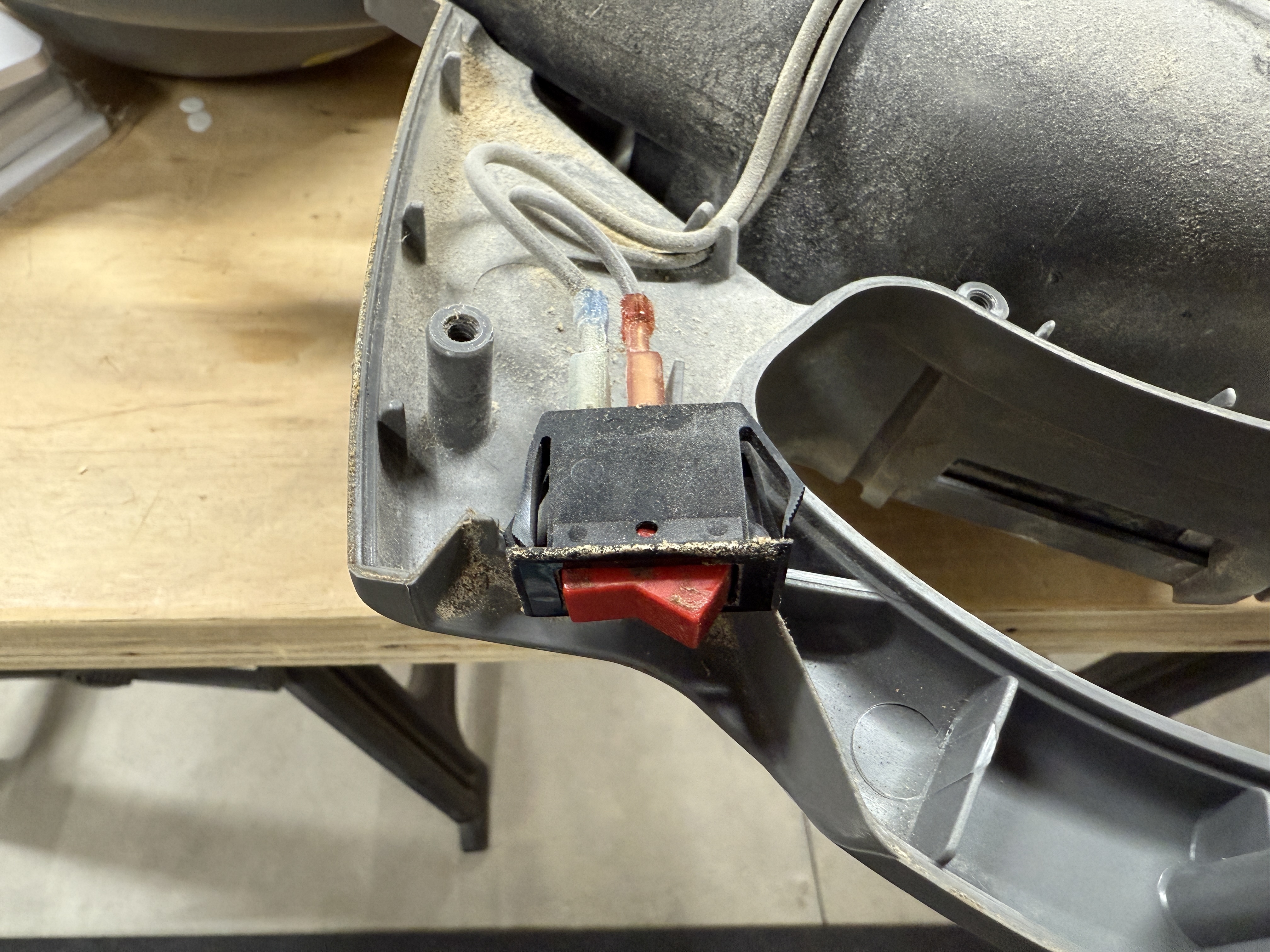
At some point in the last year, the switch started having issues. The vacuum would only turn on if the switch was actually pressed in, instead of toggled. I’ve never seen that happen, but I’m guessing it was from the accumulation of dirt and dust getting inside the switch body. Then the switch wouldn’t even push in, so the vacuum wouldn’t run.
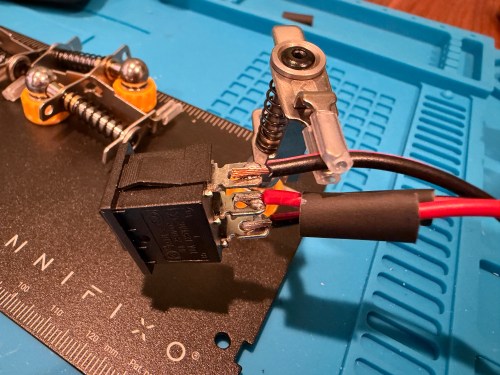
I figured it would be an easy switch replacement, so I removed a bunch of screws to take off the cover. Sure enough, the switch had two wires clipped on to it, and was held in place by the case.
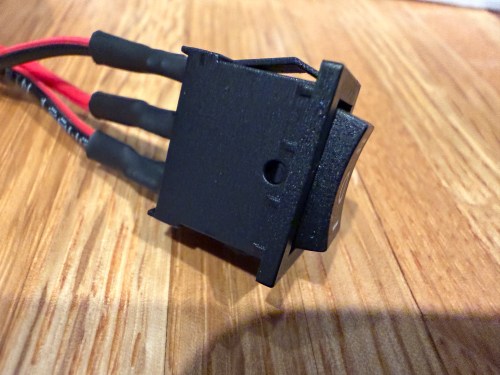
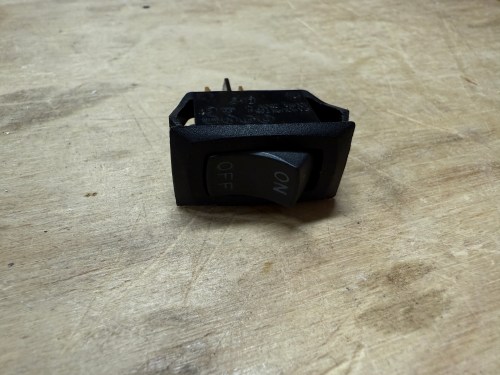
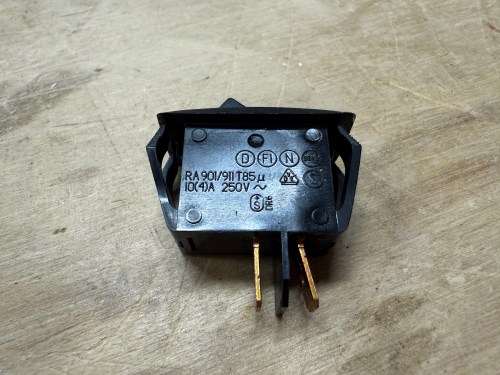
I had a perfect replacement, salvaged from some device I don’t remember, in my collection of electronics parts.
It fit like a glove and the vacuum turned on as if it was brand new. I screwed the case back together and called it done.
A big part of the planning for our house included Ethernet wiring because I want to hardwire every device I can, saving the Wi-Fi for devices that require it. It’s much easier and cheaper to get everything wired during the build, instead of adding later. I went through several iterations of the plan and in the end I had the electricians do 42 runs of Cat6:
4 jacks in the office
2 jacks in the office closet
2 jacks in the pocket office
2 jacks in the guest bedroom
4 jacks behind the TV
2 jacks in the living room
2 jacks in the dining room
2 jacks in the pantry
2 jacks in the laundry room
4 jacks in the walk in closet
6 jacks in the master bedroom
10 wires to 5 exterior camera locations (1 extra at each location)
They run it all up through the ceiling. I’m guessing that is to keep it away from most of the electrical. Here’s the master bedroom nightstand wiring as an example.
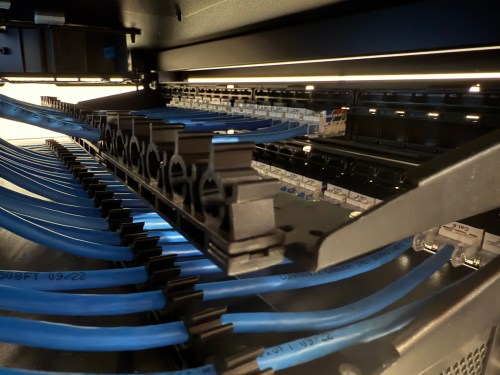
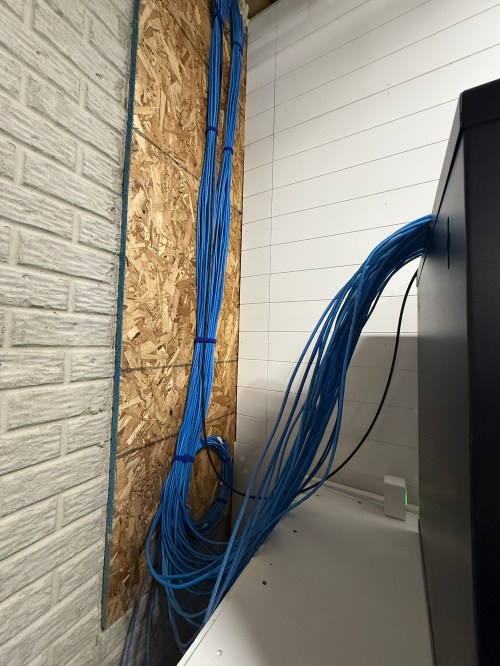
Then all of the cables comes over and down a wall between the laundry room and garage.
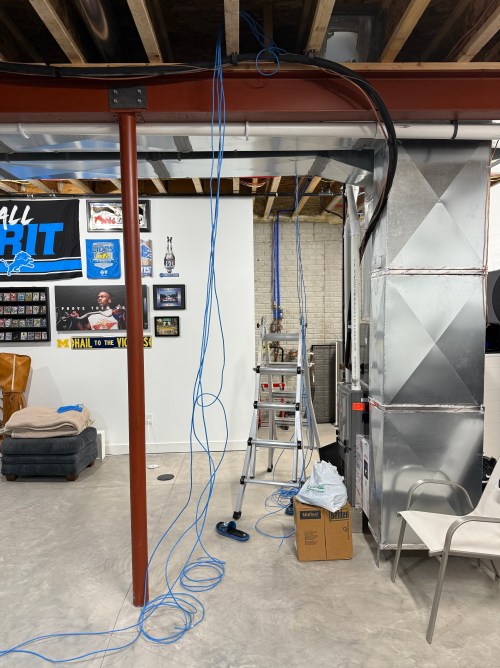
Ending at a single location in the basement.
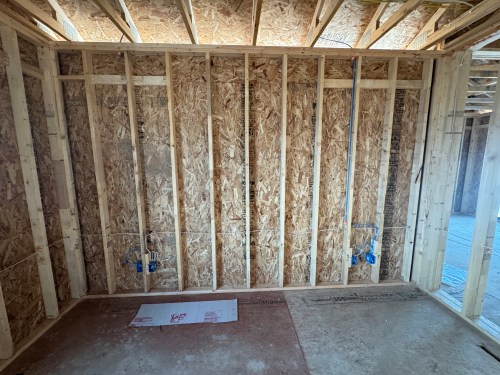
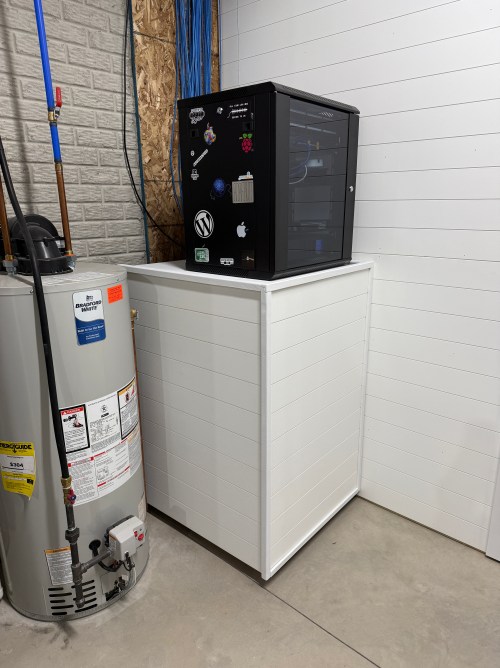
We built a wall (part 1 & 2) and since we moved in back in August I’d had the cable modem and old eero router sitting on top of the network rack filled with new equipment.
Throughout the house, I put port covers on the unused jacks. Here’s how a wall plate looks with one port open and one covered. The covers will help protect the internals and keep dust out.
What did I buy for my network? A LOT! Here’s all of the stuff for the rack, cables, and tools.
When it came to the actual networking equipment I took a good look at the stuff from Ubiquiti/UniFi. It’s top of the line, which is reflected by the price tag. I decided to go with TP-Link instead, saving a lot of money.
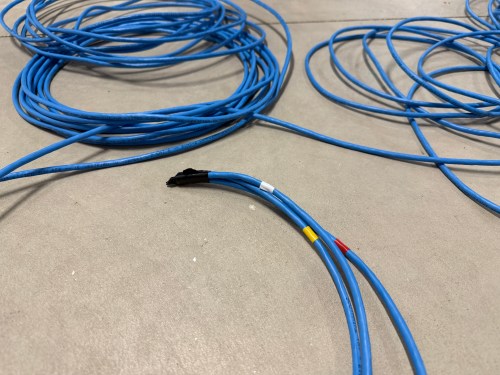
Before I started wiring everything through the rack, I cleaned up the cables.
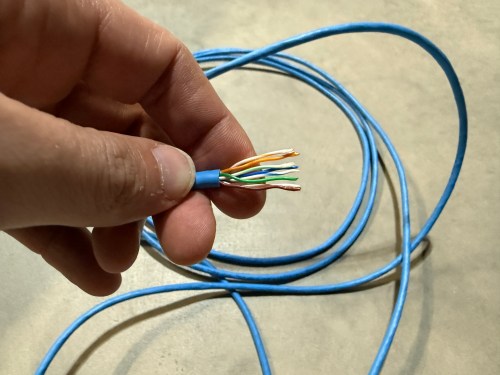
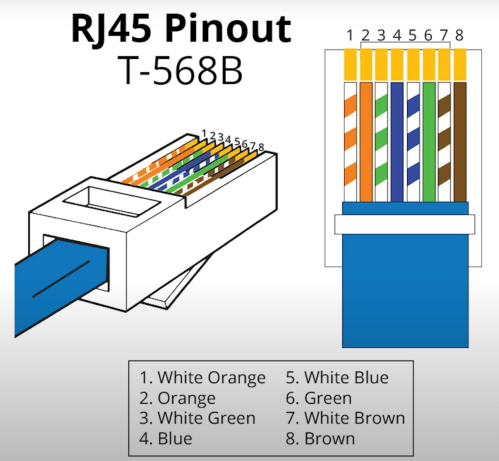
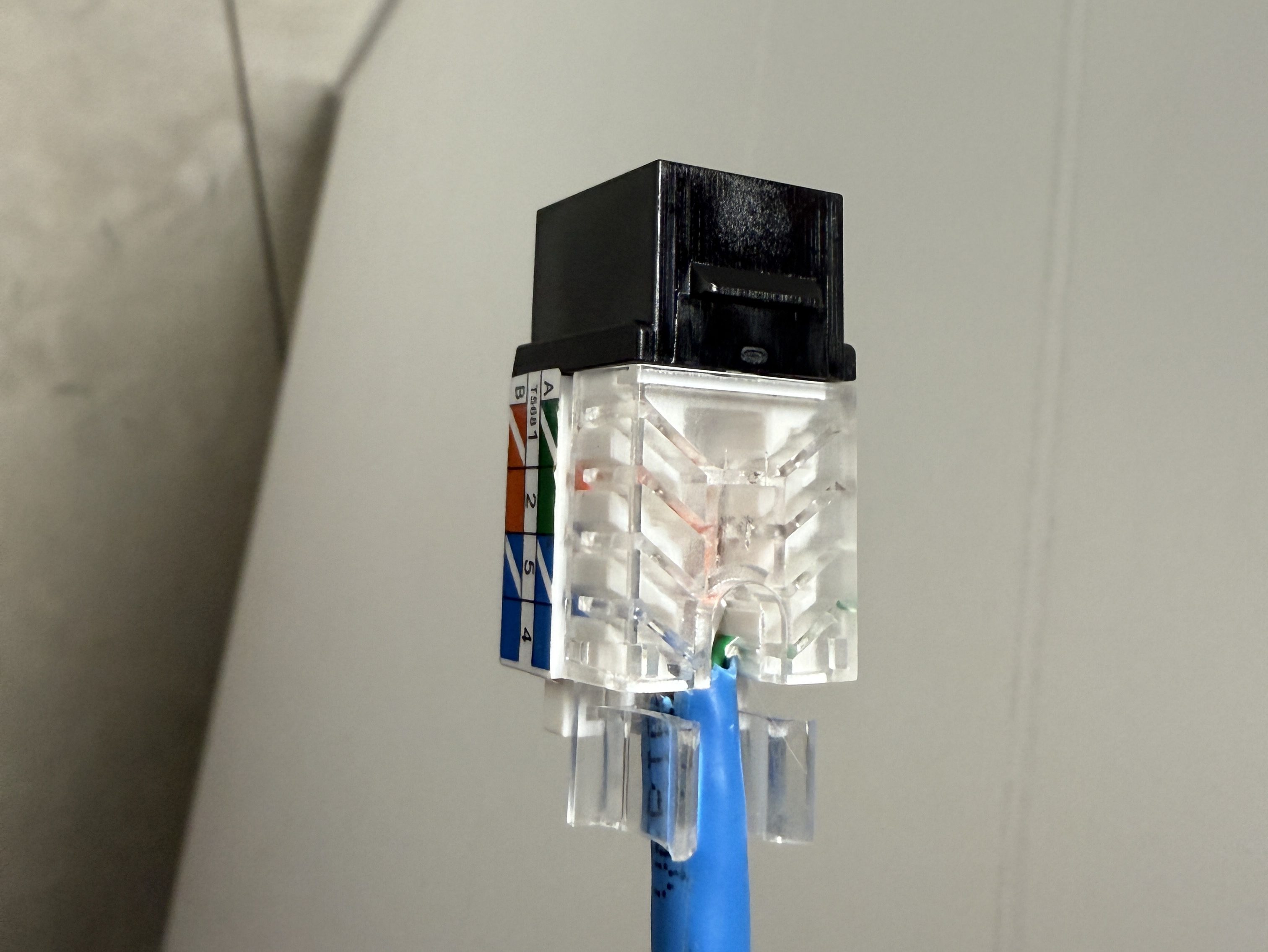
The electricians had done all of the wall jacks throughout the house with the newer T-568B wiring standard, so I followed suit. I learned how to wire the keystone jacks and insert them in to the patch panels.
I’d never done anything like this and it was so much fun. By the end, I was pretty quick with each keystone jack. I highly recommend the Everest 45° ones and the tool for it. The basement needed some Ethernet ports for the golf sim, so I ran four new cables from the rack. I installed a couple of electrical boxes in the ceiling and wired jacks there.
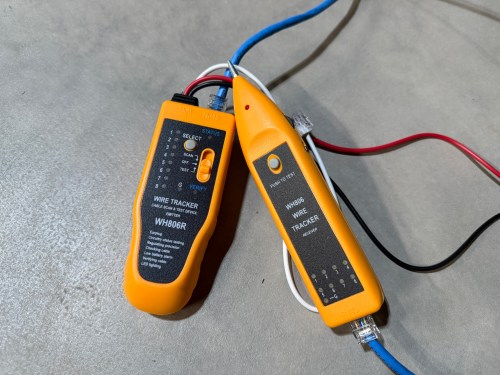
I also needed a custom length Ethernet cable to run from the ceiling jack down to the gaming PC. I’d tried putting RJ45 jacks on the end of an Ethernet cable or two a long time ago and remember it being almost impossible. After watching a quick YouTube video (even though I don’t have pass through connectors), I was able to put both ends on my new cable without a problem and it passed the test.
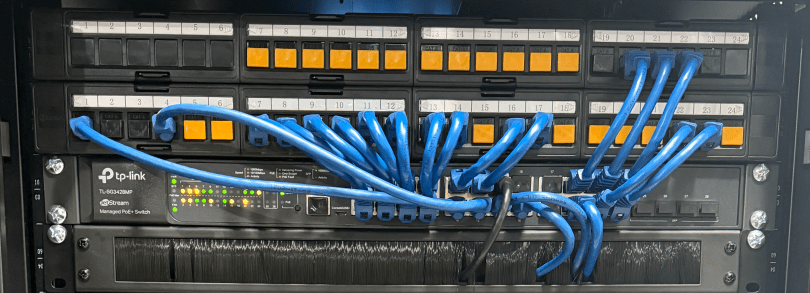
Then I was able to use patch cables to connect ports on the patch panel to the switch as well as hook up the cable modem, Pi-hole Raspberry Pi, and TP-Link equipment. There’s also a Dell Micro in there, which I’ll cover in a later post about smart home.
When I tried to access the Omada controller I couldn’t bring up the web interface with Chrome on my Mac. After trying a bunch of stuff I checked from my iPhone and it worked. I tried Safari on my Mac which also worked. It turned out I had always prevented Chrome from accessing my local network. I flipped the switch in System Settings and the interface loaded.
At another point I accidentally disabled all of the ports on the switch. The UI splits the switch ports across three pages, and on page two I had clicked the button to select all, unselected a port, and disabled the nine other ports. I quickly realized it disabled 27 of the 28 ports. I was so pissed! Every other UI I’ve ever used will only select the items in view when you click the Select All button, but not the Omada Controller software. In order to get back in I had to access the switch via the USB console, reset the switch to factory settings, and start over.
I’m running four VLANs, named Default, Guest, IoT, and nIoT. IoT is for my Internet of Things (smart home) devices that need to access the Internet and the “n” in nIoT stands for “not” since I don’t want them to access the Internet. The Default and IoT networks are set to get their DNS from my Pi-hole server, which blocks ads and other malicious domains.
Each VLAN has a matching wireless network. The Guest Wi-Fi is set as a guest network, which automatically prevents any device from accessing another. The wireless networks for IoT and nIoT are only set to use the 2.4 GHz band since most of the devices will not work on 5 GHz.
I added mDNS rules for Printers and AirPlay devices from the IoT network to the Default network.
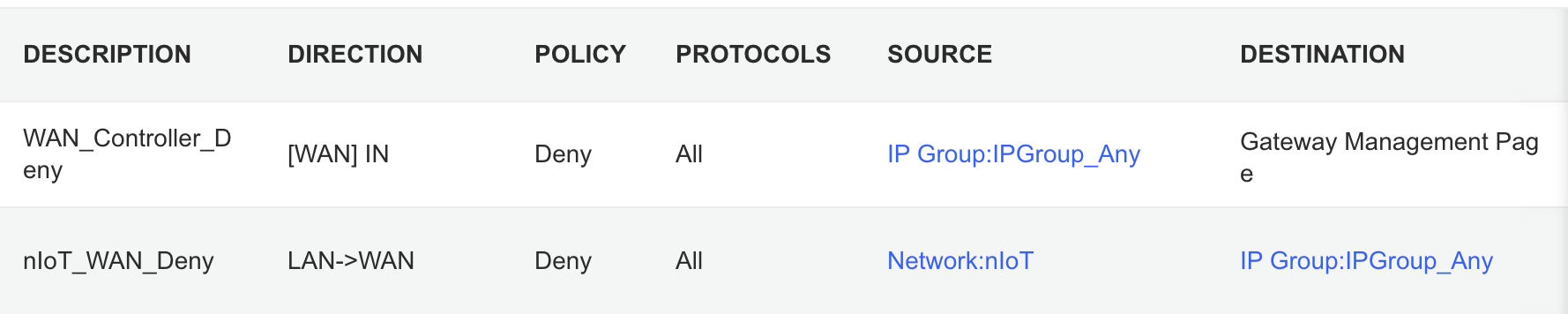
It took me awhile to figure out the ACL rules. I have two for the Gateway. The first prevents any outside IP from accessing my network management page and the second prevents the nIoT network from accessing the Internet.
I ended up with six rules for the switch, since the default behavior of the Omada stuff is to permit everything. With my Pi-hole server on the IoT network I had to allow it’s IP to access anything on the Default network (this should probably be limited to specific ports). I had to allow some ports from the camera IPs to access the Default network and I had to allow some ports from my Home Assistant server to access the Default network. I may find out I need to adjust those ACLs, but more on those smart home aspects in a future post. Then the IoT and nIoT networks are denied from accessing Default and a bi-directional rule prevents the Guest network from accessing any other network.
Seems to be running pretty well. I have some smart home stuff on the network, but haven’t connected any of the light switches yet and have a lot of Home Assistant configuration to do. Originally I didn’t have an access point in the basement, but after a few days realized it was necessary and added one. Here’s a view of the network topology, automatically generated by the Omada controller.
If you upload a floor plan and place walls, the software can even run a wireless coverage simulation. The house has great signal and the yard should get good connections as well.
Power over Ethernet is pretty sweet. It’s so nice not needing power cables for the 10 devices with PoE support.
Time to finish setting up my server and smart home devices. Watch for an upcoming post with all of the details.
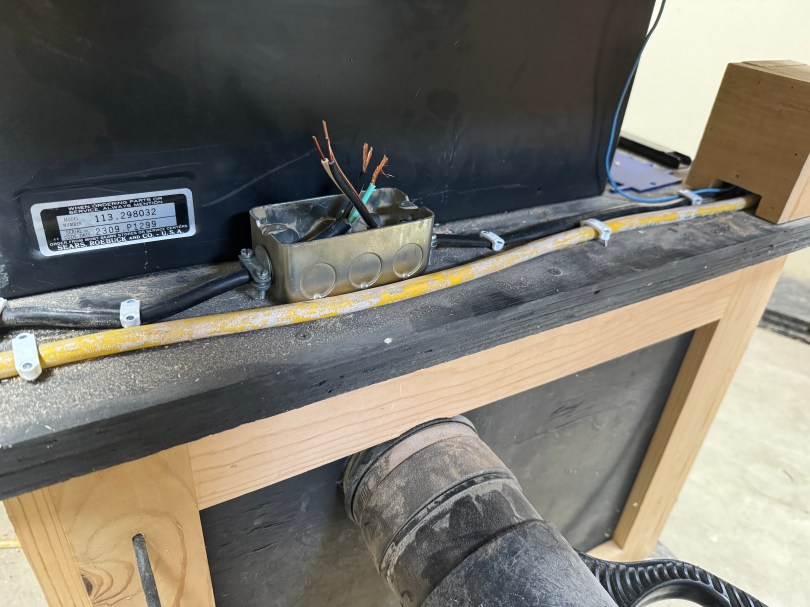
Yesterday I went to make some 45° cuts on the table saw and couldn’t get it past 30°. After a few minutes of tinkering around, I realized there wasn’t enough slack on the wire going to the motor. I guess I wasn’t thinking about when I installed the new switch several years ago.
Instead of replacing the entire wire all the way back to the motor, I added a junction box and an extension to the switch.
The saw still wouldn’t get to 45° though, because I had another issue. I guess I’d never done that much of an angle, so the threaded rod to guide the tilting mechanism was caked with saw dust. After some WD-40, a wire brush, and cranking it back and forth, it was moving well.
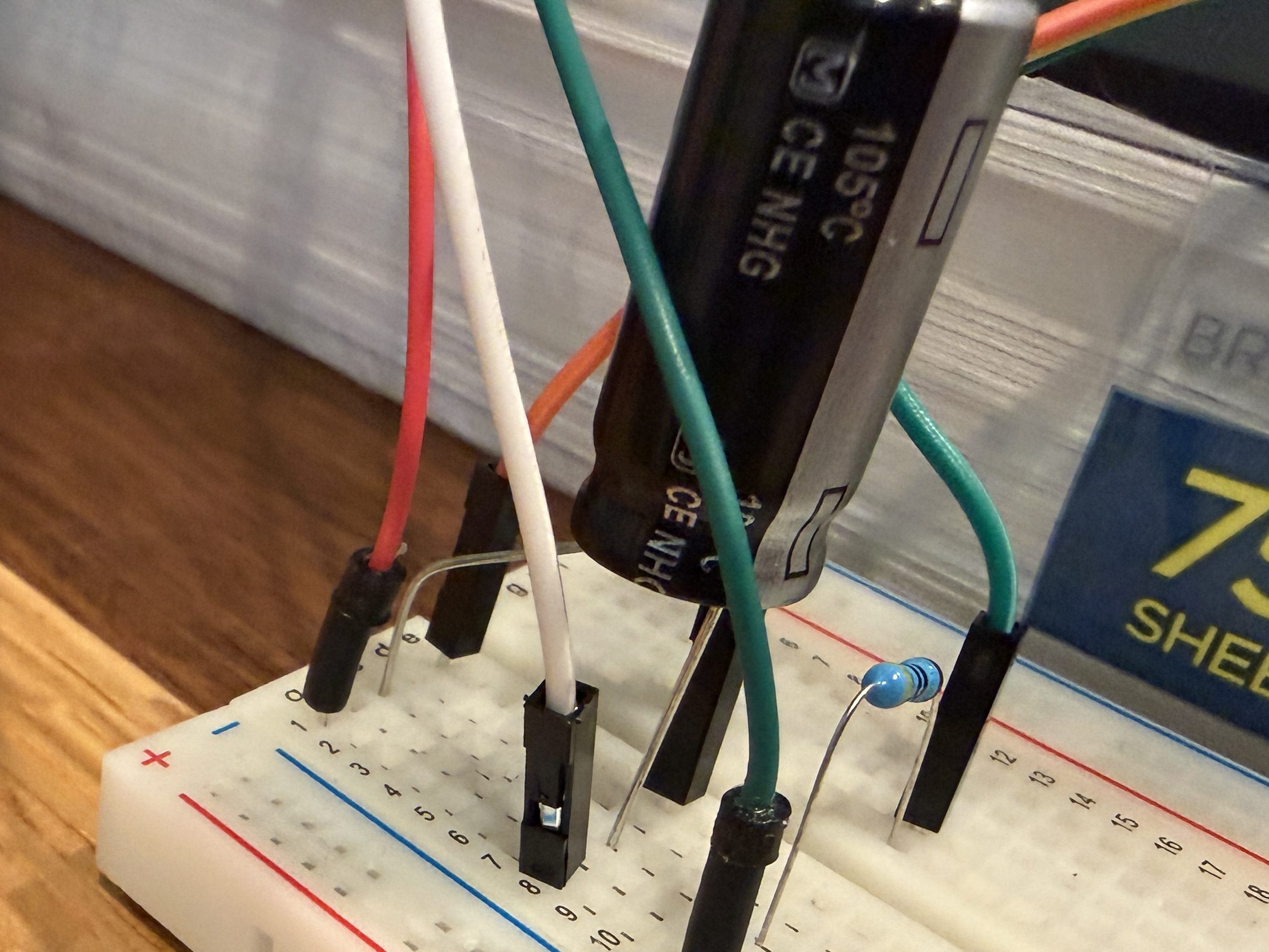
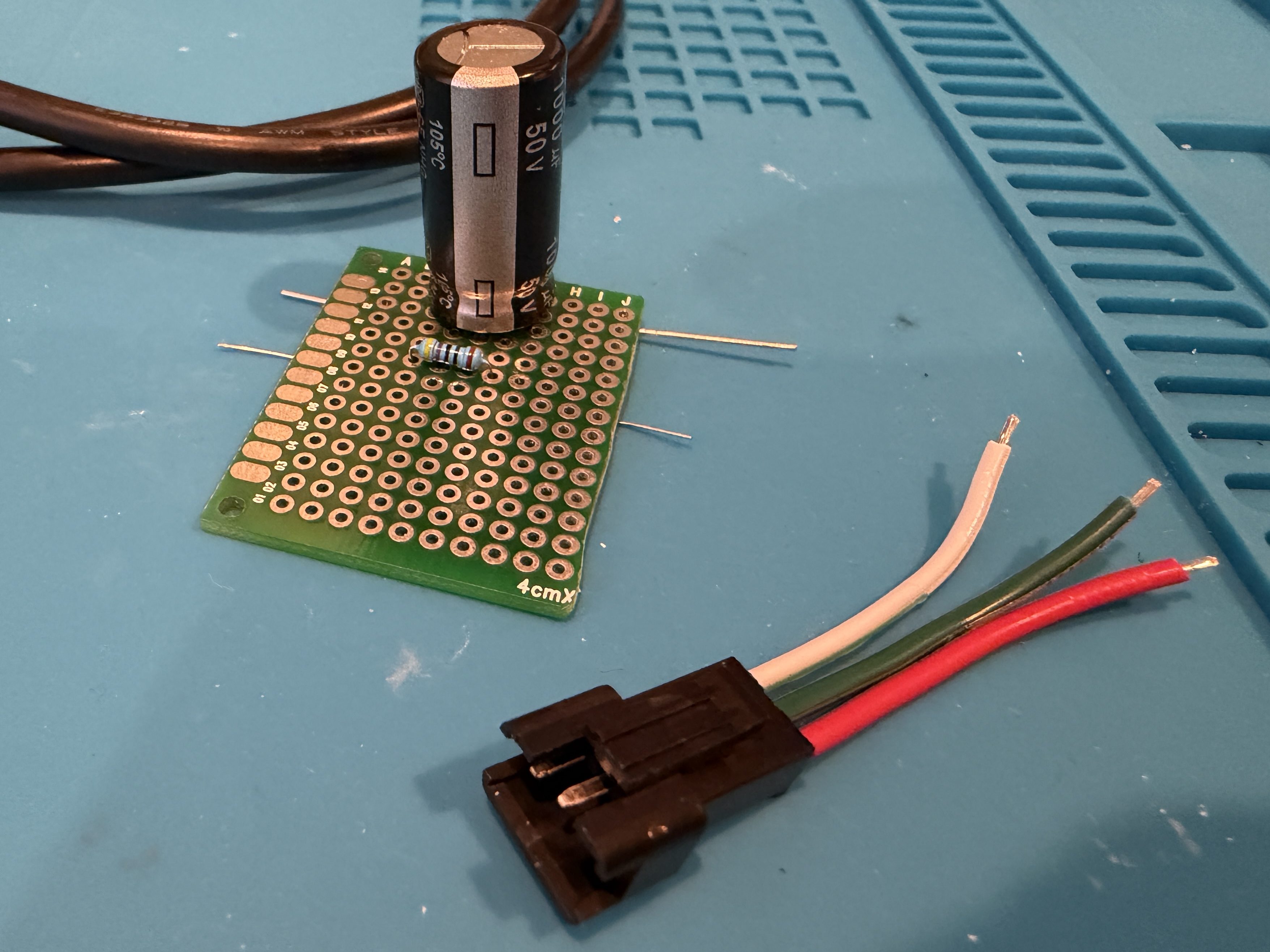
I was given a replacement AC adapter for an Acer laptop, which isn’t compatible with the Dell Optiplex micro PC I wanted to use it with. The output is close enough to work, so I looked for an adapter to convert from the 5.5×1.7mm connector used by the Acer to 4.5x3mm used by the Dell. I couldn’t find an adapter anywhere! I did however find a pigtail adapter on Amazon for about $8 I could wire in. Here’s the original connector and the new cable.
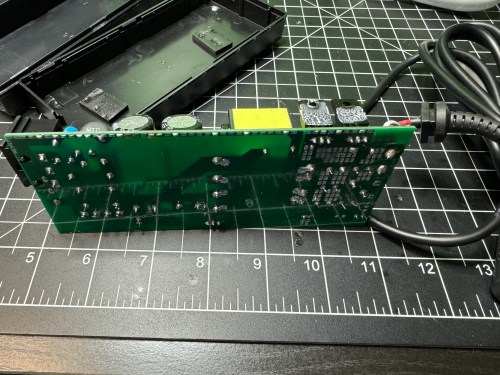
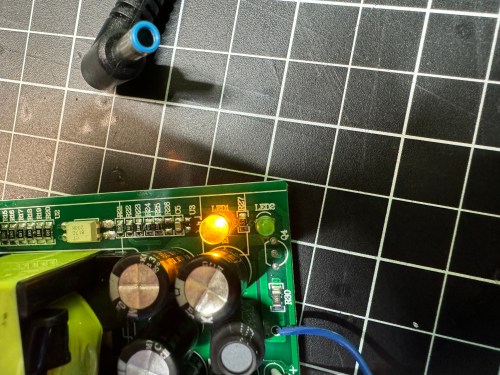
I opened up the power brick.
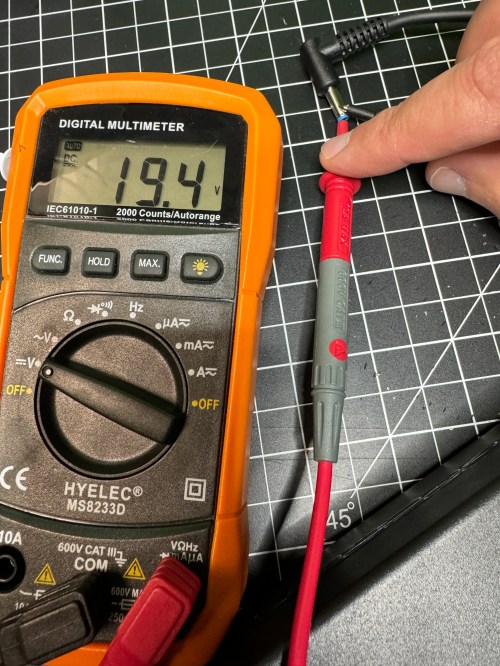
Then I made sure to test the output voltage and the polarity of the wires and connector with a multimeter. I noticed an unused spot for LED1 on the circuit board, so I figured I’d see if connecting a second LED would provide some other status indicator.
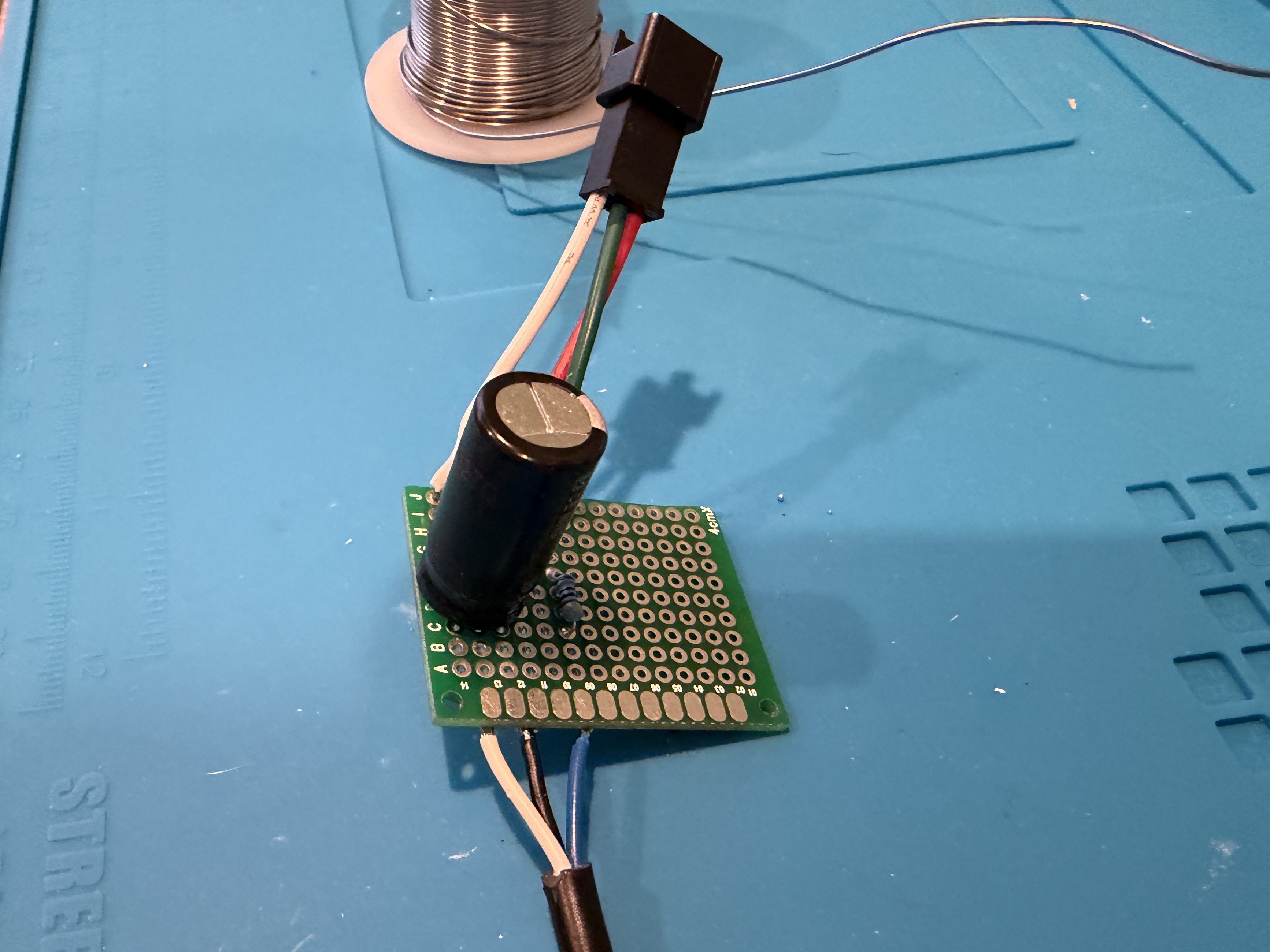
All it seemed to do was take over and disable LED2. So I removed it and left the original green LED. I desoldered the original cable, which only had positive and ground wires. The board had a spot with an S, which I assume means “signal,” so when connecting the pigtail, I soldered the blue wire there.
I checked the voltage on the new connector and it was as expected.
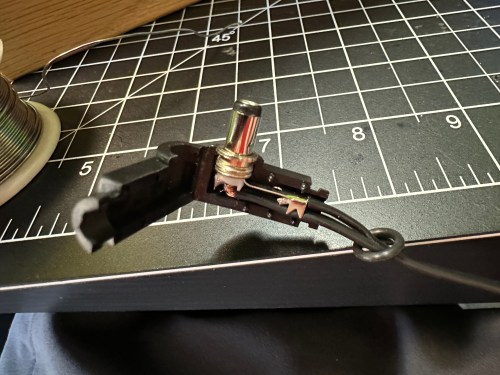
I plugged in the Dell and everything seemed to work. I cleaned the old thermal paste off the 3 components that screwed to a big metal heat sink and put on new paste. When I went to close everything I realized the black wire was too short, preventing the cable from reaching the hole in the power brick. I had to solder on a short extension and cover it with shrink tube.
Tucked everything back in the power brick, snapped it together, and it’s good to go.
I might end up getting a right angle jack to help with the strain relief. We’ll see how this holds up.
Yeah…
It hadn’t failed, but was heading that way. I didn’t help that I don’t have any heat shrink large enough to go over the end of that barrel jack. I ordered a pack of right angle barrel jacks from Amazon and soldered the wires in.
Didn’t work. The jack wasn’t long enough or the wrong size to make a good connection to the power source. I wish I had checked connections before soldering the wires on. I ordered a different style of jack in two sizes, 5.5 x 2.1 mm and 5.5 x 2.5 mm.
The 5.5 x 2.5, on the left, turned out to be the correct size. After confirming (multiple times) the positive and negative sides of each connection I slipped on some heat shrink, soldered the wires to the jacket, and blasted flames at the heat shrink.
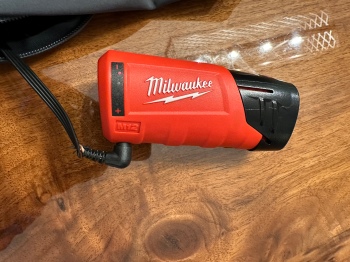
The right angle is a much better connection because of how the battery sits in the jacket pocket and the extra length will help with strain relief. I feel better about having a soldered connection as well. It’s a win all around.
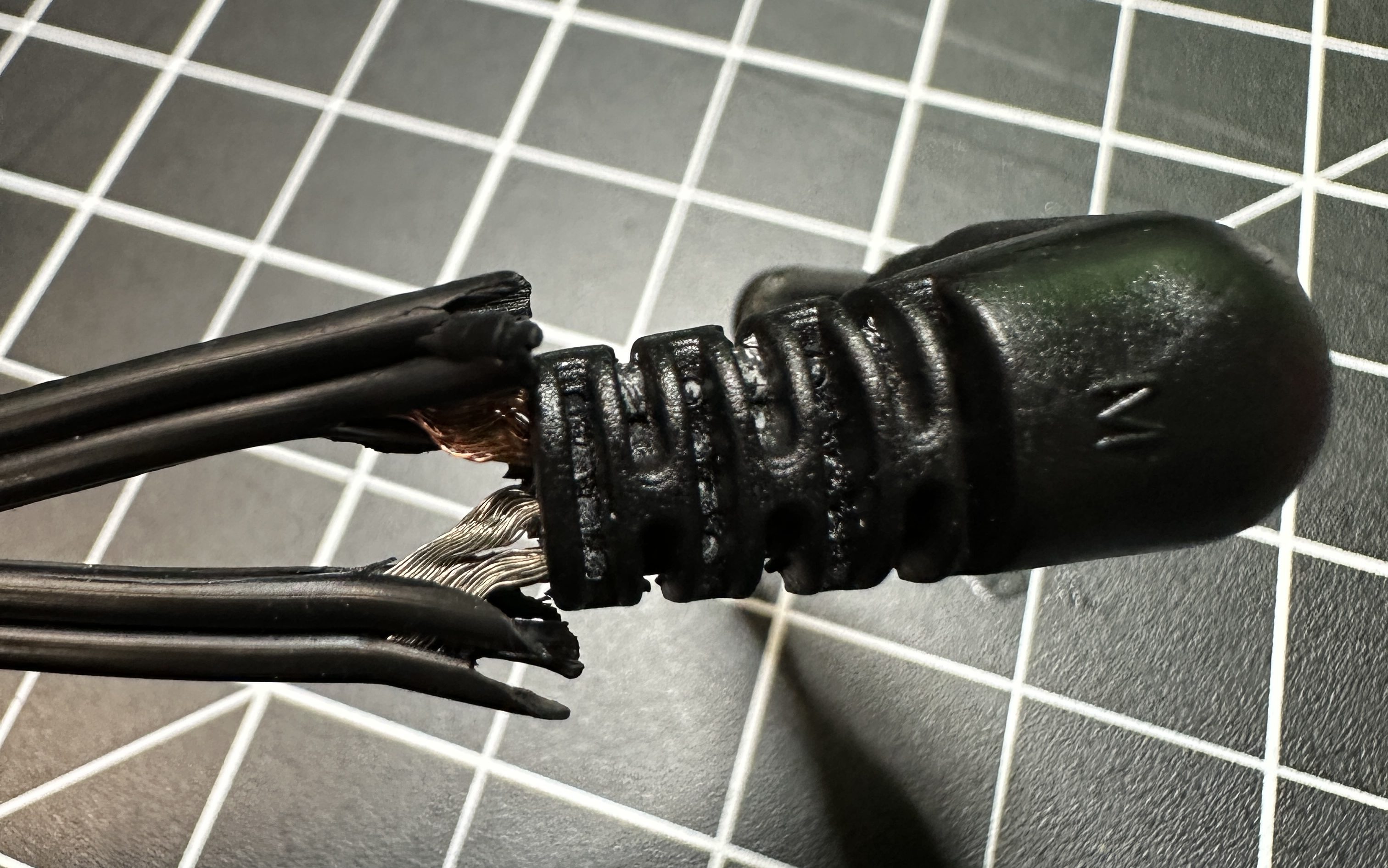
The pocket where you connect the batter is on the back left, which is an awkward position. In less than two months the wire frayed by the barrel jack.
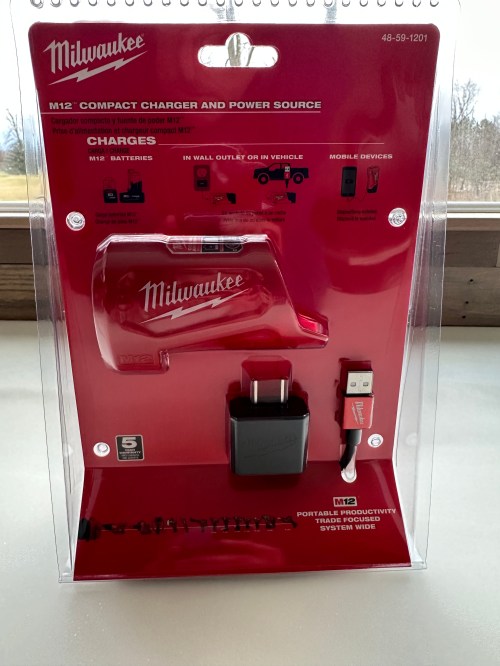
The exposed wires caused a short in the M12 Power Source, which is the red plastic shell that connects the battery.
The part was dead in the water and gives an error status. What terrible designs in the jacket’s wiring and the power source. Luckily, the battery does have fault protection and still worked. I checked the item on Milwaukee’s web site and other people had the same problems. After leaving a review, it looked like Milwaukee reached out to them. So I left my own review with a picture of the wire…
My partner got the jacket less than 2 months ago. The wire frayed by the connector causing a short, which appears to have killed the power source. I read 12.5v out of the battery just fine, but nothing from the power source. Terrible design in the jacket and with no protection in the power source. I can fix the connection and barrel jack on the jacket without an issue, but not much we can do about the power source.
Their social media team sent me an email the next day…
We are sorry to hear you are experiencing some issue with your M12â„¢ Power Source! As a one-time courtesy, our team would like to assist with a replacement!
About a week later they emailed me again, with a return label to send them both the battery and the power source and they sent us replacements. Kudos to Milwaukee for sending the new version of the power source and a 3.0 Ah battery when the previous one was 2.0 Ah. B will be happy about the extra battery life.
By the time we got both items it was exactly three weeks after I had left my review. I isolated the wires with some cardboard between them so I could make sure the jacket worked with the replacements. It was a success, so I separated the two sides of the wire, tested which side came from which part of the jack, and then cut it off.
I stripped back insulation, put shrink tube around each wire, connected a new jack, put shrink tube around both wires, and gave it a couple wraps of electrical tape.
I might end up getting a right angle jack to help with the strain relief. We’ll see how this holds up.
The range we put in last year tripped the breaker whenever we ran the quick boil burner and oven together. I checked the manual and the unit runs best off a 50 amp breaker, so I finally got around to replacing the 40 amp one along with 6 gauge wire to replace the 8 gauge.
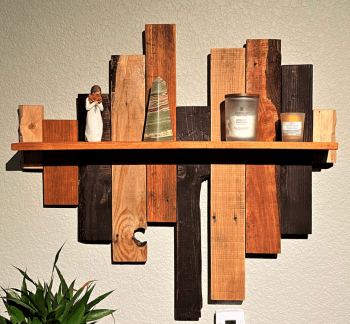
When I first had the idea to do pallet wood walls in the living room, I wanted to create some type of art piece for the wall opposite the TV. I stumbled across this shelf on Etsy when searching for pallet wood art.
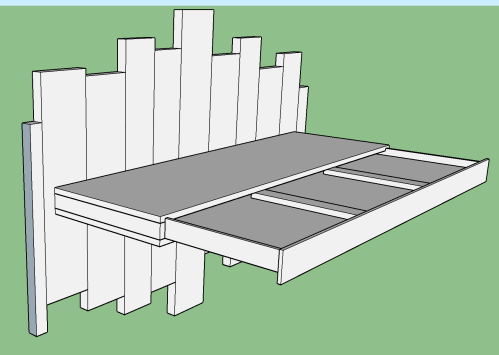
After getting rid of my old recliner and lamp (as part of the living room updates) I quickly realized a light was needed for the new loveseat. I thought it would be cool to integrate a light in to my shelf and as a bonus it would be hidden. It would be a fun challenge to work on. Here are the last models I had mocked up in SketchUp before starting on the build.
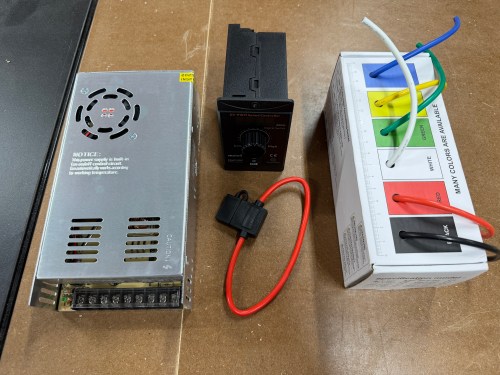
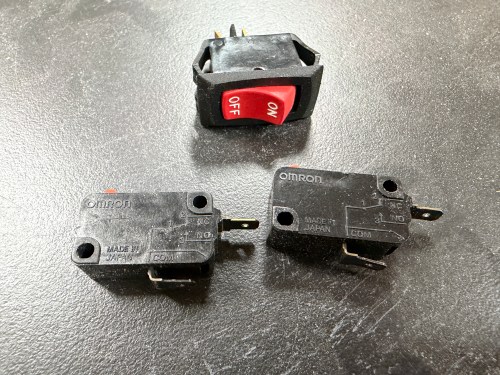
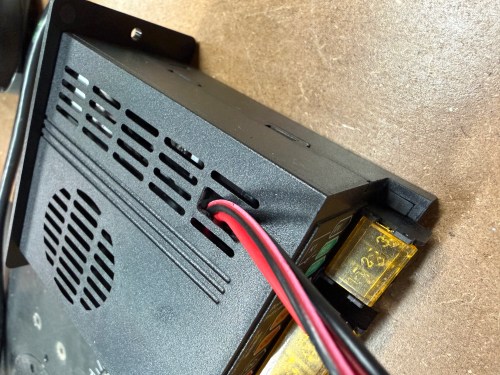
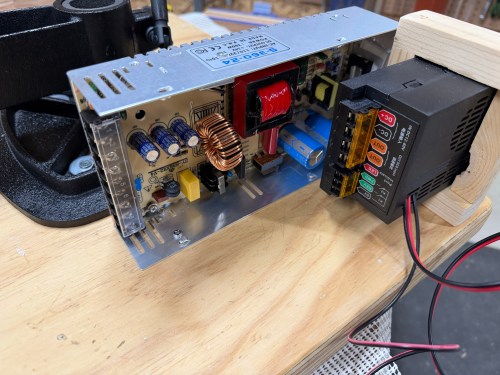
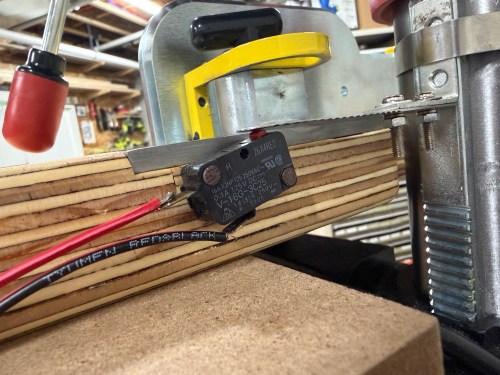
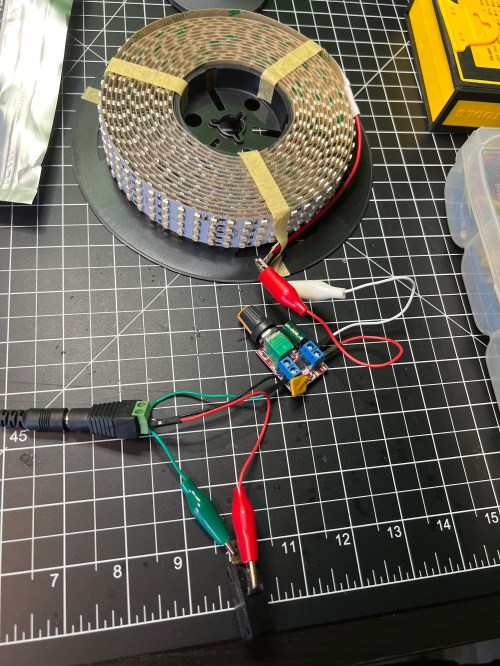
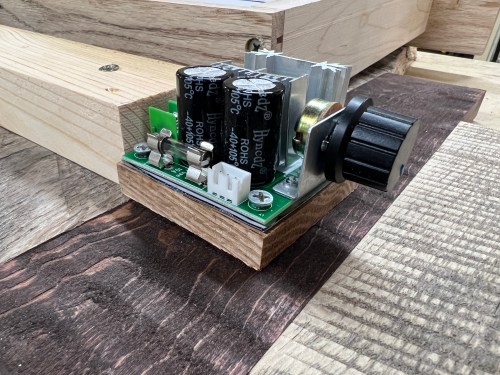
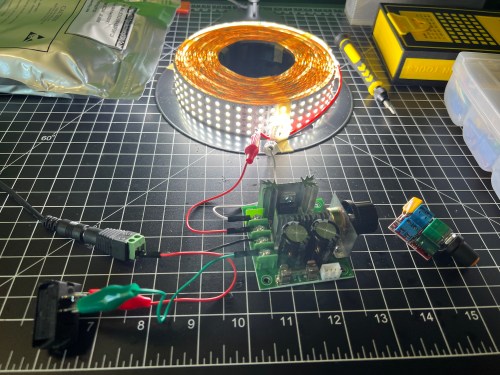
This initial testing was done using a very simple limit switch, but those are only rated for very low currents and would quickly burn up with the requirements of the LEDs. It took some searching, but I finally found a limit switch that said it could handle 10 Amps of DC. The big controller board for the dimmer and this much bigger limit switch introduced some new challenges to my build.
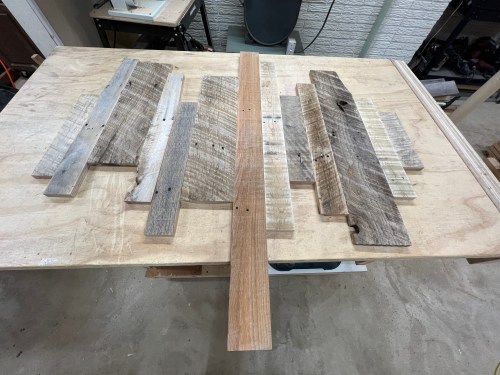
We picked through the wood leftover from the walls to find an assortment of pieces to use for the backer.
I played around with the arrangement, shortened the length of some boards, and ran everything through the planer to get an even thickness. Then I stained five of the boards and glued the pieces together in several steps.
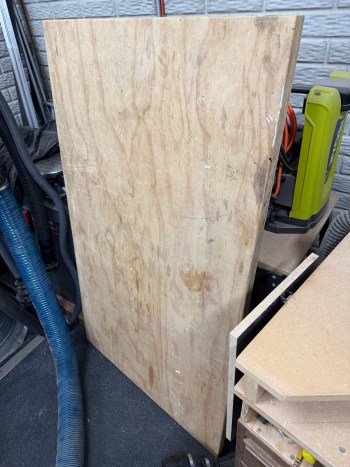
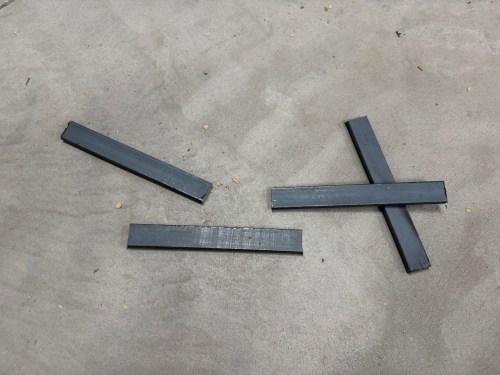
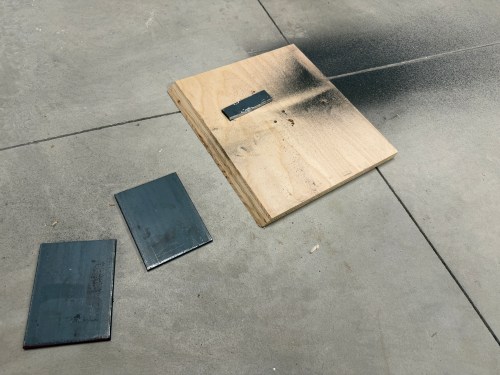
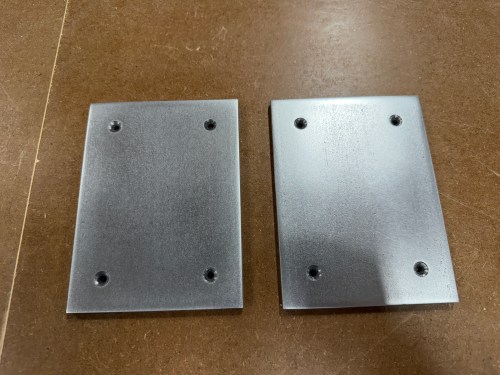
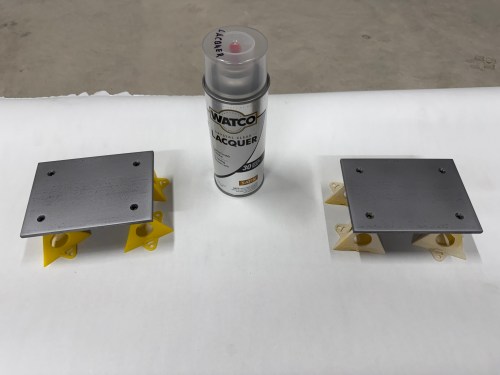
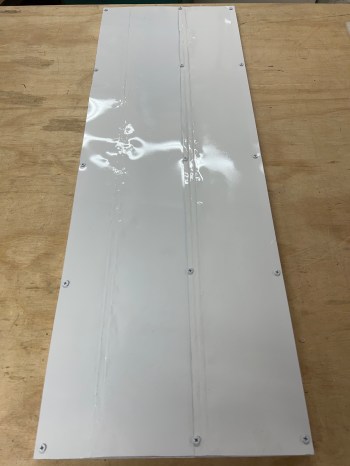
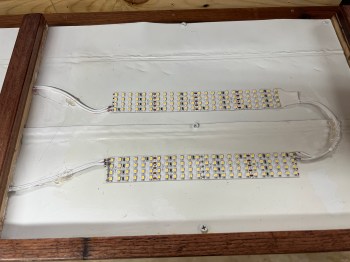
To make the pull-out part of the shelf I started with a piece of plywood. I cut up scrap sheet metal I’d saved from the drop ceiling light fixtures I removed from my shop several years ago. This would be used behind the LEDs so any excessive heat they produced wouldn’t burn in to the plywood or create a fire hazard. I screwed the metal to the plywood and used some white spray paint on it.
I cut scraps of wood for sides and a divider. Then I cut some slots through them, using the table saw, where the light covers would slide in. I also made a face for this piece, leaving it oversized for now. I attached the sides and front face with glue and pocket hole screws from what will be the top side.
I bought two 10-inch full extension drawer slides and attached them to the top. I filled the pocket holes with plugs and wood filler. Sanding would be done later.
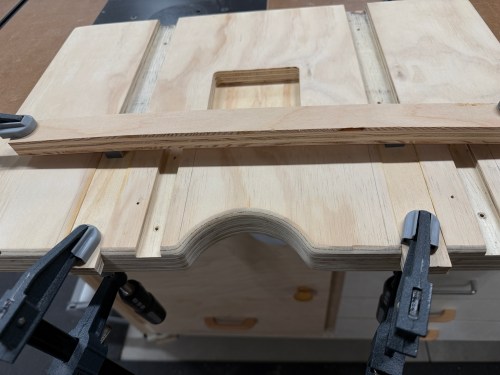
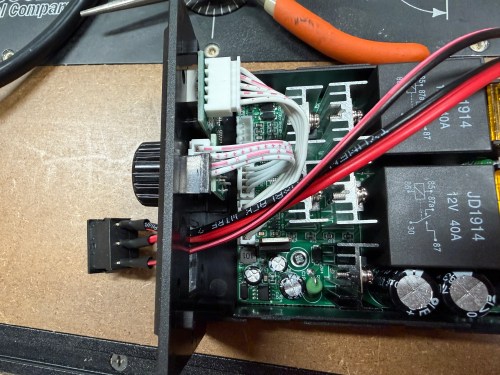
Perhaps the most nerve-wracking step of the project was cutting and positioning a scrap piece of 2×4 to the backer boards. This will hold everything together and allow me to attach the surrounding pieces of the shelf. Thankfully I remembered to cut one end short before glueing and screwing (from both sides) it in place. This is where the dimmer knob and board went. I cut a scrap piece of wood (later replaced with thinner plywood) to prop it up a bit so the knob would be easier to handle.
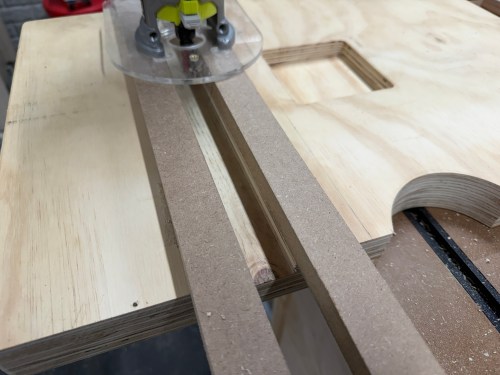
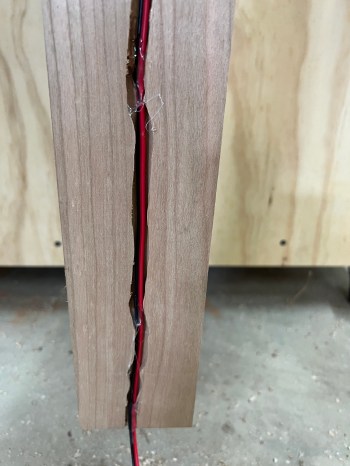
I put a straight bit in my trim router and cut a channel down the back of the longest backer board. This will be where the power cable runs down and behind the loveseat. It’ll never be seen, so I wasn’t concerned with how it looks.
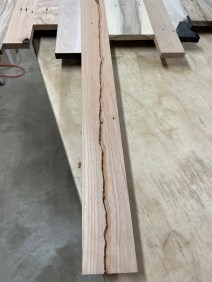
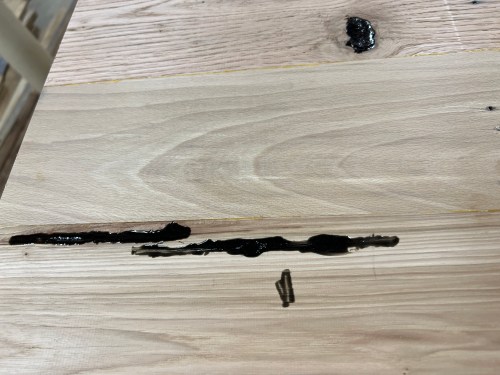
Next I milled up some boards and glued them to make the top and bottom of the shelf. I tinted clear epoxy with black paint and filled in some holes. I also milled and cut a couple of pieces for the sides of the shelf.
I trimmed all of those to the sizes I’d need. Then I cut rabbets in the sides so the edges of the top and bottom wouldn’t be seen and there would be more support. To fit properly around the dimmer switch I had to notch out some areas and drill a hole for the knob shaft.
I was able to do a dry fit and then had to make a bunch of adjustments to make everything fit better. After a shitload of sanding I stained one coat of Red Mahogany.
The next morning I was able to glue and pin nail the bottom and left side to the backer. The top and right will be screwed in place in case I need to take things apart to troubleshoot or replace the electronics.
After giving the stain several days I masked off the dimmer board and used my paint sprayer to apply four coats of water-based poly.
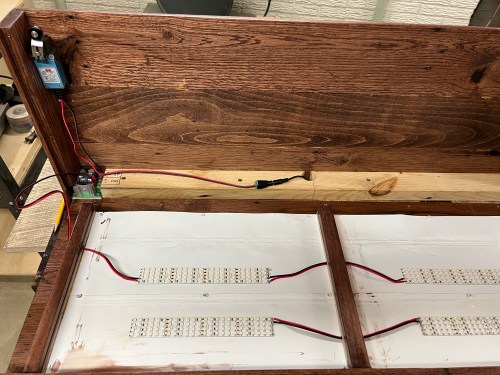
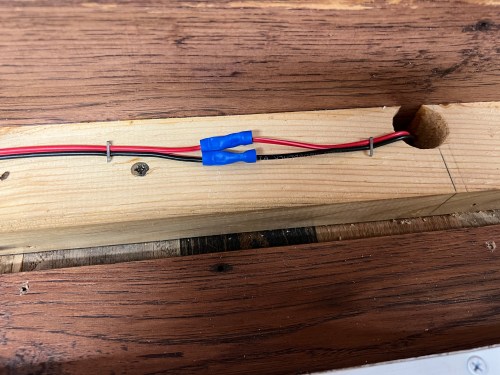
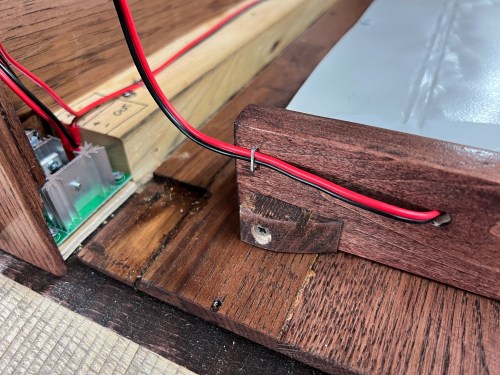
The next day I put in the LEDs and switch, wiring everything up. I had to make one more piece of wood that would trigger the switch when the “drawer” was pulled out.
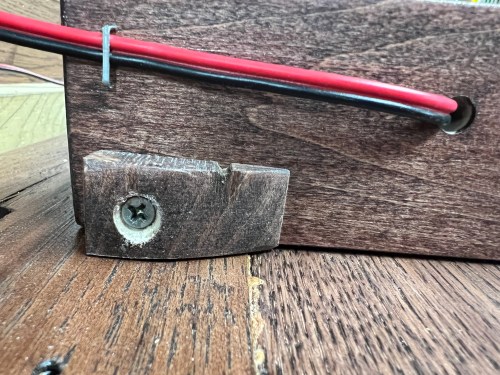
I painted the wires white. A bit of hot glue was used to keep them in place and provide strain relief. I also used hot glue down the back side to hold the wire in the groove.
The final step was to figure out where to cut in keyhole slots.
This turned out to be a bad idea. The shelf was just too heavy. So I drilled all the way through the cross beam and drove two long lag screws through and in to the studs.
Here’s a night comparison which shows how bright the LEDs can be.
This video shows everything in action.
This project ended up being a lot more work than I expected. I’m really happy with the results though and we now have a one-of-a-kind piece in our living room.
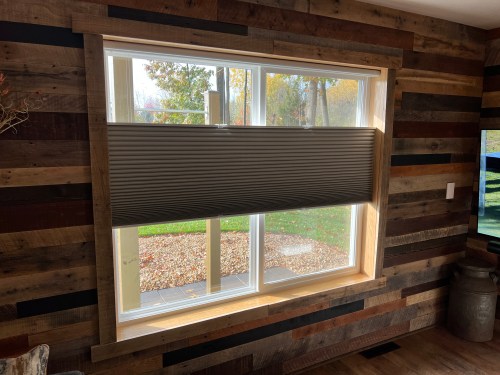
We got a blackout top down bottom up shade made from SelectBlinds for the window, which came in over the weekend. They’re really easy to install. Now the living room is complete and I can focus on the kitchen remodel.
We bought an old milk can at an antique mall for the corner of the room too.
Two weeks ago, I forgot my mobile charger on a trip up to Rogers City, where I charge with the same type of plug I have in my own garage. After 50 minutes on the road I turned, drove home to pick up the charger, and then had to stop in Bay City to supercharge because I’d already used over 100 miles of range. As I thought about it later that day, since the weather isn’t freezing anymore, I could have made it to my parents’ place with enough range to take a different route home, and supercharge in Gaylord.
Oh well, it was better to be safe than sorry. That night I told myself I wouldn’t let it happen again though, so I ordered a unit I could install in my garage. Then I could keep the mobile charger in the trunk where it belongs.
I also bought a new circuit breaker and wire in order to supply more current (amps) to the unit.
Tesla Wall Connector – $530
25′ of 6/2 Romex Wire – $46
60 Amp 2-pole Breaker – $19
Labor – $0
My total cost was just under $600 since I did the install myself. I’ve read on various Internet forums of people paying anywhere from $300 to over $2,000 for an electrician!
I found a good spot in my garage to mount the plate and ran the wire from there down to the electrical panel.
Installing a breaker and wiring it up can be scary and extremely dangerous, so a lot of people are smart to pay a professional. If you take your time and understand how the system works, it’s quite easy to do though. I turned off the main line and confirmed with a multimeter. The 30 amp 2-pole breaker in the lower right had been used for a hot tub several years ago and wasn’t even wired to anything anymore. I swapped it with the new 60 amp breaker. I closed everything up, turned on the main, flipped the breaker, and voila!
I love when everything works on the first try. Of course, I installed everything to code. 😉
My Model 3 was already charged to 90%, which is as high as you want to charge the car for normal daily driving. I bumped the limit for a quick test and plugged in the car. With a 60 amp breaker, the maximum output of the charging unit is 48 amps, so I was in business. According to Tesla’s documentation, this should charge at a rate up to 44 mi/hr of range. It showed 36 here, but in my experience it takes a few minutes to ramp up and the chargers tend to slow down as they approach the charging limit, so I’ll have to check again after a day of driving. With the mobile charger and a 240 volt 20 amp outlet, my previous charge rate was 14 mi/hr of range, so it’ll be nice to have this boost.
The entire installation took a little over 2 hours since I was working alone and went slow to avoid mistakes.
I drove up to Rogers City for the weekend to work on the charging situation before it gets too cold outside. Last night I plugged into a standard outlet (NEMA 5-15), which should only be able to charge at a speed of 3-4 miles of range per hour, according to Tesla’s home charging documentation. Somehow I was getting 5, which is still really slow.
I brought wire and a new NEMA 6-20 outlet with me, which is the same thing I have in my garage. So this morning we ran a line and installed the outlet. The box in my parents’ garage already had a free 240 volt 20 amp breaker, which made installation a breeze. It took 20-30 minutes for the charge speed to ramp up, which could be due to the colder weather, but I’m getting the same 14 miles/hour I get at home. Much better!