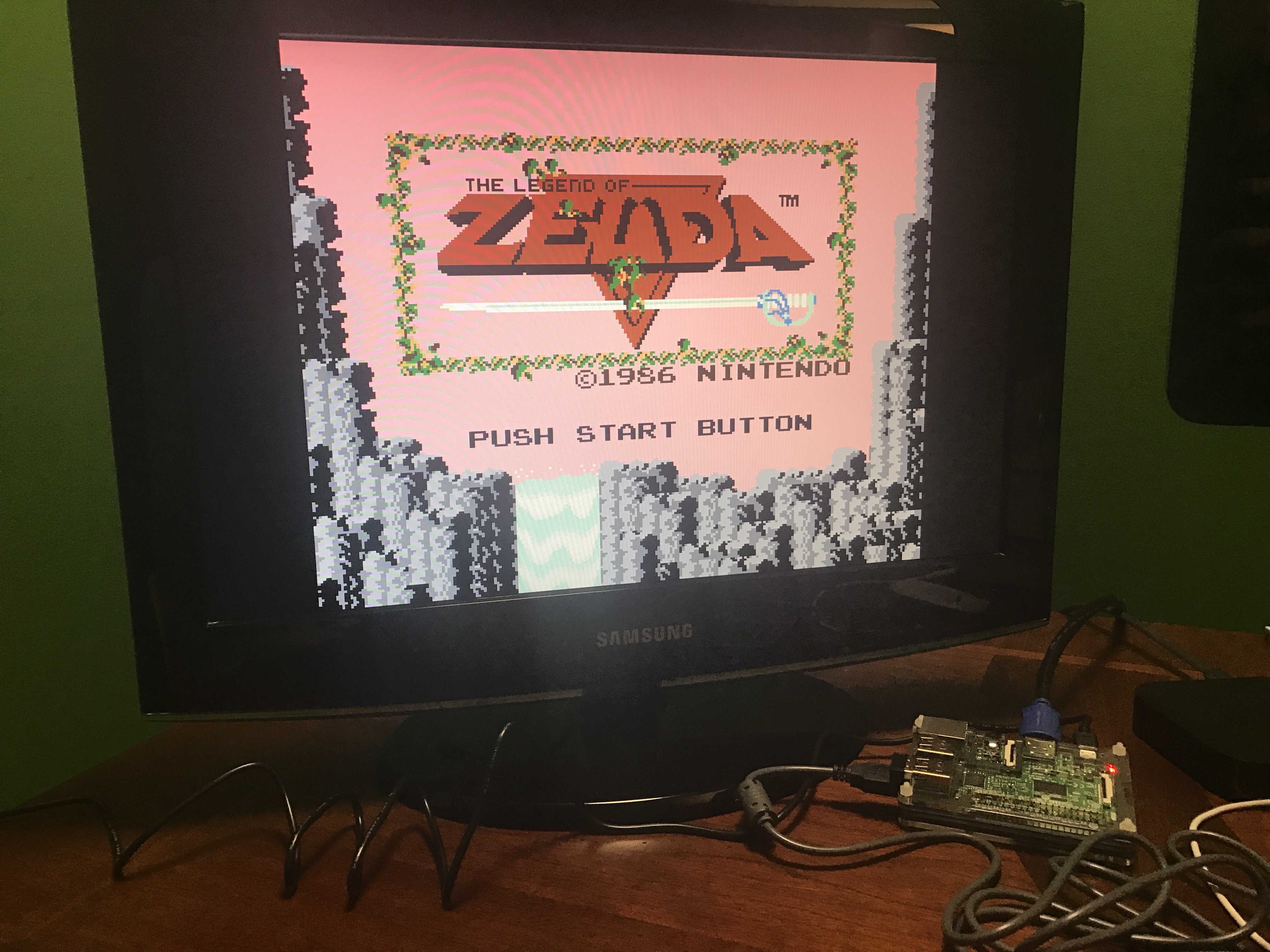
Last week I set up RetroPie, which gives me a bunch of gaming system emulators. Zelda was the first game ROM I looked for. Almost 20 years later, I’m finally going to play.
Fun fact: This was the first home console title to include an internal battery for saving data.
The thing those computers didn’t do was tell me that I couldn’t do something because a marketing department or executive or shareholder wanted to prevent me from doing it, so they could sell me something else that would do that thing. Once we bought the computer, we owned it, and as much as I enjoy my tablets and smartphones and iMacs and whatever, getting back to my Linux command line and learning Python and talking to other enthusiasts online about what they’re doing with their little Raspberry Pis is reawakening this passion and joy that has been dormant inside of me for a long, long time.
Mom loved browsing without ads so much during a recent visit she asked me to make a Pi-Hole server for their network. I still can’t believe how much faster browsing is. Great time to grab a Raspberry Pi Zero during Adafruit’s sale.
With the first three, my host naming lacked imagination. I called them pizero, pi3b, and pizero2. Boring! I decided to start naming them alphabetically, after actual types of pie. As pictured above (left to right) the host names and what I’m doing are:
apple: always up on my network, running Pi-hole (awesome!), Homebridge, and Home Assistant (which I still need to configure).
I’ve been cloning micro SD cards to create backups and writing images to them during setup of Raspberry Pis a lot lately. My tool of choice has been the command line tool dd on the Mac (man page). Every tutorial referencing imaging for Raspberry Pis I’ve seen tells you to clone a drive with:
sudo dd if=/dev/disk2 of=~/Downloads/filename.img
Write an image to a drive with:
sudo dd if=~/Downloads/filename.img of=/dev/disk2
Those commands work, but are painfully slow. After firing off an image process, I came back over 3.5 hours later and it wasn’t finished! The write speed was about 0.25 MB/second.
I found a thread on the Raspberry Pi Forums discussing this. While none of the suggestions worked exactly for me, they did lead me to the solution. Here is what worked to clone a drive:
Now I got about 10 MB/second writing that image to disk and it completed in less than 7 minutes! The read speeds I’m getting are over 15 MB/second when cloning a disk. For specifics read why /dev/rdisk is so much faster than /dev/disk.
** Note: all of my examples use disk2 because that’s what I usually get on my machine. Your setup may vary. Run diskutil list to see a list of your drives and determine the correct number. You do still need to diskutil unmountDisk /dev/disk like the other tutorials mention.
I’ve actually stopped directly using dd since I started writing this post. Now I’m using ApplePi Baker, an app built on top of dd with a simple to use GUI.
I have experienced an issue using different brands of micro SD cards. Even though a couple were both 16 GB, they were slightly different sizes. Write an image file too large to a disk and no boot for you. I found rpi-clone to handle this. The next time I’m not using a headless Raspbian-lite I’ll try the built-in SD card copier, which ships with the OS.
Another app, PiBakery, looks like a neat way to automate and customize image creation, but I haven’t tried it yet.
My recent Raspberry Pi project combined with more and more interest in home automation led me down a road I didn’t expect. I find some of the home automation products out there limiting. What if I could mess around and build some of my own devices?
I’ve been thinking about putting some type of temperature sensor in the garage for a while. I heat the garage up in the winter for workouts quite often and never know when it’s warm enough. I’d found my first project! I’d need another Raspberry Pi and at least a temperature sensor. I didn’t really know much about extending the functionality of a Pi, other than I’d need to do some soldering and learn a more about electronics, circuits, etc. Enter AdaFruit. It’s a very cool company with an awesome store and a ton of resources to learn.
Adafruit was founded in 2005 by MIT hacker & engineer, Limor “Ladyada” Fried. Her goal was to create the best place online for learning electronics and making the best designed products for makers of all ages and skill levels. Adafruit has grown to over 50+ employees in the heart of NYC with a 50,000+ sq ft. factory. Adafruit has expanded offerings to include tools, equipment and electronics that Limor personally selects, tests and approves before going in to the Adafruit store.
I saw Ladyada’s Electronics Toolkit in their store, which looked like a great way to get started. My favorite item is the “solder sucker” even though I may never use it. Such a cool name.
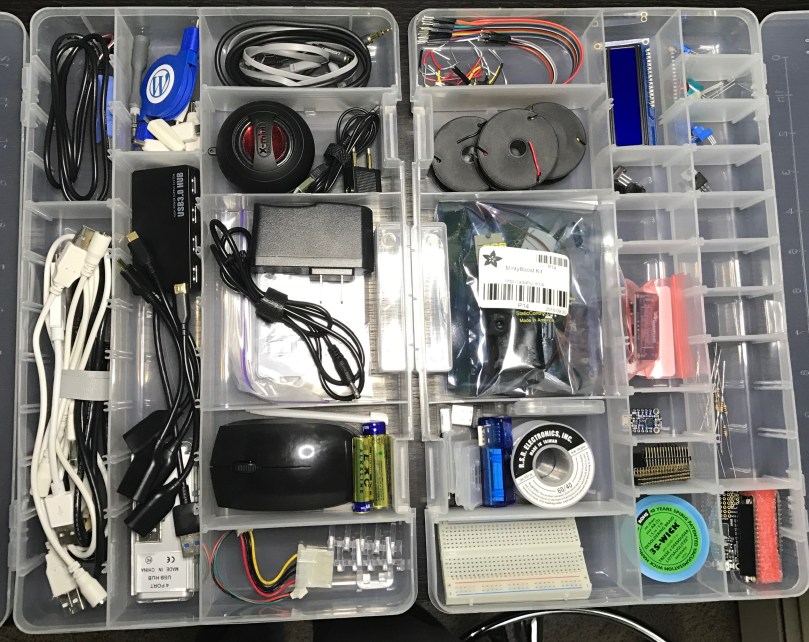
AdaBox is a quarterly subscription service from Adafruit, centered around products from the Adafruit ecosystem. Each AdaBox will contain a curated set of Adafruit products that will help you get started with do-it-yourself electronics.
The second box is shipping out to subscribers soon, but I was too late to jump on board. Lucky for me, they had some AdaBox001 – Welcome to the Feather Ecosystem still in stock, so I ordered one.
It has a wide variety of components. Should help so that I don’t start randomly buying items. I’m hoping to get in on the third subscription, which opens up on the 19th and I will pick up AdaBox002 when it’s available in the store.
Once everything arrived, I started playing around on my kitchen table. I quickly realized it wasn’t the ideal place. I needed a workstation. When I get into something new, I tend to go all-in, which I believe helps me stick with it. So I set a plan to put a second desk in my office and bought more stuff:
I’m excited and really happy with how everything came together.
I found these organizers for about $4 each at Walmart. They work really well for storing all of the tiny pieces.
I haven’t built anything yet, but I’m learning a lot and enjoying the process. My list of project ideas is growing and will keep me busy for as long as I want. As a bonus, I now have a standing desk in my office where I can get actual work-work done when I need a break from sitting.
Who would have thought it would be so exciting to light up some LEDs? I had a late night playing with a breadboard for the first time. It was also my first time soldering anything. I had to attach some headers to a Raspberry Pi Zero.
Finally, part 5 gave you a look at the interface I built. A week later, the app looked nothing like version 1.
Part 6: The Future
The long Thanksgiving weekend was a productive one for the project. I spent a lot of time researching different packages to help with development and planning what to do next. I knew I was going to use React to build the user interface and I’d used webpack for bundling modules before. Setting some of this stuff up can be a pain, so I used webpack-express-boilerplate to get started. I’m using React Router for the routing library (keeps the UI in sync with the URL).
I wanted to pull in a set of components so I didn’t need to build everything from scratch. I don’t enjoy design work anyway. I eventually settled on React Toolbox, but that didn’t last long because I was running into theming issues right away. Material-UI had been a very close second on my list and I’m happy I made the switch.
I pretty much rewrote the entire app, limiting what the server handled and passing all of the calculations off to the client side where I could leverage React. Then last night after Jeff provided a time interval tip I ended up rewriting all of the timer code to be simpler and account for browser time shifting. This led me down a few different roads and it dawned on me that the Airdyne might actually do its calorie calculations with every single spin detection instead of at set intervals. Reworked all of that calculation code. Created even better metronome sample data and was able to get a new calorie formula where the coefficient of determination is 1.0, which means it’s perfect for the provided data! In a couple of tests the calorie error rate is now down around 1%.
Here’s where I’m at with version 1.2.1.
Splash screen – tap to enter the Main MenuMain Menu
Switch between light and dark themes. The distance switch should speak for itself.
The Spin Detection settings actually control thresholds for sound detection. Depending on the device these may need to be adjusted. I’m using a circular progress component on the right side to show that spins are being detected (you have to be using the machine). As you can see, when I change one of the settings too much it no longer can “hear” (detect) the spin. Maybe I should make the progress indicator to a complete revolution for each spin detection. If anyone has any UI thoughts on this area, please share in the comments.
The layout of all of the data has changed from v1, but to toggle from km to miles and rpm to watts works the same with a simple tap of the area.
I didn’t like the individual action buttons in v1, especially with how touchy, or should I say non-touchy, my Raspberry Pi LCD is. Now the entire timer section is the action button. I put a faded icon there as a visual clue about the action. Giving the timing area a lot more room helps for the next feature on my to-do list.
Intervals are an important piece that is lacking from the Airdyne’s computer and limit how I’ve been able to use the machine at home. With so much room in the timing section I’ll be able to display an interval number and the upcoming interval or rest period. To go along with intervals, the Main Menu will get a new section for Custom Workouts. Initially it’ll have some pre-loaded workouts, such as Tabata, 20 rounds of :30/:30, 10 rounds of 1:00/1:00, Airdyne Hell (10 rounds of 0:15/1:45), 10:00, 30:00, etc. You get the idea.
Once that’s all working, I’ll implement a screen to create and save custom interval workouts. Those could be repeating intervals where you select:
Unlimited or specify the # of times to repeat.
Select time/calories/distance as the type of interval.
Set the time duration, calorie “reps,” or length of distance depending on what type was selected.
Choose undefined rest or set a length of time.
Intervals could also be variable. For example 5-4-3-2-1 miles with a one minute of rest between each. Or 3:00 work, 1:00 rest, 1:00 work, 2:00 rest, 4:00 work, 1:00 rest. Endless possibilities. Similar to the computers on Concept2 rowers and ski ergs. I’d like to allow custom names when saving a custom creation, but I can’t think of how to make it a good user experience on the Pi.
If you’re doing intervals, it seems natural to save log files of each workout. Those can be used to calculate lifetime calories, distance, and time which will be displayed on the splash screen. Maybe have options to email the log files. Possibly some historical charts or other analysis. I have a lot of notes with potential ideas.
An area I definitely need to address is building the app for deployment. Might need to be the next thing to tackle because right now I have the git repo cloned to my Pi. Launching the app is very slow because it has to finish the development build process. The boilerplate did set some stuff for a production build process but it’s not working or I didn’t properly update it as I made changes to everything.
Anyway, that’s all I have for now. I’ll post updates when I have something cool to share.
I think I spent more time writing these 6 posts than I did coding version 1 of the app. 🙂 If you made it this far, thanks for following. Everything is on GitHub if you want to check it out. If you have an Airdyne AD2 and use the app, I’d love to hear about it. Leave a comment or email me. I can see this app being forked and used for other fitness machines too. I know I had an elliptical years ago that was pretty basic and had a similar cable. Maybe I’ll spend some time making it easier to swap out a module to use for different devices.
The 4th part of this series was all about data and math. I like numbers, so it was exciting for me, but probably not for a lot of people.
Part 5: Version 1
I continued working on the user interface and tweaking how my app dealt with the data and formulas. Little changes in rounding decimal places could make a big difference. Eventually I got to the point where the UI had the basics to call it v1. It was just before midnight on the 20th, so I went from nothing to a functional interface over a weekend. It’s pretty much all I did for 2+ days.
I woke up on Monday and the damn calorie formula was still bugging me. I read through the Google Charts documentation again. I hadn’t even thought to try other types of trendlines, though I knew it wasn’t linear. The exponential example looked like the chart from the other Airdyne project I’d been referencing so I hadn’t thought twice about it. I couldn’t remember what a polynomial was so I looked it up. That project came up with a polynomial formula of degree 2.
I quickly changed my chart and immediately saw a better trendline with my plotted data. I’d been looking for the wrong type of trendline. I created a JSFiddle if you want to try your own.
The new calorie formula is nearly perfect! I’ve tweaked things a bit here and there and have seen less than a 2% difference from the actual display.
Go back to part 1 and check out the video of the Airdyne AD display if you don’t remember how it works and then compare to this new one…
I don’t show it until the end after I got off the Airdyne, but the toggling between imperial and metric distances can be done while working out too. Same with the switch from RPM to watts. I decided to keep the watts as an option even though I have no idea if they are right. It’s simply using the formula I found. What do you think? Which interface is better?
The code at this point was pretty ugly but function was the focus. The server listens for “beeps,” stores timestamps, and every second calculates new information for the different panels. Then it uses a Socket.IO Server to emit events with this data. Express handles all of the web server bits. What you see in this video is a browser in full screen mode with some simple HTML and CSS, a Socket.IO Client to listen for events from the server and emit a few action events back to the server, jQuery, and a little more javascript. Both the server and the client are on a single Raspberry Pi 3 Model B.
As a bonus, due to this structure, you don’t even need to have a display connected to a Raspberry Pi. If the Pi is connected to the same WiFi as a smart phone, tablet, or computer (something with touch is probably the best) you can use the device’s browser. In fact you don’t even need a Raspberry Pi. You can run the server from a Mac, which is how I’ve done all of the development.
This is a pretty simple UI but it does everything I was hoping I could do in a first version. The final post will show off the changes I’ve made in the last week (basically everything) and share my future plans.
In part 3, I explained the troubles I had reading microphone input through a USB adapter and how I eventually made progress by using a package to “listen” for sound.
Part 4: Calculations & Sample Data
Since the Airdyne sends a sound with each revolution of the flywheel, the RPMs were easy. I did some averaging over a number of revolutions to get a stable number. I had found formulas in a spreadsheet shared on the Airdyne Erg Trending post, so it was easy to plug in the formulas for calories and watts (even though my model doesn’t display watts). Distance and speed go off one another, so I jumped on the bike to collect some data.
When the machine stops/pauses, it continues to cycle through the 5 pieces of information and keeps the last number there. So I pedaled for 10 seconds or so, stopped, waited, and then recorded the speed (distance would be too inaccurate in such a short period of time) and rpms. Reset the display and repeat going faster each time. Threw the numbers in a spreadsheet, got a ratio, did some averaging, and worked both ways backwards with the average.
Looking back, I think I went a little overboard with getting so many samples. Miles per hour came out to be the RPMs divided by 3 ⅓. With a formula for every piece of info, my program output to the command line so I could see it in action. I jumped on the Airdyne, and used the audio cable splitter so I would get output on both displays. The RPM, distance, and speed were fairly accurate right away, but the calories were not even close.
I looked over the formulas to make sure I didn’t make a mistake, but didn’t see anything. I went back to the blog post and finally realized I had a different Airdyne model. I don’t know how I overlooked that when he was mentioning watts, which mine doesn’t show, and he has a big picture of the display right in the post. Anyone who has used several different models of the Airdyne can tell you that calories are much easier or harder to rack up from model to model.
In his post, Preston mentioning using an Excel chart, to get a formula from a trendline. I had no idea what this magic was. I don’t have Excel, so I searched to see if Google Spreadsheets could do the same thing. I found something even better, Google Charts does it, so I could write copy/paste code. 😉
Now I needed sample calorie data that I could plot on a chart. I was back out to the garage and hopped on the Airdyne. This was tricky. Since my goal was to find out what different average RPMs for 1 second would equate to in calories, I tried to maintain a constant speed for 36 seconds. Had to do 36 because it takes 30 seconds to cycle through the display and another 6 to get back to calories. I adjusted my program to keep track of the RPMs and calculate an average over the 36 seconds. I recorded both numbers in a spreadsheet and repeated the process over many times, with increasing speeds.
After getting a calorie per second average I plotted the points on the chart and voila! I got a trendline and a formula. The calories were looking much better. Still not awesome, but I figured it could be due to how I was averaging out RPMs, how I was rounding, or how often I was calculating everything. I started building a graphical display because I was getting tired of looking at command line output. At some point I got in a 10 minute “workout” and recorded a sound file on my computer and kept track of the calories so that I could pipe that back through my app for testing. I wish I had written some kind of simulator to eat through the data and spit out numbers.
I kept going back to the formula though. It was bugging me. What was I doing wrong? Finally it dawned on me how to get perfect data out of the Airdyne. Feed it perfect data and take the human element out of it. I could use a metronome since all the computer cared about was hearing something! Back out to the garage. I already had MetroTimer on my iPhone, so I plugged it into the Airdyne computer and recorded new calorie data at different speeds. I had new chart points and a much better formula. Still not accurate enough, but at least I was confident it wasn’t a problem with my data.
In the next post, I’ll give you a look at version 1 of the app.




 Nick Momrik