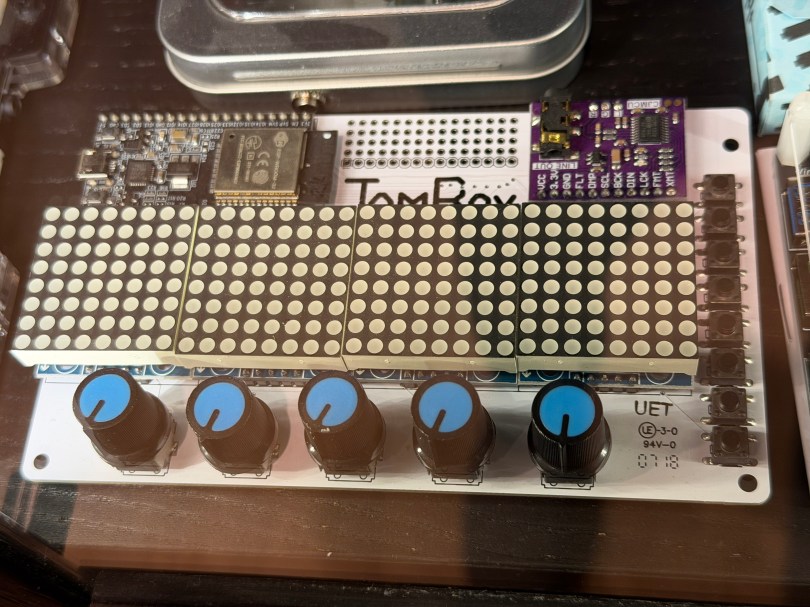
Not long ago the old JamBox sitting in one of my office display case’s caught my eye.
After picking it up I noticed it used an ESP32 development board, so I had to flash it for ESPHome. I downloaded the PixelOperator8 font and uploaded it to my esphome/fonts folder in Home Assistant. Then I figured out the following YAML to get the buttons, potentiometers (knobs), and LED Matrix working.
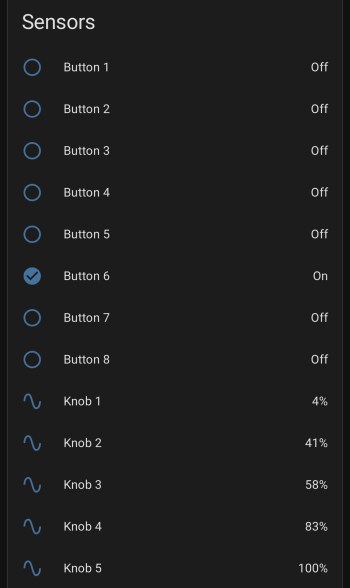
After installing the YAML and installing the device to Home Assistant, here are the sensors in the device UI.
Screenshot
The device has a ton of inputs with the eight buttons and five knobs and the 8×32 LED Matrix can display text or maybe a simple graph. I haven’t thought of a good use for it though. Do you have any ideas?
One of our daily tasks is to clean out the cat litter boxes and we (on maybe I just wanted an excuse to automate part of the process!) run in to a couple of small problems:
We usually don’t know if the other has already cleaned them.
We obviously don’t want to forget.
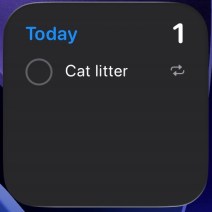
Since I primarily took over this job, I’ve been using a daily reminder, but it’s on my iPhone nagging me all day, even though it’s set for noon. I only need a reminder when it doesn’t get done.
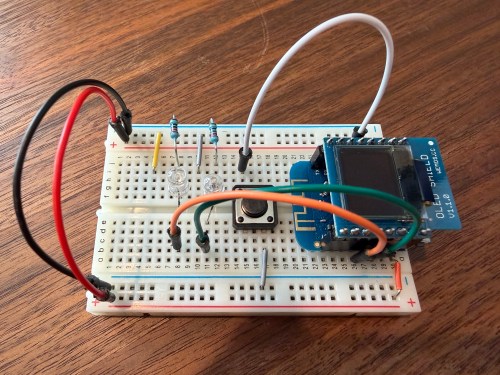
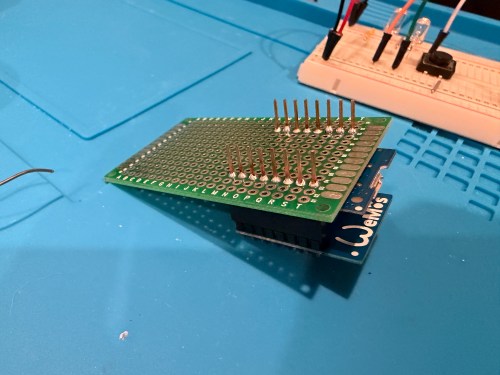
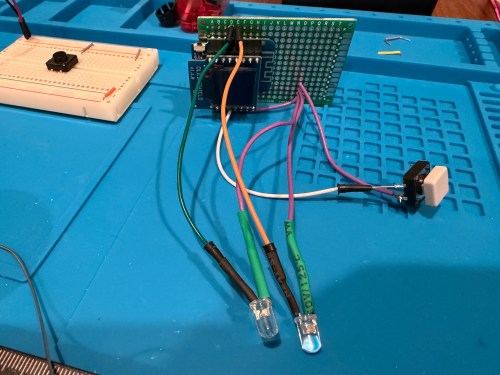
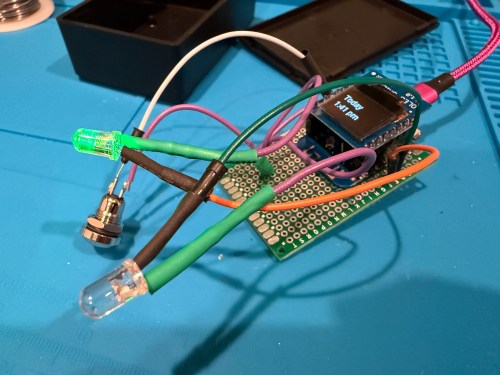
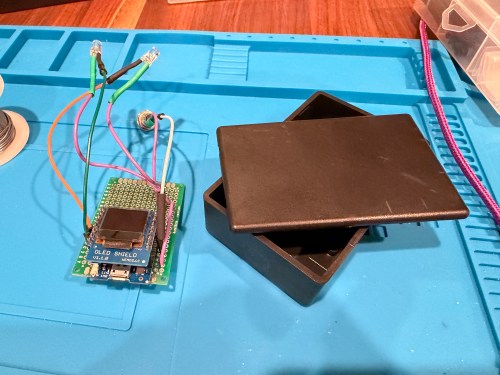
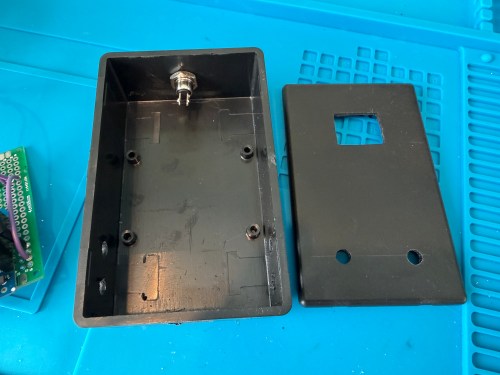
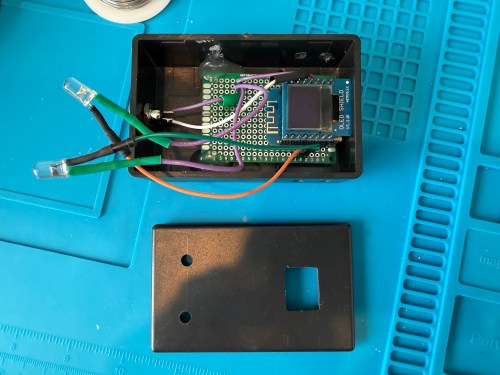
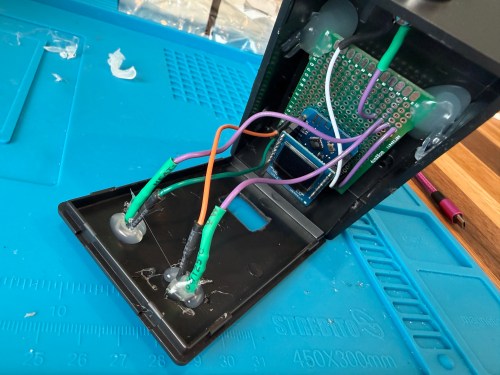
I thought of a solution with an ESPHome based device and Home Assistant. I used a WEMOS D1 Mini Lite, WEMOS OLED Shield, button, red LED, green LED, and 220 Ohm resistors. I connected everything on a breadboard for testing and then made it more permanent.
Key functionality:
During the day, the green LED will be lit if the litter boxes have been cleaned and the red LED if they need to be cleaned. If we’re walking by, green means keep going and red means stop here.
At night (8pm to 8am), the LEDs are off, unless the device is woken up.
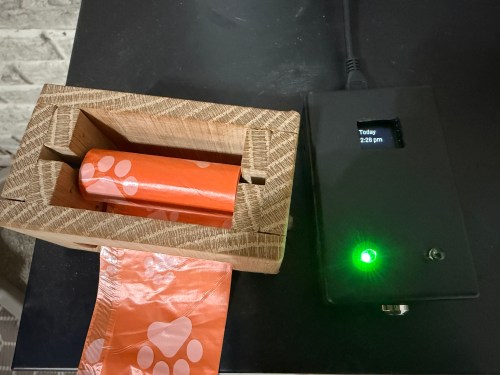
Press the button to turn on the display and status LED if at night. The display shows the last time the litter was cleaned in one of three formats, depending on how long it’s been.
Today 1:23 PM
Yesterday 2:48 PM
2 days ago 11:00 AM
Press the button when the display is on to update the litter box last cleaned date and time. The LEDs flash to signify something is happening. The new date and time gets shown on the display.
After 30 seconds the display turns off.
At 4pm send a reminder to our phones if the litter boxes need to be cleaned.
In Home Assistant a toggle can disable the reminders. Useful when we’re on vacation.
I also added a couple of simpler helpers via Settings -> Devices & services -> Helpers:
Cat Litter Last Cleaned – Date and time
Cat Litter Reminders – Toggle
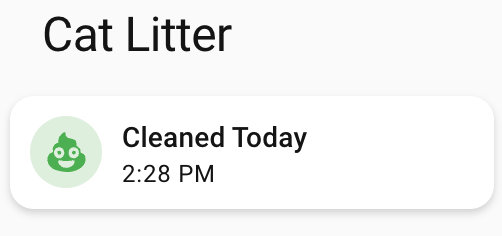
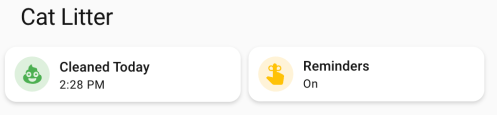
Finally, I added cards to a Home Assistant dashboard. See screenshots of the different states of each card below.
Here’s the dashboard YAML if you want it.
type: horizontal-stack
title: Cat Litter
cards:
  - type: custom:mushroom-template-card
    primary: >-
      {% set last = states('input_datetime.cat_litter_last_cleaned') |
      as_datetime %}

      {% if last is none %}
        Unknown State
      {% else %}
        {% set diff = (now().date() - last.date()).days %}
        {% if diff == 0 %}
        Cleaned Today
        {% else %}
        Needs Cleaning
        {% endif %}
      {% endif %}
    icon: mdi:emoticon-poop
    features_position: bottom
    secondary: >-
      {% set last = states('input_datetime.cat_litter_last_cleaned') |
      as_datetime %}

      {% if last is none %}

      ???

      {% else %}
        {% set diff = (now().date() - last.date()).days %}
        {% if diff > 0 %}
          {{ last.strftime('%b %-d') }} -
        {% endif %}
        {{ last.strftime('%-I:%M %p') }}
      {% endif %}
    color: |-
      {% if is_state('binary_sensor.litter_needs_cleaning', 'on') %}
        red
      {% else %}
        green
      {% endif %}
    tap_action:
      action: more-info
    icon_tap_action:
      action: perform-action
      perform_action: script.cat_litter_cleaned
      target: {}
      confirmation:
        text: Are you sure you want to update the last cleaned date/time to now?
    entity: input_datetime.cat_litter_last_cleaned
  - type: custom:mushroom-entity-card
    entity: input_boolean.cat_litter_reminders
    name: Reminders
    tap_action:
      action: toggle
    hold_action:
      action: more-info
    icon_color: amber
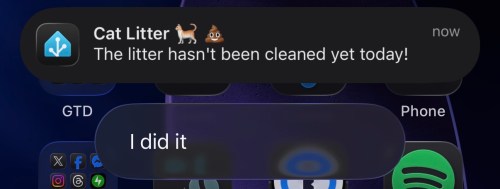
If we get a reminder, it looks like this. We can click I did it to update the date/time to now if we forgot to press the button on the physical device. With the automation set to run at 4pm, we should rarely see this though.
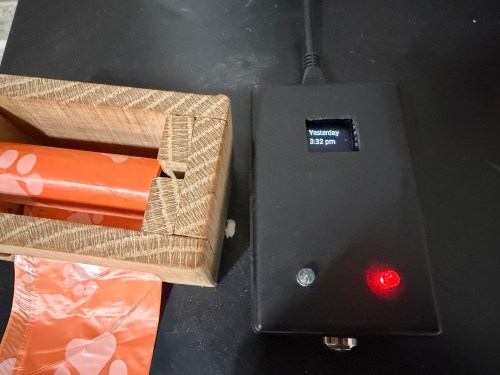
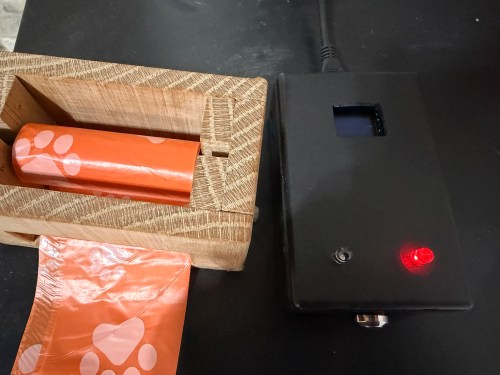
The final device lives right next to the waste bag dispenser I made. This way it’s easy to see the state and hit the button when cleaning out the litter. Here are photos in place with a few different states.
This project was so fun. Using Google Gemini for stuff like this makes it so much faster. I’ve had some of these microcontrollers and other parts for almost a decade so it’s nice to finally put them to use.
What other features or automations would you add to this? Have you built anything similar?
I’ll likely turn this into something that interfaces with my Home Assistant server to control different devices around my house.
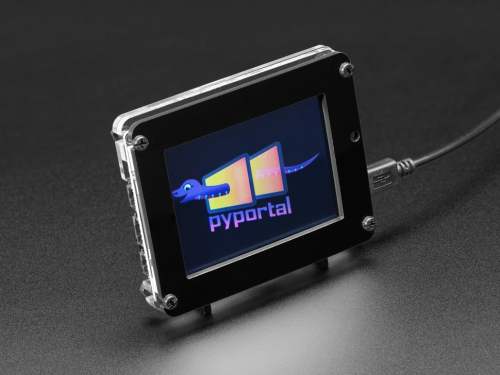
The PyPortal has been sitting on a shelf ever since. Way back in February, it caught my eye, and I picked it up, not remembering what it’s capabilities were. Then I started upgrading IKEA air quality monitors and even made my own. Since I’m at the desk in my office a large portion of the week I thought I would make that 2019 prediction come true.
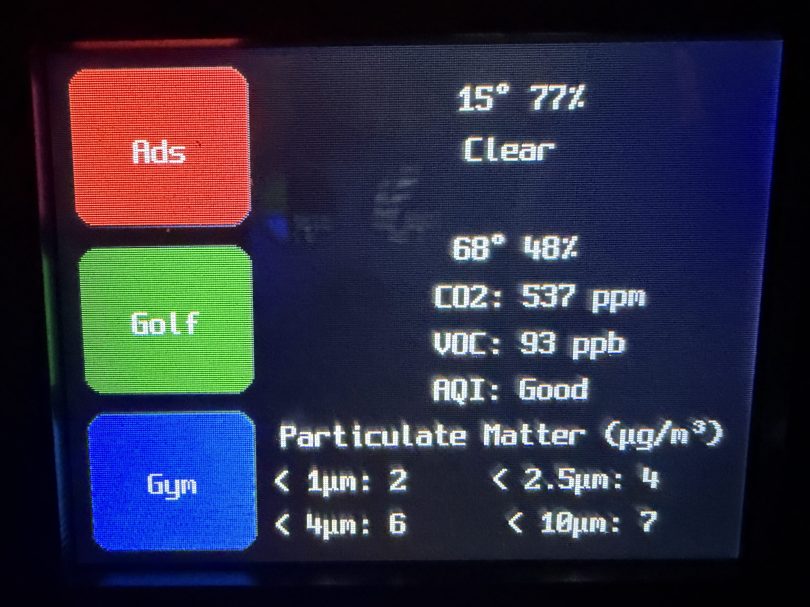
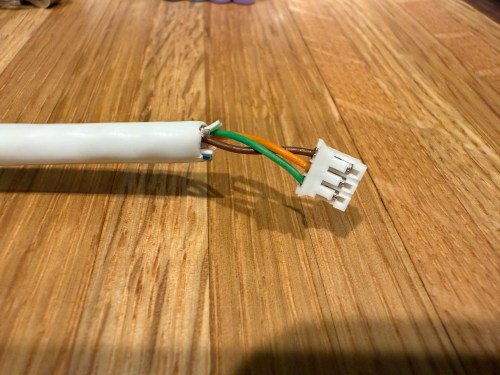
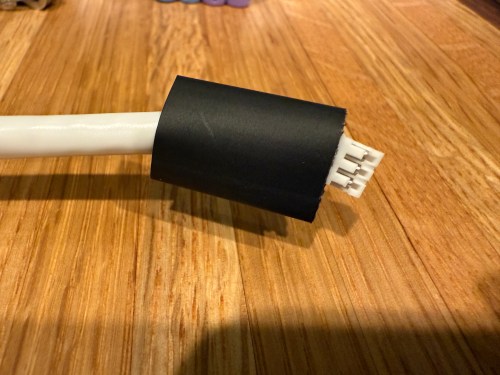
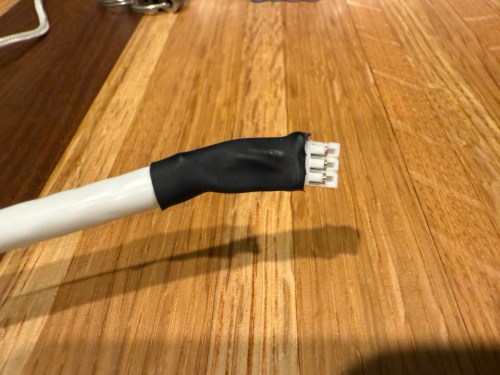
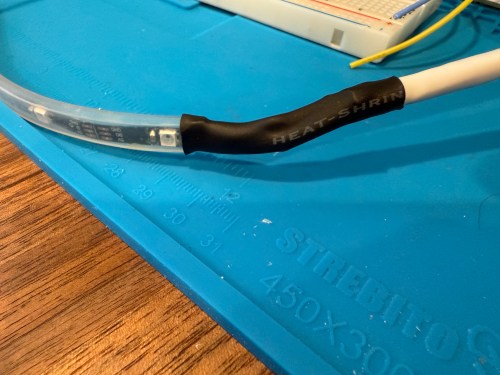
I could show a bunch of data on the screen and the PyPortal has a touchscreen, so I could display buttons for triggering things around the house. The device also has connectors for doing GPIO, so I got the idea of adding an LED strip, which I could use for notifications. I even had a meter long strip of Adafruit Mini Skinny NeoPixels I had bought in 2017 and never touched that would be perfect. I needed to buy a 2.0mm JST PH Connector kit in order to make a wire that would connect to the pack of the PyPortal. I ended up using a piece of Cat6 cable, even though I only needed 3 of the 8 wires inside.
All of this was done back in March. I quickly began having issues with the ethernet cable and the small JST connectors, so I put this post on pause. Figured it was time to finally fix this before the end of the year. While testing, I determined the LED strip got fried up at some point. It was probably some kind of short from the janky wire.
Here’s what my display looks like.
My favorite aspect of the project and code is being able to publish MQTT messages from Home Assistant, which the PyPortal listens for and reacts to. I can send various commands, such as fill:blue, which turns all of the LEDs blue, or whatever color I set. I have commands to chase a color from one side to the other, bounce a color from left to right and back to the left, pulse the entire strip, animate a rainbow, or set the brightness. Since I don’t have another strip of Neopixels, in order to create a demo video, I wired up a 24 LED circle. You’ll have to imagine the effects on the back of my desk, lighting up the wall.
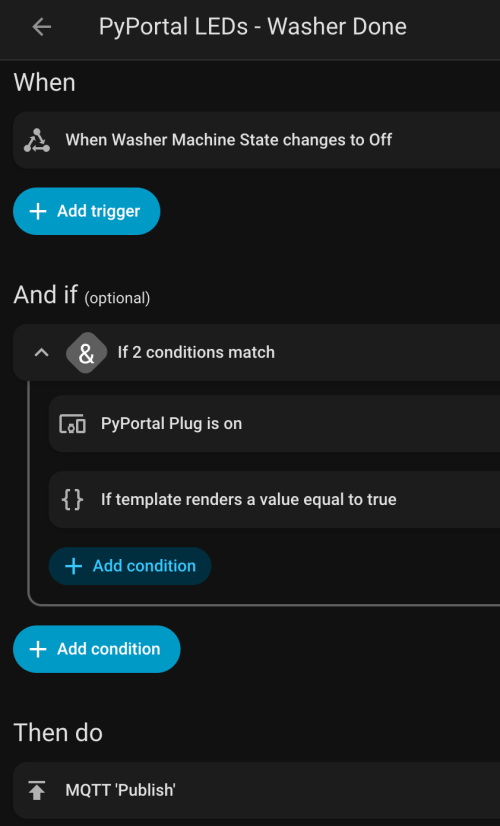
I can manually send these MQTT messages as shown in the demo, but the real power comes from automations. For example, the LEDs automatically pulse blue when the washing machine is done and pink when the dryer is done.
With the different effects and color combinations, the possibilities are endless. What kind of automations would you run?
Several years ago I bought this sign from T.J.Maxx.
When I plugged it in, I was disappointed. By default it was off with a button on the side to toggle between bright, dim, and off.
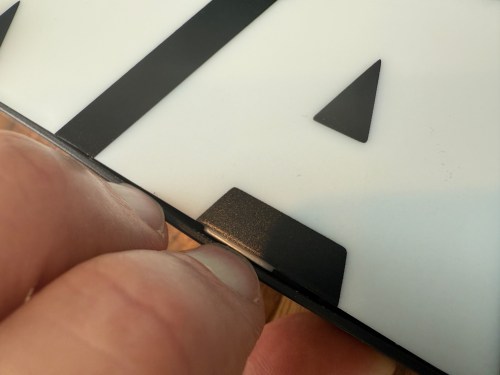
I put the sign in a display cabinet with all of the LEGO and I had wanted it to automatically turn on with the rest of the LEDs in the cabinet. I never got to it, so it sat on the shelf for years. Fast forward to setting up home automations at the new house and it was time to fix the problem. The only screw on the back was for opening a battery compartment, so I figured the front had to be snapped in. With a little careful persuasion I gained entry.
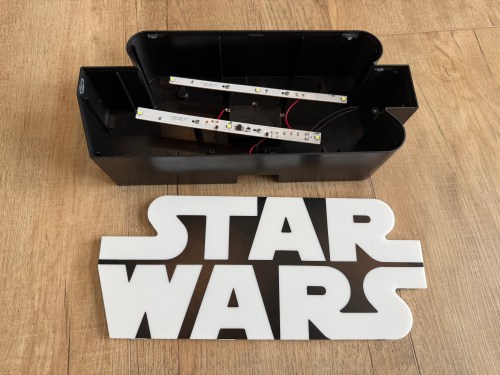
I figured the electronics were pretty basic and I was right. The quick fix was to connect the sides of the button/switch.
That worked, but I noticed how flimsy all the wiring was. I replaced the wires going from the USB connector to the board, which had been causing some flickering when bumped.
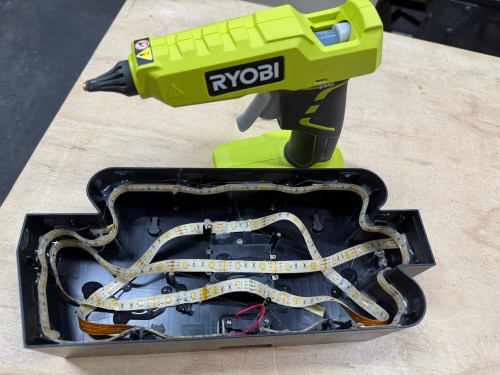
I was sad at the lack of LEDs though. I could do better, with minimal effort. I took out the circuit boards and found an old five volt LED strip.
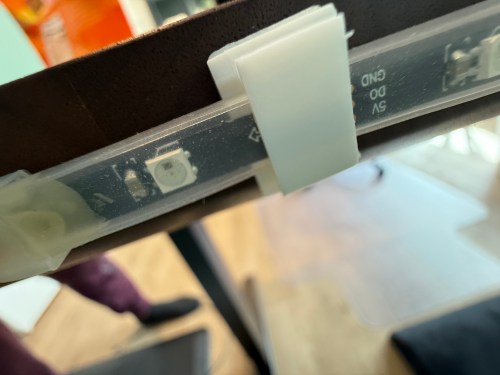
With the help of some double-sided tape, I wrapped the strip throughout the case and then also used hot glue.
After building a rack for my workout shoes a couple of weeks ago, I wanted to tackle another thing about the broom closet that has been bugging me for years. It never had a light! I put together a rough video of the entire process.
I’m really happy with how it turned out, especially since I was able to use parts I had in my electronics collection. The whole thing uses a simple circuit, cost less than $10, and doesn’t require WiFi or any fancy connections. The Working of Transistor as a Switch page on Electronics Hub was a big help. I ended up using a PNP transistor in my circuit without resistors because the LEDs were dimming and I wanted maximum brightness.
Remember last week’s post about tearing apart a component switch to repurpose parts? I spent some time fooling around with IR after that. I thought it would be neat to recreate the basic functionality of switching between 3 devices. For my proof of concept the devices were simple the 3 status LEDs, but you can imagine the possibilities of turning on different devices or triggering processes run on a computer.
The new microcontroller I got is one I posted about a few months ago, called Puck.js. It has an IR transmitter built-in, so I wanted to use it to mimic a remote. Puck.js is pretty slick. It’s really neat being able to program a device in Javascript through a web IDE over Bluetooth Low Energy. No wires at all!
Propping a component into the GPIO pins like the author did doesn’t work for shit. You can’t get a solid electrical connection, especially if you bump it at all.
I kept getting Out of Memory errors on the device because the array would get really large really soon.
My next thought was to wire up to one of my other microcontroller that run Arduino, but the popular IR Library (IRLib2) doesn’t support the chips used in any of the boards I have. So over to a Raspberry Pi Zero. Pretty much every search result mentioned using Linux Infrared Remote Control (LIRC). May of the setup instructions I found were incomplete, but I was able to get things running by taking pieces from these two sites:
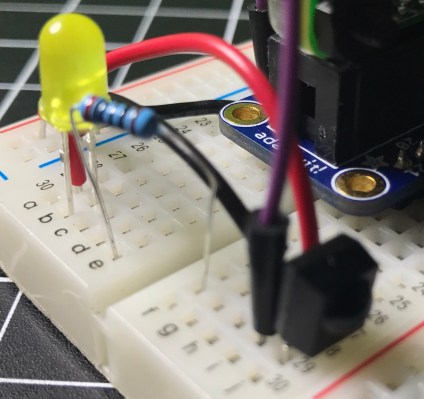
I’ll detail the steps that worked for me. Before I go down the software route though, I wanted to make sure the IR sensor worked. The only markings on the component are “71M4” and I have been unable to find a datasheet anywhere to match. Luckily these IR receivers are pretty standard and I had a pretty good idea of the pins from looking at how it was connected in the old device. I got the idea of hooking up a simple LED test circuit on the data pin from an Adafruit learn guide. Pin 1 is data, going into a GPIO pin on the Raspberry Pi (26 in my case), pin 2 is ground, and pin 3 is power (VCC). You may want to use the 3.3V pin on the Pi to provide your power instead of 5V just to be safe, or consult the datasheet for the IR sensor you’re using. Connect the anode of the LED to power and the cathode to pin 1 of the sensor using a 220 Ω (I used 200) resistor. When you press buttons on an IR remote, the sensor will send data through pin 1 and the LED will light up. Here’s a Fritzing wiring diagram for this test as well.
My test was successful! Now I was able to move on with some confidence knowing the part worked.
Install LIRC:
sudo apt-get update
sudo apt-get install lirc
Edit the /etc/modules file:
sudo nano /etc/modules
Add to the end:
lirc_dev
lirc_rpi gpio_in_pin=26
Change the pin if you’re using something other than 26. If you’re also going to do IR transmitting, you can add a space and gpio_in_pin=22 on that last line.
Press Ctrl + X, hit Y to say you want to save, and then Enter.
Edit the /etc/lirc/hardware.conf file:
sudo nano /etc/lirc/hardware.conf
Look for the DRIVER, DEVICE, and MODULES settings. Set them to match:
Press Ctrl + X, hit Y to say you want to save, and then Enter.
Edit your /boot/config.txt file:
sudo nano /boot/config.txt
Look for this line:
# Uncomment this to enable the lirc-rpi module
If you see it, remove the # from the next line and edit it to look like this (if your file doesn’t have it, add this to the end of the file):
dtoverlay=lirc-rpi,gpio_in_pin=26
If you’re going to do transmitting, also add this to the same line:
,gpio_out_pin=22
Change both pins to match whatever you’re using. Press Ctrl + X, hit Y to say you want to save, and then Enter.
Reboot your Pi:
sudo reboot
Now it’s time to use LIRC to record the codes sent by whatever remote you’re using. First you’ll want to see names you want to give your buttons. Run:
irrecord --list-namespace
Scroll through the list and make notes on all of the codes you want to use for your buttons. You’ll need the codes in a bit. Here was my list:
KEY_POWER
KEY_1
KEY_2
KEY_3
Stop LIRC:
sudo /etc/init.d/lirc stop
Use irrecord to create a configuration file for your remote. Follow the instructions carefully that come up on your screen. This took me several minutes for my remote with only 4 buttons.
Note: When it says Please enter the name for the next button (press to finish recording) is when you’ll need those codes above.
irrecord -d /dev/lirc0 ~/lircd.conf
When finished you’ll have a new file in your home directory. Take a look at it:
cat ~/lircd.conf
Mine looked like:
begin remote

  name  /home/pi/lircd.conf
  bits           16
  flags SPACE_ENC|CONST_LENGTH
  eps            30
  aeps          100

  header       9004  4474
  one           580  1666
  zero          580   542
  ptrail        578
  repeat       9006  2229
  pre_data_bits   16
  pre_data       0x61D6
  gap          107888
  toggle_bit_mask 0x0

      begin codes
          KEY_POWER                0x7887
          KEY_1                    0x40BF
          KEY_2                    0x609F
          KEY_3                    0x10EF
      end codes

end remote
Make a backup of the default LIRC configuration file:
You need to set up each button similar to what mine looks like:
begin
  remote = *
  button = KEY_POWER
  prog = pylirc
  config = KEY_POWER
end

begin
  remote = *
  button = KEY_1
  prog = pylirc
  config = KEY_1
end

begin
  remote = *
  button = KEY_2
  prog = pylirc
  config = KEY_2
end

begin
  remote = *
  button = KEY_3
  prog = pylirc
  config = KEY_3
end
Do a simple copy/paste and change the button and config for each entry.
Press Ctrl + X, hit Y to say you want to save, and then Enter.
Create a basic Python test program:
nano pylirc-test.py
Paste in:
#!/usr/bin/python

import pylirc

pylirc.init( 'pylirc', './pylirc.conf', 0 )

while ( True ) :
	s = pylirc.nextcode( 1 )
	command = None
	if ( s ) :
		for ( code ) in s :
			print( code["config"] )
Press Ctrl + X, hit Y to say you want to save, and then Enter.
Run the program:
python pylirc-test.py
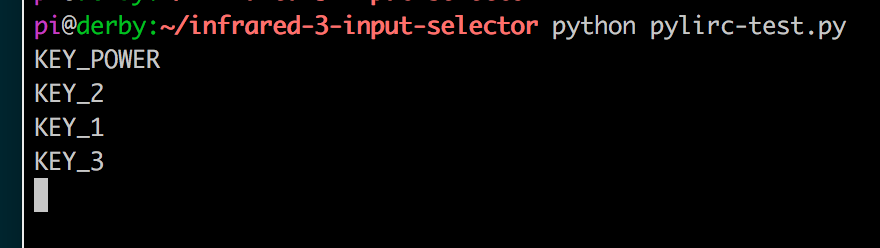
Press buttons on your remote and if everything is working you’ll see the special name codes being output for each button you press.
Hit Ctrl + C to stop the program.
I already had all of the logic written for the buttons to work and switch LEDs, so it was easy to add in a little more code to take action when the appropriate IR codes were received.
Once I found the correct information, setup on the Pi was quite easy. A lot of steps, but easy stuff. Making the Puck.js duplicate my Infrared remote’s codes was a bit of a challenge. From the Puck.js Infrared tutorial I linked at the beginning I knew I needed to have an array of pulse lengths, but I didn’t have anything like that from the LIRC configuration. All I had was some hex values for each code:
KEY_POWER: 0x7887
KEY_1: 0x40BF
KEY_2: 0x609F
KEY_3: 0x10EF
Combined with another hex code for pre_data (0x61D6) from the lircd.conf file, I had more complete codes:
Infrared remote control signals from the LIRC remote configurations project, converted to Pronto Hex and Protocol, Device, Subdevice, and Function using lirc2xml…
BINGO! It had the Pronto Hex codes. I cloned the repo and started searching for my hex values. I found power, 1, and 2 matched up with codes used by something called a gigabyte TV. I plugged the codes into a program and they worked! I was only missed the code for button 3.
Then I spend way too much time still searching around. I knew enough about how IR worked and had 3 codes. I finally realized I should be able to figure out what changes to make in order to get my 4th and final code. I converted the hex values to binary:
KEY_POWER: 0x7887 = 111100010000111
KEY_1: 0x40BF = 100000010111111
KEY_2: 0x609F = 110000010011111
KEY_3: 0x10EF = 001000011101111
Then I started looking at the end of each array of Pronto Hex codes, because every code uses the same pre_data. I quickly determined an ON bit (1) was 003e, OFF (0) was 0013, and they were separated by 0017. I made the necessary adjustments and had all 4 buttons working with IR!
This IR journey turned out to be quite an adventure. I learned a lot, which was the point. My infrared-3-input-selector project on GitHub has the Python program used in the demo video, my pylirc config file, the simple pylinc test program, the Puck.js code, and even an Arduino sketch with the button and LED logic I created initially before realizing I needed to switch to the Raspberry Pi.










 I got
I got 
 Nick Momrik