Circles
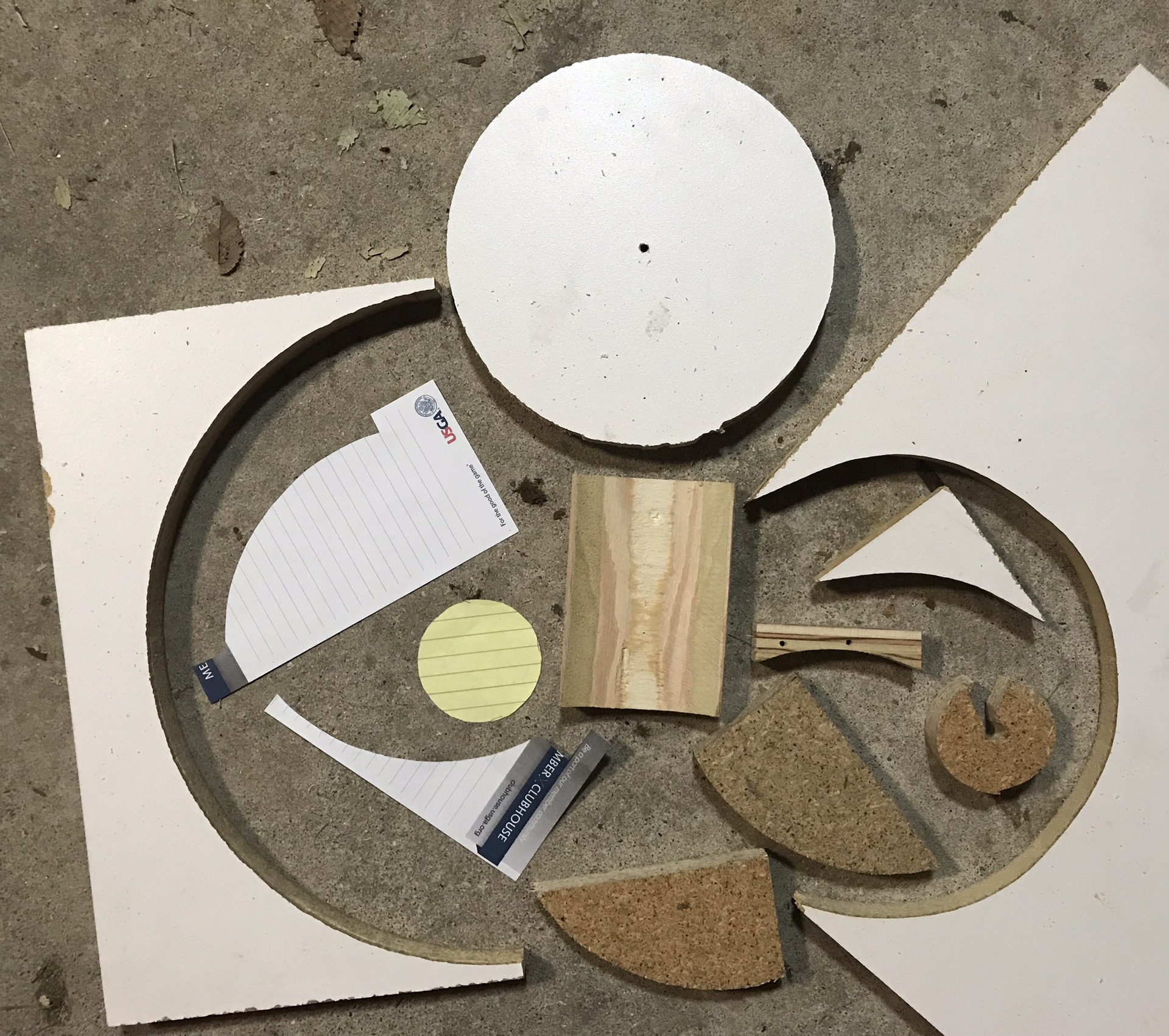
I needed to fit a piece of wood up against the seam of a cylinder I created by rolling a sheet of polycarbonate. Remembered seeing of video of someone cutting coves with a table saw, so I found some simple instructions.
I didn’t need to be very precise for my use so wasn’t concerned with my guides having a little wiggle room. Worked great for what I needed. I love learning new stuff! New skill in the toolbox.
I found a used Craftsman table saw (model 113.298032) on Craig’s List last weekend. Most of the saws I’d been watching had significant rust and this one was in good shape, so I paid $125. I have a lot of ideas to improve the functionality of this saw and utilize it for the space in my workshop, so this will be the first in a series of posts.
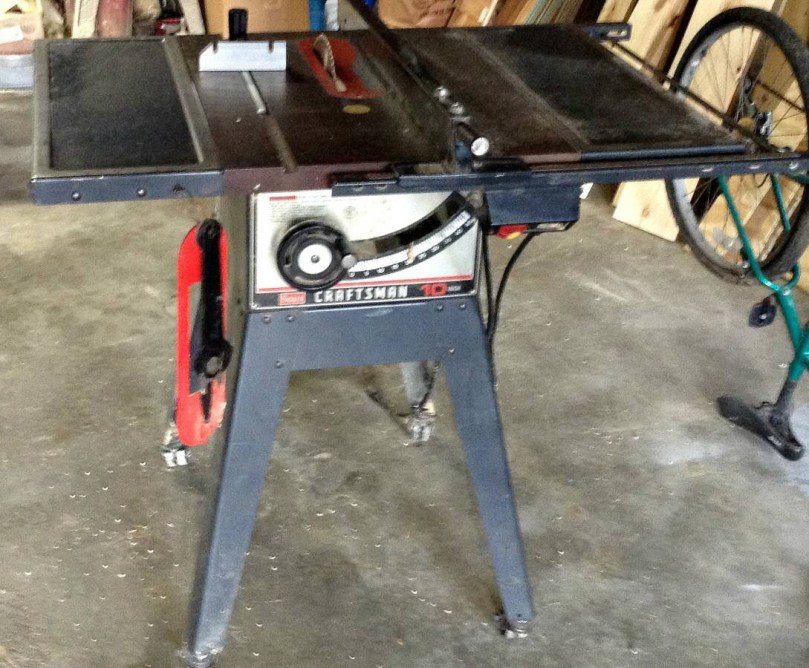
The power cord had exposed wire and a bunch of places wrapped in electrical tape. I paid $5 for a 10 foot extension cord from Harbor Freight, cut off the end I didn’t need, and wired it into the switch.


The belt had a little nick in it, which you can see on the right side of the picture. Probably would have been fine, but I wanted to replace it. After reading a tip, I went to Auto Zone and they easily matched up the belt with something in stock ($10).

The metal on the bottom of the stand was bent all over the place, making the casters virtually useless. It was like trying to push the saw down a bumpy dirt road. Harbor Freight sells an awesome mobile base kit, which was about $32 after a 20% off coupon. All of the reviews said it works better than the name brand kits which cost twice as much or more.
You have to supply your own wood for the frame, so I bought four 2x2x42″ exterior deck balusters, for $0.97 each. The instructions call for 1 1/4″ square material, but if you know lumber measurements, the 2×2″ is way off. The fit was snug and took some convincing with a rubber mallet, but these pieces worked great.


Rolls around nice and smooth now. Easy to lock in place too.
Future upgrades will include dust collection, fence customizations, a guide sled(s), a router table, and zero clearance inserts.
Read about more upgrades in part 2.
I’m going to build a bluetooth speaker for my garage gym using an old set of computer speakers. I thought it would be good to plan it out in a 3D model first, so I learned how to use SketchUp by following their great video tutorials. As I’ve learned new tricks and thought of different ideas there have been several design iterations.
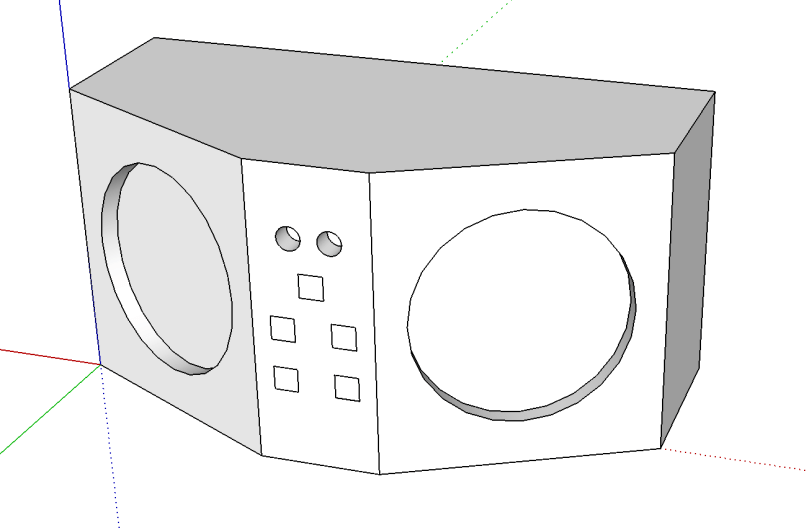
This first attempt was a very rough idea using paper-thin walls or basically one solid piece, depending on how you want to think of it.
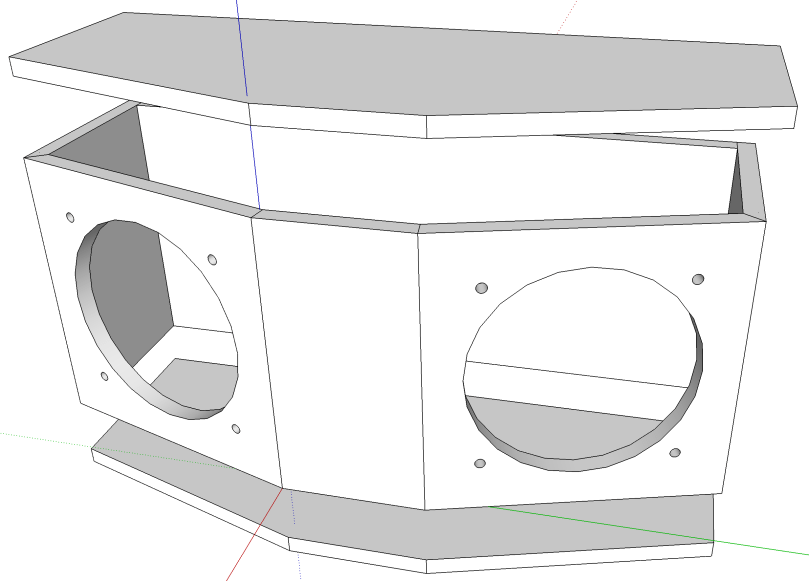
I was thinking I could build the box out of 1/4″ material. I set the thickness of the walls, properly created each side of the box as a separate piece, and separated the lids.
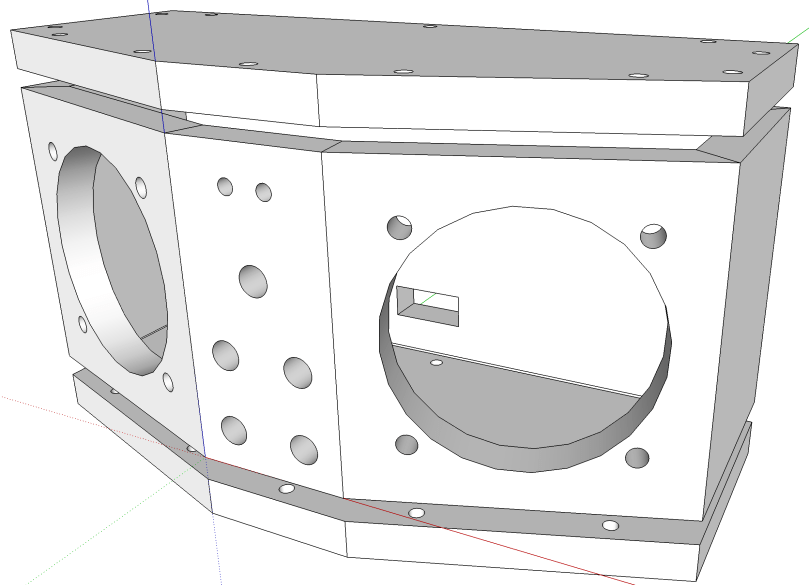
I realized using 1/4″ material wouldn’t give me much room to drive screws into, so I increased to 1/2″. I added speaker mounting holes and the lids were given holes where screws will hold the pieces together. The holes in the middle front section will be where LEDs and buttons go. The square hole in the back wall (which will probably be changed to a small circle and maybe moved to a side) is for the power cord.

I realized if the lids were sitting on the top and bottom of the sides, you’d be able to see the ugly edges if I use something like plywood. So I increased the height of the walls and shrunk the lids to fit inside. There is a row of screw holes all the way around the top and bottom of the side walls, which will attach everything to the lids. I forgot about the on/off switch, so I added another hole on the front.
This is the first time I’ve attempted any 3D modeling and it’s been a lot of fun. Before I start working with wood, I’ll probably create a cardboard model to make sure the components fit inside. The dimensions are roughly 4.25″ deep, 9.5″ wide, and 5″ high.
All of the SketchUp files are in a bluetooth-speaker-design repo on GitHub if you want to use any of them.
Head over to Making a Bluetooth Speaker to see how the build turned out.
 Under the box lid of a Sears Craftsman 45° miter cut-n-clamp set, which was produced in the 1960s.
Then you can do the same thing for the opposite dimension if your picture isn’t a square.
I’ve been wanting to get more tools so I can do different projects with wood. It’s a lot cheaper to start out with used tools, especially as I learn. If I use certain tools a lot and find I need an upgrade, then I’ll fork over cash for new.
On a Saturday I hopped in the car and drove all over Saginaw looking for garage sales. There was no plan, other than to follow every sign I saw. I bought and bargained for a few things and then when I went home to eat lunch I found a big community garage sale about 25 minutes away. Off I went!
I probably hadn’t been to a garage sale in over 20 years. It was a lot of fun searching and it was interesting to see how different the items were from one house to the next. I was really hoping to find a table saw, band saw, and drill press, but no luck on any of the 3. I did make a good haul though.
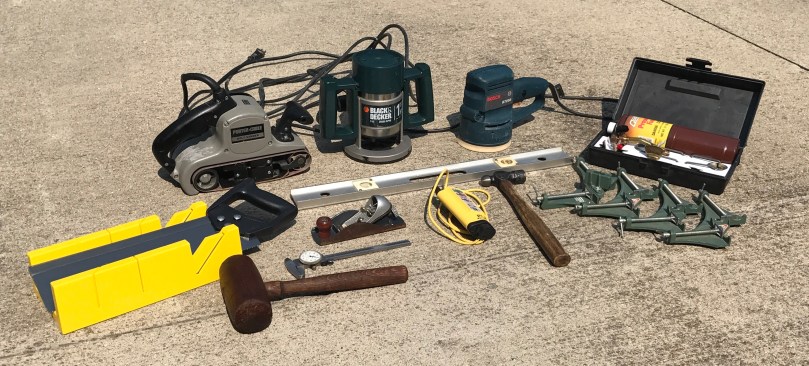
The saw and miter box combo was brand new in the box, but most of the items needed some love. I sanded, stained, and waxed the wooden mallet and hammer handle. You can’t really see from this picture, but they both turned out great. The biggest tasks were taking apart the two sanders for a thorough cleaning because they were full of sawdust. I also disassembled the router but it wasn’t nearly as bad.
What gems have you found at garage sales?
I had no plans for a part 3, but in part 2 of this series, I mentioned how I messed up the wiring several times when I was assembling the module. Instead of fixing it at the time, I started from scratch since I had extra parts. Well, I made some time to disassemble the non-working module and build a new one. I quickly set up a prototype on a breadboard to make sure I didn’t make the same mistakes and then I soldered it all together on a permanent board. Was smooth sailing, even with squeezing everything in as much as I could.
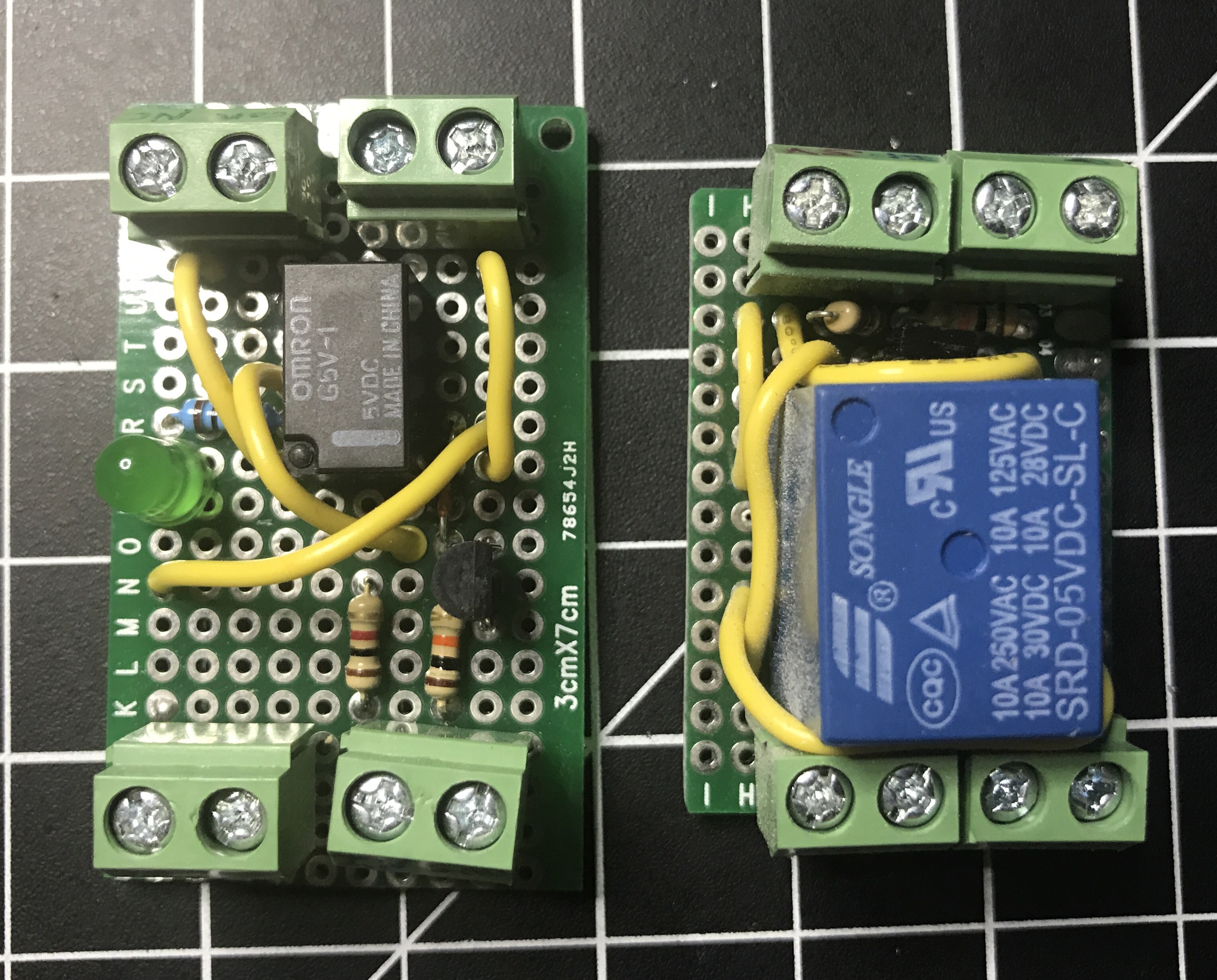
Now I have a two different spare relay modules, depending on power requirements, when I need one for a project.
Earlier this year I came across an old Make post about building your own oscilloscope. I messed around with it a little bit at the time, but I didn’t have the necessary potentiometers, so I set it aside. Then the topic came up again when the tutorials accompanying HackerBox #0018 made use a 3.5mm audio breakout module and some PC oscope software. So in my next Digi-Key order, I got the pots I needed and I picked up some cheap test leads on Amazon. It’s several months later, but I got around to building my own sound card oscilloscope.
First, a couple of notes…
You’ll definitely want to read through the Make post to get familiar with the project. As mentioned in their guide, there really isn’t any good oscope software for the Mac like there is for the PC. With Audacity, which is what I used, at least you can see the signals in wave form.
I spliced an old audio cable. There are several different styles of 3.5mm connectors, but if you’re doing 2 channels, you’ll want to make sure you your cable has the tip, ring, and sleeve.
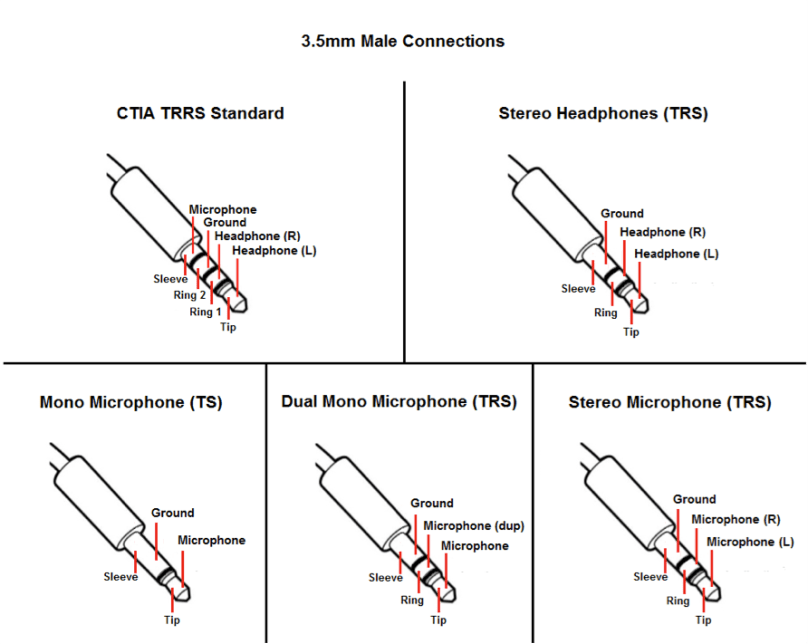
A lot of MacBooks only do mono microphone input. Several Mac bummers in this build! It wasn’t easy, but I found a USB adapter on Amazon that does stereo mic input (most of them only do mono). It’s pricey at almost $30 for something I’m not even sure I’ll use after this build.
Enough of that, on to the build…
I added the LEDs to my build as a visual reference a signal was coming through, but they can be left out, just like in the Make build. If you’re interested in the Fritzing I showed in the video, head over to sound-card-oscilloscope on GitHub. Whenever I’m soldering up a final project I prefer to have the Fritzing for reference instead of looking at my prototype, which typically has a lot of extra wires hanging around. Having a nice clean diagram helps me from making mistakes.
I also found another guide on a site called Home DIY Electronics, which I didn’t end up following.
If you have any questions or build your own version of this, let me know in the comments.
My garage temp sensor, running home-assistant-temperature-monitor stopped working several months ago. I didn’t have time to figure it out and then summer hit, when it’s not important since I don’t heat up the garage before I workout. This weekend I finally got around to troubleshooting the problem.
Turned out I needed to install Adafruit_Python_GPIO. I must have updated my code at some point without fully testing, otherwise I’m not sure how any of it worked before. I didn’t investigate that though; I was more concerned with fixing it and doing some improvements. I updated the OS and everything on the Raspberry Pi since it hadn’t been turned on in quite some time.
Earlier this year, another Pi on my network, the one running Home Assistant and Pi-hole, ran out of disk space without warning. I’ve wanted to put in a notification system so it never happens again, so I updated home-assistant-pi to report the disk use % to HA. I added an automation to notify me whenever it’s above 90% for one of my Pis. I also reworked all of the automations in home-assistant-pi to make it easier to configure each time I get a new Pi.

That all took much longer than I expected. Most of the trouble was trying to understand the Jinja template system used in HA and where it can be applied to configurations. I think I’m finally getting the hang of it.
While writing this post, I found an old draft with some other updates to home-assistant-pi I never published. Maybe I never finished and that’s why everything stopped working! Here’s a list of some previous updates:
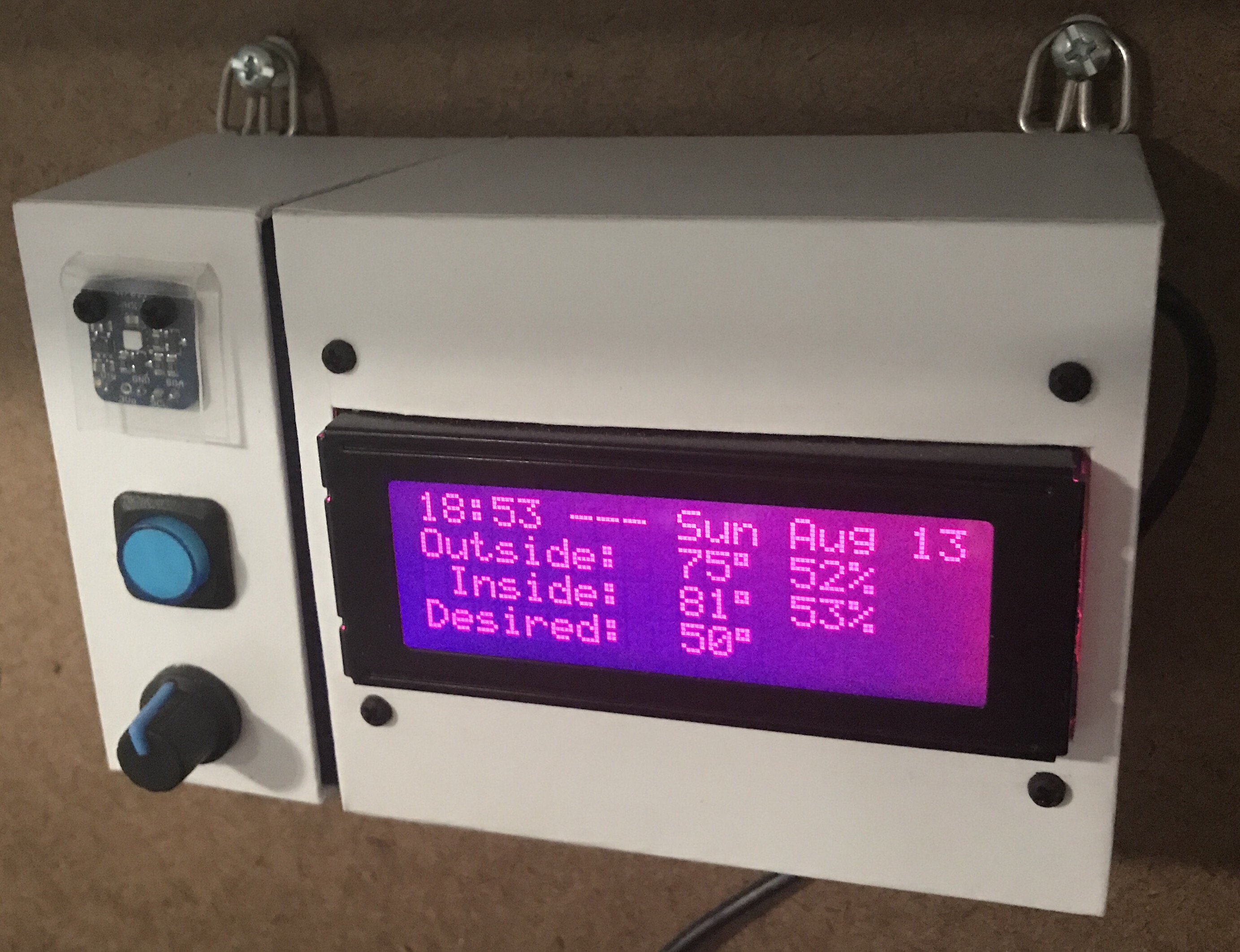
Now that this stuff is running again and I have a better understanding of the Home Assistant automation capabilities, I need to continue the series of posts I planned on home automation. It’s been five and a half months since I published Part 1!
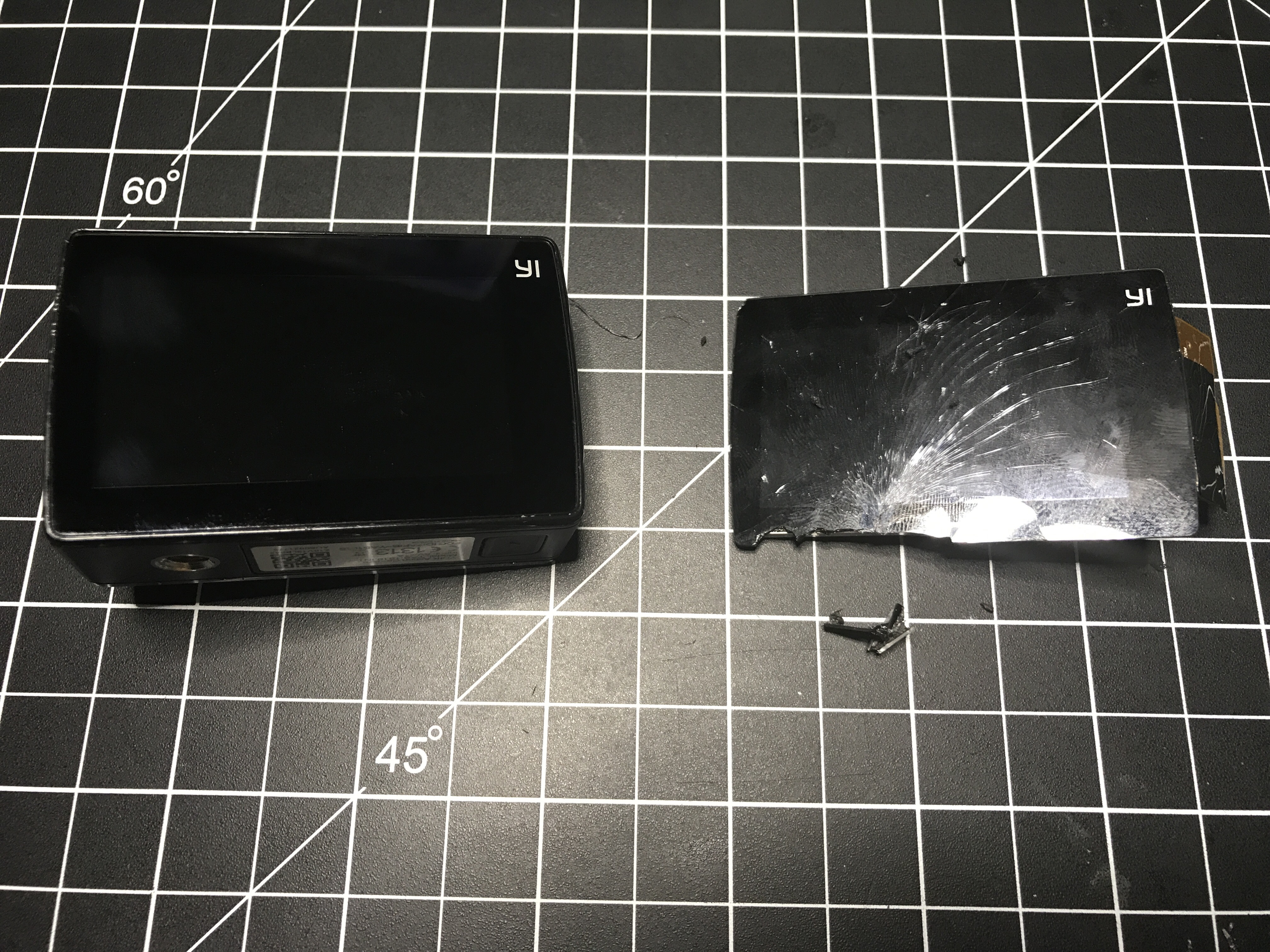
The replacement came in for my shattered YI 4K Action Camera touchscreen. I was surprised it only took 10 days to get here from Shenzhen, China.

I followed this YouTube video, even though mine isn’t the newer 4K+ version of the camera. The only difference I noticed was the type of connector for the shutter.
I made one mistake, as you can see below, cracking the front cover above the lens. It won’t affect the performance, so not a big deal.

I wasn’t nearly as fast as the guy in the video, but I did it in less than an hour. Easy peasy compared to replacing the screen on an iPhone, which I will never attempt again.