MacBook Pro Charger

After years of use, the Magsafe end of the charger for my Early 2013 MacBook Pro became frayed to the point where it would literally spark at times. Not safe. I found this 60W Macbook Pro Charger by Hunda for only $40 and it even has a couple of USB ports. Much cheaper than buying an official Apple replacement charger. […]

Review: 2016 MacBook Pro

I posted some very quick initial thoughts after about 10 minutes with the new MacBook Pro. Last week I was able to get everything installed and configured for work and spend some time with it. It’s the best computer I’ve ever used, passing the MacBook Air I had in 2011.

My two favorite things are the keyboard and Touch ID. Not only do I love the clicky sound of the keys, but the feel is completely new and makes it seem like I’m typing a lot faster. Having Touch ID in Mac OS is everything I hoped it would be. Using 1Password is a completely different experience.

I also like the trackpad and the feel of “clicking.” Admittedly, I don’t click much on the Mac since I have Tap to click enabled in System Preferences. I was worried about the increased size of the trackpad but it hasn’t been an issue; their wrist detection software is as good as people said it was.

mac-tap-to-click

The difference in size (all dimensions) and weight are considerable from the previous generation, which hadn’t changed much in years. The battery does seem to drain faster though, which isn’t great.

I’m not sold on the usefulness of the Touch Bar yet. It’s a neat concept and done well. Time will tell on this one. Not having a physical esc button has tripped me up more than I expected.

Being able to plug power in on any of the USB Type-C ports is very handy. The number of dongles I had to order so I could use all of my devices seems ridiculous though.

My only major complaint is not having a MagSafe power connector.


3 MacBook Pros

My new MacBook Pro came yesterday. While not much felt different in my last laptop upgrade, I could tell this one was completely different right away. The size and weight remind me of the MacBook Air I got in 2011. The new color is fresh. Trackpad “clicks” feels familiar, maybe because of the new iPhone 7 home “button.” The […]

Transfer Purchases

itunes-transfer-purchases

If you have any iPhone I’m sure you’ve seen this message when trying to upgrade iOS. Not very helpful is it? Each time I get it I go searching around the iTunes UI for a way to do it. Finally I end up Googling to find the answer: File->Devices->Transfer Purchases

Apple, how about adding a button to fire off this process? The cancel button is pretty useless here. Or, I don’t know, make the Sync operation do it by default! Why would I not want my purchases synced to my account?

My First Mac Was…

The Mac turns 30 today. My first Mac was the original black MacBook in 2006 and I haven’t looked back since. What was your first Mac?

Ten years ago on the 20th anniversary, Steve Jobs said this in an interview

Like, when you make a movie, you burn a DVD and you take it to your DVD player. Someday that could happen over AirPort, so you don’t have to burn a DVD — you can just watch it right off your computer on your television set.

Now we watch movies on our TVs through Netflix or the iTunes Store with the Apple TV and don’t think twice about it. It’s exciting to think about what Apple is working on that will come out 3 or 5 years from now.

The Case Against a Retina MacBook Pro

I got a 13″ Retina MacBook Pro about a month and a half ago. I am not impressed and here’s why. This first screenshot is of a full screen Chrome window using the Retina resolution.

Screen Shot 2013-11-08 at 2.1143EST

Yes, it’s beautiful. There is no arguing that. But I’m not blind and I have to scroll before even seeing any content. Lot’s of scrolling at this resolution. Here you can see the Display settings.

Screen Shot 2013-11-08 at 2.1127EST

I switched over to a scaled resolution (no longer Retina) for more space.

Screen Shot 2013-11-08 at 2.1101EST

Voila! I no longer feel like there’s a magnifying glass attached to my face and I don’t have to scroll nearly as much as with Retina. Guess what, it still looks beautiful.

Screen Shot 2013-11-08 at 2.1051EST

Many people love their Retina MacBook Pro. I wish I had gotten a MacBook Air instead.

Make Siri Save Contact Relationships

The iPhone 4S arrived yesterday and I’ve been loving it. Siri is amazing. I did run into problems getting Siri to save relationships between myself and other contacts though. I’d ask, “What is my brother’s birthday?” Siri would go through the process of asking me for his name and confirming I wanted it to remember he was my brother. But it wouldn’t stick.

I took a look at my contact in the address book and noticed the only relationships it was saving were spouse, assistant, and manager as shown to the right. Pretty lame right?

I sync contacts from Gmail using the Exchange method in order to get multiple calendars from the account to sync. When I went into Google contacts I was able to add the proper relationships without a problem, but they wouldn’t transfer to the iPhone. I wrote a quick post asking if anyone else had run into this problem. A commenter gave a solution so I wanted to share it in detail.

* Before you continue, if you are only using iCloud contacts, you should not need to follow these steps.

The first thing you need to do is enable iCloud contacts sync. Go to Settings->iCloud to do this. Then go to the Contacts app and switch Groups to make sure you are looking at All iCloud. Add a new contact with your first and last name (make sure it matches your contact in the Gmail address book). Scroll down and you’ll be able to set up relationships by choosing from a long list of types instead of only the three previously mentioned. Add any relationships you need and save the contact. At the bottom of the contact it should show Linked Cards as it matches up with the Gmail contact. This is the only contact I have saved in the All iCloud group.

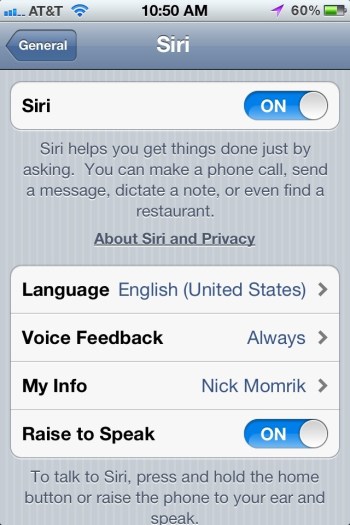
The last step is to head into Settings->General->Siri and make sure My Info is set to your contact entry. Now you should be all set and Siri will know who your Mom and Brother are. This may work automatically if you have both Gmail Contacts syncing and have iCloud Contacts enabled.

It seems weird that iPhone Contacts would use different formats for iCloud and other synced sources. Hopefully it’ll be fixed in a future iOS release. Enjoy!