Sound Card Oscilloscope

Earlier this year I came across an old Make post about building your own oscilloscope. I messed around with it a little bit at the time, but I didn’t have the necessary potentiometers, so I set it aside. Then the topic came up again when the tutorials accompanying HackerBox #0018 made use a 3.5mm audio breakout module and some PC oscope software. So in my next Digi-Key order, I got the pots I needed and I picked up some cheap test leads on Amazon. It’s several months later, but I got around to building my own sound card oscilloscope.

First, a couple of notes…

You’ll definitely want to read through the Make post to get familiar with the project. As mentioned in their guide, there really isn’t any good oscope software for the Mac like there is for the PC. With Audacity, which is what I used, at least you can see the signals in wave form.

I spliced an old audio cable. There are several different styles of 3.5mm connectors, but if you’re doing 2 channels, you’ll want to make sure you your cable has the tip, ring, and sleeve.
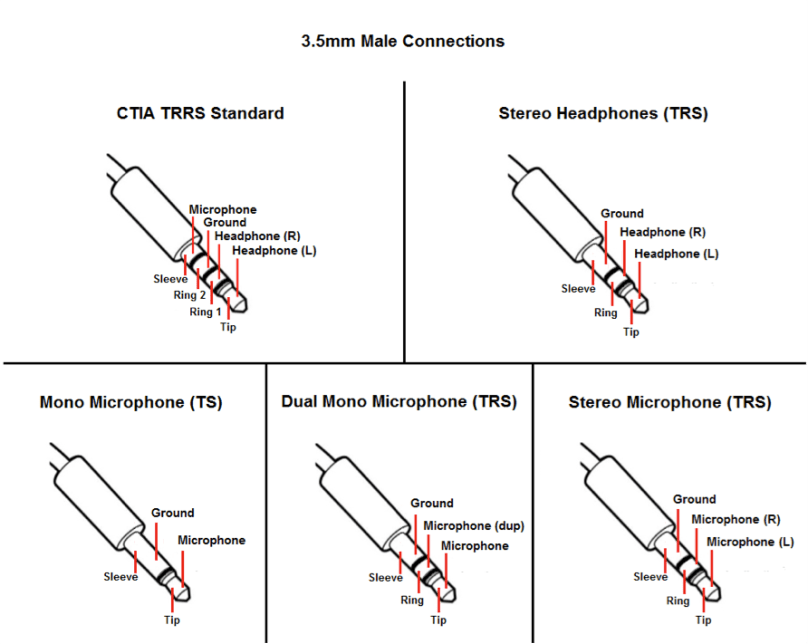
3.5mm-Male-Connections.png
Source: blog.audio-technica.com

A lot of MacBooks only do mono microphone input. Several Mac bummers in this build! It wasn’t easy, but I found a USB adapter on Amazon that does stereo mic input (most of them only do mono). It’s pricey at almost $30 for something I’m not even sure I’ll use after this build.

Enough of that, on to the build…

I added the LEDs to my build as a visual reference a signal was coming through, but they can be left out, just like in the Make build. If you’re interested in the Fritzing I showed in the video, head over to sound-card-oscilloscope on GitHub. Whenever I’m soldering up a final project I prefer to have the Fritzing for reference instead of looking at my prototype, which typically has a lot of extra wires hanging around. Having a nice clean diagram helps me from making mistakes.

I also found another guide on a site called Home DIY Electronics, which I didn’t end up following.

If you have any questions or build your own version of this, let me know in the comments.
A Full Round With The Reverse Overlap Grip

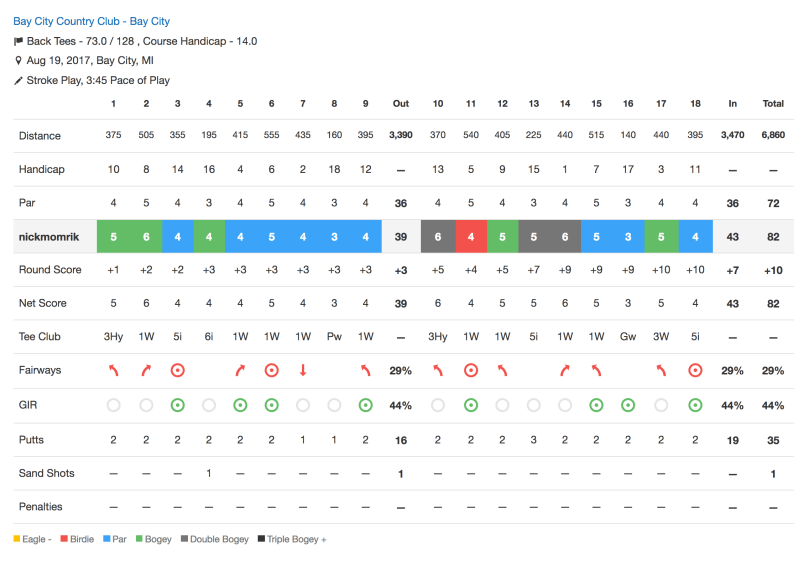
2017-08-19-scorecard.png

This morning was my first full round with the reverse overlap grip after splitting my previous round between the two styles of overlap. The club is already feeling really good in my hands and a lot more natural than the interlocking grip. I don’t remember the last time I played 18 holes without any penalty strokes.

Switching Golf Grips

img_9696

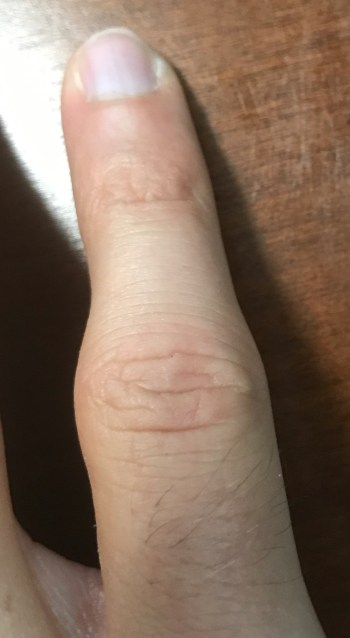
I’ve been using the interlock grip to hold golf clubs for as long as I can remember. About a month ago I noticed my right pinky finger was swollen at the knuckle, which happens to be one of the two fingers involved in the interlock. It feels like I have a constantly jammed finger.

It seemed to be slowly getting worse after each round of golf and got to the point where I couldn’t fully bend it. After doing some Googling, it seems to be a common problem, even though I’ve never had it happen to me. I’m not sure what I’ve been doing different, but it’s not comfortable. Time for a change.

Even though I’ve used the interlock for chipping, pitching, and full swings, I’ve used a reverse overlap grip (left pointer overlapping right pinky) for putting because I’ve always liked the feel of it. I’m pretty sure I first learned about it when reading Tiger’s book “How I Play Golf.” So I set out to try the Vardon Overlap Grip, as it’s also known, for every club in the bag.

Yesterday was the first round trying it out. It was uncomfortable and I “topped” quite a few shots. I didn’t realize I was using opposite overlaps for putting and everything else until the 10th hole. From there on out I overlapped like I do for putting on every shot. It was much more comfortable and I started hitting better shots.

Last night I looked around online. I learned that the overlapping grip tends to be better for players who have large hands, like me, while the interlock is usually better for players with small hands. It turns out Jordan Spieth uses this reverse overlap grip.

It’s going to be a work in progress because every time I gripped the club my instinct was to interlock. It’s hard to change something you’ve been doing for more than a decade. At least for now, my swollen pinky acts as a mental trigger to switch it up when I go for the interlocking grip.
​

Sense8

When I was told Sense8 wasn’t coming back for a 3rd season, I debated if I’d watch season 2. The show is set in multiple locations around the world, which made it one of the most expensive shows to produce. I enjoyed the first season, so I decided I’d go for it. Fans of the show made their disappointment heard and somehow it worked; Netflix announced they’d come back next year for a special 2 hour finale. Can you imagine ABC, CBS, or NBC doing that?

It was another good season and it had a lot of great music. The ending sucked because it sets up a 3rd season, which won’t happen now. Hopefully they can wrap everything up in 2 hours.

If you haven’t watched the show, give it a chance. It’s a very diverse show, which crosses a lot of cultures, uniting people. We need more of this in today’s world with some of the things going on.

The creator, cast, and crew put together this video talking about the improbability of the show coming back like this to thank all of the fans.

Updates to Home Assistant Projects

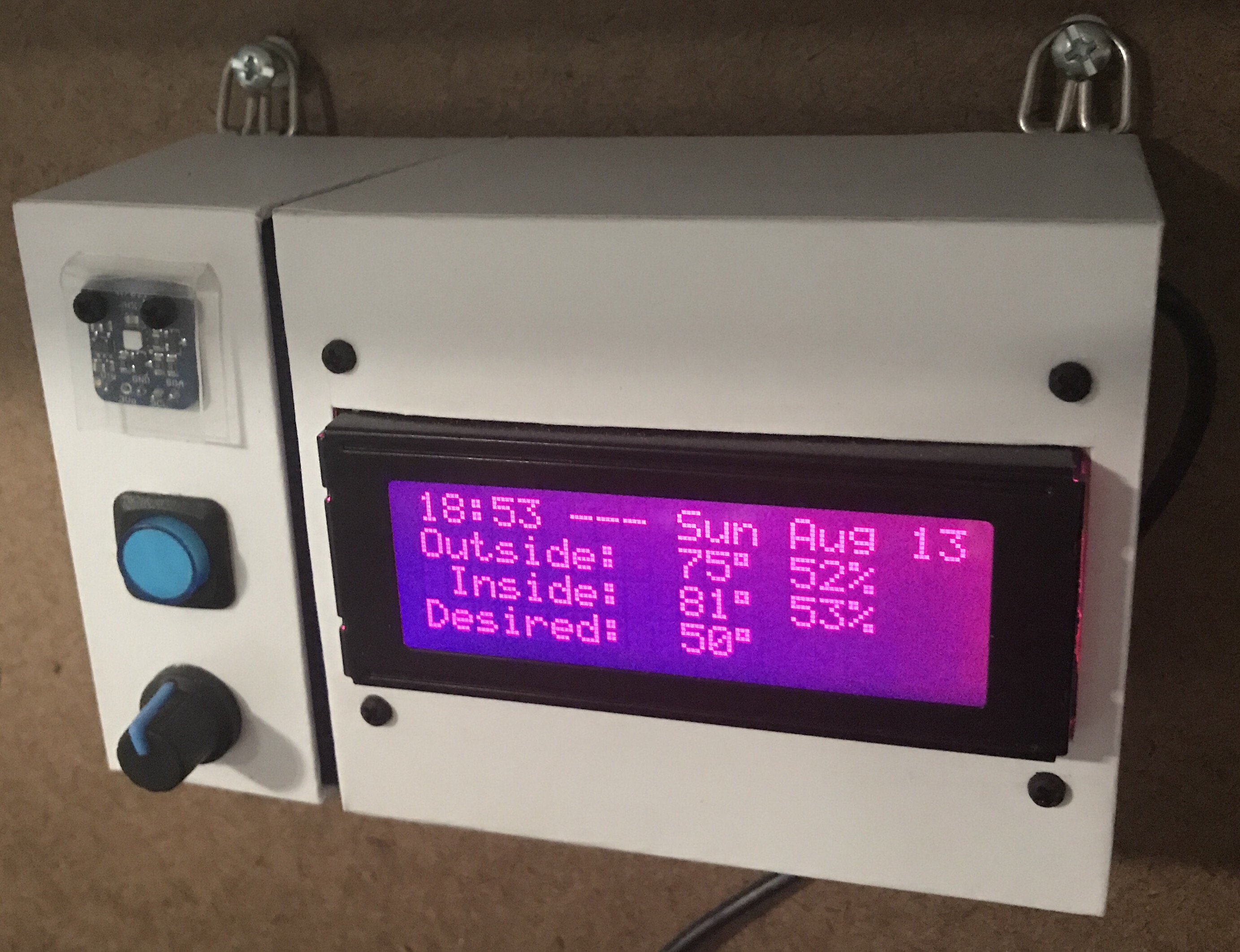
My garage temp sensor, running home-assistant-temperature-monitor stopped working several months ago. I didn’t have time to figure it out and then summer hit, when it’s not important since I don’t heat up the garage before I workout. This weekend I finally got around to troubleshooting the problem.

Turned out I needed to install Adafruit_Python_GPIO. I must have updated my code at some point without fully testing, otherwise I’m not sure how any of it worked before. I didn’t investigate that though; I was more concerned with fixing it and doing some improvements. I updated the OS and everything on the Raspberry Pi since it hadn’t been turned on in quite some time.

Earlier this year, another Pi on my network, the one running Home Assistant and Pi-hole, ran out of disk space without warning. I’ve wanted to put in a notification system so it never happens again, so I updated home-assistant-pi to report the disk use % to HA. I added an automation to notify me whenever it’s above 90% for one of my Pis. I also reworked all of the automations in home-assistant-pi to make it easier to configure each time I get a new Pi.

img_9705

That all took much longer than I expected. Most of the trouble was trying to understand the Jinja template system used in HA and where it can be applied to configurations. I think I’m finally getting the hang of it.

While writing this post, I found an old draft with some other updates to home-assistant-pi I never published. Maybe I never finished and that’s why everything stopped working! Here’s a list of some previous updates:

  • Fixed errors causing program to crash.
  • It wasn’t reconnecting very well, especially if Home Assistant went away (ex. for a restart after an upgrade). Rewrote how the MQTT connection works.
  • Switch from PushBullet to iOS notifications.
  • Changed show/hide Home Assistant group automations.

Now that this stuff is running again and I have a better understanding of the Home Assistant automation capabilities, I need to continue the series of posts I planned on home automation. It’s been five and a half months since I published Part 1!