Building a Better Interface for the Airdyne AD2 with a Raspberry Pi (Part 2)

In part 1 I wrote about the problem, but how would I make something better?

Part 2: The Plan

From the original assembly of the Airdyne, I remembered the cable going from the machine into the display was a simple audio cable. I figured it should be easy enough to read the data being sent over the wire. A quick check of the cable determined it was a 3.5 mm TS jack (TS?), which is very simple.

airdyne-ad2-ts-jack-wide2.jpg

I immediately thought a Raspberry Pi would be a great little computer for the project. I’d been wanting an excuse to play around with version 3 Model B. Some quick research determined microphone input had to be done via USB. I created a shopping list:

I already had a 3.5 mm male to male cable that would prove to be extremely useful. I wanted to splitter so that I’d be able to intercept the signal, while being able to continue using the actual Airdyne AD2 display as well.

While waiting for the Amazon Prime deliveries to show up, I did some Googling to see if anyone else had tried anything like this with an Airdyne. There was one hit. The author went a different route by installing a cycling cadence sensor on the crankshaft and someone in the comments went another route yet, with an optical sensor to measure the fan wheel rotations.

Finding that others had been able to take data in different ways and figure out to do with it gave me hope, but I really had no idea if I was going to waste a bunch of time on this project. At some point I plugged the cable into my iPhone and attempted to record some input using the Voice Memos app, but didn’t get anything. Not encouraging.

I was keeping a bunch of notes and ideas, but my initial scope was very small. Could I read the data from the cable, determine what it was saying, calculate all 5 pieces of information (time, calories, distance, speed, and rpms), and display everything on a single user interface? Now that I write that it doesn’t actually seem very small at all.

Stay tuned for part 3, where I got started.

Building a Better Interface for the Airdyne AD2 with a Raspberry Pi

When I bought the Raspberry Pi 3, I hinted at a project. I spent most of last weekend working on it and thought it was an interesting process to share.

Part 1: The Problem

A few years ago I added a Schwinn Airdyne AD2 to my garage gym. You move your arms and your legs at the same time for more of a full body workout than just a bike.

airdyne-ad2

Here’s an example of the machine’s interface in action.

The screen rotates through 5 pieces of information (time, calories, distance, speed, and rpms), spending 6 seconds on each piece of data. Not shown in the video is the single button below the screen, which can start/reset the display. When not using the machine for a workout, you can reconfigure it to use kilometers instead of miles.

Several things have always troubled me:

  1. With no backlight it’s hard to read, especially in my garage.
  2. You only see one piece of data at a time and have to wait 24 seconds to see that item again. This really limits how I can use the machine in CrossFit workouts, which typically see intervals based on a number of calories or certain distance. I’ve always had to stick to time intervals.
  3. It’s not easy to switch between miles/kilometers and can only be done before starting a workout.
  4. You can’t select/program/save custom workouts.

Not great, right? I thought I could do better.

Part 2 will cover the plan.

Goodbye Firefox

I’ve been a Firefox user for a long time, but it’s time to throw in the towel. The most common issue I run into is video playback not even starting, but overall the entire browser experience seems to be getting slower. I also run into development issues at work where team members uncover a Chrome bug, where Firefox works fine and as I’d expect it to. Yeah, I know, I should get better at testing. 😉 One recent example is the default behavior in Chrome is to allow a form to be submitted multiple times; double-click the submit button or even keep smashing it and Chrome will send as many requests until your page reloads. Am I the only one who thinks this behavior is really dumb? Firefox doesn’t do this.

The long holiday weekend seems like a good time to make the switch. I looked back to see the first time I mentioned FF on my blog. It was more than 12 years ago, where I mentioned testing in FF and IE6! Times have changed.

.blog Domains Are Now Available to Everyone!

Will be switching this site over to use nickmomrik.blog soon. Get your own .blog now!

Sara Rosso's avatarWordPress.com News

Today’s the day! Now you can search for the .blog domain of your choice and associate it with your WordPress.com site.

As we announced in May, the launch of .blog, a new top-level domain extension, means there are millions of easy-to-remember addresses now available for your website. Pricing for .blog domains will start at around USD$30 per year, with some premium names offered at higher prices.

Which .blog will you choose?

Whether it’s your brand, your business, or your own name, you’ll have a lot of options to choose from. To search for a .blog domain name for your WordPress.com blog or website, go to My Sites > Domains and search for the .blog domain name you’d like.

Why .blog?

There’s always one big question that comes up when users start creating a site on WordPress.com: “What should I call it?”

Finding the right name is hard enough —…

View original post 358 more words

Pi Tips

I stuffed myself on Raspberry Pi this weekend, making great progress on my Pi 3 project, getting to a usable basic v1. I’ll share more details on this after Thanksgiving. I also decided to rebuild my Pi Zero Homebridge server by installing Raspbian Jessie Lite (previously installed Raspbian via NOOBS) since it’s a headless system. It’s always fun to mess around with linux, though I couldn’t handle it as a full-time operating system.

While it’s fresh in my mind, here are some things that either tripped me up in the past or I found over the weekend.

  1. If you hide your Wi-Fi network, after you install Raspbian you’ll be scratching your head wondering how to connect. There is no UI for it and you might not even be setting up your Pi to launch into a GUI. Might as well dig into the command line right away by editing a couple of files.
  2. Monitor configurations are a pain in the ass. For the longest time I thought the 7″ display was a piece of shit because it was so blurry. Can’t this stuff be plug-n-play? Then then 3″ display I bought for the Pi 3 seems upside down considering where most of the ports are located. I found a little package of scripts called LCD-show linked off a LCD info page. I’m not even sure if my LCDs are close to the ones sold by this company, but these scripts work great. You can easily reboot in different screen orientations too (the rotation didn’t seem to work properly with the mouse on my 7″, but I didn’t try to troubleshoot at the time).
  3. Use Unclutter to hide your mouse cursor when you don’t need it.
  4. Clone and restore SD cards from the command line, because you’re in the linux spirit already.
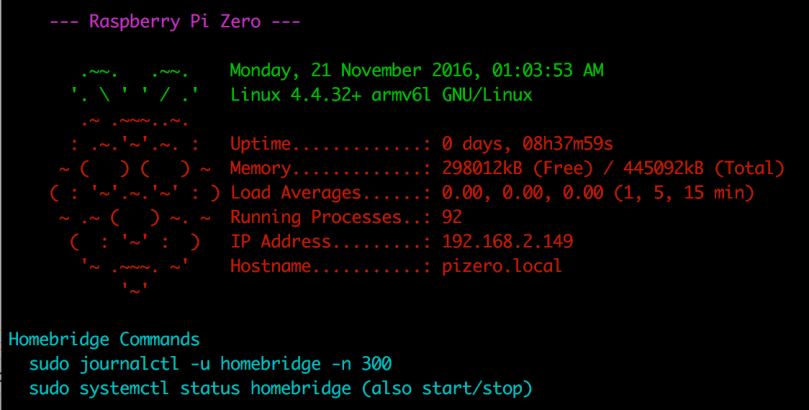
  5. Since I only access the Pi Zero via SSH, being welcomed by a bit of color with some info about the machine and reminders helps to increase the sugar content. I made a few modifications (my version is below) to a custom MOTD. The colors are set by $(tput setaf 5) and changing the number (color table). You probably want to add this to .bashrc though and not .bash_profile as instructed.

raspberry-pi-custom-motd

    let upSeconds="$(/usr/bin/cut -d. -f1 /proc/uptime)"
    let secs=$((${upSeconds}%60))
    let mins=$((${upSeconds}/60%60))
    let hours=$((${upSeconds}/3600%24))
    let days=$((${upSeconds}/86400))
    UPTIME=`printf "%d days, %02dh%02dm%02ds" "$days" "$hours" "$mins" "$secs"`

    # get the load averages
    read one five fifteen rest < /proc/loadavg

    echo "$(tput setaf 5)
    --- Raspberry Pi Zero ---
$(tput setaf 2)
       .~~.   .~~.    `date +"%A, %e %B %Y, %r"`
      '. \ ' ' / .'   `uname -srmo`$(tput setaf 1)
       .~ .~~~..~.
      : .~.'~'.~. :   Uptime.............: ${UPTIME}
     ~ (   ) (   ) ~  Memory.............: `cat /proc/meminfo | grep MemFree | awk {'print $2'}`kB (Free) / `cat /proc/meminfo | grep MemTotal | awk {'print $2'}`kB (Total)
    ( : '~'.~.'~' : ) Load Averages......: ${one}, ${five}, ${fifteen} (1, 5, 15 min)
     ~ .~ (   ) ~. ~  Running Processes..: `ps ax | wc -l | tr -d " "`
      (  : '~' :  )   IP Address.........: `/sbin/ifconfig wlan0 | /bin/grep "inet addr" | /usr/bin/cut -d ":" -f 2 | /usr/bin/cut -d " " -f 1`
       '~ .~~~. ~'    Hostname...........: `hostname --long`.local
           '~'
$(tput setaf 6)
Homebridge Commands
  sudo journalctl -u homebridge -n 300
  sudo systemctl status homebridge (also start/stop)
    $(tput sgr0)"

What are your favorite Raspberry Pi tips?