In the previous post of the series, I discussed the plan, which included my shopping list for the project.
Part 3: Getting Started
I had gotten pretty excited (yeah, I’m a geek!) while I waited for the parts to arrive. I swore I had some 3.5 mm extension cables, but couldn’t find them, so I had to order them a couple of days after placing my initial order. This gave me a day or two to take my time installing software and setting up the Raspberry Pi. There are countless resources available, so Google or ask if you want to set one up. I did share some tips.
As you may recall, I had tried a really quick test…
At some point I plugged the cable into my iPhone and attempted to record some input using the Voice Memos app, but didn’t get anything. Not encouraging.
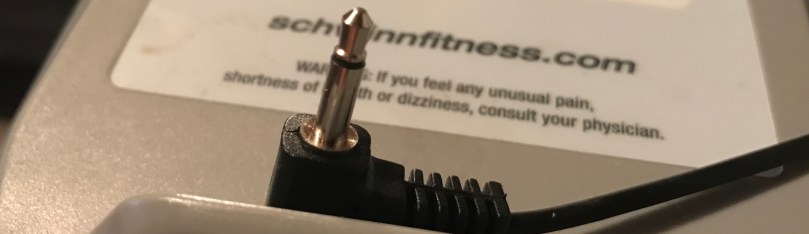
I wasn’t satisfied with that, so when a cable came in, the first thing I did was feed the machine into my laptop so I could listen to it “speaking” to me. I was pleasantly surprised with how simple the communication was. Have a listen…
Each time the flywheel goes around, the Airdyne sends a crackle (?) over the line. From here on out, I’m going to call it a beep, because it sounds better. At this point I remember thinking, “This may actually be really easy.” You’d think I would know better after years of programming.
I decided I was going to use Node.js for my app with Express on the server-side and React (eventually) for the interface. With Raspbian and MacOS both built on Linux it would make testing easy and I could get a lot of packages others have already written via npm. A smarter braver man may have chosen C++.
 The first thing I needed to do was try to read in the data from the microphone over the USB adapter. I wasn’t going to sit in the garage and keep using the Airdyne, so I recorded some of the input to an audio file, which I looped through the speaker out and then back in through the microphone.
I whipped up a very basic app with command line output and starting trying out different USB packages.
I was getting nowhere, other than finding out what didn’t work. While reading comments in a forum or bug tracker, I saw a mention of USB HID. Turns out operating systems make it hard for you to access human input devices in code because the OS wants them to keep working. Even node-hid still didn’t help.
I changed my Google searches from a focus on USB to the actual sound itself. I found a clap-detector package, which analyzed the sound input. Since the Airdyne communication was so simple, I didn’t need to be concerned with what was being said; I only cared about when something was said. Some simple changes to the configuration and I was successfully detecting revolutions. ✔️ ✔️
Getting to this point took a lot longer than I expected. Now that I was getting data in my app, I didn’t know if I’d be able to determine what the AirDyne was doing with rpms. I really like working with numbers, so the next post will be a fun one for me. I’ll share a really cool charting feature (available in some spreadsheets) I learned about and focus on some math.

 Nick Momrik