Home Assistant Air Quality Monitors from IKEA Vindriktning

IKEA recently discontinued Vindriktning, their older air quality monitor.

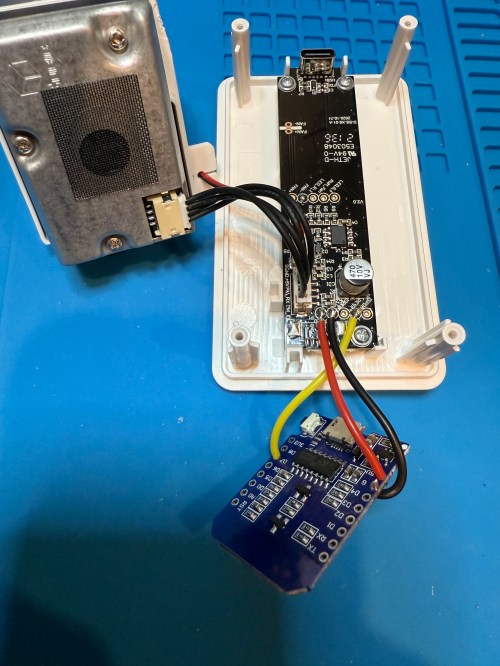
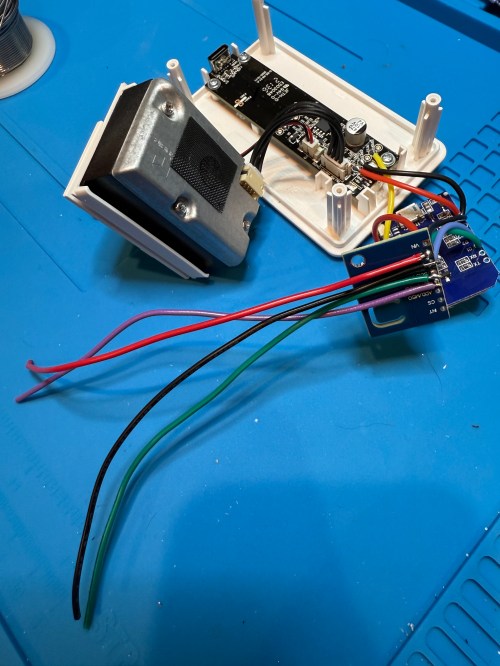
Inside the device, they put a cubic PM1006K particle sensor. I bought three for $16.95 each last year, because I’d seen people hack them by adding sensors and a Wi-Fi microcontroller to send all of the data to Home Assistant. For my modding I bought:

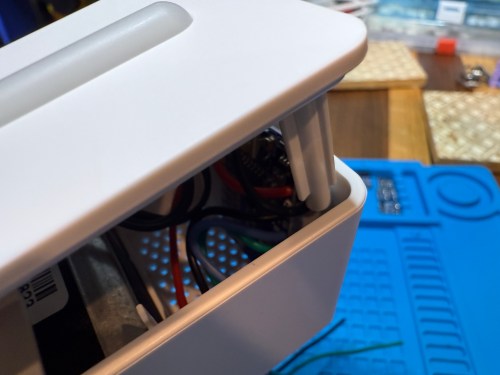
The YouTube video linked above is a great guide to follow. I didn’t connect wires to the fan or the light sensor since I had no use for them. I also didn’t stack my sensors because I wanted the BME280 to be outside of the enclosure, where it would be less affected by the heat produced by the ENS160 and D1.

Even with the sensor outside of the case, the BME280 still reads high, because it heats itself up. I actually tested different lengths of wires and placements of the sensor before realizing I was still going to have to adjust the data. An ESPHome filter made the adjustment easy, which I did individually for each unit after comparing to a mobile Ecobee thermostat sensor. This is the code from the unit for my shop.

substitutions:
  slug: shop
  friendly: Shop

esphome:
  name: ${slug}-air-quality
  friendly_name: ${friendly} Air Quality

esp8266:
  board: d1_mini

logger:
  level: WARN

api:
  encryption:
    key: 'xxx'

ota:
  - platform: esphome
    password: 'xxx'

wifi:
  ssid: !secret wifi_ssid
  password: !secret wifi_password
  manual_ip:
    static_ip: xxx
    gateway: xxx
    subnet: 255.255.255.0

i2c:
  frequency: 100kHz

uart:
  - rx_pin: D7
    baud_rate: 9600

sensor:
  - platform: pm1006
    pm_2_5:
      name: PM 2.5µm

  - platform: bme280_i2c
    address: 0x76
    temperature:
      name: Temperature
      id: ${slug}_temp
      filters:
        - offset: -3.38
    humidity:
      name: Humidity
      id: ${slug}_humid
      filters:
        - offset: 7.63
    iir_filter: 16x

  - platform: aht10
    variant: AHT20
    temperature:
      name: AHT21 Temperature
      id: ${slug}_aht21_temp
    humidity:
      name: AHT21 Humidity
      id: ${slug}_aht21_humid

  - platform: ens160_i2c
    address: 0x53
    eco2:
      name: CO²
    tvoc:
      name: VOC
    aqi:
      id: ${slug}_aqi
      name: AQI
    compensation:
      temperature: ${slug}_aht21_temp
      humidity: ${slug}_aht21_humid

text_sensor:
  - platform: template
    name: AQI Rating
    lambda: |-
      switch ( (int) ( id( ${slug}_aqi ).state ) ) {
        case 1: return {"Excellent"};
        case 2: return {"Good"};
        case 3: return {"Moderate"};
        case 4: return {"Poor"};
        case 5: return {"Unhealthy"};
        default: return {"N/A"};
      }

These resources were a huge help when I wired everything up and made changes to the YAML code:

Here is how I’m displaying the data on one of my Home Assistant dashboards.

As I was working on this project I knew I wanted a couple more air quality monitors around the house, which will be finished soon.

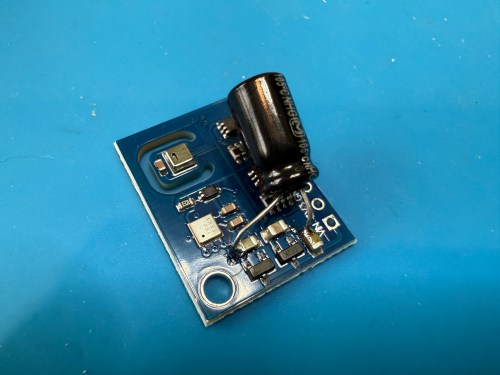
Update: I’ve had to make a small update by adding a 47uF capacitor to each ENS160 board, because they have power issues, causing the reading to stop for periods of time. My boards matched up with the right ones in the picture at that link. Here’s a picture of another ENS160 I modified, since it was a tight squeeze to made the modification on the devices I posted about here with everything already wired up. I also realized I was powering these through the 3V3 pin instead of VIN, so I fixed that.
I’ve also improved the display of the data on my dashboard by using mini-graph-card.


Unboxing – HackerBoxes #0023: Digital Airwaves

I was able to avoid spoilers on this month’s HackerBox again, even though something happened with my shipping over the weekend. It arrived Monday instead of Saturday like it was originally scheduled.

Unique box. I’m excited to go through the Instructable for this box and learn some stuff about antennas and WiFi. The PVC pieces and copper wire are for making a custom antenna, which will be fun. I checked my box of goodies to see which WeMos board I had recently bought and it was the Mini Lite. I think I have one of each of their tiny boards now.

I tried to come up with a value for the box again. All prices are from Amazon (with my Prime account) unless noted.

  • HackerBoxes #0023 Collectable Reference Card – $1 (estimate)
  • USB Wi-Fi Interface Device with RT5370 Chipset – $5.89
  • WeMos D1 Mini Pro-16 – $5 + 1.81 shipping (AliExpress)
  • WeMos I2C OLED Shield – $4.50 + 1.58 shipping (AliExpress)
  • WeMos ITX to SMA Antenna Coax – $4.95
  • Exclusive PCB Yagi-Uda Antenna Kit – $5 (estimate)
  • Exclusive CPVC Yagi-Uda Antenna Kit – $1 (estimate)
  • SMA male to RP-SMA male Coax Adapter – $5 (estimate)
  • Mini Tripod with Shoe Mount – $7.79
  • USB Extension Cable – $3.35
  • MicroUSB Cable – $4.16
  • Exclusive Yagi-Uda Antenna Decal – $1 (estimate)
  • Exclusive Digital Airwaves Iron-on Patch – $2 (estimate)

This was a hard box to price out, so there are a lot of estimates. I didn’t see the PCB antenna anywhere and the parts for the PVC antenna are obviously DIY. The random bag of connectors doesn’t seem to be from a kit of any kind. There was also another antenna in my box not on this list. So I’ll add another $10, which all adds up to $64.03.

AdaBox004

I received the latest Adafruit AdaBox last Thursday and made this unboxing video.


As you may have guessed, AdaBox004 has a music theme. I’m excited because I’ll be using several of these parts in my current project. I need to finish it before the weekend so I guess I better get my ass in gear.

When you lay it out, this one seemed a light compared to the first 3 AdaBoxes, so I added up prices from the Adafruit store. It came to $73 without factoring in the empty white box for making a custom project enclosure, collectible “Boomy” pin, SD card, Make volume 57 signed by LadyAda, and free shipping. Probably about a $90 value for $60 as a subscriber, which is worth it. The $25 Music Maker FeatherWing with the $20 Feather HUZZAH really drove up the price, limiting what else could be included.

If you enjoyed the music in the video, it was released by Adafruit’s in-house musician to go along with this box. Check out “ADABOX004” on SoundCloud. BartleBeats also has a full album I’ve been listening to a lot while working at my hobby desk. “Frequency” is available on SoundCloud or via iTunes.

Next up… this morning I received the tracking info for HackerBox #0020. Note that AdaBox uses a 3 digit identification system, while the HackerBox uses 4 digits. The difference between a quarterly and a monthly subscription I guess.

Entertainment While Traveling To/From Bulgaria

When you fly to Eastern Europe, it’s important to have entertainment to pass the time. I split time between a couple of books and a few movies.

The Hardware Hacker: Adventures in Making and Breaking Hardware

the-hardware-hacker-book-coverEarly this year, I enjoyed watching Ask an Engineer with Andrew “bunnie” Huang. I’ve been meaning to read his book The Hardware Hacker: Adventures in Making and Breaking Hardware. Especially with all of the hardware experimenting I’ve been doing. I haven’t been making time to read any books lately, but I figured this trip would be a great time to get back on the train. I bought the book and added it to my Kindle.

The title is misleading; The book’s main focus is on the manufacturing of hardware. Even though I’ll probably never manufacture a hardware product, I did learn a lot and enjoyed the read. Many of my favorites parts of the book centered around China. More to come in an upcoming blog post, once I do some research and learn more about a few topics.

I should check out bunnie’s other book, Hacking the Xbox: An Introduction to Reverse Engineering.

Hidden Figures

I’ve been wanting to see this movies, so I jumped all over it when I saw it in the Delta options. Really enjoyed it. We take computers for granted so much and it’s pretty amazing to think that we made it into space with so much of the math being done by hand. The movie was a good reminder of how far we’ve come with gender and racial equality in the last 50 years. We still have so far to go.

Steve Jobs

Steve_Jobs_by_Walter_Isaacson Pretty sure I’ve had this on my Kindle for at least 5 years, maybe even since it was released in October of 2011. After reading the Hardware Hacker and learning so much about electronics lately I felt it was a good time to dive in.
Amazon says the book has 657 pages, so it’s no wonder I didn’t finish it. I think I’m just over 1/3 done.

I’m actually glad I waited so long to read the book; getting a better understanding of how electronics work and tinkering with them is allowing me to appreciate Jobs’ early years more than I would have before.

Collateral Beauty

An enjoyable feel-good story. Doesn’t hurt that Will Smith, Keira Knightley, and Edward Norton all starred in it; they are some of my favorites.

Jack Reacher: Never Go Back

Does Tom Cruise ever age? I liked the first one better. Most of the fight scenes were pretty poor in this.

Phone Keypad Hacking: Part 4

So when part 3 of this series turned out to be a bit uneventful, I wasn’t expecting a grand finale with fireworks. I was right about it being more difficult though.

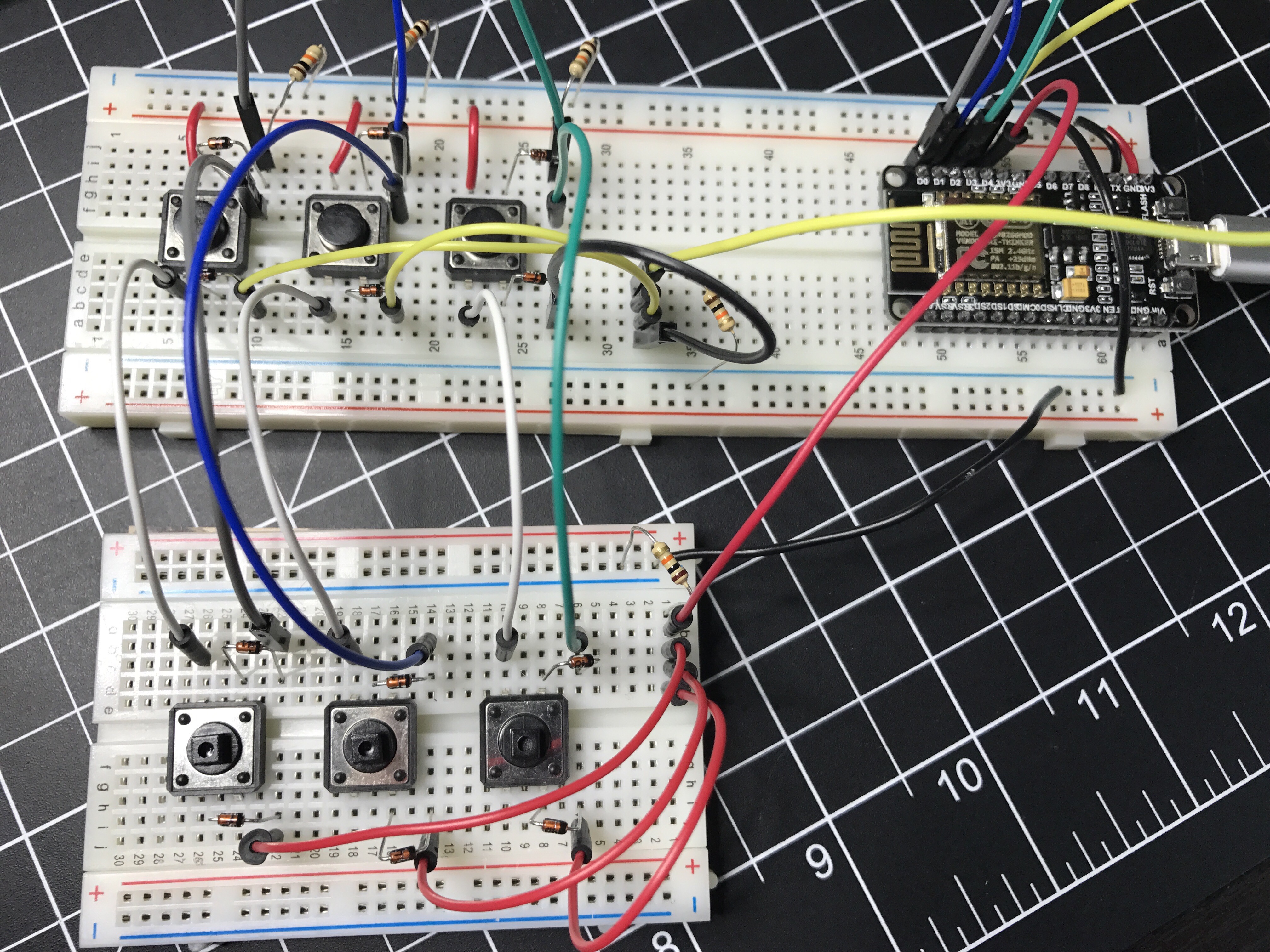
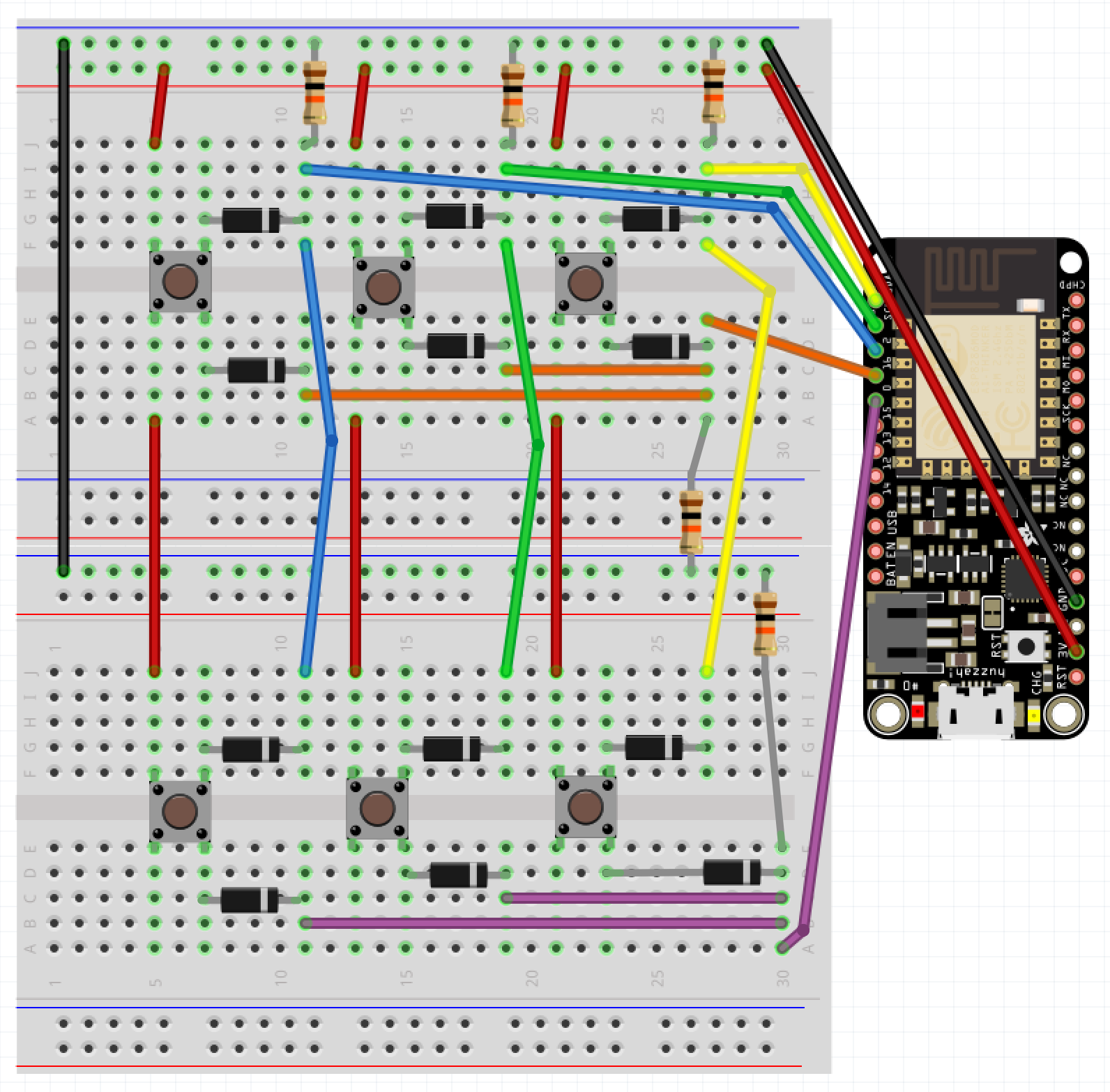
Through numerous failed attempts I was running into trouble isolating the signals between the rows and columns. Everything was getting connected in one big circuit. Then I realized it was a perfect place to use diodes! Each button needed 2 though; one for its connection to the row and one to the column. I have a bunch of 1N4148 signal diodes so I wired everything up.


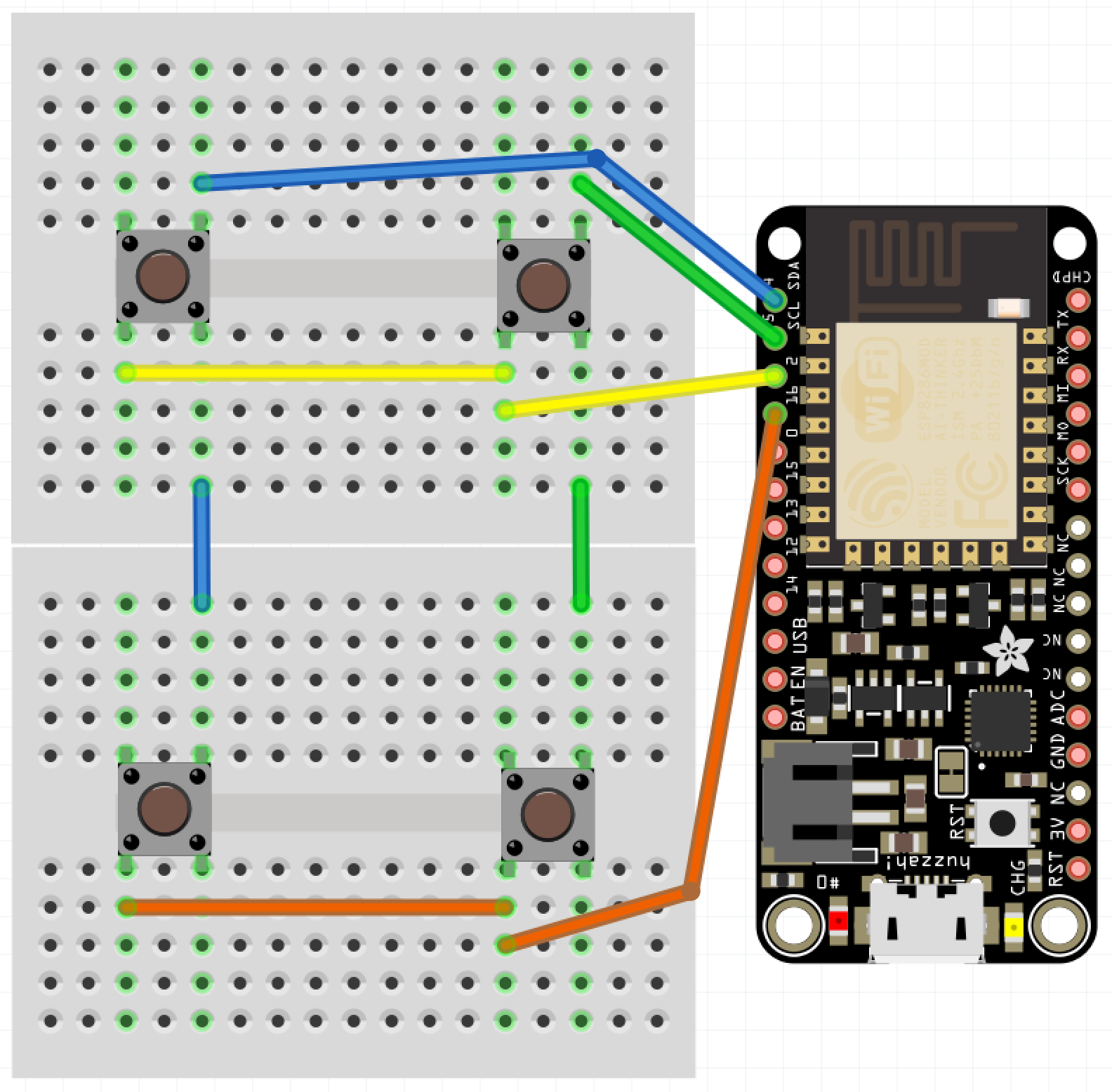
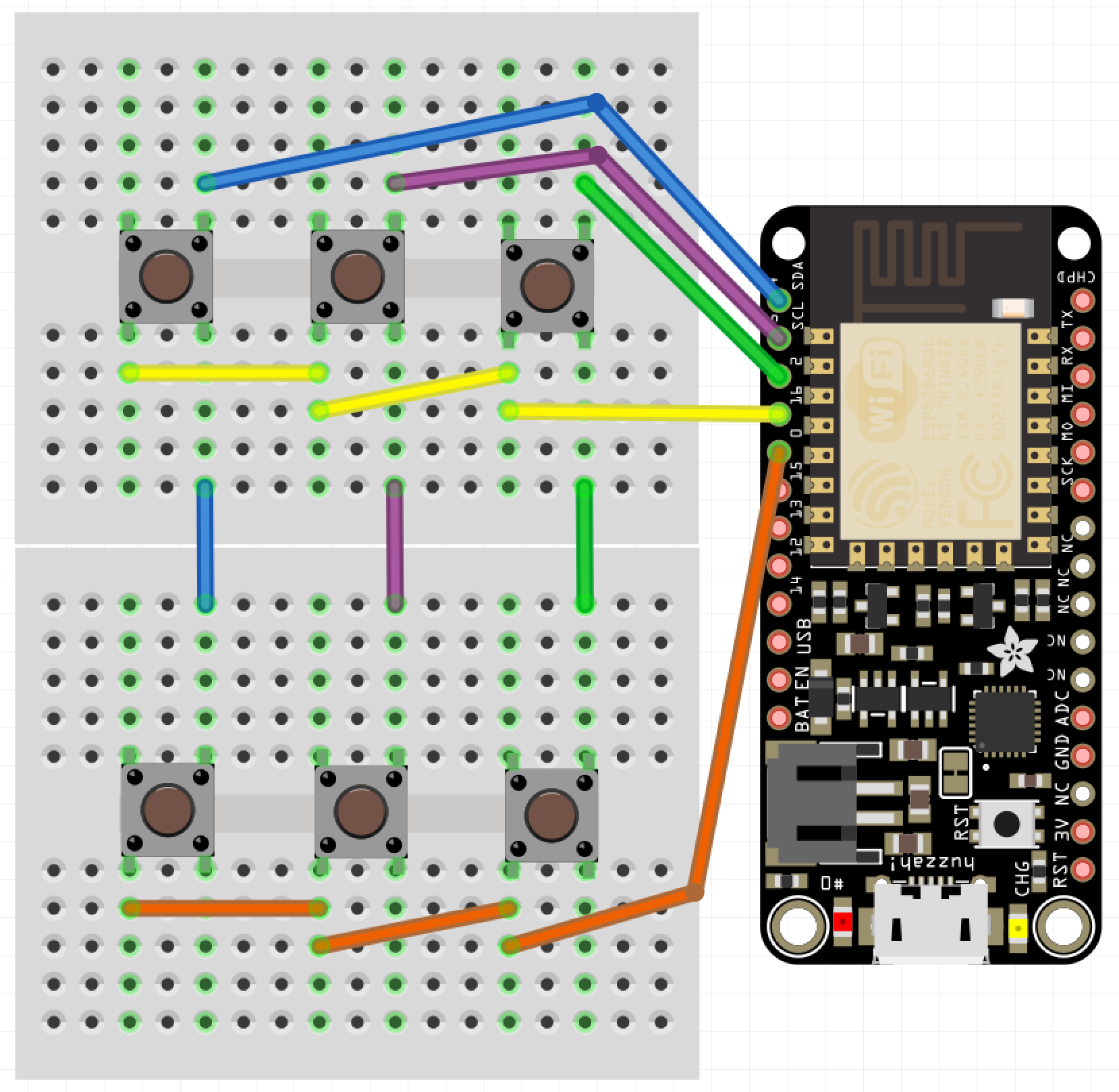
Although the Fritzing is using a different board than in the implementation pictured above, it’s much easier to follow the wiring…

2x3-custom-keypad-wiring.png

This obviously is a lot more complicated circuit than the examples in part 3 of this series. It was a success at what I set out to do though and it works great with my custom keypad code. I’ve also added the actual Fritzing file for this circuit to the repo.

I’m glad I continued down this path with keypad experimentation. I learned a lot. In the beginning I was wondering why the keypads you can buy these days work the way they do and not how I had wired up the old phone keypad to function. Turns out what ended up being a simple solution for me was due to how the old phone keypad made its connections mechanically inside the device. The keypad solutions I showed in part 3 are much easier to create as I’ve now proven by recreating the circuit above.

I’m still curious if I could wire up the old phone keypad to work with the Arduino Keypad library. I guess if I ever get my hands on another old phone, I’ll have to continue with a part 5 of this series.

Phone Keypad Hacking: Part 3

In parts 1 and 2, I walked through my journey of repurposing the keypad out of a phone from 1980. I learned that a more modern keypad matrix doesn’t exactly function (behind the scenes) in a way I’d expect. I wanted to understand it better so I set out to recreate a 2×2 keypad (kept it simple to make wiring easier) that would function the same way as something you can buy today. It would be a success if it worked with the Arduino Keypad Library.

adafruit-3x4-keypad

From my earlier looks through the code I knew it pulsed power out to a column pin and then read in each row’s key from that column before switching to the next column and repeating the process. I figured that should be enough for me to wire this up and try example programs without going back to look at the library’s code again.

I don’t know why I was thinking this would be more complicated and at least a little more exciting, but it was unbelievably easy. I guess I should be celebrating I understood how it worked. Literally all you do is connect one side of every button in a column to a pin and one side of every button in a row to a pin. No need for connections to power, or ground. No pull up/down resistors.

2x2-keypad-matrix-wiring.png

It immediately worked with the Arduino Keypad library examples, even the MultiKey one. I guess being able to detect multiple key presses at once is where the advantage to this implementation comes in. It worked flawlessly when pressing 2 of the 4 buttons, but when you get to 3/4 there are too many connections to distinguish the keys.

Just to be sure I had it figured out, I added a 3rd column to make it a 2×3 grid and it was just as easy.

2x3-keypad-matrix-wiring.png

I love the beauty of how simple this is. I’ve added Fritzing for both of these to my phone-keypad GitHub repo (2×2 & 2×3). If you check this PDF, in the How it Works section it has a really good explanation and shows the row and column connections exactly like I came up with.

Naturally now I need to do a part 4 and attempt to recreate the keypad implementation I ended up with from the old phone. Due to how it mechanically makes the electrical connections I think it’s going to be a bit more complicated than this was. We shall see…

Update: Read part 4.

Phone Keypad Hacking: Part 2

Go back and read Part 1 if you want to the full story on this little project. I did decide to get rid of the PCB on the old phone keypad. Good thing I’ve been getting a lot of desoldering practice. In order to remove the PCB, I first had to remove the wires I had added to the column and row contact points. That was easy and getting the PCB off was a pretty smooth process as well.

PCB and new look of the back side of the keypad.

Other side of the PCB. The white rectangle is the back of the 557D IC.

Now that I didn’t have the PCB to carry power and ground around everywhere, I had to solder in my own wires. I also had to solder back in all of my connection points to provide the outputs I’d feed into a microcontroller (I used an Adafruit Feather 32u4 Basic Proto).

Once all of the wires were in place and then connected to my microcontroller I wasn’t getting expected results from a simple little program I wrote to display the values. Took far too long for me to remember I needed to use pull down resistors to prevent floating values. I put 10k Ω resistors in each of the circuits…

img_8994
Prototyping with pull down resistors.

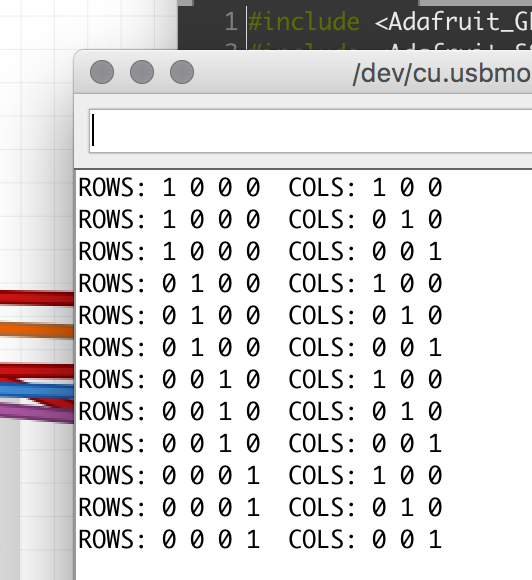
Output from the pins couldn’t get any better…

phone-keypad-row-col-values.png

I loaded an example from the Arduino KeyPad library, which gave me very weird behavior. After looking at the underlying code, I realized it wanted the outputs of the keypad to be HIGH when a key was not pressed and LOW when it was. Well, my circuit was doing the opposite, so I had to have to invert everything. I didn’t have any inverter ICs, so I used NPN transistors to create an inverter circuit on each output.

img_8993
Prototyping by inverting the output of the keypad column and row values.

Progress. Now I was able to get the library to correctly recognize some key presses. 95% of the time it seemed to think everything was coming from column 1 (1, 4, 7, *) though. The library comes with a MultiKey example. When I ran that, it was reporting every key on the row as being pressed. WTF?!

For the life of me I could not figure out what caused this. I checked wires, measured voltages, did continuity tests, resoldered connections, changed boards, used different GPIO pins, and countless other things. Nothing made a difference. My own code was working beautifully though. Eventually I gave up on the library. It wasn’t worth the effort and I was out of ideas.

Update: Later on I went back and read the KeyPad library code again because it was bugging me. Turns out these keypads don’t actively read the column pins like they do the row pins. My assumptions about how they worked was very wrong because I hadn’t read far enough into the code before. When checking for key presses, typical keypads iterate through the columns to send a pulse which feeds over in to the rows, which are then read in. How a Key Matrix Works has a pretty good explanation with visuals. If I get my hands on another similar keypad maybe I’ll try to recreate this functionality.

I rewired everything to use the pull down resistors again (video of soldering). A huge benefit of the decision was it drastically simplified my circuitry. This would save me 49 solder points! I probably would have needed to use a half-size perma-proto board instead of the 1/4 size I ended up using.

I decided to put in a piezo buzzer to add sounds. I also used a tiny LED, which I had salvaged from some old computer speakers, to show when power is switched on to the backlight.

The finished board. Isn’t it a thing of beauty?


Side view before bending the output wires off to the sides.

I tried a couple of different methods of producing touch tones (DTMF) to match up with each key, but with the microcontroller I’m using and the small piezo buzzer, the sound was terrible. I would need something a little more capable I think.

Here’s a demo video.

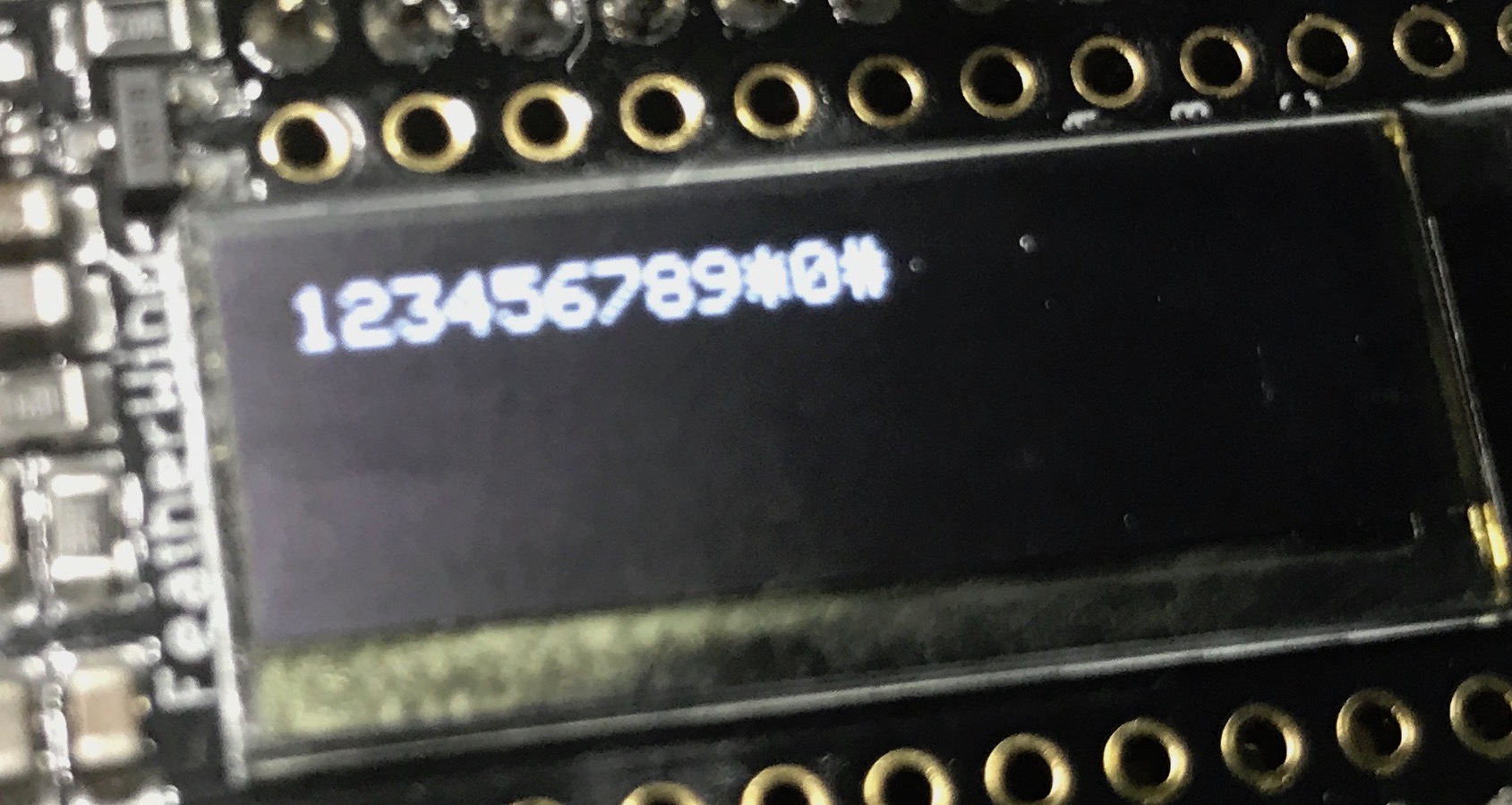
Hard to see the OLED screen in the video, but I was only using it to output each key press. Something like this…

phone-keypad-oled-output.jpg

All of the code and Fritzing wiring are available in my phone-keypad repo on GitHub.

I even went out of my comfort zone and did a quick share of this on Adafruit’s Show and Tell. If the video doesn’t start at the right spot you can skip ahead to the 12:42 mark. Going back to watch, my demo kind of sucked since it’s hard to hold something up to the Mac camera and push buttons at the same time.

Update: Continue on to Part 3, where I create a matrix of buttons to act as a keypad.

Phone Keypad Hacking: Part 1

Trimline_telephoneI’ve been on a kick tearing apart electronics. In addition to the switch I got a bunch of parts from, I’ve tore into a lamp and some old computer speakers. When I found an old telephone (it has a date of 5/30/1980 printed on it!) in my basement I knew I had to see what was inside. The previous owners left it in a storage room and I have no idea why I never pitched it. I didn’t take a picture before taking a screwdriver to it, but it looked exactly like the photo on the right.

People have been hacking phones for a long time. Perhaps the earliest and most well-known was the Steves (Jobs and Wozniak) using a blue box on payphones. I’m nowhere near that level, but you have to start somewhere right? I pulled the ringer, speaker, and microphone out of it. I haven’t messed with these yet.

A lot of parts were extremely dirty.

The part I thought would be neat to work with was this keypad.

img_8973

img_8975
With the faceplate removed you can see the date stamp in the upper right.

Back side.

It was a bit of a process figuring out how to tap into this thing. Eventually I realized what these contact switches on the sides were for.

img_8977.jpg

img_8988There are seven of them. The top has two and the bottom has one, which correspond to the 3 columns of keys on the grid. Then the left and right sides each have 2, which match up with the 4 rows of keys.

This row/column grid system is still how we reference the individual keys on keypads like this. Arduino has a Keypad library for working with modern keypads like one sold by Adafruit.

I figured out I could solder wires to the contacts points connected to each of those switches. I was in! From the way the keypad was connected to the rest of the phones circuitry I knew the screws were an important piece to tie it all back into the entire system. After some trial and error I determined which screws should be used for power (red wire) and ground (black) in order to get useable data out of the 7 switch contact points. The other 3 screws also connect to power. I was using alligator clips on those, but disconnected them for the picture.

Something isn’t quite right about the screw connections though. When I connect them the opposite way, flopping to have 1 power and 4 grounds, the backlight on the keypad works, but the readings from the soldered contact points are useless. With them connected this way, I don’t get the backlight, but I get data I can make sense of. There is probably something obvious I’m missing about how this all works together.

Unfortunately for me, the output from the contact points isn’t digital (limited to on/off), so I couldn’t use the Arduino library. It would have made things so much easier. It’s not surprising though, since this piece of technology is almost 40 years old!

I was able to get some code mostly working. Detecting the column of a button press was pretty straight forward and works great. Rows detection is another story. I’m reading in analog values and using sampling along with standard deviations to determine which row’s value is unlike the others. Well, the first row always reads a pretty high value, when a key on any row is pressed. The values for the other rows fluctuate as expected. When that first row is high, I’ve attempted to also look for a high value from another row, but it triggers the wrong row too often.

Demo time…

Even making this short little video, which took at least 5 takes, there was a false trigger for pressing 1 and many key presses not being recognized. Not useable.

I have a hunch the screw connections are responsible, at least in some part, for sending DTMF signals, also known as Touch-Tone. I don’t really care to get in the business of decoding these. This is precisely why I was hoping I could detect useful output from each of the row and column contact points.

I pulled apart the unit even more and discovered a Western Electric 557D is the brains of the operation, but it’s so old there doesn’t seem to be a datasheet online for it. What I’m going to do is remove the PCB and wire up everything on my own. Then I can easily get on/off as digital values from the columns and rows and make sure the backlight works. Stay tuned…

Update: Read Part 2