Building a Basement Golf Simulator: The PC

I’m putting a golf simulator in our basement, so this will be part of a series of posts about different aspects of the build and process.

When planning out the project, my first thought was to buy a gaming laptop for ease and portability. I have no need to move the computer around the house though and they’re very expensive. So I briefly looked at buying a pre-built gaming desktop, which can still be expensive. Building my own would save a ton of money. I hadn’t built a computer or even owned a Windows machine in close to 20 years and I was eager to dive in.

I found a starting parts list Reddit and swapped out a few things. Here’s what I ended up getting:

Total cost, with Black Friday sales, was just shy of $1,850.

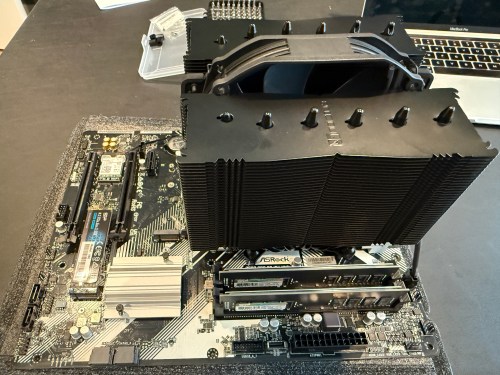
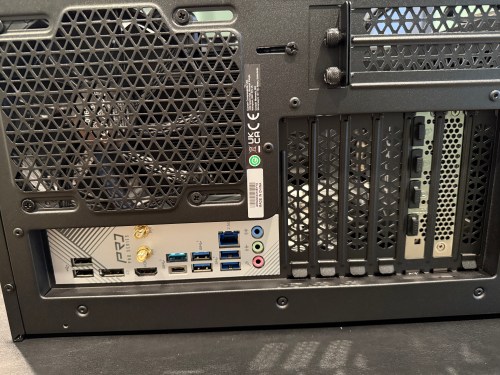
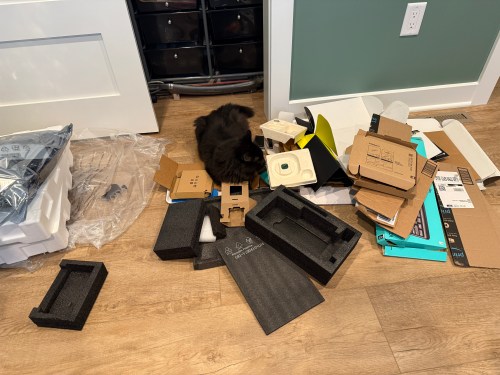
I actually managed to put together a working computer! The only mistake I made was not connecting an extra cable from the power supply to the motherboard, which provides more juice for the CPU and memory. It may have been easier to connect all of the cables before installing the graphics card, but it may have caused other issues.

Then it was time to install the operating system. I downloaded an ISO of Windows 11 Home from Microsoft and created a boot drive on a USB stick with balenaEtcher on a Mac. I’ve used balena many times to create boot drives for installing Raspberry Pi operating systems, but Windows was not happy. During installation it was giving the error “A media driver your computer needs is missing.” I turned to Google and found out a Windows boot device is special and balena doesn’t do whatever is required. I used WinDiskWriter to create a new boot drive, which then launched a working Windows install.

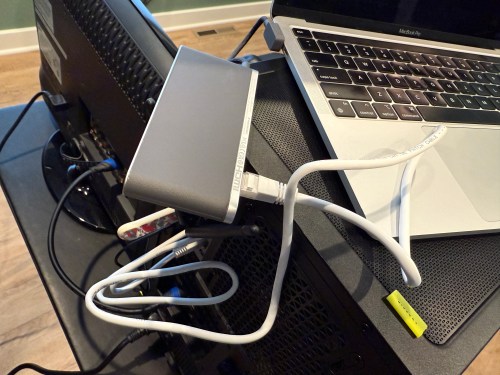
At one point an Internet connection was required and the drivers for the WiFi adapter weren’t installed yet. I still don’t have the Ethernet in our house connected, so I had to share my MacBook’s Internet connection from WiFi through a USB Ethernet device.
After several reboots and various Windows updates, it’s a working PC. I’m pretty happy with how it went. The stand came in a few days later and was easy to assemble.

Time to get everything else setup and get some golf balls!

The second post in this series covers my sim environment and the third post covers the other electronics and everything else.
grasshopper

I bought the new Raspberry Pi Zero W along with the official Raspberry Pi Zero case. It’s really nice not having to worry about a wireless adapter. The addition brings my Pi family up to 7, which of course means it’s time for the letter G. Not a lot of pies starting with G. I ended up going […]

The Joy of Computing

The thing those computers didn’t do was tell me that I couldn’t do something because a marketing department or executive or shareholder wanted to prevent me from doing it, so they could sell me something else that would do that thing. Once we bought the computer, we owned it, and as much as I enjoy my tablets and smartphones and iMacs and whatever, getting back to my Linux command line and learning Python and talking to other enthusiasts online about what they’re doing with their little Raspberry Pis is reawakening this passion and joy that has been dormant inside of me for a long, long time.

rediscovering the joy of general purpose computing by Wil Wheaton

I’m having a similar reawakening as I mess around with Pis and microcontrollers.

Review: 2016 MacBook Pro

I posted some very quick initial thoughts after about 10 minutes with the new MacBook Pro. Last week I was able to get everything installed and configured for work and spend some time with it. It’s the best computer I’ve ever used, passing the MacBook Air I had in 2011.

My two favorite things are the keyboard and Touch ID. Not only do I love the clicky sound of the keys, but the feel is completely new and makes it seem like I’m typing a lot faster. Having Touch ID in Mac OS is everything I hoped it would be. Using 1Password is a completely different experience.

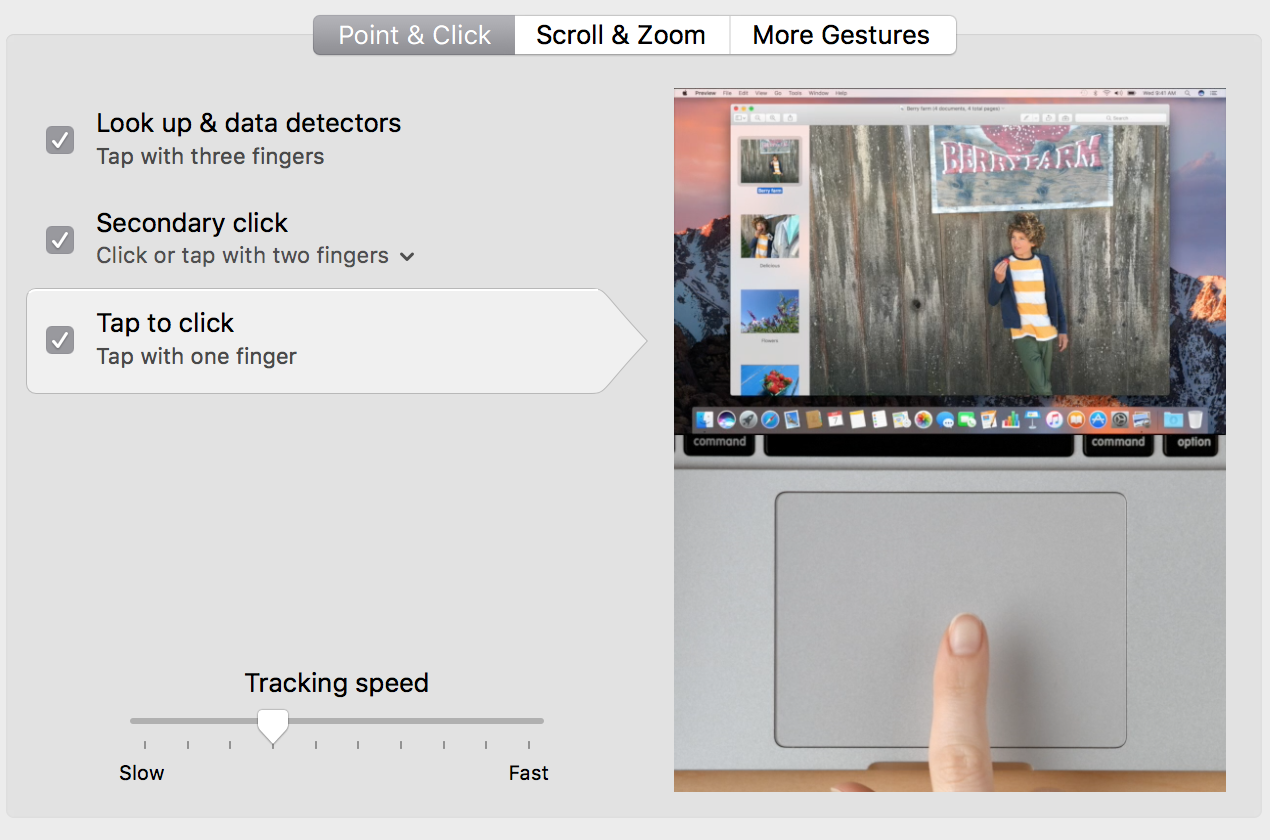
I also like the trackpad and the feel of “clicking.” Admittedly, I don’t click much on the Mac since I have Tap to click enabled in System Preferences. I was worried about the increased size of the trackpad but it hasn’t been an issue; their wrist detection software is as good as people said it was.

mac-tap-to-click

The difference in size (all dimensions) and weight are considerable from the previous generation, which hadn’t changed much in years. The battery does seem to drain faster though, which isn’t great.

I’m not sold on the usefulness of the Touch Bar yet. It’s a neat concept and done well. Time will tell on this one. Not having a physical esc button has tripped me up more than I expected.

Being able to plug power in on any of the USB Type-C ports is very handy. The number of dongles I had to order so I could use all of my devices seems ridiculous though.

My only major complaint is not having a MagSafe power connector.


3 MacBook Pros

My new MacBook Pro came yesterday. While not much felt different in my last laptop upgrade, I could tell this one was completely different right away. The size and weight remind me of the MacBook Air I got in 2011. The new color is fresh. Trackpad “clicks” feels familiar, maybe because of the new iPhone 7 home “button.” The […]

Pi Tips

I stuffed myself on Raspberry Pi this weekend, making great progress on my Pi 3 project, getting to a usable basic v1. I’ll share more details on this after Thanksgiving. I also decided to rebuild my Pi Zero Homebridge server by installing Raspbian Jessie Lite (previously installed Raspbian via NOOBS) since it’s a headless system. It’s always fun to mess around with linux, though I couldn’t handle it as a full-time operating system.

While it’s fresh in my mind, here are some things that either tripped me up in the past or I found over the weekend.

  1. If you hide your Wi-Fi network, after you install Raspbian you’ll be scratching your head wondering how to connect. There is no UI for it and you might not even be setting up your Pi to launch into a GUI. Might as well dig into the command line right away by editing a couple of files.
  2. Monitor configurations are a pain in the ass. For the longest time I thought the 7″ display was a piece of shit because it was so blurry. Can’t this stuff be plug-n-play? Then then 3″ display I bought for the Pi 3 seems upside down considering where most of the ports are located. I found a little package of scripts called LCD-show linked off a LCD info page. I’m not even sure if my LCDs are close to the ones sold by this company, but these scripts work great. You can easily reboot in different screen orientations too (the rotation didn’t seem to work properly with the mouse on my 7″, but I didn’t try to troubleshoot at the time).
  3. Use Unclutter to hide your mouse cursor when you don’t need it.
  4. Clone and restore SD cards from the command line, because you’re in the linux spirit already.
  5. Since I only access the Pi Zero via SSH, being welcomed by a bit of color with some info about the machine and reminders helps to increase the sugar content. I made a few modifications (my version is below) to a custom MOTD. The colors are set by $(tput setaf 5) and changing the number (color table). You probably want to add this to .bashrc though and not .bash_profile as instructed.

raspberry-pi-custom-motd

    let upSeconds="$(/usr/bin/cut -d. -f1 /proc/uptime)"
    let secs=$((${upSeconds}%60))
    let mins=$((${upSeconds}/60%60))
    let hours=$((${upSeconds}/3600%24))
    let days=$((${upSeconds}/86400))
    UPTIME=`printf "%d days, %02dh%02dm%02ds" "$days" "$hours" "$mins" "$secs"`

    # get the load averages
    read one five fifteen rest < /proc/loadavg

    echo "$(tput setaf 5)
    --- Raspberry Pi Zero ---
$(tput setaf 2)
       .~~.   .~~.    `date +"%A, %e %B %Y, %r"`
      '. \ ' ' / .'   `uname -srmo`$(tput setaf 1)
       .~ .~~~..~.
      : .~.'~'.~. :   Uptime.............: ${UPTIME}
     ~ (   ) (   ) ~  Memory.............: `cat /proc/meminfo | grep MemFree | awk {'print $2'}`kB (Free) / `cat /proc/meminfo | grep MemTotal | awk {'print $2'}`kB (Total)
    ( : '~'.~.'~' : ) Load Averages......: ${one}, ${five}, ${fifteen} (1, 5, 15 min)
     ~ .~ (   ) ~. ~  Running Processes..: `ps ax | wc -l | tr -d " "`
      (  : '~' :  )   IP Address.........: `/sbin/ifconfig wlan0 | /bin/grep "inet addr" | /usr/bin/cut -d ":" -f 2 | /usr/bin/cut -d " " -f 1`
       '~ .~~~. ~'    Hostname...........: `hostname --long`.local
           '~'
$(tput setaf 6)
Homebridge Commands
  sudo journalctl -u homebridge -n 300
  sudo systemctl status homebridge (also start/stop)
    $(tput sgr0)"

What are your favorite Raspberry Pi tips?

Wireless Mouse on the Fritz

Almost every night lately my wireless mouse goes nuts. The optical light or whatever you call it starts blinking non-stop, which makes the cursor jump across the screen whenever I try to do something. It’s as if it’s getting a constant signal from something else in the area. Anyone have any ideas?