Lock Screen and Sleep Display with Quicksilver

Looking for a quick way to lock your screen and put the display to sleep on Mac OS X using Quicksilver?

  1. Download Sleep Display.
  2. Extract the zip file and move SleepDisplay to your Applications folder.
  3. Run the SleepDisplay application at least once.
  4. Fire up Script Editor and enter the following code:

    do shell script "/System/Library/CoreServices/Menu\\ Extras/User.menu/Contents/Resources/CGSession -suspend"

    launch application "SleepDisplay"

  5. Save this script to a location cataloged by Quicksilver.
  6. Create a HotKey Trigger in Quicksilver to run the script. I use command-control-shift-S as my keystroke combination.

I’m running Mac OS 10.5.1 on an iMac and this works great!

My iPhone

I didn’t get an iPhone on Friday, but the local AT&T store took a direct fulfillment order and I’ll get one before the store gets their next shipment. I got inline at 3:45 pm for the 6 pm sale of iPhones and I was #34 in line. The AT&T manager did a good of handling the line by taking everyone’s name, but when 6 pm rolled around the situation was horribly slow. It took nearly an hour for the store to go through their shipment of iPhones. And they only had 20! Yes, you read that right, they only received 20 iPhones, but it took an hour to sell them all.

I have no idea what was taking so long but they’d let in 4-5 people at a time because that is how many sales people could handle it I guess. Several people left the line after the iPhones sold out, so I wasn’t even the 34th person to go in the store and I didn’t get in my car until 7:20 pm. It was pretty ridiculous if you ask me.

I know it’s not the fault of the store for how many phones they received, but I do think they could have worked the line at least twice as fast as they did once 6 pm rolled around. I was very surprised the store only received 20 phones when it’s the only place within an hour drive where you could buy an iPhone. Hopefully it doesn’t take too long for them to ship it from the warehouse now.

I'm Awake At 5am On iDay, The Launch Of The iPhone

I’m going to go get in line at my local AT&T store to wait for an iPhone. Ok, so not really. I’m awake because of a combination of needing some pain pills for the dental work I had done yesterday morning and my sprinkler system woke me up as well.

I have decided to get my hands on an iPhone tomorrow though. I won’t be crashing all night like these people. I think they’re a little crazy, but it’s exciting at the same time. I hope I can get in line here in Saginaw no earlier than 5pm and easily be able to get one. I’ll update my status with my Twitter account (which I hope to have integrated into this site sometime in the near future, especially if I get an iPhone).

I’m just so sick of my Razr and can’t wait for the iPhone. I know there are some drawbacks, but a lot of the things people are talking about can easily be added or fixed with updates from Apple right through iTunes. In addition to having an all in one device, I’m very excited to have the Internet on a phone which is actually useful.

Unlock iPod Screen Lock If You Forget The 4 Digit Combination

I’ve have several a lot of people post questions on other posts here at MDV asking how to unlock the iPod Screen Lock function if you forget the 4 digit combination/pass code, so I figured I would write up a short tutorial here to direct people to.

There are basically three ways to unlock the Screen Lock on your iPod:

  1. The most obvious and will not work for most people (or else you wouldn’t be visiting this web site). Simply enter the 4 digit combination/pass code at Extras > Screen Lock.
  2. Connect your iPod to the first computer it was synced with or the computer set as the primary one in iTunes. Open the iTunes application, then disconnect your iPod from the computer, and it should no longer be locked.
  3. Use this final way only if the first two options do not work for you because it is a destructive process.

    Everything on your iPod will be erased.

    This should not be a problem if you have all of your songs, videos, and other media stored in iTunes and you can synchronize once again after getting the iPod unlocked. Besides, if you don’t unlock your iPod it’s useless right? Learn how to Restore your iPod using the instructions from Apple’s site.

If your iPod is simply frozen, follow my instructions for an iPod Lockup Reset.

I Want An iPhone

The iPhone comes out this Friday, the 29th. I was at the MacWorld Expo keynote in January when Steve Jobs announced the revolutionary phone/iPod/Internet device and I was very excited to see it. I’ve thought about it quite a bit because my current Verizon contract isn’t up until February, so if I did get one, I’d have to pay nearly $200 to cancel my contract. What to do?

I could wait until February to get the iPhone and by that time they might have a newer one available with more storage capacity and GPS capabilities. The price might drop a couple hundred bucks by then. But boy, would I love to have the iPhone right away.

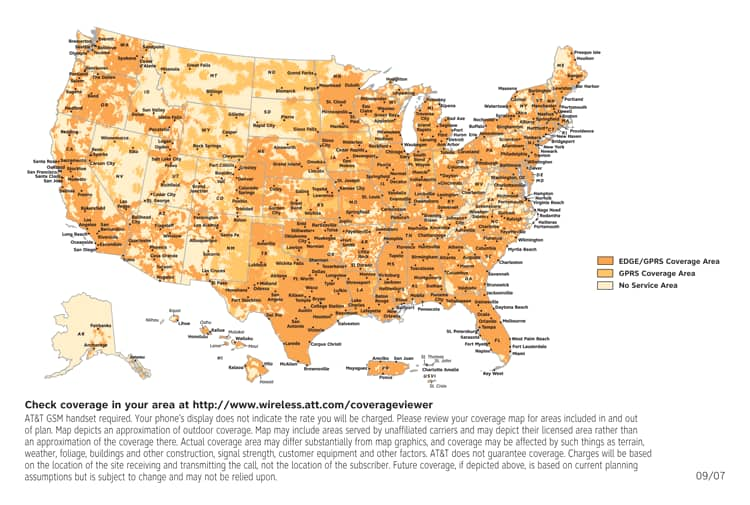
When I grabbed the link to the Apple iPhone page, I saw the rate plans were there and it’s a lot more affordable than I (or anyone else) expected it to be. For $60 a month, which is $15 more than I currently pay, I can get the same number of minutes I get now, but I’ll have an unlimited data plan. The one big question about the iPhone right now is…how fast will data actually be on AT&T’s Edge network. There are so many great things about the iPhone, which I won’t waste my time going over here (just look it up on Google and you’ll find tons of info), but the data speed can really make or break the deal for me. If I bought the iPhone I’d be using it all the time because there really isn’t any other portable device out there with Internet capabilities like this.

So what do I do?

If I decide to get one, you can bet, I’ll be posting again in a few days…